
Highlight
The visionOS App Store automatically lists all compatible iPad/iPhone apps by default—no code changes or new builds required. For a native experience, create a new app or add a platform for universal purchase. TestFlight fully supports visionOS with platform switching, auto-updates, and screenshot feedback.
Core Content
When the visionOS App Store launched, every developer faced the same question: how does my app appear on this new platform?
Apple offers three paths. The simplest: do nothing. All compatible iPad and iPhone apps automatically appear on the visionOS App Store—no code changes, no new builds. The second path is adding visionOS platform support to an existing app for universal purchase—users who buy on iPhone can use it on visionOS, with in-app purchases shared. The third path is creating a brand-new visionOS app designed from scratch for spatial computing.
Whichever path you choose, App Store Connect manages the listing process. This session breaks the flow into three parts: listing strategy, TestFlight testing, and privacy label updates.
Three listing strategies
Strategy 1: Automatic compatibility (zero-cost launch). All compatible iPad and iPhone apps automatically appear on the visionOS App Store by default. No developer action required. If an app performs poorly on visionOS, go to the Pricing and Availability page in App Store Connect, find the “iPhone and iPad Apps on visionOS” section, and turn off “Make this app available.” You can also click the ellipsis on the Apps page and choose “iOS Apps on visionOS Availability” to batch-manage availability for all apps.
Strategy 2: Add visionOS platform (universal purchase). Click “Add Platform” in the left sidebar of an existing app record, select visionOS, then upload a visionOS build. Users purchase once and use across all platforms; in-app purchases are shared cross-platform. Note: once you publish a native visionOS version, it replaces the previously auto-compatible iOS version—users see your native app, not the iPad compatibility version.
Strategy 3: Create a new app. Click the plus button at the top left of the Apps page, choose “New App,” and select visionOS in the platform list. Suitable for new brands or different pricing and availability strategies from existing apps. When creating, fill in name, Bundle ID, and SKU.
Full TestFlight support for visionOS
TestFlight visionOS support is identical to other platforms. Create internal or external test groups and invite testers via email or public link. If you added visionOS to an existing app, use existing test groups—testers automatically receive multi-platform builds.
Each test group has a toggle controlling whether testers can install compatible iPad/iPhone apps on the headset. This lets you expand testing in phases: first have core testers validate the native visionOS version, then gradually open compatible app testing.
Tester device experience
Testers opening TestFlight on visionOS see all installable apps in the sidebar—including native visionOS apps and compatible iOS apps. Incompatible apps are grouped under a separate “iOS-only” category.
When developers provide both visionOS and iOS test builds, a switch appears at the top of the app page letting testers choose which version to install. The app detail page shows description and device compatibility. Scroll down to App Settings to customize notifications and enable auto-updates (new builds download and install automatically).
Beta app names have a yellow dot marker, consistent with other platforms. Compatible iPad/iPhone beta apps go in a dedicated folder, also marked with a yellow dot.
Screenshot feedback and crash logs
Testers press Digital Crown and the top button simultaneously to capture a screenshot on visionOS. Then in TestFlight, select the app, tap “Send Feedback,” describe the issue, and attach the screenshot. Screenshots can be cropped or annotated before submission.
If a beta app crashes, TestFlight proactively prompts testers to send feedback. Testers describe steps taken; crash logs are automatically submitted with feedback.
Developer-side analytics
When viewing feedback in App Store Connect, filter by platform and build version. Feedback details include screenshots and description text; crash logs can be downloaded or opened directly in Xcode Organizer.
Tester engagement metrics appear in two places: App Store Connect web and mobile. Metrics include how many testers installed a version, how many actually launched, and how many submitted crash or screenshot feedback. View by build version or by test group for individual tester participation.
Three new privacy nutrition label data types
visionOS introduces three new data collection types that developers must declare on the App Privacy page:
- Environment Scanning: Whether the app collects surrounding environment data (meshes, planes, scene classification, image detection)
- Hands (under Body): Whether the app collects hand structure and hand movement data
- Head (under Body): Whether the app collects head movement data
This data appears on App Store product pages so users understand what the app collects and how it is used.
Detailed Content
Adding visionOS platform to an existing app (02:15)
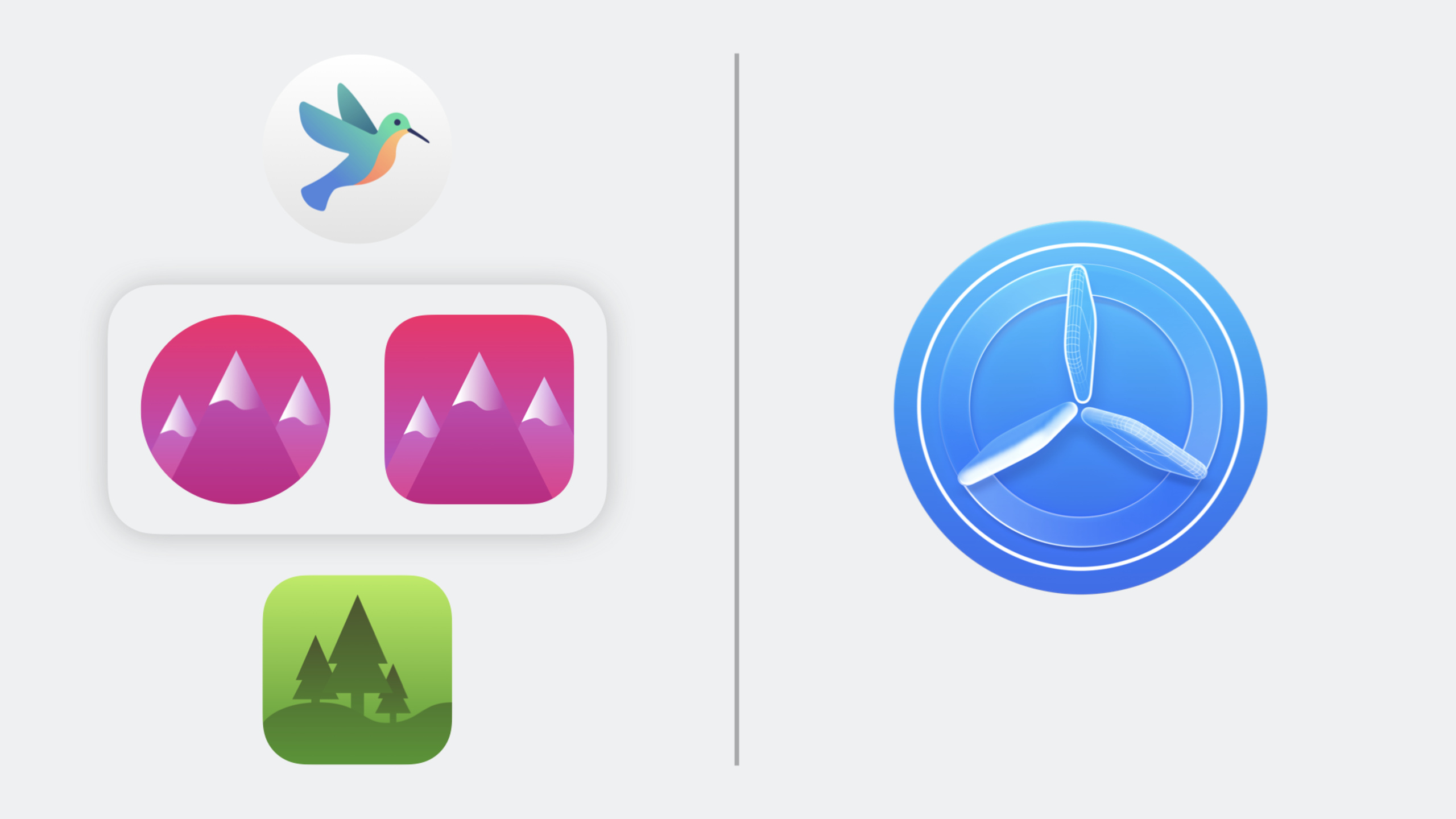
Suppose you have an iOS app called “Mountain Climber” and want to provide a native visionOS experience. Steps:
- On the Apps page in App Store Connect, select Mountain Climber
- Click “Add Platform” in the left sidebar
- Select visionOS in the dialog
- Click Add
- Start uploading visionOS builds
No new app record is needed. Cross-platform purchases and in-app purchases are automatically shared.
Key points:
- After adding the platform, app name and URL stay consistent across all platforms
- Users with auto-download enabled automatically receive the app on each device
- After publishing a native visionOS version, it replaces the iPad compatibility version previously on the visionOS App Store
Managing compatible iPad/iPhone app availability (06:30)
Batch management: Apps page top-left ellipsis → “iOS Apps on visionOS Availability.” See all compatible apps and toggle each one’s visibility on visionOS.
Single app management: Go to the app’s Pricing and Availability page → “iPhone and iPad Apps on visionOS” section → toggle “Make this app available.”
Key points:
- All are automatically available by default; no need to enable individually
- Turning off is irreversible in the sense that if the app performs poorly, user ratings suffer once seen—better to turn off first
- The page shows whether current and upcoming versions are compatible
TestFlight test group configuration (09:45)
Each TestFlight test group has an “iPhone and iPad Apps on visionOS” toggle controlling whether testers can install compatible apps on the headset.
This design supports progressive testing:
Batch 1: Internal test group → native visionOS version only
Batch 2: External core testers → enable compatible app installation
Batch 3: Public link testers → fully open
Key points:
- visionOS builds can be distributed to existing test groups; no need to create new ones
- Compatible app test toggle is controlled independently per group
- Testers view all testable versions from the same TestFlight app
Tester feedback flow (13:20)
Screenshot feedback steps:
- Press Digital Crown + top button simultaneously to capture screen
- Open TestFlight → select app → tap “Send Feedback”
- Fill in issue description
- Attach screenshot (can crop and annotate)
- Submit
Crash feedback:
- TestFlight automatically prompts after app crash
- Testers describe steps that triggered the crash
- Crash logs are automatically submitted with feedback
Key points:
- Screenshots can be annotated directly in TestFlight without switching apps
- Crash feedback is automatically triggered; testers do not need to find it in menus manually
- Developers can filter feedback by platform and build version in App Store Connect
New privacy nutrition label fields (16:50)
On the App Privacy page in App Store Connect, the Data Types section adds the following options:
| Category | Data Type | When to check |
|---|---|---|
| Environment Scanning | — | App collects mesh, planes, scene classification, or image detection data of surroundings |
| Body | Hands | App collects hand structure and hand movement data |
| Body | Head | App collects head movement data |
These data types apply not only to visionOS apps—if apps on other platforms also collect such data (e.g., iPhone LiDAR scanning), they must be declared too.
Key points:
- Environment Scanning is an independent data type category
- Hands and Head are subtypes under the Body category
- Data usage (tracking, linked to user, not linked to user, etc.) must be specified individually
Core Takeaways
-
What to do: Check your iPad/iPhone app compatibility on visionOS and turn off apps with poor experience. Why it’s worth doing: All compatible apps are automatically listed by default; user ratings and reputation are directly affected. Incompatible apps may show UI misalignment or interaction issues on visionOS. How to start: In App Store Connect → Apps → ellipsis → “iOS Apps on visionOS Availability,” review each app; turn off uncertain ones first and re-enable after testing.
-
What to do: Add visionOS platform to existing iOS apps for universal purchase. Why it’s worth doing: One purchase works cross-platform, improving user willingness to pay; no new brand needed—URL and ranking inherit from the existing app. How to start: Click “Add Platform” in the app’s left sidebar, select visionOS, upload an Xcode build with a visionOS target.
-
What to do: Use TestFlight’s “iPhone and iPad Apps on visionOS” toggle for progressive testing. Why it’s worth doing: Let internal testers validate the native visionOS version first; once stable, open compatible apps to external testers to avoid early testing being disrupted by compatibility issues. How to start: Turn off compatible app toggle when creating internal test groups; enable it in external test groups once the native version is stable.
-
What to do: Update privacy nutrition labels with visionOS-related data collection declarations. Why it’s worth doing: Environment Scanning, Hands, and Head are visionOS-specific privacy-sensitive items; missing declarations lead to review rejection. How to start: Go to App Store Connect → App Privacy → Data Types, check whether these three items apply, and fill in usage descriptions based on actual data use.
-
What to do: Use TestFlight auto-update to improve testing efficiency. Why it’s worth doing: Testers do not manually download each new build, reducing “testers still on old version” situations. Combined with build release notes, testers see what to focus on each time they open the app. How to start: Guide testers to enable auto-update in TestFlight app App Settings; fill in test focus notes with each build upload.
Related Sessions
- Get started with building apps for spatial computing — visionOS app development introduction; basic building blocks from windows to immersive spaces
- What’s new in privacy — New privacy features, including data type declarations for spatial computing apps
- Design for spatial input — Design input experiences for eyes and hands on visionOS
- Enhance your spatial computing app with RealityKit — Add immersive experiences to visionOS apps with RealityKit
Comments
GitHub Issues · utterances