
Highlight
iOS 17 and macOS Sonoma include built-in L4S (Low Latency, Low Loss, Scalable throughput) support: HTTP/3 and QUIC traffic using URLSession or the Network framework automatically gets queue management optimizations, cutting latency by 50% and reducing packet loss from 40% to near zero on congested networks—without changing a single line of code.
Core Content
You’re on a video call in a café while someone next to you downloads a 50GB game. Your picture stutters and audio cuts in and out. The problem is the queue at the network bottleneck—it has gone out of control.
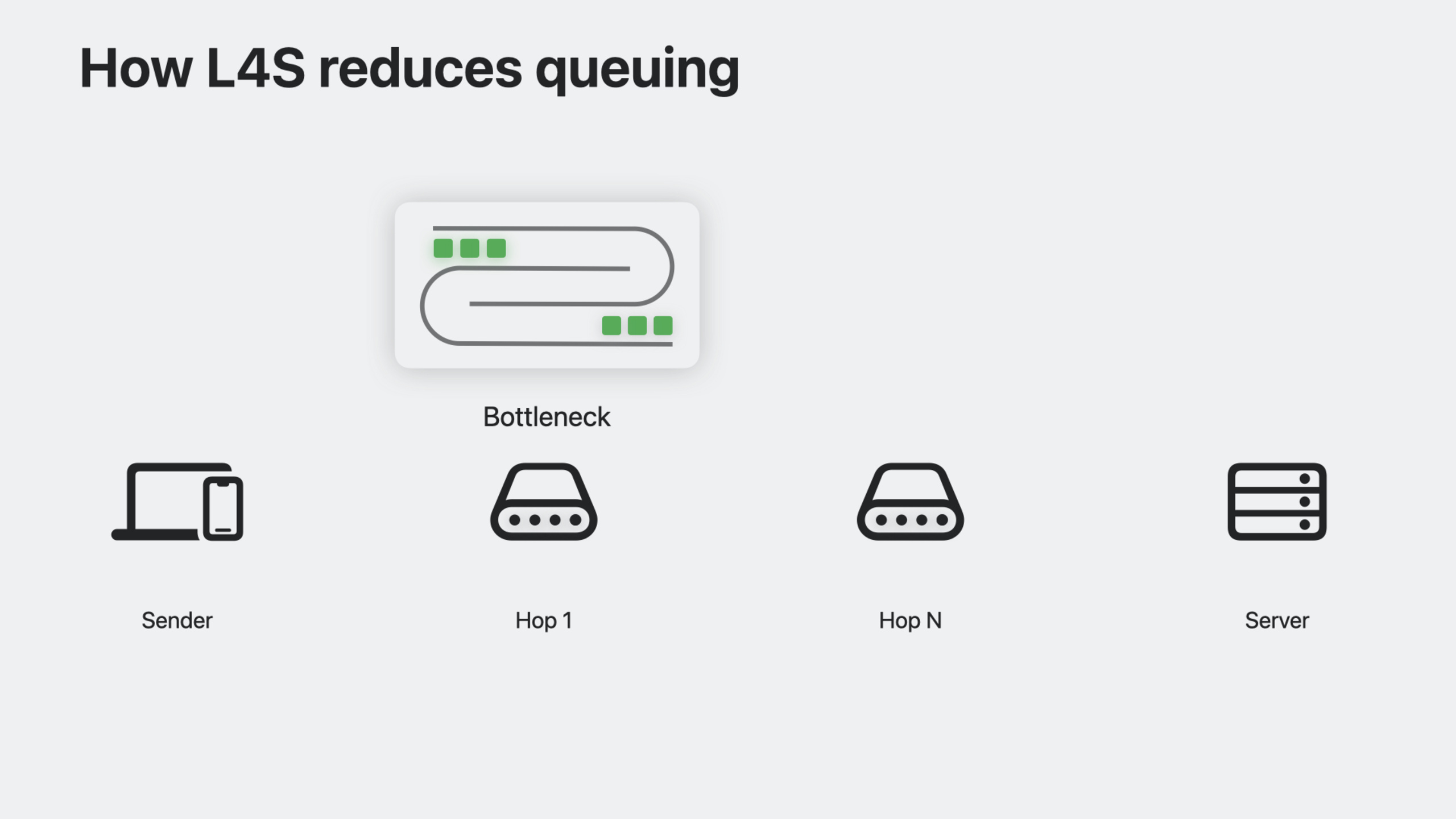
When multiple devices share a network, packets pile up at the bottleneck node (usually the ISP’s router). The traditional approach: let the queue grow until the buffer is full, then drop packets. The sender only realizes congestion after seeing packet loss and starts slowing down. This has two problems: queuing itself adds latency, and packet loss means retransmission, which further worsens latency.
L4S changes this mechanism. It lets senders detect congestion as soon as the queue starts forming—before packet loss occurs.
Implementation is a three-step collaboration. First, the sender marks IP headers with ECN (Explicit Congestion Notification), declaring willingness to cooperate with congestion control. Second, when the bottleneck device detects queue growth, it marks passing packets with a different ECN label meaning “congestion ahead,” then forwards rather than drops. Third, the receiver counts these marked packets and feeds the information back through the protocol. The sender fine-tunes sending rate accordingly, slowing down before the queue grows too large.
This closed loop keeps packets from being dropped almost entirely, queue length stays short, and latency remains near the physical minimum.
Apple’s measurements show: on a test network with minimum RTT of 20ms, worst-case packet delay without L4S reached 45ms; with L4S enabled it dropped below 25ms—a reduction of over 50%. Packet loss fell from above 40% to near zero. Video call stuttering nearly disappeared; received frame rate stayed above 25fps most of the time, whereas without L4S it sometimes dropped to 0.
Detailed Content
Automatic L4S: URLSession and Network framework
If your app uses URLSession or the Network framework with HTTP/3 or QUIC, L4S is already built in. No code required.
If you use HTTP/2 or TCP, iOS 17 and macOS Sonoma also include built-in L4S support for download-direction traffic.
This means the vast majority of apps benefit automatically. You only need to ensure your app uses these high-level APIs and modern protocols.
Custom protocols: manual implementation required
If your app uses a custom transport protocol (such as a homegrown UDP protocol or WebRTC), you need to implement three behaviors to support L4S (09:01):
- Scalable congestion control algorithm — The sender must adjust sending rate based on ECN congestion feedback from the network
- ECN validation mechanism — Check whether the network interferes with ECN marking (e.g., “bleaching” ECN bits), ensuring L4S traffic is sent only when the ECN path works correctly
- ECN feedback relay — As a receiver, relay received ECN congestion marks back to the sender
RFC 9330 is the L4S standard document and can serve as an implementation reference.
If your custom protocol is based on the Network framework, you can use ECN properties on packet metadata to send and receive ECN marks. If using BSD sockets, use setsockopt or sendmsg/recvmsg system calls to handle ECN marking.
Server-side configuration
L4S requires server cooperation. If your app uses QUIC, the server’s QUIC implementation must also support L4S and ECN marking (11:19). Many QUIC server implementations are available; ask your server or CDN provider how to enable ECN and L4S. Even if they do not yet support sending L4S traffic, they can at least enable ECN to receive L4S traffic.
If your app uses TCP, add L4S support to the server’s TCP implementation. Linux servers can refer to the L4S project page on GitHub.
Building a test network
To test L4S effects, the network must meet two conditions (12:31):
- The network must allow ECN marks to pass through without interference or clearing
- The bottleneck node must support L4S queue management
macOS Sonoma’s Internet Sharing feature includes built-in L4S queue management and can serve as a test bottleneck. After enabling Internet Sharing in System Settings, the Mac becomes an extra hop on the network. Use the following command to limit bandwidth on the shared interface, making the Mac the bottleneck:
sudo ifconfig en1 tbr 10MbpsKey points:
ifconfig en1— Specifies the network interface used for Internet Sharing (replace with the actual interface name, e.g.,en1)tbr 10Mbps— Sets the token bucket rate, limiting bandwidth to 10Mbps so the Mac becomes the bottleneck- To remove the bandwidth limit, change
10Mbpsto0and run again, or restart the Mac
After test devices connect to the Mac’s shared network, all traffic passes through L4S queue management.
Enabling L4S on devices
In iOS 17 and macOS Sonoma, L4S is gradually rolled out to random users. To ensure test devices have L4S enabled, there are two approaches:
macOS — Terminal command (15:36):
sudo defaults write -g network_enable_l4s -bool trueiOS — Developer settings:
In Settings under Developer options, find and enable the L4S toggle.
Key points:
defaults write -g—-gis the global domain, applying the setting to all applicationsnetwork_enable_l4s— Global key controlling whether L4S is enabled-bool true— Explicitly enables L4S; set tofalseto disable- If your network or server does not support L4S, TCP and QUIC automatically fall back to traditional mode without affecting connectivity
Core Takeaways
1. Monitor L4S effects in video calling apps
What to do: Add a network diagnostics panel to your existing video calling app comparing RTT distribution and packet loss with L4S on vs. off.
Why it’s worth doing: L4S most directly affects real-time communication apps. A visual panel lets developers and users see L4S improvements clearly and helps prove the value of enabling L4S to server teams.
How to start: Use Network framework’s NWConnection to monitor connection state and collect RTT samples. On iOS 17+ devices, toggle L4S via the defaults command and compare the two datasets.
2. Use Internet Sharing as a network quality testing tool
What to do: Write a command-line tool that automatically configures Mac Internet Sharing as an L4S test bottleneck, runs a set of network tests, and generates an L4S on/off comparison report.
Why it’s worth doing: Manually configuring ifconfig tbr and toggling L4S is tedious. An automated script lets anyone quickly set up an L4S test environment on their Mac to verify app, network device, or server L4S compatibility.
How to start: Use Process or NSTask to run ifconfig and defaults commands, call URLSession for a set of requests, collect transactionMetrics from URLSessionTaskMetrics, and compare latency and packet loss data.
3. Add L4S support to custom UDP protocols
What to do: Implement RFC 9330-compatible L4S congestion control for a custom UDP-based transport protocol.
Why it’s worth doing: Many games and real-time apps use custom UDP protocols—these benefit most from L4S but also require manual implementation. This is a good opportunity to understand modern congestion control.
How to start: Begin with Network framework’s NWConnection, set the metadata.ecn property when sending packets. Read RFC 9330 for ECN feedback loop implementation details. Implement a simple rate adjustment algorithm based on ECN marks.
4. Add L4S compatibility checks to CI pipelines
What to do: Add L4S compatibility testing to your app’s CI—ensure the app works on networks with L4S both enabled and disabled.
Why it’s worth doing: Apple will gradually roll out L4S to users. If your app or its third-party dependencies behave abnormally with ECN marks, connection issues may appear on L4S networks. Testing in CI ahead of time avoids user-facing problems.
How to start: Configure Internet Sharing on a CI Mac and limit bandwidth, run app network test cases with L4S enabled and disabled. Use Feedback Assistant to report any anomalies.
Related Sessions
- Build robust and resumable file transfers — URLSession large file transfer and resume capabilities; combined with L4S to further improve download experience
- Create seamless experiences with Virtualization — Virtualization framework’s network stack may also benefit from L4S latency optimizations
- Meet Push Notifications Console — Push notification console tool; network latency improvements directly affect push delivery speed
- What’s new in Core Data — Core Data CloudKit sync depends on the network; lower latency with L4S makes sync smoother
Comments
GitHub Issues · utterances