
Highlight
iOS 15.4 and iOS 16 bring four core improvements to AVFoundation camera capture: LiDAR Scanner depth data can be directly accessed through AVFoundation; face-driven autofocus and autoexposure are enabled by default; support for configuring multiple AVCaptureVideoDataOutputs at the same time to optimize preview and recording respectively; the camera is no longer forced to interrupt in iPad multitasking mode.
Core Content
LiDAR depth camera comes to AVFoundation
In the past, if I wanted to use the depth data of LiDAR Scanner, I could only use ARKit. ARKit is suitable for AR applications, but the resolution is only 256x192 and is designed for AR scene design such as scene geometry and object placement.
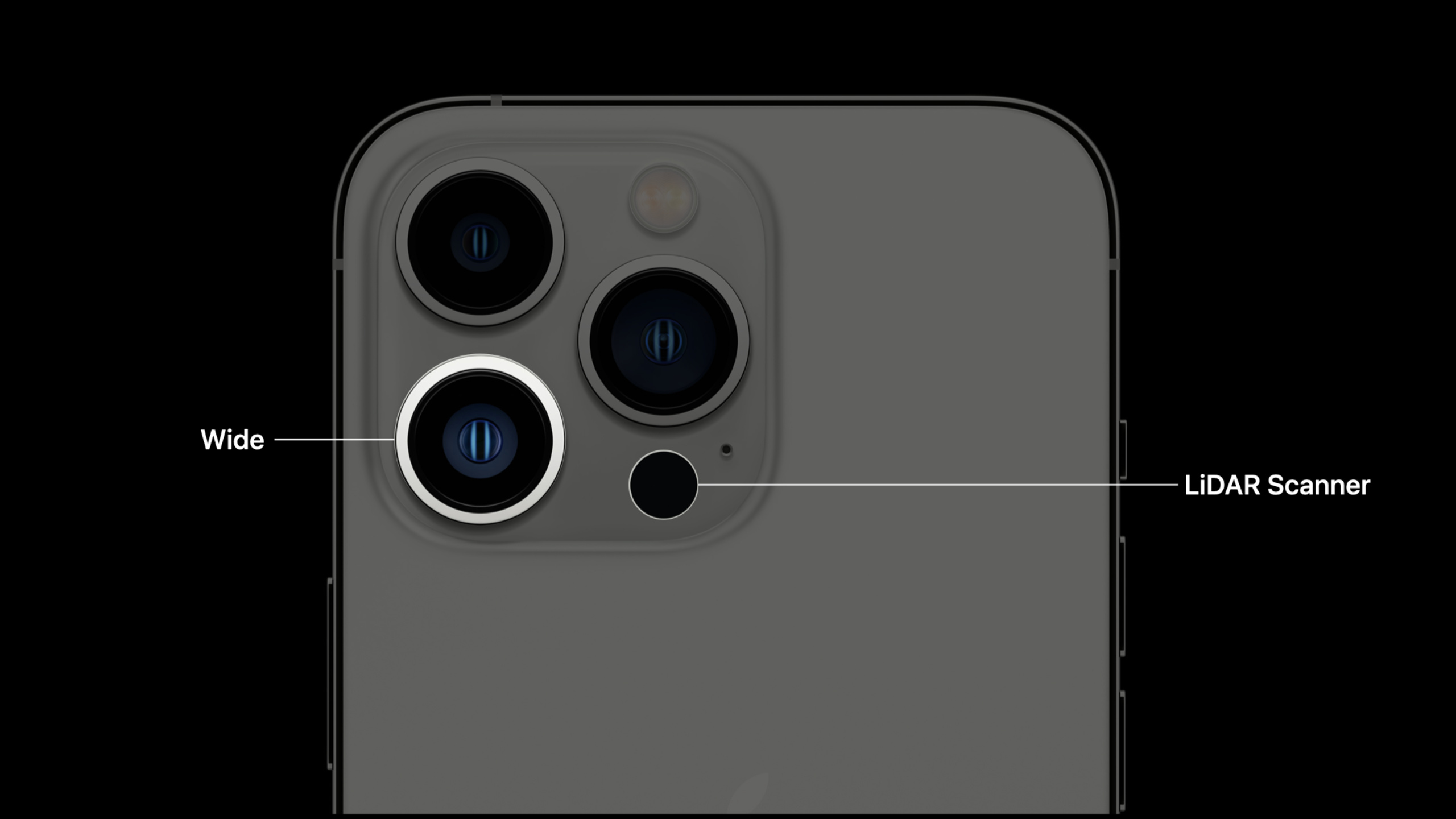
New in iOS 15.4.builtInLiDARDepthCameraDevice type that allows AVFoundation to also access LiDAR directly. This is significant for photography and video applications: the depth resolution is increased to 768x576 (more than twice that of ARKit), and it can be embedded in high-resolution photos.
The working principle of the LiDAR Depth Camera is: LiDAR emits light to the environment, collects the reflected light, and calculates the depth by measuring the flight time of the light. At the same time, the system will fuse the sparse output of LiDAR with the color image of the wide-angle camera through a machine learning model to generate a dense depth map.
Face-driven focus and exposure
Professional cameras all have face tracking and focusing functions. iOS 15.4 brings this capability to all apps and is enabled by default.
Without this feature, the camera may focus on the background and the face may be blurred. When turned on, faces will remain clear and the camera will automatically switch to background focus when turning away. In backlit scenes, the exposure system will give priority to ensuring the brightness of the face, even if the background is overexposed.
Optimized preview and recording of multiple video outputs
A common contradiction: previewing requires low latency and small size; recording requires high resolution and high-quality effects. Previously there was only one AVCaptureVideoDataOutput and had to be compromised.
iOS 16 supports adding multiple AVCaptureVideoDataOutputs at the same time, each of which can independently configure resolution, anti-shake, orientation and pixel format. Preview uses a low-resolution, non-image stabilized output; recording uses a 4K output with film-level image stabilization.
iPad multitasking no longer interrupts the camera
Previously, when the iPad entered split screen or Slide Over, the camera would be forcibly interrupted by the system. Starting with iOS 16, AVCaptureSession can continue to use the camera in multitasking mode.
The system will pop up a one-time prompt after detecting that multi-tasking recording is completed, informing the user that the video quality may be reduced. Applications can also be made viaisMultitaskingCameraAccessEnabledProperties check and control this behavior.
Detailed Content
LiDAR Depth Camera device configuration
(02:21)
import AVFoundation

// Discover the LiDAR Depth Camera
guard let device = AVCaptureDevice.default(.builtInLiDARDepthCamera, for: .video, position: .back) else {
    // The device does not support the LiDAR Depth Camera
    return
}

// Create the input and session
let input = try AVCaptureDeviceInput(device: device)
let session = AVCaptureSession()
session.addInput(input)

// Add depth data output
let depthOutput = AVCaptureDepthDataOutput()
depthOutput.setDelegate(self, callbackQueue: DispatchQueue(label: "depthQueue"))
session.addOutput(depthOutput)

// Add photo output (with depth)
let photoOutput = AVCapturePhotoOutput()
session.addOutput(photoOutput)
Key points:
.builtInLiDARDepthCameraAvailable on iPhone 12 Pro, iPhone 13 Pro, and iPad Pro 5th generation- The device uses a rear wide-angle camera to provide video and LiDAR to provide depth
- All formats support deep data delivery
- Telephoto and ultra-wide angle cameras can pass
AVCaptureMultiCamSessionUse at the same time
Depth data filtering control
(05:25)
// Depth data is filtered by default (reduces noise and fills holes)
// Suitable for photography and video apps

// Computer vision apps need raw data, so turn filtering off
depthOutput.isFilteringEnabled = false

// Receive depth data in the delegate callback
func depthDataOutput(_ output: AVCaptureDepthDataOutput,
                     didOutput depthData: AVDepthData,
                     timestamp: CMTime,
                     connection: AVCaptureConnection) {
    // depthData.depthDataType describes the depth data type
    // depthData.depthDataAccuracy describes accuracy (absolute or relative)
    // depthData.isDepthDataFiltered describes whether filtering was applied
    let pixelBuffer = depthData.depthDataMap
    // Process the depth pixel buffer
}
Key points:
- Filtering is enabled by default, suitable for rendering special effects
- LiDAR Depth Camera excludes low confidence points when filtering is turned off
- Computer vision tasks (such as measurement) should use unfiltered data
- Depth data types include absolute depth (LiDAR) and relative parallax depth (TrueDepth/Dual Camera)
Face-driven focus and exposure control
(09:04)
guard let device = AVCaptureDevice.default(.builtInWideAngleCamera, for: .video, position: .back) else {
    return
}

do {
    try device.lockForConfiguration()

    // Turn off automatic adjustment before manual control
    device.automaticallyAdjustsFaceDrivenAutoFocusEnabled = false
    device.automaticallyAdjustsFaceDrivenAutoExposureEnabled = false

    // Turn on or off manually
    device.isFaceDrivenAutoFocusEnabled = true
    device.isFaceDrivenAutoExposureEnabled = true

    device.unlockForConfiguration()
} catch {
    print("Could not lock device: \(error)")
}
Key points:
- On iOS 15.4 and above, and the app is linked to the iOS 15.4 SDK, it is enabled by default
- Must be closed first
automaticallyAdjusts...to modifyisEnabledStatus - Good for photography apps and video calling apps (such as FaceTime)
- If the app requires manual control of focus/exposure, this feature should be turned off
Configuration of multiple video outputs
(11:07)
let session = AVCaptureSession()

// Preview output: small size, low latency
let previewOutput = AVCaptureVideoDataOutput()
previewOutput.setSampleBufferDelegate(self, queue: previewQueue)
previewOutput.automaticallyConfiguresOutputBufferDimensions = false
previewOutput.deliversPreviewSizedOutputBuffers = true  // Preview size
session.addOutput(previewOutput)

// Recording output: full-size 4K
let recordOutput = AVCaptureVideoDataOutput()
recordOutput.setSampleBufferDelegate(self, queue: recordQueue)
// Full size by default, no extra configuration needed
session.addOutput(recordOutput)

// Configure cinematic stabilization for recording output
if let connection = recordOutput.connection(with: .video) {
    connection.preferredVideoStabilizationMode = .cinematicExtended
}

// Configure pixel format (10-bit lossless YUV)
recordOutput.videoSettings = [
    kCVPixelBufferPixelFormatTypeKey as String: kCVPixelFormatType_420YpCbCr10BiPlanarVideoRange
]
Key points:
automaticallyConfiguresOutputBufferDimensions = falseIt is the prerequisite for configuring custom resolution. -deliversPreviewSizedOutputBuffers = trueOutput preview size (enabled by default under Photo preset)- When customizing the resolution, the aspect ratio must be consistent with the aspect ratio of the device activeFormat
- Different outputs can be configured with different anti-shake modes: for preview
offReduce latency, for recordingcinematicExtended
Configuration of multi-tasking camera access
(15:33)
let session = AVCaptureSession()

// Check whether multitasking camera access is supported
if session.isMultitaskingCameraAccessSupported {
    session.isMultitaskingCameraAccessEnabled = true
}

// When enabled, the camera is not interrupted by multitasking
// Previously this would receive a "video device not available with multiple foreground apps" interruption
Key points:
isMultitaskingCameraAccessSupportedCheck if the device supports- After enabled, the camera will continue to work in Split View, Slide Over, and Stage Manager modes
- The system will display a one-time quality prompt after multi-task recording is completed
- ARKit does not support multitasking camera access
- Apps should monitor system stress notifications and reduce frame rate or switch to lower resolution formats when resources are tight
Picture-in-picture support for video calls
(17:23)
iOS 15 introduces the Video Call Picture-in-Picture API, allowing users to continue video calls while multitasking on iPad:
import AVKit

// Set up the picture-in-picture controller for video calls
let pipController = AVPictureInPictureController(contentSource: contentSource)
pipController.canStartPictureInPictureAutomaticallyFromInline = true
Key points:
- use
AVPictureInPictureVideoCallViewControllerCustomize picture-in-picture window content - Suitable for video calling and video conferencing applications
- Users can see remote participants in the picture-in-picture window while operating other applications
Core Takeaways
-
LiDAR real-time measurement tool: Use the absolute depth capability of LiDAR Depth Camera to make a real-time measurement application. The user aims at the object and the distance value is directly displayed on the screen. Entrance API:
AVCaptureDevice.default(.builtInLiDARDepthCamera, for: .video, position: .back)+AVDepthData。 -
Smart Portrait Lighting: Combine LiDAR depth map and RealityKit to create a camera application that automatically fills in light for people’s faces when taking photos. The depth map identifies the position of the face, and RealityKit renders the virtual light source at the corresponding position. Entry API: LiDAR Depth Camera +
RealityKit.PointLight。 -
Professional Video Recorder: Configure two AVCaptureVideoDataOutputs at the same time, 720p without anti-shake for preview to ensure low latency, and 4K movie-level anti-shake for recording to ensure image quality. Apply lightweight filters when previewing and high-quality effects when recording. Entrance API:
AVCaptureSession+ multipleAVCaptureVideoDataOutput。 -
iPad Multi-Task Scanner: The document scanning application supports running in Split View mode, allowing users to scan while looking at reference documents. With multi-tasking camera access, the scanning process is not interrupted by switching apps. Entrance API:
isMultitaskingCameraAccessEnabled = true。 -
Video Call + Notes: The video conferencing application integrates picture-in-picture, and users can record key points in Notes while participating in the meeting on iPad. The picture-in-picture window always shows the remote participant picture. Entrance API:
AVPictureInPictureController+AVPictureInPictureVideoCallViewController。
Related Sessions
- Explore ARKit 4 — Introduction to the LiDAR Scanner API in ARKit
- Capturing Depth in iPhone Photography — A detailed guide to capturing depth data using AVFoundation
- Adopting Picture in Picture for Video Calls — Implement picture-in-picture function in video calling applications
- Accessing the camera while multitasking — Best practices for using the camera in multitasking scenarios
Comments
GitHub Issues · utterances