
Highlight
Xcode 14 has been reduced in size by 30%, build speed is increased by up to 25%, and linker speed is increased by up to 2 times; SwiftUI preview is interactive by default and supports side-by-side comparison of multiple variants; code completion is smarter; Organizer adds TestFlight feedback and Hangs reports; supports single Target multi-platform application development.
Core Content
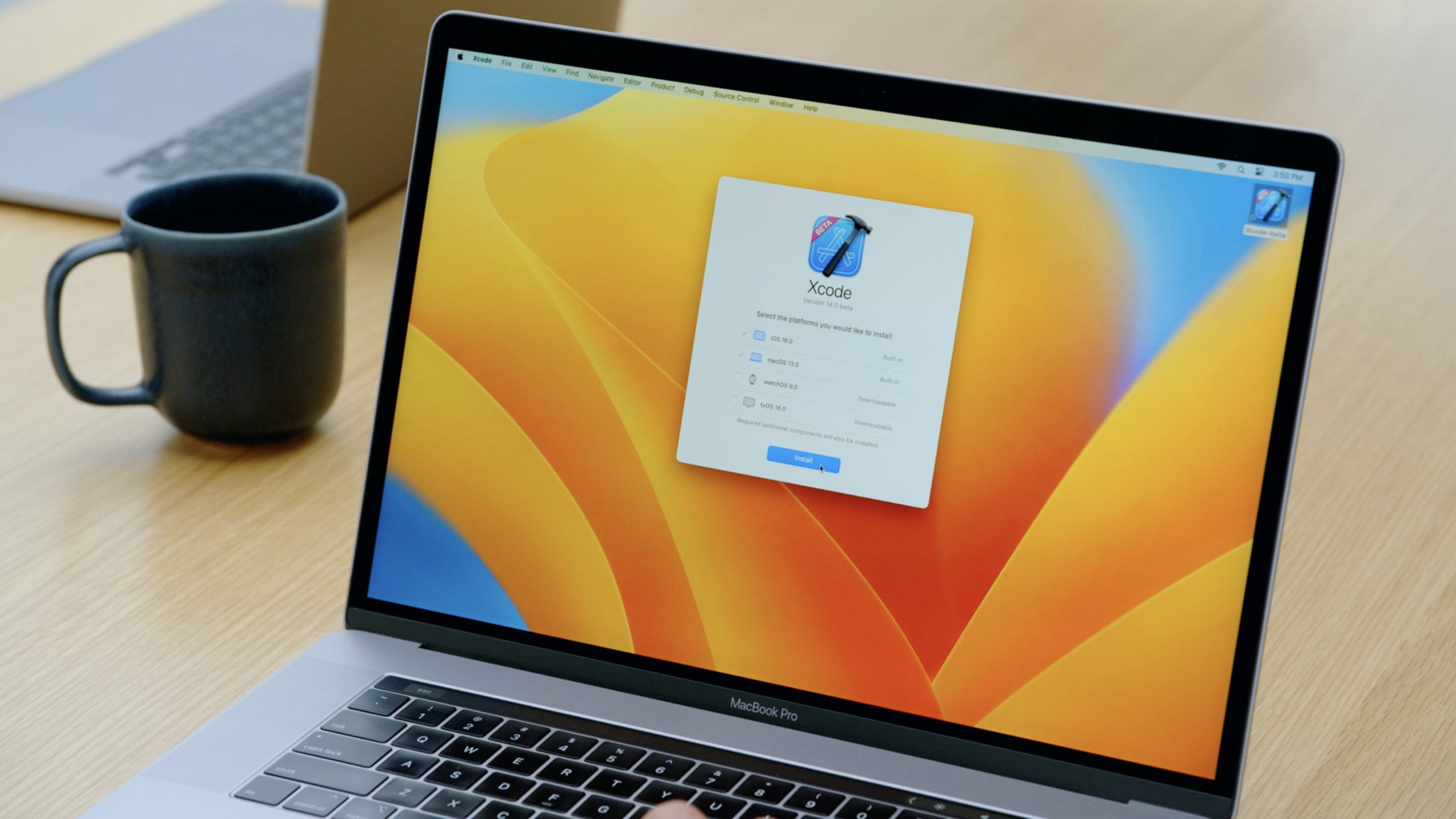
Faster installation and startup
The download size of Xcode 14 is 30% smaller and the installation time is significantly shortened. Additional platforms and emulators can be downloaded on demand - you can get the components you need immediately or wait until they are automatically downloaded upon first use.
SwiftUI preview enhancement
(00:58)
The SwiftUI preview canvas is now interactive by default. When you modify the code, the preview will update in real time, no need to refresh manually.
More practical is the new Preview Variants function. Click the variant button on the canvas to create multiple preview variants without writing any code, and compare the UI performance in different scenarios side by side:
- Dark/light mode
- Different Dynamic Type font sizes
- Landscape/Portrait orientation
(01:24)
In the Food Truck example, the developer displayed three card views in different Dynamic Type sizes side by side, and immediately discovered that the first icon in the large font was too wide, causing the text to wrap unnaturally. This visual feedback, which in Xcode 13 required a manual toggle setting to be seen, is now clear.
Smarter code completion
(02:53)
There are several key improvements to code completion in Xcode 14:
Initializer auto-completion: When you start typing an initializer, Xcode provides a complete initializer template, including all parameters and default values.
Codable method completion:init(from:)andencode(to:)Methods can now also be autocompleted.
Default value parameter annotation: Parameters with default values are shown in italics in the completion list. If you accept completion directly, these parameters will be omitted and the default values will be used; if you want to override them, you can manually enter the parameter names.
SF Symbols integration: The component library now contains all SF Symbols, and the corresponding SwiftUI code can be directly searched and inserted.
Intelligent completion of complex modifiers such as Frame:frame()This modifier has a large number of optional parameters. When completing the modifier, it will dynamically recommend the most relevant parameters based on the content you have entered.
Navigation and error display improvements
(06:01)
Jump to Definition redesign: When a method comes from a protocol and has multiple implementations, the definition list will highlight the differences in each result and display specific type information to help you quickly choose the correct implementation.
Callers list: Command-click the method name to select Callers. You can see all calling locations and context previews, and jump directly to the specific calling code.
Error graying mechanism: After you modify the code, Xcode will first gray out the old error information to indicate that it is being re-evaluated. During a long build process, problems in the latest build and problems left over from previous builds can also be clearly distinguished.
Suspended definition breadcrumbs: The top of the editor displays the definition level where the currently visible code is located. The context can be seen even if you have scrolled beyond the definition. The diamond button next to the test method allows you to run individual tests directly.
Swift 5.7 regular expression literals
(06:36)
Swift 5.7 introduces regular expression literals, and Xcode provides compile-time checks:
// Regular expression literals support compile-time validation
let regex = /\d+ records/
Key points:
- Regular expression syntax is highlighted
- Typos will be reported at compile time, not at runtime
- After modifying the expression, the error will first turn gray and disappear after confirming the repair.
Build performance improvement
(10:05)
Xcode 14 improves build speed through three levels of optimization:
Swift Module is generated in advance: In the traditional build process, compile the framework source code → generate the module → compile the application source code → link the application. Xcode 14 will generate Swift modules as early as possible, unblocking the dependencies of subsequent tasks and allowing more tasks to be executed in parallel.
Linker Parallelization: Up to 2x faster linker.
Overall effect: The project construction speed is increased by up to 25%, and the improvement is more obvious for machines with more cores.
Build Timeline: A new visual timeline has been added to the build log, allowing you to intuitively see the time taken and dependencies of each task. In the example, a script phase limits the build to single-core operation, and the problem is clear at a glance.
Testing and distribution acceleration
(12:10)
- Parallel testing eliminates the scheduling dependency between Target and test classes, improving test execution time by up to 30%
- macOS application notarization speed increased by 4 times
- Interface Builder document loading speed is increased by 50%, and device bar switching speed is increased by 30%
Single Target multi-platform application
(13:41)
Xcode 14 supports defining multi-platform apps with a single Target. You list supported platforms in Target, and Xcode handles platform differences automatically, and you only need to describe the parts that are unique to each platform. This eliminates the hassle of synchronizing settings and files between multiple Targets.
Organizer new report
(17:04)
TestFlight Feedback: A new Feedback tab is added to the Organizer window to directly display all TestFlight feedback, including comments and screenshots. The inspector panel displays tester information and device configuration, and testers can be contacted via email directly from Xcode.
Hangs Report: Added a new Hangs tab to display the most severe lag issues encountered by App Store users. Each lag is sorted by impact and comes with a weighted stack trace. The Inspector panel shows the distribution of issues on a specific iOS version or device, allowing you to jump directly to the corresponding code in your project.
Memory debugger enhancement
(14:13)
The memory debugger can now display all reference paths to an object (rather than just the shortest path), helping you more fully understand why an object is leaking. At the same time, a new object total weight indicator is added to evaluate the overall impact of objects on memory.
Swift Package plugin
(14:47)
Swift Package now supports plugins:
- Code processing plug-ins: linter, formatter, etc., can be called directly from the project navigator
- Build tool plug-in: generate code, process resources (such as compressing images, generating RPC interface code)
- Package resources support localization
Application icon single size mode
(19:28)
For simple icons that don’t require pixel alignment, Xcode 14 adds a new Single Size mode. Just provide an image and Xcode will automatically generate all the required dimensions. Select the icon in the Asset Catalog and switch “All Sizes” to “Single Size” in the inspector.
Detailed Content
Validate UI using preview variations
(01:03)
On the SwiftUI view’s preview canvas, click the variants button to add a preview variant:
struct CardStack_Previews: PreviewProvider {
    static var previews: some View {
        CardStack()
    }
}
Key points:
- The variation button is in the canvas toolbar, click it and select the attribute you want to change (Color Scheme, Dynamic Type Size, Orientation)
- The system automatically generates side-by-side previews without modifying the code
- Suitable for quickly verifying the performance of the UI under different accessibility settings
- Once layout problems are discovered, they can be fixed immediately in the code, and the preview is updated in real time
Use of smart code completion
(02:53)
to giveCardViewAdd an initializer with default value as an example:
struct CardView: View {
    let image: Image
    let headerIcon: Image  // New property
    let title: String
    let content: String

    // Xcode 14 automatically completes the entire initializer
    init(image: Image, headerIcon: Image? = nil, title: String, content: String) {
        self.image = image
        self.headerIcon = headerIcon ?? image  // Use the same image by default
        self.title = title
        self.content = content
    }
}
Key points:
- Start typing
initXcode provides a complete initializer template when - After accepting the default value, you can modify it on this basis
- Parameters with default values when calling are displayed in italics. If you press Enter directly, the parameter will be omitted.
- When you need to override the default value, enter part of the parameter name to opt-in
Use Build Timeline to analyze bottlenecks
(11:31)
After the build is completed, open the build log in the Report Navigator and click the Build Timeline tab:
- Timeline shows the start time, duration and dependencies of each build task
- Long bar tasks represent time-consuming operations and may be optimization targets
- Regions of serial execution (where only one task is running) usually indicate a dependency bottleneck
- In the example, a script phase was found to occupy a timeline, indicating that it blocked the parallel build.
Core Takeaways
-
Use preview variants for UI regression testing: When developing each new view, add three variant previews of dark mode, large fonts, and horizontal screen. Take a quick glance at your code before committing it to make sure there are no layout issues. Entrance: Variation button of the canvas toolbar.
-
Optimize CI/CD with Build Timeline: Add Build Timeline to the CI process and regularly analyze build bottlenecks. Focus on script phases and custom build rules, which are often the biggest impediments to parallelization. Entrance: Report Navigator → Build Log → Build Timeline tab.
-
Automate code specification with Swift Package plug-in: Introduce SwiftLint or SwiftFormat as a Package plug-in in the team, and developers can run it directly from the project navigator without installing additional tools. Entry: added in Package.swift
.plugintarget。 -
Use Organizer Hangs report to guide performance optimization: Check the Hangs report in Organizer every week, sort by the degree of impact, and prioritize fixing the lags that affect users the most. Entry: Window → Organizer → Hangs tab.
-
Single Target management of cross-platform code bases: New projects directly use a single Target to support iOS and macOS, using conditional compilation and platform-specific files to handle differences. Reduce the synchronization cost of maintaining multiple Targets. Entrance: Target Settings → General → Supported Destinations.
Related Sessions
- Demystify parallelization in Xcode builds — In-depth understanding of Xcode build parallelization mechanism
- Link fast: Improve build and launch times — Linker optimization, improve build and launch speed
- Track down hangs with Xcode and on-device detection — Locate and fix application hangs.
- Meet Swift Package plugins — Extend Xcode functionality with Swift Package plugins
Comments
GitHub Issues · utterances