
Highlight
Xcode Cloud adds Usage Dashboard to help teams monitor and optimize build consumption. By finely configuring Start Conditions, streamlining test destinations, and excluding irrelevant file changes, CI calculation usage can be significantly reduced without reducing quality.
Core Content
Your team is using Xcode Cloud, but your monthly compute credits are burning through quickly. Release workflows often build versions without code changes, tests are run repeatedly on a large number of similar simulators, and documentation updates trigger the full build process.
(02:17) Session demonstrates how to diagnose and optimize these issues using the Food Truck project.
Understand build time and usage
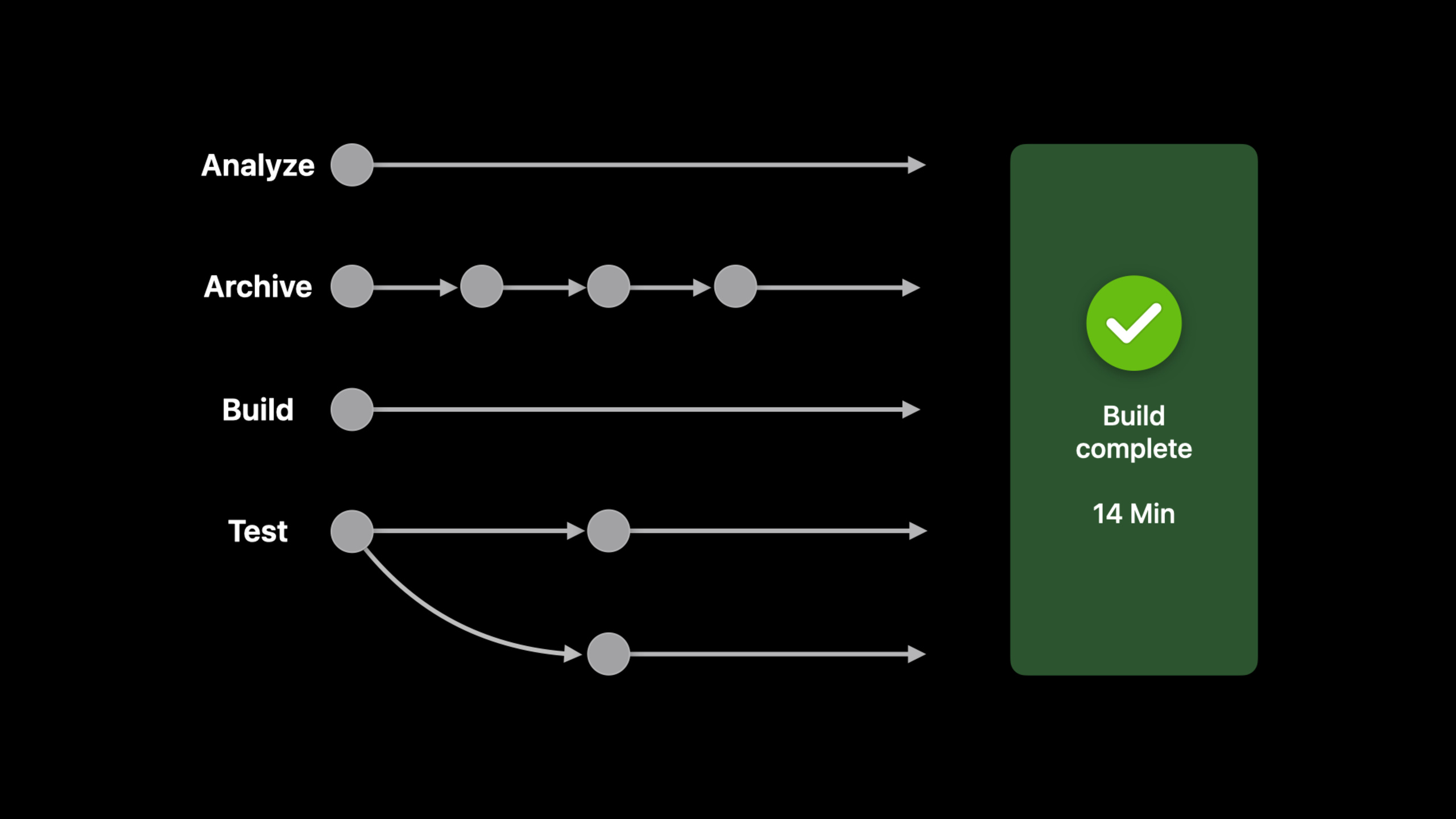
(02:25) Two key indicators in Xcode Cloud:
- Duration: Wall clock time, the total time from the start of the build to the rendering of the results
- Usage: The sum of the calculation times of all actions
Because actions such as Analyze, Archive, Build, and Test are executed in parallel, duration is equal to the time of the slowest action, and usage is the sum of them. A 14-minute build might consume 32 minutes of usage.
(02:43) In the build details, you can view the usage distribution and see how much time each action consumes. This is the entry point for optimization.
Usage Dashboard
(03:55) The new Usage Dashboard in App Store Connect provides:
- Percentage of total usage and remaining balance in the current billing period
- 30-day build count and usage trends
- View usage distribution by product
- View usage statistics by workflow
(04:55) After entering the specific product, you can see the usage of each workflow. Release workflows are often the most worthy targets for optimization.
Optimize Start Conditions
(05:34) Start Conditions determine what events trigger the build. Food Truck’s Release workflow originally used Scheduled conditions and was built regularly, often encountering situations where there were no new changes.
(06:30) Replaced with Branch Changes condition: Only build when code is pushed to the remote branch. Further restrict to match onlyrelease/*prefixed branch to prevent changes in the feature branch from triggering the Release workflow.
(07:52) You can also exclude changes to specific folders. Food Truck’s docs directory only contains development documents, and modifying the documents does not need to trigger a build:
- Select Files and Folders > Custom Conditions in Start Conditions
- Select “Don’t start a build”
- Add conditions: Any Folder > docs
Streamline test destination
(09:08) In the test action, each destination runs in parallel. Selecting too many emulators increases usage while introducing noisy failures on similar devices.
(09:31) Xcode Cloud provides “Recommended” aliases, which are carefully selected lists of emulators that cover representative devices of different screen sizes. Replace a large number of manually selected simulators with Recommended iPhones to ensure test coverage while reducing usage.
Skip specific commits
(10:42) Some commits do not need to trigger CI, such as only updating the README. At the end of the commit message add[ci skip]:
git commit -m "Update README [ci skip]"Xcode Cloud will ignore this event after pushing. Note that the exact format must be used.
Optimization effect
(12:10) After applying these best practices, Food Truck’s build duration decreased by 1 minute and usage decreased by 4 minutes. After the Integration Workflow has been running for a long time, the usage trend has dropped significantly, freeing up the quota for the new watchOS workflow.
Detailed Content
Start Condition Configuration
(06:40) Start Condition configuration example of Release workflow:
Start Condition: Branch Changes
  Source Branch: Custom Branches
    - Branches beginning with: "release"
  Files and Folders: Custom Conditions
    - Don't start a build when: Any Folder = docs
Key points:
- Branch Changes are only triggered when code is pushed to avoid scheduled empty runs.
- Custom branches support exact matching or prefix matching
- File exclusion supports exact file paths or folders
- There is an AND relationship between multiple conditions
Test destination selection
(09:46) Test the destination configuration of action:
Test iOS
  Destinations:
    - Recommended iPhones (replaces iPhone 8, iPhone 11, iPhone 12, iPhone 13...)
Key points:
- Recommended aliases cover different screen sizes and feature combinations
- Run tests independently for each destination, executing in parallel
- Test failures on similar devices are often noisy, reducing destinations can reduce false positives
- If your project has device-specific code paths, you can add additional destinations
Custom Scripts
(11:07) Each action executes a custom script at multiple points in time:
# Clean up unused dependencies
brew cleanup

# Retry unreliable API requests
for i in {1..3}; do
    curl -f https://api.example.com/data && break
    sleep 5
done
Key points:
- The script is executed in the pre-build, post-build and other stages of the action
- Cleaning temporary files and cache can reduce build time
- Add retry logic to requests from external services to avoid build failures caused by occasional network problems
Test reliability
(11:30) Flaky tests can cause builds to be retried repeatedly, wasting a lot of usage. Fixing these tests should be prioritized rather than relying on retries.
Common reasons for flaky tests:
- Asynchronous operations are not waiting correctly
- Share state between tests
- Reliance on external services or networks
- Time-sensitive assertions
Core Takeaways
-
What to do: Set up an Xcode Cloud usage monitoring mechanism for your team
-
Why it’s worth doing: Usage Dashboard makes usage transparent, helps identify waste and allocate quotas reasonably.
-
How to start: Regularly check the Usage Dashboard in App Store Connect and analyze usage distribution by workflow
-
What to do: Configure independent workflows for different branch types
-
Why is it worth doing: The feature branch only needs quick build and testing, and the release branch only needs complete archive and analyze
-
How to start: Create multiple workflows and use Branch Changes of Start Conditions to match different branch prefixes
-
What to do: Introduce CI skip markers in commit specs
-
Why it’s worth doing: Document updates, configuration file adjustments, and other submissions that don’t require a complete CI process can save usage
-
How to start: Add in the team’s Git workflow document
[ci skip]Instructions for use -
What to do: Configure a standalone Xcode Cloud workflow for the watchOS companion app
-
Why it’s worth doing: watchOS builds and tests independently from iOS, and separate configuration allows for more flexible control of trigger conditions and destinations
-
How to start: Create a new workflow in Xcode’s Report Navigator, select the watchOS-related scheme and test plan
Related Sessions
- Meet Xcode Cloud — WWDC21 Getting Started with Xcode Cloud
- Deep dive into Xcode Cloud for teams — Team Xcode Cloud in-depth use
- Author fast and reliable tests for Xcode Cloud — Write fast and reliable tests
Comments
GitHub Issues · utterances