
Highlight
Swift-DocC web documents have a new left navigation bar and filters. Developers can browse by topic level, search by keywords, and filter by tags; document authors organize content through Topic Groups, allowing users to find the required APIs faster.
Core Content
The document is written, but the developer cannot find it
The documents of many frameworks are automatically grouped by type: tutorials, articles, protocols, structures… This organization method is enough for people who are familiar with the framework, but for novices, faced with dozens of API lists, they don’t know where to start.
Bea, a designer on Apple’s documentation team, uses a “map” as an analogy: a good map helps you understand area boundaries and find the path from one place to another. The same goes for document navigation, which requires developers to understand what the framework can do and how to find the desired page.
Three steps to optimize document discoverability
- Define high-level themes: Summarize the framework functions into several core themes
- Organize pages by importance and specificity: Show broad basic content first, then dive into specific advanced features
- Optimize group titles: clear, mutually exclusive, and descriptive
Detailed Content
New web navigation experience
(00:49)
Swift-DocC web documents now have a two-column layout:
- Left navigation bar: Expandable tree structure showing API hierarchical relationship
- Content area on the right: Adapt to different screen sizes
- Bottom Filter: Enter keywords to quickly locate symbols
- Tag filtering: Filter by tags such as Articles, Tutorials, Deprecated, etc.
The navigation bar is separated from the content area, and the navigation status is maintained when switching pages. Expand the disclosure indicator to drill down into the type hierarchy and preview sub-content without opening the page.
Filters support real-time search. After typing “Habitat”, the navigation bar only displays matching pages. Select the Tutorials tab to quickly find tutorial pages such as “Meet SlothCreator”.
From automatic organization to manual curation
(02:56)
By default, DocC automatically organizes documents by type: tutorials, articles, protocols, structures, etc. This is a good starting point, but it could be better.
Taking the SlothCreator framework as an example, Bea defines four theme groups:
# ``SlothCreator``

@Metadata {
    @TechnologyRoot
}

## Overview

Create and care for virtual sloths.

## Topics

### Essentials
- <doc:Getting-Started-with-Sloths>
- <doc:Meet-SlothCreator>
- ``Sloth``

### Sloth Creation
- ``SlothGenerator``
- ``NameGenerator``
- ``PowerGenerator``

### Sloth Views
- ``SlothView``
- ``SlothMapView``
- ``SlothCard``

### Care and Feeding
- ``CareSchedule``
- ``FoodGenerator``
- ``Sloth/Food``
Key points:
## TopicsArea definition topic grouping- each
###Is a Topic Group that appears in the navigation bar - use
<doc:Article-Name>To cite an article, use`SymbolName`Reference API - The order of grouping is very important: put the basic content first, then the core functions, and finally the advanced functions
Define high-level themes
(04:15)
Topic groups are the first thing developers see when entering a document. Take SlothCreator as an example:
- Essentials: Getting started, tutorials and core concepts
- Sloth Creation: core functionality for creating sloths
- Sloth Views: Shows various views of sloths
- Care and Feeding: Care and feed the sloth
No more than 10 topic groups are recommended per page. The fewer options there are, the easier it is for developers to make the next choice.
Organized by importance and specificity
(06:44)
The Essentials group is placed first and contains the most important getting started content:
### Essentials
- <doc:Meet-SlothCreator>           // Tutorial: learn step by step
- <doc:Getting-Started-with-Sloths> // Article: conceptual introduction
- ``Sloth``                          // Core API
Other groups are arranged by usage process: first create (Sloth Creation), then display (Sloth Views), and finally manage (Care and Feeding).
Within each group, the order from broad to specific is also followed:
### Sloth Views
- ``SlothView``      // Most commonly used base view
- ``SlothMapView``   // Map view for specific scenarios
- ``SlothCard``      // More specific card view
Key points:
- The further down the navigation tree is, the more specific and advanced the content is.
- Show broad basic content first, then dive into specific features
- This hierarchy allows developers to drill down as deep as they need
Optimize group titles
(08:05)
A good topic group title has three characteristics:
-
Clear description: The title itself can describe the content without additional context.
- Bad: “Management” (too broad)
- Good: “Care and Feeding” (specifically, care and feeding)
-
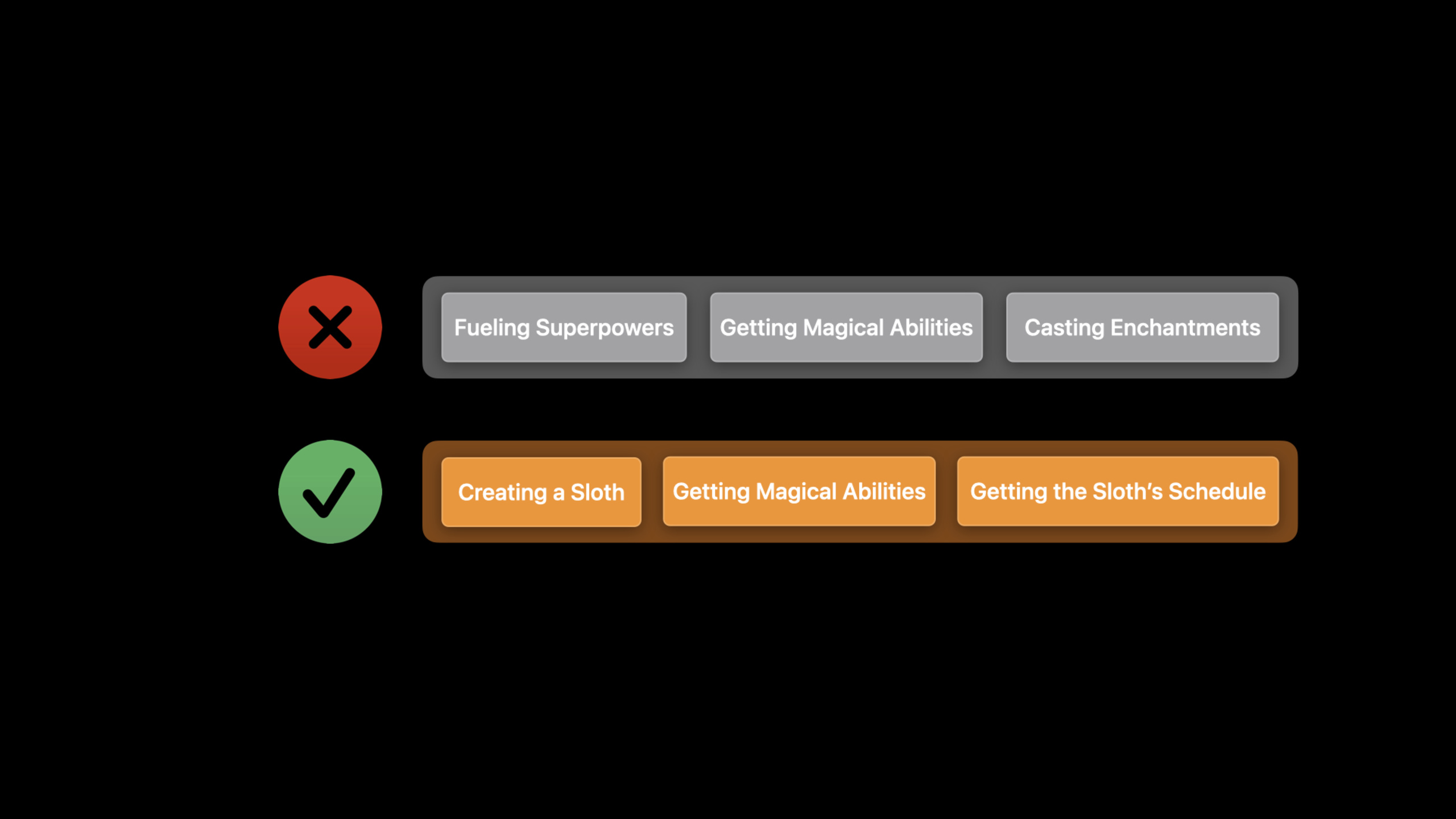
Mutual Exclusivity: Titles from different groups cannot be interchanged.
- Bad: “Fueling Superpowers”, “Getting Magical Abilities”, “Casting Enchantments” (the three titles overlap)
- Good: Combined into one “Magical Abilities” group
-
Encourage serendipity: Put related topics together
- Put “Getting Magical Abilities” next to Essentials
- When learning basic content, developers may find that “it turns out this can still be done”
The actual effect of organizational structure
Navigation comparison before and after optimization:
Before optimization (automatic organization):
SlothCreator
├── Articles
├── Tutorials
├── Protocols
├── Structures
├── Classes
└── Enumerations
After optimization (manual curation):
SlothCreator
├── Essentials
│   ├── Meet SlothCreator (tutorial)
│   ├── Getting Started with Sloths (article)
│   └── Sloth
├── Sloth Creation
├── Sloth Views
└── Care and Feeding
Key points:
- Automatic organization by type, not friendly to novices
- Manual curation is categorized by functional themes, in line with the developer’s mental model
- Theme group turns the document homepage into a “map”
Core Takeaways
-
Rewrite the Topic Group organization for the framework document Open an existing document and see if it is still using the automatically organized type categories. Regroup the API into functional themes and give each group a clear name. This is the fastest way to change a document from “readable” to “usable”.
-
Write an Essentials theme group for each module Put your most important tutorials, introductory articles, and core APIs in Essentials. This is the first content a new user sees, which determines whether he will continue to delve deeper.
-
Check if group headers are mutually exclusive Take a look at the topic group titles in the document to see if the contents of the two titles are interchangeable. If so, merge them or rename them so each group has clear boundaries.
-
Place “serendipity” content next to relevant topics Place one or two links to advanced features next to the basic content. When developers learn the basics, they may find that “it can still be like this”. This kind of surprise can improve their favorable impression of the framework.
-
Verify document structure with filters After publishing the document, use filters to search for a few common keywords yourself. If it cannot be found or the path is too long, it means that the organizational structure needs to be adjusted.
Related Sessions
- What’s new in Swift-DocC — Overview of new features in Swift-DocC, including web publishing and Objective-C support
- Build interactive tutorials using DocC — Create interactive step-by-step tutorials with DocC
- Create Swift Package plugins — Swift-DocC’s Swift Package Manager plugin usage
- What’s new in Xcode 14 — Overview of all new features in Xcode 14
Comments
GitHub Issues · utterances