
Highlight
Xcode 14 introduces Swift Package Plugins, allowing developers to use Swift scripts to perform custom operations on Swift Package or Xcode projects, including Command Plugins for development workflow tasks such as formatting and generating contributor lists, and Build Tool Plugins for generating source code and resources at compile time.
Core Content
There are always some repetitive tasks in the development process: code formatting, generating code based on data files, updating copyright statements, and counting code indicators. In the past, these were usually solved using shell scripts or Makefiles, which were scattered throughout the project and difficult to maintain.
Swift Package Plugins incorporate these tasks into the Swift Package system. The plug-in itself is a Swift package that can depend on other tool packages, be called through Xcode or the command line, and run in a sandbox.
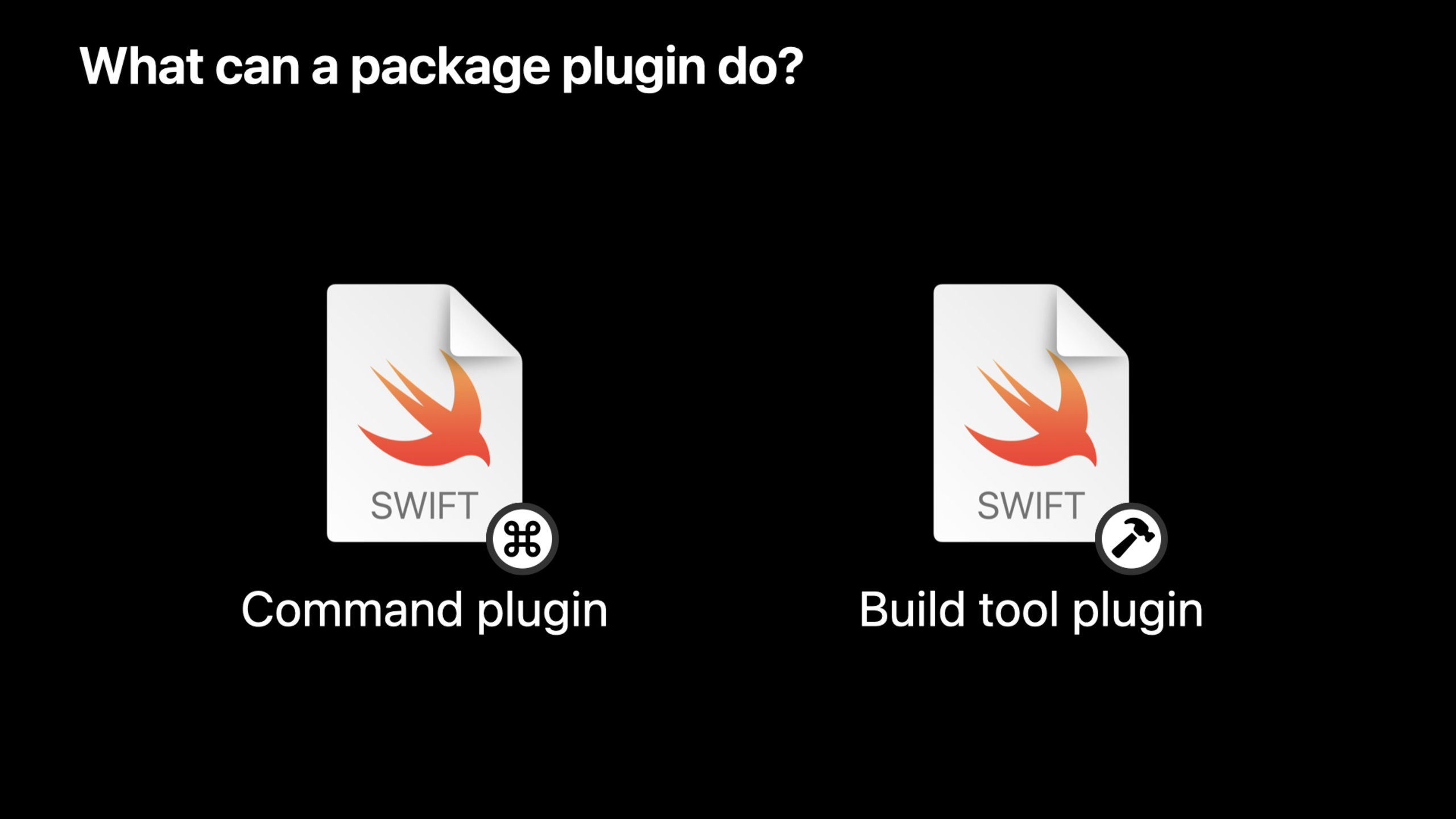
Xcode 14 supports two plug-ins:
Command Plugin: Custom operations that can be run at any time. For example, call SwiftFormat to format code, or generate a list of contributors based on Git history. Plug-ins that need to write to the file system will request user authorization.
Build Tool Plugin: Extends the dependency graph of the build system. Generate source code or resources at compile time and only rerun when input changes, supporting incremental compilation.
Using command plugins in Xcode
Suppose you have a geometry iOS App consisting of an App project and a local Package. If you want to split the Package into an independent repository, you need to generate a contributor list file.
You can add a dependency in the Package manifest:
// Package.swift
dependencies: [
    .package(url: "https://github.com/example/SourceCodeUtilities", from: "1.0.0")
]
After Xcode obtains the dependencies, right-click the Package, and the commands provided by the plug-in will appear in the menu. for example:
- “Format with SwiftFormat” — format code
- “Generate Contributors” — Generate a list of contributors based on Git history
- “Update Copyright Dates” — Update the year of the copyright statement
After selecting the command, if the plug-in needs to modify the file, Xcode will pop up a permission confirmation. You can check the plug-in source code to confirm it is safe and then authorize execution.
Command line call
Plugins can also be used in the terminal (08:49):
cd CoreLibs
swift package plugin --list
swift package generate-contributors --allow-writing-to-package-directory
swift package generate-contributors --verbose--allow-writing-to-package-directoryUsed in CI environments to skip interactive confirmation.
Detailed Content
How the plug-in works
Plugins are Swift scripts that are compiled when needed and run as independent processes (05:56).
Information obtained by the plug-in:
- Condensed representation of Package, including source file path
- Package dependency information
- Write permissions for the build output directory
The plugin runs in a sandbox:
- Block network access
- Only allow writing to the build output directory
- The command plug-in can request permission to write to the Package source code directory
Plugins can:
- Call command line tools
- Create files and directories
- Send warnings and errors to Xcode
- The build tool plug-in can define compilation commands for Xcode to execute
Implementation of command plug-in
The main type of the command plugin followsCommandPluginProtocol (08:33):
import PackagePlugin

@main
struct MyPlugin: CommandPlugin {

    /// Entry point when operating on a Swift Package
    func performCommand(context: PluginContext, arguments: [String]) throws {
        debugPrint(context)
    }
}

#if canImport(XcodeProjectPlugin)
import XcodeProjectPlugin

extension MyPlugin: XcodeCommandPlugin {

    /// Entry point when operating on an Xcode project
    func performCommand(context: XcodePluginContext, arguments: [String]) throws {
        debugPrint(context)
    }
}
#endif
Key points:
@mainmark entry point -PluginContextProvide package information and tool paths- Supports both Swift Package and Xcode projects through conditional compilation
-
argumentsReceive custom parameters passed in by the user
Implementation of build tool plug-in
Build tool plugins followBuildToolPluginProtocol (11:13):
import PackagePlugin

@main
struct MyPlugin: BuildToolPlugin {

    /// Entry point when operating on a Swift Package
    func createBuildCommands(context: PluginContext, target: Target) throws -> [Command] {
        debugPrint(context)
        return []
    }
}

#if canImport(XcodeProjectPlugin)
import XcodeProjectPlugin

extension MyPlugin: XcodeBuildToolPlugin {

    /// Entry point when operating on an Xcode project
    func createBuildCommands(context: XcodePluginContext, target: XcodeTarget) throws -> [Command] {
        debugPrint(context)
        return []
    }
}
#endif
Key points:
- return
[Command]Tell Xcode which build commands to execute - Instead of performing actions directly, generate commands for Xcode to run at the appropriate time
- Support incremental compilation: Xcode determines whether it needs to be rerun based on the input and output file timestamps
Two build commands
Normal build command (BuildCommand): Specify the input and output paths and run only when the output is missing or the input changes (11:40).
PrebuildCommand: Run before compilation starts, used when the output file name is unknown in advance. It will run every build, so try to minimize duplication of effort.
Declare plugin dependencies in Package
SwiftPM 5.6+ adds in target definitionpluginsParameters (12:14):
// Package.swift
targets: [
    .target(
        name: "CoreLibs",
        dependencies: [],
        plugins: [
            .plugin(name: "SourceGenerator", package: "SourceCodeUtilities")
        ]
    )
]
After adding, Xcode will automatically call the plug-in when compiling the corresponding target. The generated code is stored in the build directory and does not need to be submitted to version control.
Actual case: code generation
Suppose you have some data files and need to generate type-safe Swift accessors based on them. The previous approach was:
- Manually run the code generation tool
- Submit the generated code to the warehouse
- Repeat the above steps when the data file changes
After using the build tool plugin:
- Add plug-in dependencies in Package
- in target
pluginsReference plugin in parameters - Delete the generated code in the warehouse
- Xcode automatically calls the code generation tool during compilation
The code generated in this way is always in sync with the data files, and the warehouse is cleaner.
Core Takeaways
1. Automatic code formatting workflow
What to do: Configure the SwiftFormat command plugin for your team to automatically format code before submission.
Why it’s worth doing: The plug-in can be integrated into Git’s pre-commit hook to ensure that the team’s code style is consistent and no manual review of formatting issues is required.
How to start: Add SwiftFormat plug-in dependency, write a wrapper plug-in callswift package plugin --allow-writing-to-package-directory format。
2. Generate client code from API definition
What to do: Write a build tool plug-in to automatically generate Swift network request code based on OpenAPI/Swagger definition files.
Why it’s worth doing: Automatically regenerate client code when the API changes, avoiding the problem of handwritten request code being out of sync with the backend.
How to start: UsePrebuildCommandmonitor.yamlWhen the file changes, call the code generation tool to output the Swift file to the build directory.
3. Localized resource generator
What it does: Automatically generate from Excel/CSV translation tablesLocalizable.stringsand type-safe Swift string enums.
Why it’s worth doing: After the translator modifies the form, the localization files for all platforms are automatically updated during compilation to avoid missed translations or key name spelling errors.
How to get started: Parse CSV files to generate for each language.stringsfile, and generates Swift enumerations to provide compile-time key name checking.
4. Icon and color resource generation
What it does: Automatically generate Xcode Asset Catalog and SwiftUI from SVG files exported from Figma/SketchImage/ColorExtension.
Why it’s worth doing: After the designer updates the icon, the developer only needs to recompile to get the latest resources, without the need to manually drag and drop files.
How to start: UseBuildCommandMonitor SVG file changes and generate@2x/@3xPNG and corresponding Swift code.
5. Test coverage report plug-in
What to do: Write a command plugin that generates an HTML coverage report after running tests and highlights uncovered code areas.
Why it’s worth doing: Xcode’s coverage view function is limited, and custom reports can provide statistics by module and file, which is more suitable for team reporting.
How to start: Callxcodebuild testget.xcresult, parse coverage data, and generate HTML reports using Swift.
Related Sessions
- Create Swift Package plugins — Learn more about how to create custom Swift Package plugins from scratch
- Swift Package Manager — New features and manifest syntax in Swift Package Manager 5.6+
- Xcode — New features in Xcode 14, including integration with Package Plugins
Comments
GitHub Issues · utterances