
Highlight
Swift Playgrounds 4 lets you create complete apps from scratch on both iPad and Mac. Collett and Connor used a cup of tea to demonstrate the complete process of starting with a blank template, building an interface with SwiftUI, introducing third-party libraries with Swift Package Manager, preview debugging, console debugging, and directly submitting to TestFlight.
Core Content
In the past, if I wanted to write an app on the iPad, I either had to write playground snippets or open Xcode on a Mac. Swift Playgrounds 4 changes that: it now supports full app templates that can be created, edited, previewed, debugged on iPad and Mac, and even submitted directly to App Store Connect. (00:21)
Collett started on the Mac side. She opened Swift Playgrounds, selected the blank App template, and a live preview immediately appeared on the right. First change the App settings: change the name to Tea Time, change the accent color to brown, and change the icon to a cup. These settings require no coding and can be completed with just a few clicks. (01:50)
Next, write the interface. She inserts a List View from the Library (code snippet library) and then manually adds the Text view. The code completion panel pops up suggestions as she types, and she can insert them by pressing Enter. Soon she discovered a problem: Jasmine Green was added repeatedly. To avoid duplication, she decided to use an OrderedSet to store the list of tea leaves. (03:42)
OrderedSet comes from Apple’s swift-collections open source package. She added the package through File > Add Package. After entering the GitHub URL, Swift Playgrounds automatically pulled and parsed the dependencies and displayed them in the sidebar. But after importing, the compiler reported an error: “Cannot find type OrderedSet in scope”. She forgot to import the Collections module. The problem is solved after adding import. (04:47)
Connor switches to the iPad as he takes over. Projects are synchronized through iCloud shared folders. When he opens the same project on his iPad, all changes are synchronized in real time. Collett has added a TabView, containing two tabs: tea list and Assistant. Connor found that there was only a simple recommendation button in the Assistant Tab, and he wanted to add TeaWheelView written by Collett to it. (07:20)
Connor first added a Preview Provider to TeaWheelView. He entered preview provider at the bottom of the file, and code completion popped up as a template. He added some test data to the preview, replaced “Hello, world!” with TeaWheelView, and added a little padding. The preview on the right immediately becomes an interactive carousel. He can rotate the wheel directly in the preview and see different tea leaves selected. (08:45)
After adding TeaWheelView to Assistant Tab, Connor tested and found a problem: no matter where the turntable is stopped, the result is always “Byte’s Oolong”. He suspected that it was a problem with TeaWheelView itself, so he added a print statement to the Preview Provider. After rotating the turntable, a message pops up on the console: item one… item one… item one. This indicates that the problem lies within TeaWheelView. (11:55)
He used the project global search to find “first” and found that Collett had left a line of debugging code in TeaWheelView so that the result would always return the first element. After deleting this line of code, the turntable works normally. Connor uses the Run button to run the app in a separate window and confirms that the list and carousel are normal. (12:50)
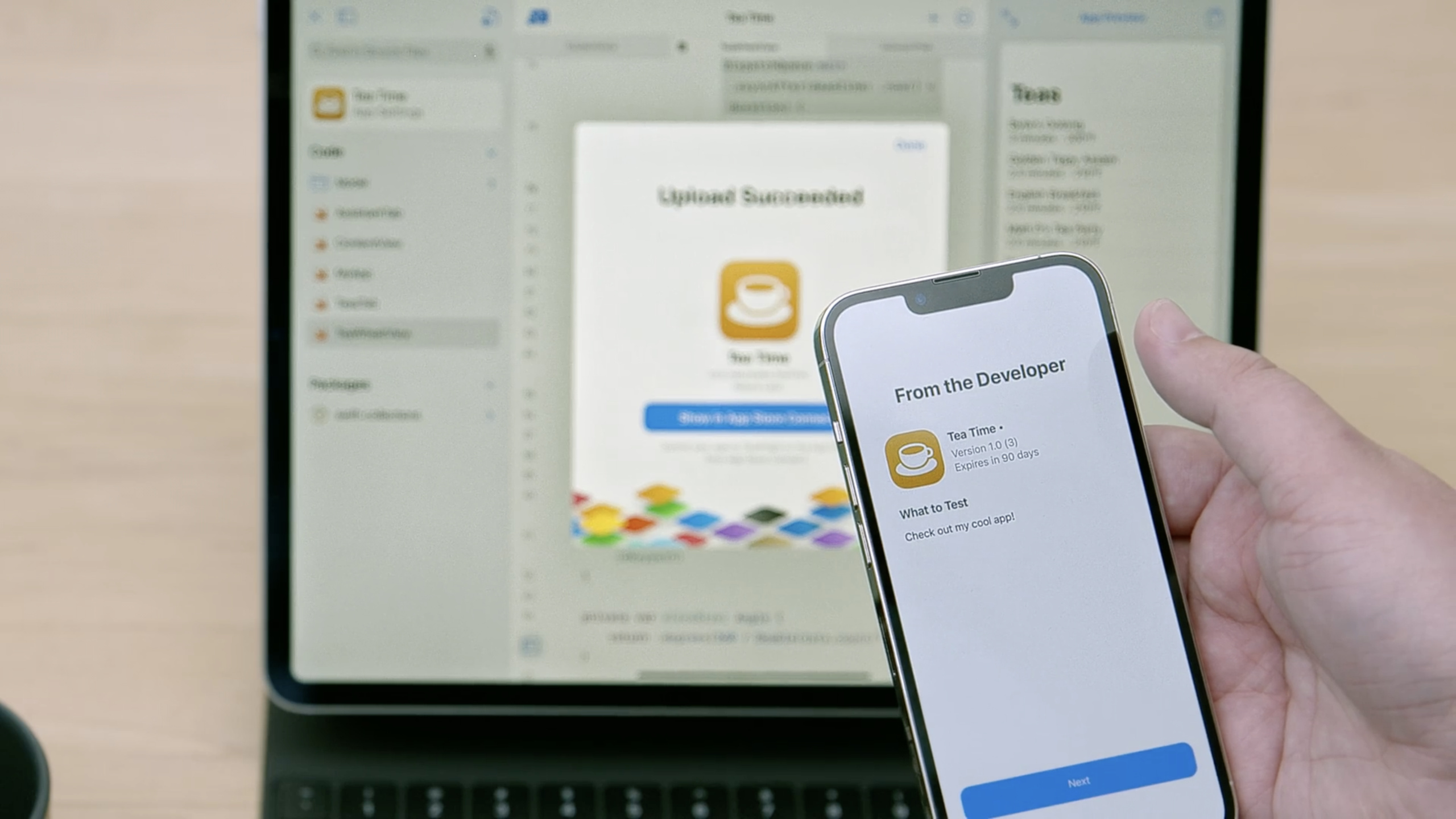
Final step: Submit to TestFlight. Connor opened App Settings, scrolled to the bottom, and clicked “Upload to App Store Connect”. Swift Playgrounds automatically creates app records and uploads builds. Then he went to App Store Connect to submit a Beta App Review. After passing it, he installed it in the TestFlight App and even ran it on the iPhone. (13:56)
Detailed Content
From blank template to first interface
(01:37) After the blank App template of Swift Playgrounds 4 is opened, a real-time preview is automatically displayed on the right side. The initial code only has a ContentView that displays “Hello, world!”
Collett uses Library to insert List View:
List {
    Text("Jasmine Green")
    Text("English Breakfast")
    Text("Byte's Oolong")
    Text("Golden Tippy Assam")
    Text("Matt P's Tea Party")
    Text("Darjeeling")
    Text("Genmaicha")
    Text("Vanilla Rooibos")
}
Key points:
- Library is opened through the + button on the toolbar, including categories such as Views, Modifiers, SF Symbols, Colors, etc.
- Code completion will pop up while typing, press Enter to accept the suggestion
- The real-time preview will be updated immediately as the code changes
Use Swift Package Manager to introduce third-party libraries
(03:56) To avoid duplication of tea leaves, Collett uses an OrderedSet instead of an array. OrderedSet comes from the swift-collections package and needs to be added via the Swift Package Manager.
Operation steps:
- File > Add Package
- Input
https://github.com/apple/swift-collections3. Select the Collections product and click Add to Project - Add at the top of the code
import Collections
import Collections

let teas: OrderedSet<String> = ["Byte's Oolong", "Golden Tippy Assam", "English Breakfast", "Matt P's Tea Party", "Darjeeling", "Genmaicha", "Jasmine Green", "Vanilla Rooibos"]
Then use ForEach to bind the collection to the List:
ForEach(teas, id: \.self) { tea in
    Text(tea)
}
Key points:
- OrderedSet ensures unique elements while maintaining insertion order
-
id: \.selfUse the string itself as the identifier - The dependency management interface of Swift Playgrounds is similar to Xcode, but the operation is simpler
Preview debugging and console troubleshooting
(08:37) Connor adds Preview Provider to TeaWheelView, which is a new feature of Swift Playgrounds 4.
struct TeaWheelView_Previews: PreviewProvider {
    static let items: [String] = ["Item 1", "Item 2", "Item 3", "Item 4", "Item 5"]
    static var previews: some View {
        TeaWheelView(items, id: \.self)
            .padding()
    }
}
Key points:
- PreviewProvider is written at the bottom of the file and Swift Playgrounds will automatically recognize it.
- A page dot appears at the bottom of the preview area, indicating that multiple previews are available
- Click the right arrow to switch to View Preview (only view the current view) instead of App Preview (view the entire app)
- Preview is interactive: spin the wheel, click buttons
When the bug was discovered, Connor added a print statement to the preview to verify:
struct TeaWheelView_Previews: PreviewProvider {
    static let items: [String] = ["Item 1", "Item 2", "Item 3", "Item 4", "Item 5"]
    static var previews: some View {
        TeaWheelView(items, id: \.self) {
            print($0)
        }
            .padding()
    }
}
Key points:
- The print output will be displayed in the console, which is located in the lower left corner of the source code editor
- The console message will be displayed briefly when it pops up. Click to expand and view the complete log.
- Project global search at the top of the sidebar to find symbols across files
Submit TestFlight directly from Swift Playgrounds
(13:56) Swift Playgrounds 4 supports uploading builds directly to App Store Connect without opening Xcode.
Steps:
- Open App Settings
- Slide to the bottom
- Click “Upload to App Store Connect”
- Log in to your Apple Developer account
- Swift Playgrounds automatically creates App records, signatures, and uploads
After uploading, go to App Store Connect to submit a Beta App Review. TestFlight will automatically distribute it after passing it. Users can install it in the TestFlight App, which supports iPhone, iPad, and Mac.
Key points:
- Bundle ID, version number, and build number need to be configured before uploading
- Requires Apple Developer account (individual or organization)
- The upload process is equivalent to Xcode’s Archive > Distribute
Core Takeaways
-
What to do: Use Swift Playgrounds to quickly validate an app idea on iPad.
Why it’s worth doing: No Mac, no Xcode required, an iPad can complete the complete process from prototype to TestFlight. Collett and Connor’s demonstration proved that you can create an interactive app in an afternoon and share it with friends for testing.
How to start: Open Swift Playgrounds on iPad, select the Blank App template, use SwiftUI to build the interface, use Library to insert code snippets, and preview the verification effect in real time. -
What to do: Add a Preview Provider to the custom view and develop the habit of preview-driven development.
Why it’s worth doing: Connor used the Preview Provider to locate a TeaWheelView bug in seconds. Without a preview, he would need to compile and run the entire app to find the problem. Preview reduces the debugging cycle from minutes to seconds.
How to get started: At the bottom of each custom View file addstruct XXX_Previews: PreviewProvider, pass in test data, use.padding()Other modifiers simulate the real layout environment. -
What to do: Use Swift Package Manager to introduce open source libraries to expand App capabilities.
Why it’s worth doing: Collett used swift-collections’ OrderedSet to solve the data deduplication problem, and he didn’t need to re-implement it. Swift Playgrounds’ Add Package interface makes dependency management as professional as Xcode, but easier to operate.
How to start: File > Add Package, enter the GitHub warehouse URL, select the required product module, and click Add. Remember in the codeimportThe corresponding module name. -
What: Develop seamlessly between Mac and iPad via iCloud shared folders.
Why it’s worth doing: Collett writes the infrastructure on a Mac and Connor continues to refine it on an iPad. Neither of them has used Git or AirDrop once. iCloud sync makes device switching completely transparent.
How to get started: Save the Swift Playgrounds project to a shared folder in iCloud Drive and invite collaborators. The other person opens the project on the iPad via Locations > Shared Folder.
Related Sessions
- Create engaging content for Swift Playgrounds — learn how you can build guided instructional content designed for swift playgrounds.
- What’s new in SwiftUI — learn about the latest updates to swiftui, including new apis and features for building great apps.
- Swift packages: Resources and localization — learn how to add resources and localization to your swift packages.
Comments
GitHub Issues · utterances