
Highlight
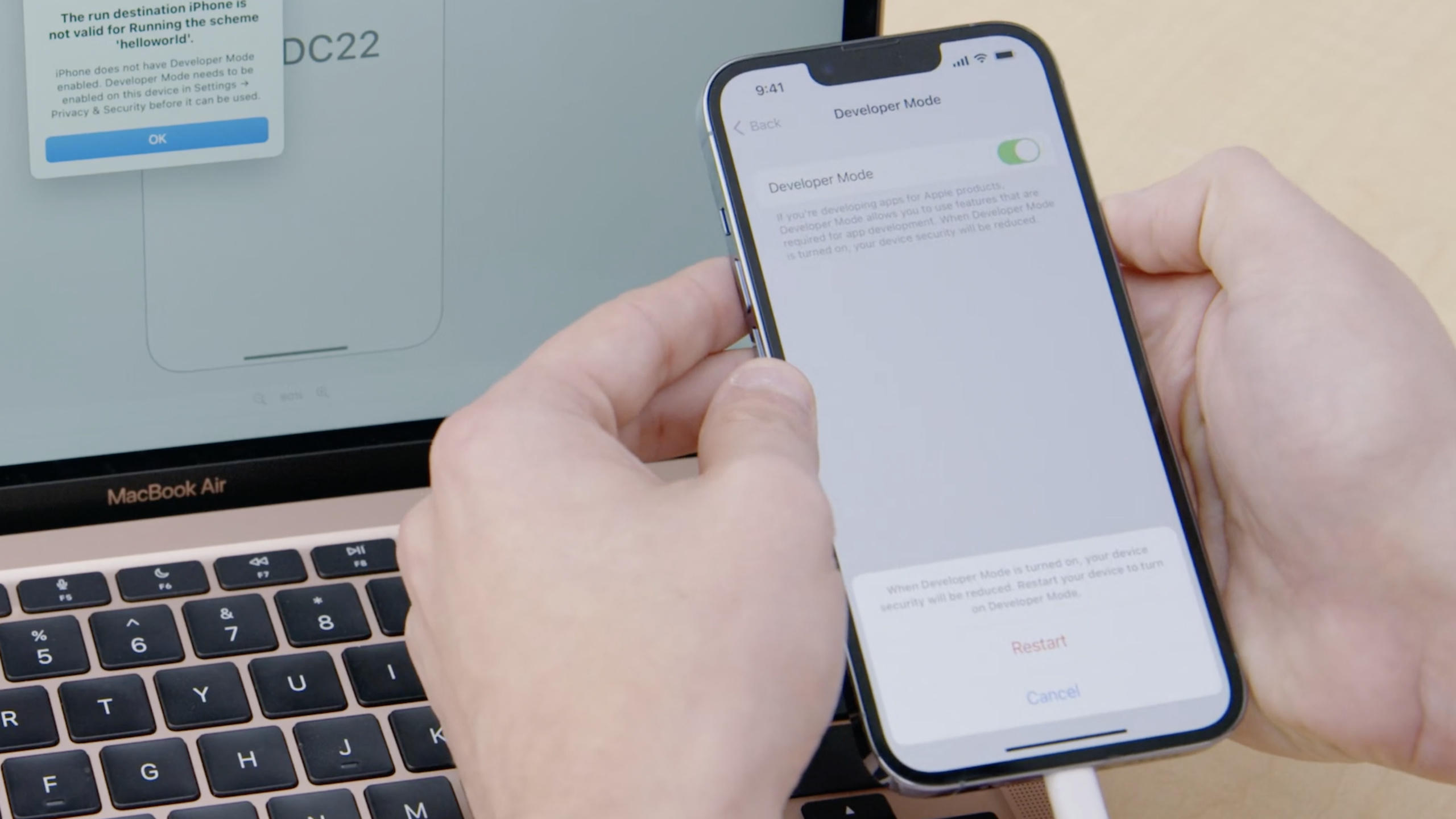
iOS 16, iPadOS 16, and watchOS 9 introduce Developer Mode, which is turned off by default. Developers must manually turn on this mode in settings before installing, running, and debugging development-signed applications on the device. For macOS Ventura
devmodectlThe tool supports automating the opening process.
Core Content
Why Developer Mode is needed
(00:47)
Powerful developer features are being abused in targeted attacks when the vast majority of ordinary users simply don’t need them. Apple’s approach: preserve capabilities that developers rely on while increasing security for ordinary users by turning them off by default.
The following distribution methods don’t require Developer Mode:
- App Store distribution
- TestFlight distribution
- Distribution within the enterprise
Developer Mode is only needed in the following scenarios:
- Install and run development-signed apps (including Personal Team-signed apps)
- Debugging with Xcode and profiling with Instruments
- Run automated tests on the device
How to enable Developer Mode
(02:56)
Start the process:
- Connect the device to a Mac running Xcode (or install a development-signed app through Apple Configurator)
- Go to Settings > Privacy & Security > Developer Mode
- Turn on the switch
- Restart the device
- Confirm to turn it on again after restarting
Once enabled, the state will be saved persistently and will be valid across reboots and system updates.
The Developer Mode menu item is always visible in the beta version. In the official version, it only appears after connecting to Xcode or installing a development-signed application.
Automation: devmodectl
(04:05)
Manual opening is inefficient in multi-device scenarios such as test laboratories. macOS Ventura has built-indevmodectlCommand line tools.
Restrictions: Only devices without a password can automatically turn on Developer Mode. This is because the device needs to be unlocked after restarting in order to continue interacting.
Two ways to use:
# Enable for a single connected device
devmodectl

# Streaming mode: automatically enable for all connected devices
devmodectl streaming
Key Points:
-devmodectl streamingWill monitor newly connected devices, automatically restart and configure Developer Mode
- The device will receive a notification after configuration is completed
- This tool is installed by default with macOS Ventura
Detailed Content
devmodectl usage example
# Check the status of currently connected devices
devmodectl

# Streaming mode: automatically handle all connected devices
devmodectl streaming

# Use in a CI script
#!/bin/bash
# Start streaming mode as a background process
devmodectl streaming &
STREAM_PID=$!

# Wait for devices to connect and be configured
sleep 30

# Stop streaming
kill $STREAM_PID
Key Points:
-devmodectlRequires the device to have no password to automatically complete the process
- Devices with passwords need to be manually unlocked after restarting, and the automated process will be interrupted.
- It is recommended to set no password for test devices in the test laboratory, or use MDM management
CI environment integration recommendations
# Check device status in the CI pipeline
#!/bin/bash

# Check for devices that have not enabled Developer Mode
if ideviceinfo -k DeveloperModeStatus | grep -q "0"; then
    echo "Developer Mode not enabled, attempting automatic setup..."
    devmodectl streaming &
    sleep 60
    kill %1
fi

# Continue running tests
xcodebuild test -destination "platform=iOS,name=TestDevice" ...
Key Points:
- In CI environment, use Developer Mode check as a pre-test step
- Uniformly configure passwordless policies for the test device pool to cooperate with
devmodectl streaming- Record which devices require manual intervention to avoid troubleshooting direction errors when the test fails
Core Takeaways
1. Update team equipment preparation process
- What to do: After getting a new device or system upgrade, turn on Developer Mode as the first step in the standard process
- Why is it worth doing: After iOS 16, it is impossible to debug without Developer Mode. This problem will waste a lot of troubleshooting time.
- How to start: Add the opening steps to the team’s device management document, and focus on the instructions when new members are onboarding.
2. Build an automated testing equipment pool
- What to do: Unify passwordless configuration for test devices in a CI environment +
devmodectl streaming- Why it’s worth doing: Manually turning on the Developer Mode of each device is unrealistic when there are a large number of devices. Automation is the only feasible solution. - How to start: Prepare a batch of special test equipment, restore factory settings without setting a password, connect to Mac and run
devmodectl streaming
3. Update internal test distribution strategy
- What to do: Evaluate which scenarios in the internal testing process will be affected by Developer Mode
- Why it’s worth doing: Although TestFlight and enterprise distribution are not affected, Developer Mode is required for development, debugging, QA verification, etc.
- How to start: Sort out all the scenarios where development signature applications are used in the team, and confirm that the devices in each scenario have Developer Mode turned on.
Related Sessions
- What’s new in Endpoint Security — macOS Security Event Monitoring API update
- Streamline local authorization flows — Optimization of local authorization flows
- Replace CAPTCHAs with Private Access Tokens — Replace verification codes with private access tokens
Comments
GitHub Issues · utterances