
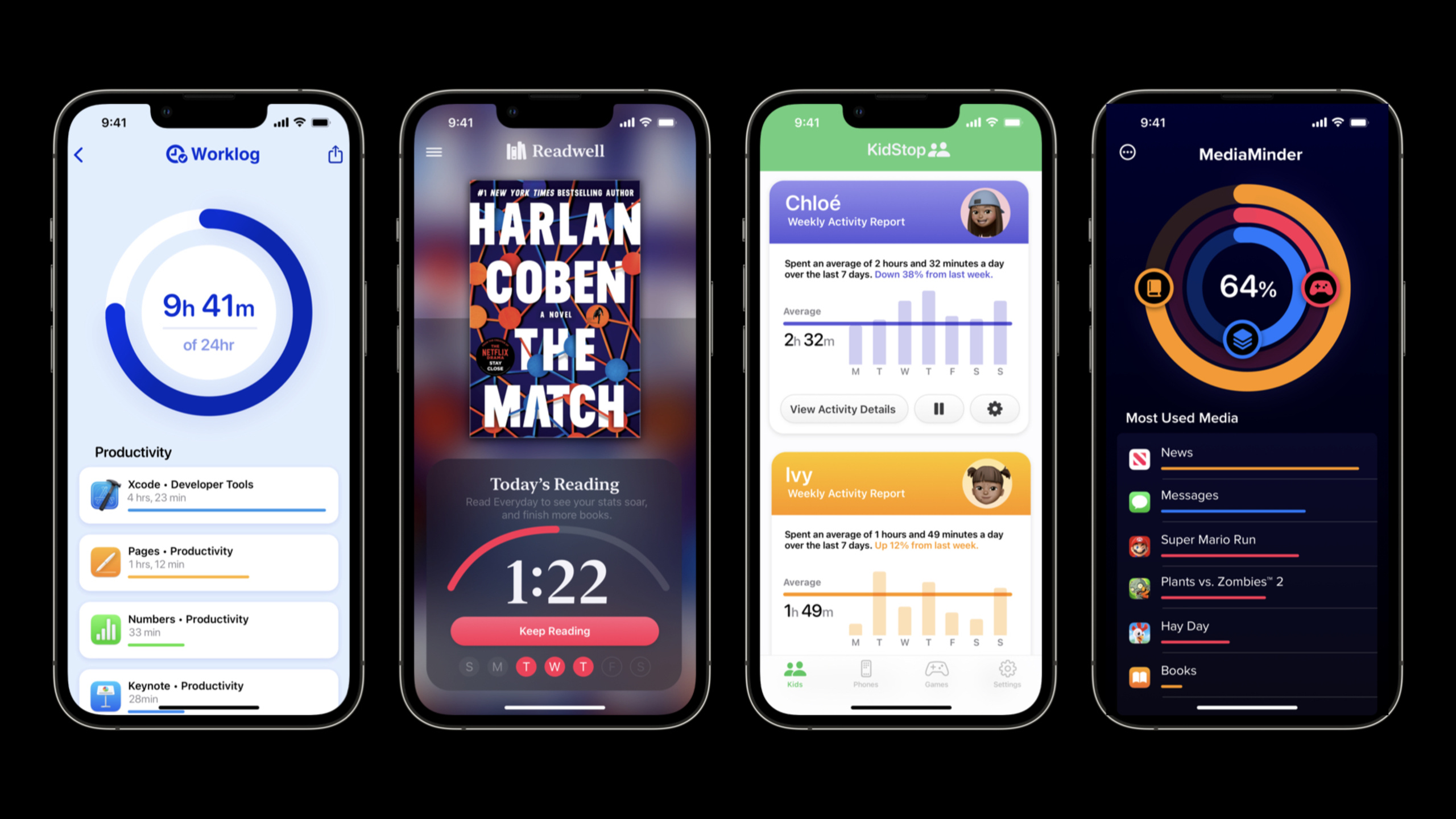
Highlight
iOS 16 expands the scope of use of the Screen Time API: individual users can now authorize third-party apps to manage their device usage habits, the Managed Settings Store supports named storage and is automatically shared between apps and extensions, and Device Activity has added custom reporting capabilities based on SwiftUI.
Core Content
From parental controls to personal productivity
The Screen Time API in iOS 15 can only be used in parental control scenarios - parents manage their children’s devices through iCloud authentication. This positioning limits application scenarios, and many developers who want to help users manage their screen time are blocked.
iOS 16 adds a new individual user authorization mode (AuthorizationCenter.requestAuthorization(for: .individual)). Users authorize directly on their own devices, no family sharing relationship is required. Each device can authorize multiple apps, and the mandatory restrictions on app uninstallation and iCloud logout are also removed.
This means that the market for Screen Time API has expanded from “parental control” to “personal efficiency” - it can be used in focus tools, habit development, digital health and other directions.
Named storage resolves conflicts in multiple scenarios
(04:20)
iOS 15’s Managed Settings Store has only one per process, and Apps and Extensions cannot yet be shared. If you want to realize the requirement of “blocking social apps on weekdays and opening them on weekends”, writing code is very awkward.
iOS 16 supports the creation of up to 50 named stores per process, which are automatically shared between the app and all extensions:
let gamingStore = ManagedSettingsStore(named: .gaming)
let socialStore = ManagedSettingsStore(named: .social)
If the settings of different Stores conflict, the most stringent one will take effect. For example, if the Gaming Store blocks a gaming website, the website remains blocked even if the Social Store clears all restrictions.
Custom usage reports
(06:35)
iOS 16 adds the Device Activity Report Extension, which allows developers to build fully customized device usage reports using SwiftUI. Data is processed locally on the device and does not involve cloud transmission, protecting user privacy.
Detailed Content
Request personal authorization
(03:09)
Request authorization when app starts:
import SwiftUI
import FamilyControls

@main
struct Worklog: App {
    let center = AuthorizationCenter.shared
    var body: some Scene {
        WindowGroup {
            VStack {…}
                .onAppear {
                    Task {
                        do {
                            try await center.requestAuthorization(for: .individual)
                        } catch {
                            print("Failed to enroll with error: \(error)")
                        }
                    }
                }
        }
    }
}
Key points:
AuthorizationCenter.sharedIs a singleton, the entire App uses the same instance -.individualThe parameter specifies the personal authorization mode, which is different from.childParental control mode- use
async/awaitHandle asynchronous authorization flow - A system alert will pop up when called for the first time. Face ID/Touch ID/password verification is required after the user clicks Allow.
- After the authorization is successful, calling it again will succeed silently and will not pop up repeatedly.
After authorization is completed, two new switches will be added in the settings:
- Settings > Screen Time > Apps with Screen Time access
- Settings > [App name] > Screen time limit
Users can revoke authorization at any time in both locations.
Use named stores to manage different scenarios
(05:13)
Response time window in Device Activity Monitor Extension:
import DeviceActivity
import ManagedSettings

class WorklogMonitor: DeviceActivityMonitor {
    let database = BarkDatabase()

    override func intervalDidStart(for activity: DeviceActivityName) {
        super.intervalDidStart(for: activity)
        let socialStore = ManagedSettingsStore(named: .social)
        socialStore.clearAllSettings()
    }

    override func intervalDidEnd(for activity: DeviceActivityName) {
        super.intervalDidEnd(for: activity)
        let socialStore = ManagedSettingsStore(named: .social)
        let socialCategory = database.socialCategoryToken
        socialStore.shield.applicationCategories = .specific([socialCategory])
        socialStore.shield.webDomainCategories = .specific([socialCategory])
    }
}
Key points:
ManagedSettingsStore(named: .social)Create/access a Store named social -clearAllSettings()Clear all restrictions on the Store with one click -shield.applicationCategoriesBlock specific app categories -shield.webDomainCategoriesBlock specific website categories -intervalDidStartCalled at the beginning of the time window (e.g. opening a social app at 5pm) -intervalDidEndCalled at the end of the time window (e.g. reblocking at 8pm)
Create custom usage reports
(07:02)
Define reporting context and filters in the main app:
import SwiftUI
import DeviceActivity

extension DeviceActivityReport.Context {
    static let pieChart = Self("Pie Chart")
}

@main
struct Worklog: App {
    private let thisWeek = DateInterval(...)
    @State private var context: DeviceActivityReport.Context = .pieChart
    @State private var filter = DeviceActivityFilter(
        segment: .daily(during: thisWeek)
    )

    var body: some Scene {
        WindowGroup {
            GeometryReader { geometry in
                VStack(alignment: .leading) {
                    DeviceActivityReport(context: context, filter: filter)
                        .frame(height: geometry.size.height * 0.75)
                }
            }
        }
    }
}
Key points:
DeviceActivityReport.ContextDefine report type identifier -DeviceActivityFilterSpecify data time range, support.daily、.weeklyequal segmentation -DeviceActivityReportIt is a SwiftUI view, directly embedded in the interface
Process data in Report Extension:
import SwiftUI
import DeviceActivity

struct PieChartReport: DeviceActivityReportScene {
    let context: DeviceActivityReport.Context = .pieChart
    let content: (PieChartView.Configuration) -> PieChartView

    func makeConfiguration(representing data: [DeviceActivityData])
        -> PieChartView.Configuration {
        var totalUsageByCategory: [ActivityCategory: TimeInterval]
        totalUsageByCategory = data.map(…)

        return PieChartView.Configuration(
            totalUsageByCategory: totalUsageByCategory
        )
    }
}
Key points:
DeviceActivityReportSceneIs the protocol of Report Extension -makeConfigurationAutomatically called when data is updated, no manual triggering required- The returned Configuration is passed to the SwiftUI view as a view model
Extension entry:
import SwiftUI
import DeviceActivity

@main
struct WorklogReportExtension: DeviceActivityReportExtension {
    var body: some DeviceActivityReportScene {
        PieChartReport { configuration in
            PieChartView(configuration: configuration)
        }
    }
}
Core Takeaways
-
What to do: Build a personal focus assistant and automatically block distracting apps according to time periods
-
Why it’s worth doing: The personal authorization mode of iOS 16 allows such tools to no longer require a family sharing relationship, and the target users are expanded from parents to all iPhone users
-
How to start: Use
AuthorizationCenter.shared.requestAuthorization(for: .individual)Obtain authorization and createManagedSettingsStoreTo configure blocking rules, useDeviceActivityScheduleDefine time window -
What: Develop a team screen time management tool to help businesses monitor work device usage
-
Why it’s worth it: Apple Business Essentials and Screen Time API can implement enterprise-level device usage strategies
-
How to get started: Combine Managed Apple ID and Device Activity Report to generate team usage reports
-
What to do: Create a digital habit-building game for children, replacing forced restrictions with an achievement system
-
Why it’s worth doing: Traditional parental control can easily cause confrontation, and gamification is more acceptable.
-
How to start: Use Device Activity Report to display usage data, combined with Game Center achievement system, automatically relax restrictions after reaching the standard
-
What to do: Build a website/App and use analysis tools to help users understand their time allocation
-
Why it’s worth doing: Custom Report Extension can use SwiftUI to draw beautiful data visualizations
-
How to start: Create DeviceActivityReportExtension, in
makeConfigurationMedium polymerizationDeviceActivityData, rendered with Swift Charts or a custom view
Related Sessions
- What’s new in managing Apple devices — The latest updates in Apple device management
- What’s new in Swift — New features of Swift language
- Add Shared with You to your app — Shared with you helps people easily find content in your app
Comments
GitHub Issues · utterances