
Highlight
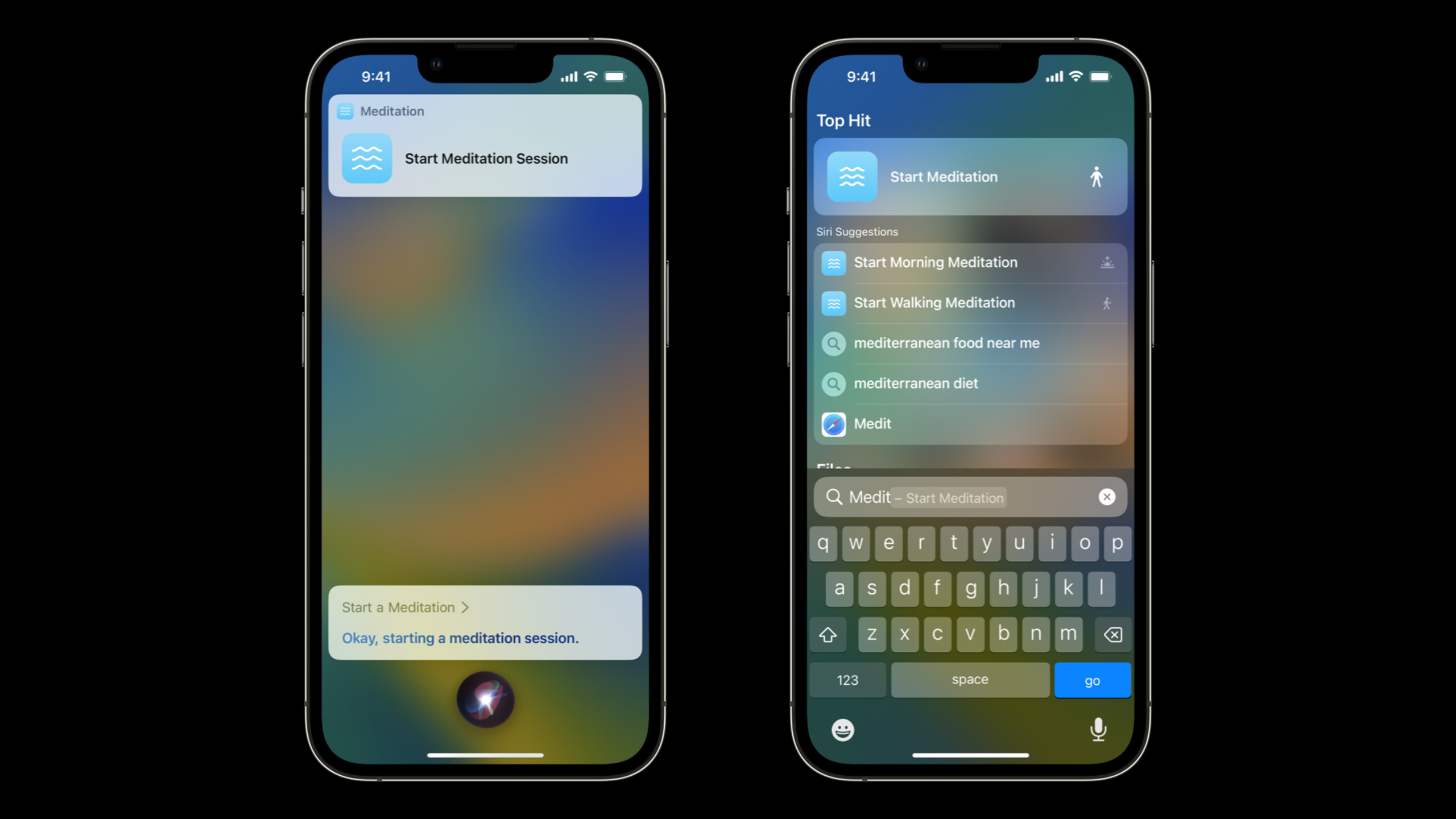
The App Intents framework of iOS 16 allows developers to define App Shortcuts with pure Swift code, without the need for additional metadata files, and is automatically available in Siri, Spotlight and Shortcuts apps after installation.
Core Content
In the past, users would need to click the “Add to Siri” button or manually set it up in the Shortcuts app to use your intent. App Shortcuts removes this barrier—Intents are immediately available in Siri, Spotlight, and Shortcuts apps as soon as the app is installed. (01:02)
App Intents is a new Swift-only framework where all definitions are done in Swift source code and no separate metadata files are required. (02:57) This brings several benefits: no code generation step, no need to switch between the source code editor and the metadata editor, easier code review, and easier resolution of merge conflicts.
Take a meditation app as an example. Previously, users had to open the app, log in, and find the meditation session they wanted to listen to. With App Shortcuts, users can simply say “start meditating” to start the default session. (02:13)
Detailed Content
Basic App Intent
Intent is an implementationAppIntentA Swift struct for a protocol, requiring only two things: a header andperformmethod. (03:44)
import AppIntents

struct StartMeditationIntent: AppIntent {
    static let title: LocalizedStringResource = "Start Meditation Session"

    func perform() async throws -> some IntentResult & ProvidesDialog {
        await MeditationService.startDefaultSession()
        return .result(dialog: "Okay, starting a meditation session.")
    }
}
Key points:
titleUsed to display this intent in the Shortcuts app -perform()It is async and can perform asynchronous operations- return
.result(dialog:)Show feedback to users - If the application is localized, the dialog string also needs to be localized
Create App Shortcut
Having Intent is not enough, it needs to be packaged into App Shortcut. accomplishAppShortcutsProviderProtocol: (05:31)
import AppIntents

struct MeditationShortcuts: AppShortcutsProvider {
    static var appShortcuts: [AppShortcut] {
        AppShortcut(
            intent: StartMeditationIntent(),
            phrases: [
                "Start a \(.applicationName)",
                "Begin \(.applicationName)",
                "Meditate with \(.applicationName)",
                "Start a session with \(.applicationName)"
            ]
        )
    }
}
Key points:
- use
\(.applicationName)Instead of hardcoding the app name, Siri automatically inserts the main app name and configured synonyms - Provides multiple phrase variations to cover different ways users might say it
- Maximum of 10 App Shortcuts per app, but most apps only require a few
- Phrases need to be localized to all languages supported by the app
Custom Snippet view
By default, Siri displays a universal view when running an intent. You can return a custom SwiftUI view to make it more informative. (07:40)
func perform() async throws -> some ProvidesDialog & ShowsSnippetView {
    await MeditationService.startDefaultSession()

    return .result(
        dialog: "Okay, starting a meditation session.",
        view: MeditationSnippetView()
    )
}
Key points:
- Custom views use SwiftUI, which uses the same view technology as Widgets
- No need to create UI extension separately
- Views cannot contain interactions or animations (same restrictions as Widgets)
- Custom UI can be displayed in three stages: value confirmation, Intent confirmation, and after Intent completion
Add parameters
To allow the user to specify a specific meditation session type, parameters need to be added. First define the parameter type and implementAppEntityProtocol: (10:09)
import AppIntents

struct MeditationSession: AppEntity {
    let id: UUID
    let name: LocalizedStringResource

    static var typeDisplayName: LocalizedStringResource = "Meditation Session"
    var displayRepresentation: AppIntents.DisplayRepresentation {
        DisplayRepresentation(title: name)
    }

    static var defaultQuery = MeditationSessionQuery()
}
Then implement the query protocol so that the App Intents framework can find entities based on identifiers: (10:55)
struct MeditationSessionQuery: EntityQuery {
    func entities(for identifiers: [UUID]) async throws -> [MeditationSession] {
        return identifiers.compactMap { SessionManager.session(for: $0) }
    }
}
Add parameters in Intent: (11:16)
struct StartMeditationIntent: AppIntent {
    @Parameter(title: "Session Type")
    var sessionType: SessionType?

    // ...
}
Prompt user to select value
If the user does not provide a parameter value, you can proactively prompt it. App Intents supports three prompt types: disambiguation (select from a fixed list), value prompt (open-ended value), and confirmation (validate a specific value). (12:14)
func perform() async throws -> some ProvidesDialog {
    let sessionToRun = self.session ?? try await $session.requestDisambiguation(
        among: SessionManager.allSessions,
        dialog: IntentDialog("What session would you like?")
    )

    await MeditationService.start(session: sessionToRun)
    return .result(
        dialog: "Okay, starting a \(sessionToRun.name) meditation session."
    )
}
Key points:
- use
$session.requestDisambiguationLet the user choose from a fixed list - App Intents will be used for each session
displayRepresentationFormat list items - After the user selects, the selected item will be returned to
performmethod - Hints can slow down interaction, don’t overuse them
Parameterized phrase
Let the user specify parameter values directly in the initial command, such as “Start a calming meditation.” This requires three steps: (15:27)
The first step is to implement it in QuerysuggestedEntities():
struct MeditationSessionQuery: EntityQuery {
    func entities(for identifiers: [UUID]) async throws -> [MeditationSession] {
        return identifiers.compactMap { SessionManager.session(for: $0) }
    }

    func suggestedEntities() async throws -> [MeditationSession] {
        return SessionManager.allSessions
    }
}
Key points: This method must be implemented, otherwise the parameterized phrase will not be generated.
The second step is to notify the App Intents parameter value changes at the model layer: (16:34)
class SessionModel {
    @Published
    var sessions: [MeditationSession] = []
    private var cancellable: AnyCancellable?

    init() {
        self.cancellable = $sessions.sink { _ in
            MeditationShortcuts.updateAppShortcutParameters()
        }
    }
}
Key points:
updateAppShortcutParameters()Is a method provided by the App Intents framework- After the call, the framework will re-query the entity list and update the parameterized phrase
- Usually called after getting a new session from the server
The third step is to add a phrase with parameters in App Shortcut: (17:09)
struct MeditationShortcuts: AppShortcutsProvider {
    static var appShortcuts: [AppShortcut] {
        AppShortcut(
            intent: StartMeditationIntent(),
            phrases: [
                "Start a \(.applicationName)",
                "Begin \(.applicationName)",
                "Meditate with \(.applicationName)",
                "Start a \($session) session with \(.applicationName)",
                "Begin a \($session) session with \(.applicationName)",
                "Meditate on \($session) with \(.applicationName)"
            ]
        )
    }
}
Key points:
- use
\($session)Reference parameters in the intent - The framework will combine the parameter value list with the phrase to generate all variations
- The display text for the parameter value comes from
DisplayRepresentationoftitle
Discoverability
App Shortcuts are available right out of the box, but users need to know they exist. (17:55)
- Siri Tip: Display at the right time in the application, supported by both SwiftUI and UIKit, with multiple styles
- ShortcutsLink: Jump to the list of all shortcuts of this application in the Shortcuts application
- Siri Active Recommendation: Automatically recommend when users ask “What can I do here?”
Notes
App Shortcuts may be run before the app is first launched. (20:36) If the app requires login, the Intent should fail gracefully, prompting the user to log in first. Parameterized phrases are not available until the application first starts and the framework is notified, so it is recommended to keep at least a few non-parameterized phrases.
Core Takeaways
1. Add zero-configuration voice portal for high-frequency operation
Find out what actions users do in your app every day, and use App Shortcuts to provide one-sentence insights. For example, “Start a run” in fitness apps and “Record an expense” in accounting apps. The implementation cost is very low - a single Intent struct and an AppShortcutsProvider make the functionality available in Siri and Spotlight.
2. Use parameterized phrases to reduce interaction steps
If your app has fixed categories of content (such as playlists, favorite restaurants, frequently used rooms), make the category name a parameter and let the user say “play my running playlist” instead of “play music” and then be asked “what to play.” accomplishsuggestedEntities()and called when the data changesupdateAppShortcutParameters()That’s it.
3. Strategically display Siri Tips within the app
Don’t have random pop-ups. Select the moment when the user may want to repeat it quickly after completing an operation, such as displaying the tip “Next time you can say ‘check my order’” after placing an order manually. Use it directly in SwiftUISiriTipView, UIKit uses the corresponding view. Support closing callbacks and recording user preferences to avoid repeated interruptions.
4. Design graceful degradation for unlogged status
App Shortcuts may be triggered when the user has never opened the app. existperform()Check the necessary status (such as login), and if the conditions are not met, return a friendly dialog to guide the user to open the application to complete the settings, instead of crashing or failing silently.
Related Sessions
- Design App Shortcuts — Design best practices for App Shortcuts, including naming, visual presentation, and information gathering strategies
- Dive into App Intents — Learn more about advanced usage of the App Intents framework
- Add Live Activities to Your App — Use Live Activities to display real-time information in App Shortcuts
Comments
GitHub Issues · utterances