
Highlight
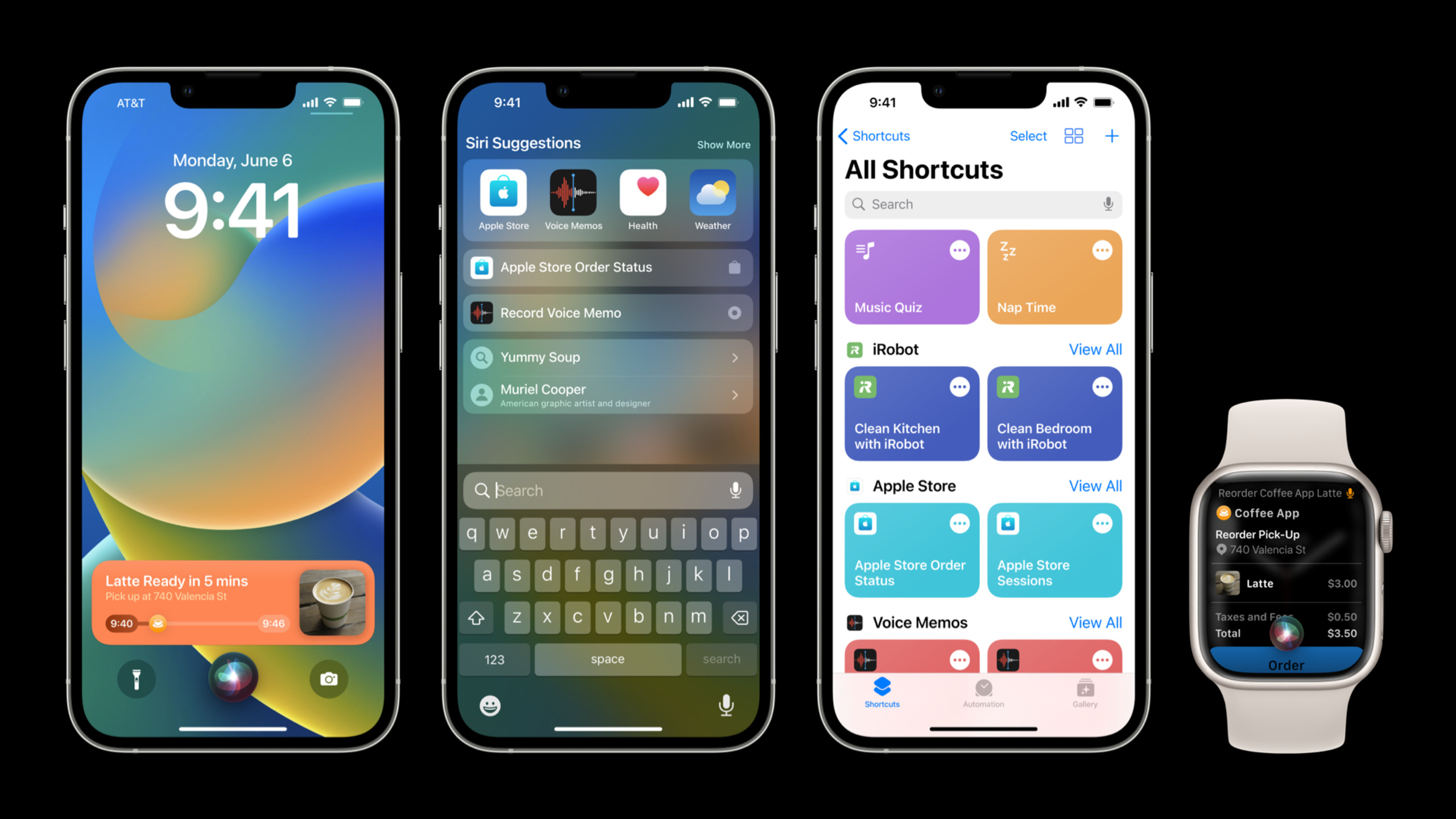
iOS 16 introduces App Shortcuts, which are automatically available in Siri, Spotlight, and Shortcuts apps without user settings after the app is installed. Developers need to rethink how to select functions, name phrases, and design interaction flows.
Core Content
Choose the appropriate function
Not all functions are suitable for App Shortcut. Good candidate features have two characteristics: (02:33)
- Self-contained (self-contained): You can complete the entire task without opening the application
- Simple and direct (straightforward): users can complete it quickly without requiring a lot of input
Taking meditation apps as an example, “Start Sleep Meditation” is a good choice - the user starts playing as soon as they say it, without opening the app during the entire process. (03:08) A multi-step questionnaire is inappropriate and too cumbersome.
You can create up to 10 App Shortcuts per app, but Apple recommends staying focused on 2 to 5 high-quality shortcuts. (04:15)
Design of named phrases
Phrases are how users evoke shortcuts and appear in the Shortcuts app, Spotlight, and Siri. Design principles: (04:49)
- Short and easy to remember: Users may have installed many apps that support App Shortcuts and cannot remember complex phrases
- Integrate into the application name: Must include the application name, but can be creatively integrated, such as “Record Voice Memo”, “Order Panera”
- Provide synonymous variants: The same intention may have multiple versions, such as “Start Voice Memo” and “New Voice Memo” both are supported
- Localization: All variants need to be translated into every language supported by the app
Use of dynamic parameters
You can embed a dynamic parameter in a phrase to let the user specify options directly. (06:52) Such as “Start Sleep Meditation”, “Start Gratitude Meditation”.
Limitations on using dynamic parameters: (07:16)
- Each shortcut can only have one dynamic parameter
- Parameter values must be a finite list that the user can say from memory
- List can be updated while the app is open
- Not suitable for infinite options, such as time values
The order of the parameter value list affects impression priority in Spotlight. You can sort by frequency of recent use or time of day so that the most relevant options appear first. (14:29)
Visual presentation
App Shortcuts supports two results display methods: (10:56)
- Live Activity: Used when information needs to be displayed continuously, such as takeout progress and countdown
- Custom Snippet: used for one-time messages or self-contained operations
Custom Snippet uses a translucent material background, not a solid color. Place the elements in the application directly on this material and use vibrant label colors to ensure contrast, so that it will automatically adapt in Dark Mode. (10:21)
If the visual content already conveys the information completely, the supporting dialog is redundant. Suppress it in your code to avoid duplication. (11:43)
But provide a complete dialog for voice-only scenarios (such as AirPods), including all key information in visual and auxiliary dialogs. (12:03)
watchOS 9 also supports Custom Snippet, you need to check the layout effect on the watch. The Coffee app, for example, moves the address line below the title to improve readability. (12:31)
Information Collection Strategy
When shortcut requires additional information, there are several ways: (15:26)
- Parameter Confirmation (Parameter Confirmation): Make a reasonable assumption based on historical selections or popular options and let the user confirm
- Disambiguation (Disambiguation): Provides a list of options within 5, suitable for new users to understand the available values
- Open-ended Request (Open-ended Request): Collect unlimited values such as numbers, positions, strings, etc., with minimal restrictions but clear guidance is required
- Intent Confirmation (Intent Confirmation): only used before important operations, such as financial transactions, deleting content, and sending group calendar invitations
The confirmation button copy should use a verb to reiterate the action to be performed, rather than using a vague “confirm.” The App Intents framework provides a set of default verbs and corresponding synonyms. (18:17)
Discoverability
App Shortcuts are automatically available after installation, but if users don’t know it, they don’t exist. (18:56)
- Siri Tip: Replaces the old “Add to Siri” button and displays it at the appropriate time within the app. Select a moment when the user may want to repeat an action, such as displaying a “check order status” tip just after placing an order. Support closing and respect user wishes.
- ShortcutsLink: Jump to the page in the Shortcuts application that displays all the shortcuts of the application, suitable for applications with many shortcuts.
- Siri Proactive Recommendation: When the user says “What can I do here?” or “What can I do with [App]?”, Siri will automatically collect and recommend App Shortcut phrases without additional development.
Detailed Content
Spotlight Display Rules
In iOS 16, App Shortcuts will appear in multiple locations in Spotlight: (13:08)
- When searching for the app name, the first App Shortcut appears below the app as Siri Suggestion
- When searching directly for a shortcut name, the matching shortcut will appear in the results.
- When you open Spotlight for the first time, if the application is Siri Suggestion, the top shortcut will be displayed directly
An SF Symbol will be displayed on the right side of each shortcut. You need to choose an icon for each shortcut that accurately reflects the intention. (13:53)
In the Shortcuts app, all shortcuts use a consistent color. Choose a color that coordinates with the app icon, rather than sticking to the default color. (14:58)
Sequence effects in code
The order in which App Shortcuts are displayed is determined by the order in which they are defined in the code. Put the most important and useful shortcuts first. (21:52) The first phrase in each shortcut’s phrase array is the main phrase, used for Shortcut tile labels and Siri help prompts.
Core Takeaways
1. Create 2-3 App Shortcuts for your app’s core high-frequency operations**
Find out the actions that users repeat every day, such as “Start focused timer”, “Record weight”, “Play white noise”. These operations can be completed without opening the app and can be done with just one sentence using Siri. Select self-contained, simple and straightforward tasks from the feature list and implement them first.
2. Do user testing when designing natural language phrases
Write out the phrase you designed and try it with a few colleagues or friends to see if they can say it naturally. Record the actual variations they use and add those synonyms to your phrase list. Don’t forget to do the same in all supported languages.
3. Insert Siri Tip in key scenarios
Instead of placing tips everywhere, choose a moment when the user has completed an action and is likely to want to quickly repeat it next time using their voice. For example, if the user has just manually set an alarm, the tip “Next time you can say ‘Use SleepApp to set a 7 o’clock alarm’” is displayed. Track the tip’s closing rate and adjust the display timing or copy if users close it frequently.
4. Write a complete dialog for pure voice scenarios
When testing your shortcut, wear AirPods and close your eyes the entire time. Does everything Siri says contain everything the user needs to know? Is the visual content fully conveyed in the voice scene? Complete missing information.
Related Sessions
- Implement App Shortcuts with App Intents — Learn how to implement App Shortcuts with the App Intents framework, including complete code examples
- Dive into App Intents — Dive into advanced usage of the App Intents framework, including custom entities and queries
- Add Live Activities to Your App — Use Live Activities to display real-time information in App Shortcuts
- Design Great Actions for Shortcuts — Last year’s best practices for Shortcuts Action design
Comments
GitHub Issues · utterances