
Highlight
Apple released the open source Unity accessibility plug-in (Apple Unity Plug-Ins) at WWDC 2022, allowing Unity game developers to access auxiliary functions such as VoiceOver, Switch Control, and Dynamic Type like native applications without having to learn Apple’s accessibility API from scratch.
Core Content
Accessibility support for Unity games on Apple platforms has always been a pain point. Native developers can use the UIAccessibility protocol, SwiftUI’saccessibilityLabelModifiers to access VoiceOver, but these APIs are not available in the Unity engine. The result is that a large number of Unity games have no accessibility support at all and are inaccessible to users with visual impairments and motor impairments.
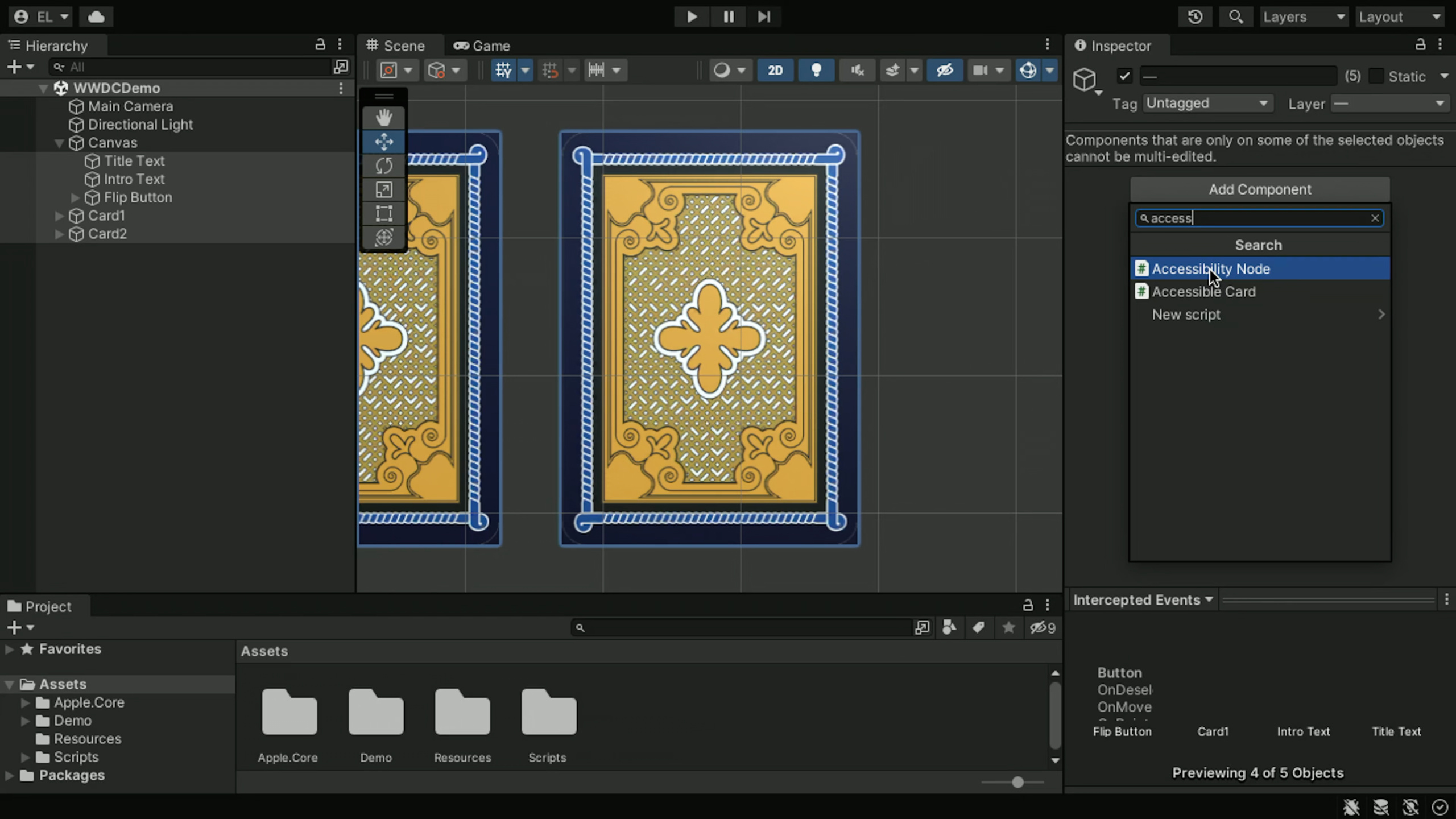
The Apple Unity Plug-Ins introduced in this session solve this problem. It provides on Unity sideAccessibilityNodecomponents andAccessibilitySettingsAPI, the bottom layer connects to the iOS/macOS accessibility system through the native bridging layer. Developers do not need to write a line of native code to configure it in Unity InspectorAccessibilityNodeThis will allow VoiceOver to speak the game object correctly.
Session uses a memory matching card game (Memory Match) as a demonstration case. The core interaction of the game is to turn over cards and match patterns, but the original cards are completely invisible to VoiceOver - they are Unity GameObjects, not UIKit’s UIViews. By attaching each cardAccessibilityNodeComponents and implementationaccessibilityValueDelegate, VoiceOver users can hear descriptions such as “Ace of Spades” and “Covered” and can participate in the game normally.
In addition to VoiceOver, the plug-in also supports Dynamic Type - when the user increases the font size in the system settings, the text and card patterns in the game will automatically scale; supports Reduce Motion - when the user turns on the weakening dynamic effect, the card flip animation will be skipped and the result will be displayed directly; and interface adaptation options such as Reduce Transparency and Increase Contrast.
Detailed Content
Connect to Apple Unity Accessibility plug-in
Plugins are installed through Unity Package Manager, and the source code is hosted on GitHub. After installation, each GameObject that needs to be read by VoiceOver needs to be mountedAccessibilityNodecomponents.
The first is to define a card enumeration type (07:43):
public enum PlayingCard
{
    AceOfSpade,
    AceOfClubs,
    AceOfDiamonds
}
Then implement it in the card’s MonoBehaviourAccessibleCardClass (07:53):
using Apple.Accessibility;
public class AccessibleCard : MonoBehaviour
{
    public PlayingCard cardType;
    public bool isCovered;
    void Start()
    {
        var accessibilityNode = GetComponent<AccessibilityNode>();
        accessibilityNode.accessibilityValueDelegate = () => {
            if (isCovered) {
              return "covered";
            }
            if (cardType == PlayingCard.AceOfSpades) {
              return "Ace of Spades";
            }
        }
    }
}
Key points:
GetComponent<AccessibilityNode>()Get accessibility nodes mounted on the same GameObject -accessibilityValueDelegateis a delegate that returns a string, it will be called when VoiceOver reads- According to
isCoveredStatus returns different descriptions to let the user know whether the card is covered or revealed - If the card is revealed and it is the Ace of Spades, return “Ace of Spades”, which will be read out by VoiceOver
Support Dynamic Type
Dynamic Type allows text and graphics to automatically scale according to the system font size setting. Plug-in passedAccessibilitySettingsThe class provides font size information (10:35):
public class DynamicCardFaces : MonoBehaviour
{
    public Material RegularMaterial;
    public Material LargeMaterial;
    void OnEnable()
    {
        AccessibilitySettings.onPreferredTextSizesChanged += _settingsChanged;
    }

    void _settingsChanged()
    {
        var shouldUseLarge = AccessibilitySettings.PreferredContentSizeCategory >=
            ContentSizeCategory.AccessibilityMedium;
        GetComponent<Renderer>().material = shouldUseLarge ? RegularMaterial :
            LargeMaterial;
    }
}
Key points:
- Subscribe
AccessibilitySettings.onPreferredTextSizesChangedEvent, triggered when the system font size changes -PreferredContentSizeCategoryReturns the current system font size category - When the font size is greater than or equal to
AccessibilityMediumWhen the time comes, switch to a larger card material (LargeMaterial) to ensure that the pattern can be clearly recognized when the text is enlarged.
The text itself also needs to be scaled (10:36):
using UnityEngine.UI;
public class DynamicTextSize : MonoBehaviour
{
    int originalSize;
    void Start()
    {
        originalSize = GetComponent<Text>().textSize;
    }

    void OnEnable()
    {
        AccessibilitySettings.onPreferredTextSizesChanged += _settingsChanged;
    }

    void _settingsChanged()
    {
        GetComponent<Text>().textSize = (int)(originalSize *
            AccessibilitySettings.PreferredContentSizeMultiplier);
    }
}
Key points:
- Save original size of text
originalSize- usePreferredContentSizeMultiplierMultiply the original size to get the new font size -PreferredContentSizeMultiplierIt is the scaling factor calculated by the system based on the user’s font size settings. There is no need to look up the table yourself.
Support Reduce Motion
Reducing dynamic effects is an important setting for motion-sensitive users. In the memory matching game, the card flip animation may cause discomfort and the animation needs to be skipped when Reduce Motion is detected to be on (14:54):
using Apple.Accessibility;
public class CardController : MonoBehaviour
{
    public void Flip()
    {
        var reduceMotionOn = !AccessibilitySettings.IsReduceMotionEnabled;
        if (!reduceMotionOn)
        {
            StartCoroutine(Animate());
        }
        else
        {
            transform.rotation = Quaternion.identity;
        }
    }
    IEnumerator Animate()
    {
    }
}
Key points:
AccessibilitySettings.IsReduceMotionEnabledReturns whether the user has turned on reducing dynamic effects in the system settings.- If enabled, skip the animation coroutine and directly reset the card rotation to
Quaternion.identity(face up), users see the results instantly - If not turned on, play normally
Animate()Flip animation in coroutine - This logic is placed in
Flip()In the method, it will be checked every time the card is turned over
Interface adaptation options
In addition to the three main functions above, the plugin also exposes the following settings:
AccessibilitySettings.IsReduceTransparencyEnabled: Check if reduce transparency is turned on -AccessibilitySettings.IsIncreaseContrastEnabled: Check whether enhanced contrast is turned on -AccessibilitySettings.IsBoldTextEnabled: Check whether bold text is turned on
These can all be found inStart()orOnEnable()Read in and cooperate with material switching or UI adjustment to achieve adaptation. For example, when transparency reduction is turned on, the translucent background is changed to opaque; when contrast enhancement is turned on, a higher contrast color scheme is used.
Core Takeaways
-
Attach AccessibilityNode to the game interactive objects: Find the objects in the game that have a key impact on the gameplay (cards, buttons, characters, props), and mount them one by one
AccessibilityNodeComponents and implementationaccessibilityValueDelegate. Why it’s worth doing: VoiceOver users rely entirely on screen reading to understand the game state, and a GameObject without an AccessibilityNode is nothing to them. How to start: Open your game scene in Unity, select the 5 most critical interactive objects, and attach them to eachAccessibilityNodeAnd write a delegate that returns the current state description. -
Listen to Dynamic Type events and scale text and graphics synchronously: Subscribe
onPreferredTextSizesChanged,usePreferredContentSizeMultiplierScale the font size of all Text components and prepare larger versions of materials for key graphics. Why it’s worth it: Users with low vision will adjust the system font size very large, and if the game text is not enlarged accordingly, they will not be able to read it at all. How to get started: Create aDynamicTextSizeThe script is hung on all Text components, and then prepared for key graphics (such as cards, icons)LargeMaterialVariants. -
Use Reduce Motion switch to control animation playback: Check before animation playback
IsReduceMotionEnabled, skip the animation when turned on and present the result directly. Why it’s worth doing: Motion-sensitive users may experience dizziness or discomfort when watching fast flipping, bouncing, rotating and other animations. Skipping the animation directly is a basic respect for them. How to start: Find all the places in the game where animations are played (flop, cutscenes, special effects), and add one to each entranceif (AccessibilitySettings.IsReduceMotionEnabled) return;examine.
Related Sessions
- What’s new in accessibility — Overview of the latest accessibility features and APIs on Apple platforms, learn about changes in system-level accessibility features such as VoiceOver and Switch Control
- Explore navigation design for iOS — Accessibility considerations in navigation design, including VoiceOver focus order and accessibility
- Create accessible Single App Mode experiences — Accessible experience design in single application mode, related to the full-screen immersive scene of the game
- What’s new in AppKit — Accessibility enhancements in macOS native development, understanding the platform capabilities that underlying bridging relies on
Comments
GitHub Issues · utterances