
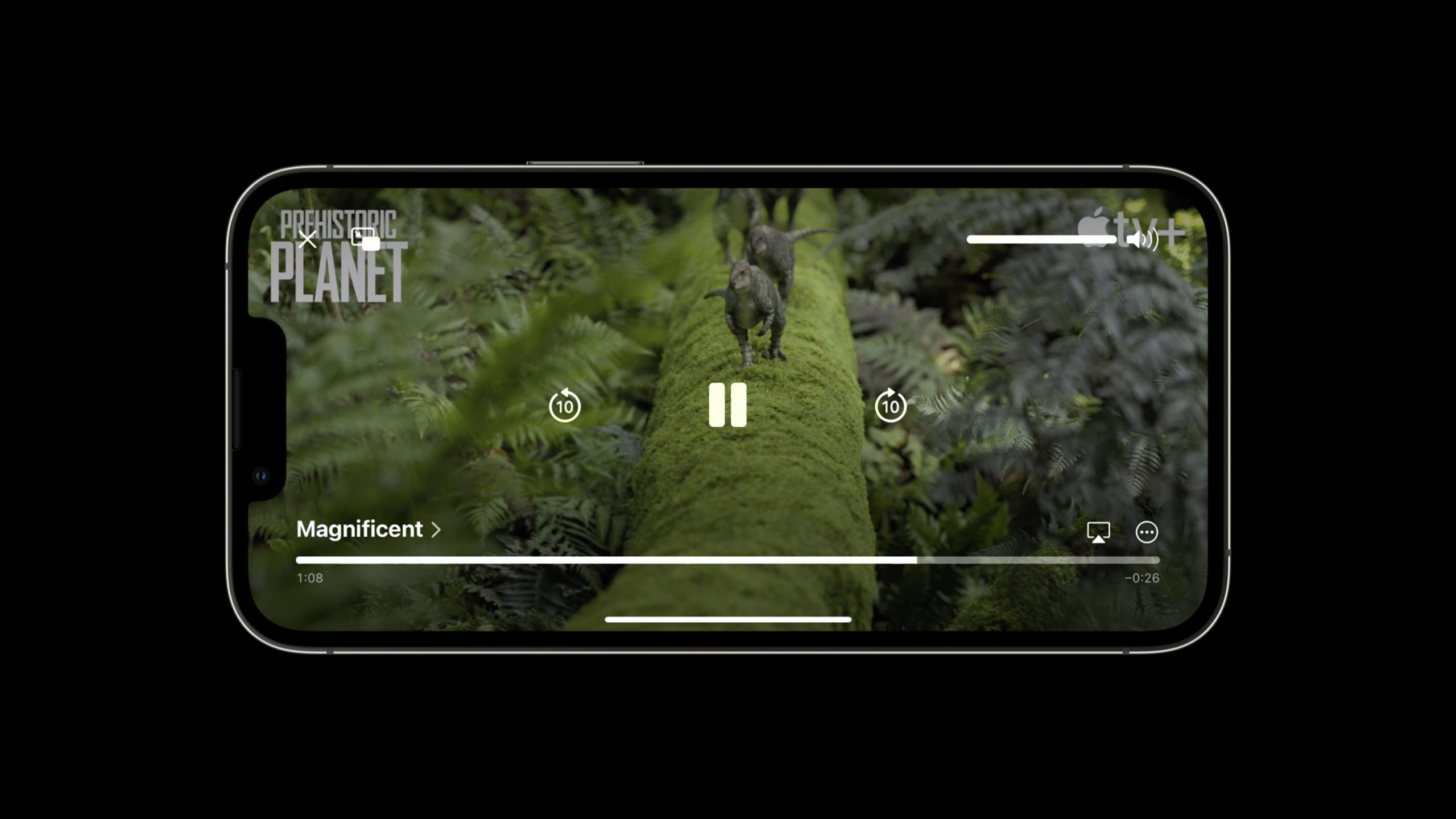
Highlight
The system media player of iOS 16 introduces a customizable playback speed menu, more powerful support for interstitial ads, and metadata display optimization provided by AVPlayerViewController, allowing developers to directly utilize the system’s native capabilities to improve the playback experience of media applications without rebuilding the player UI.
Core Content
Before iOS 16, if you wanted users to adjust video playback speed, support interstitials, or display richer metadata in the playback interface, you were almost destined to rewrite the entire player UI. Apple has long provided AVPlayerViewController, but its customization capabilities have always been limited. Developers face two choices: either accept the fixed behavior of the system player or build a complete player from scratch. Building your own meant dealing with a ton of detail—buffer indicators, playback controls, time display, picture-in-picture, subtitle track selection, audio track selection, AirPlay sharing—that were both time-consuming and bug-prone to write. (00:45)
iOS 16 changes that. Apple has extended the API of AVPlayerViewController to allow developers to directly mount custom functions on the system player without having to maintain a UI themselves. This includes: you can add custom gears to the playback speed menu (instead of just the fixed options of 1.0x, 1.25x, 1.5x, 2.0x); you can use AVPlayerInterstitialEventController to manage the playback logic of interstitial ads; you can display title, subtitle and description information on the player through externalMetadata. (01:30)
The significance of these improvements is that it makes “using the system player” and “providing a customized experience” no longer an either-or relationship. You can continue to rely on Apple’s continuous optimization of player interaction (including adaptation to new devices, accessibility support, and integration with system functions), while embodying the characteristics of your app in key points. This is especially important for media applications - users have clear expectations for the player and are used to how the system operates, but application providers need to display their own brand information, advertising logic or features. (02:15)
The core of this session is to show how to implement these common player requirements with the smallest amount of code without over-customization. The speaker will not teach you how to write a complete custom player (because Apple recommends that you use the one provided by the system), but will teach you how to extend the system player so that it meets the needs of your app. (02:45)
Detailed Content
Set metadata for the player
(03:30) When you use AVPlayerViewController to play a URL, by default the player interface only displays basic controls such as time and playback buttons. It doesn’t know what you’re broadcasting. iOS 16 allows you to set metadata for AVPlayerItem through externalMetadata, and this information will be automatically displayed in the player’s information panel.
The specific method is to create an AVMutableMetadataItem array, each item represents a piece of metadata. Apple provides standard identifier constants to specify field types: titles use.commonIdentifierTitle, for subtitles.iTunesMetadataTrackSubTitle, used to describe.commonIdentifierDescription. The code is as follows:
let titleItem = AVMutableMetadataItem()
titleItem.identifier = .commonIdentifierTitle
titleItem.value = "WWDC 2022 Session 10147"

let subtitleItem = AVMutableMetadataItem()
subtitleItem.identifier = .iTunesMetadataTrackSubTitle
subtitleItem.value = "Create a great video playback experience"

let infoItem = AVMutableMetadataItem()
infoItem.identifier = .commonIdentifierDescription
infoItem.value = "Learn how to use the iOS 16 system media player to build a great media app experience."

playerItem.externalMetadata = [titleItem, subtitleItem, infoItem]
Key points:
AVMutableMetadataItemofidentifierDetermines the type of this metadata and must use constants provided by the system. -valueCan be a string or other type that conforms to the metadata specification -externalMetadataAccepts an array, you can add more fields (such as artwork, author information, etc.)- This information will be automatically displayed in the information panel of AVPlayerViewController, no additional UI code is required
Manage mid-roll ads
(17:00) Interstitial advertising is a common requirement for media applications: pre-roll advertising, end-of-credit advertising, and advertising between programs. Before iOS 16, you had to manage the playback timing, skip logic, and connection with the main content yourself. AVPlayerInterstitialEventController now provides a declarative API to handle these scenarios.
The basic idea is to createAVPlayerInterstitialEventController, bind it to the main player, and then declare the insertion event. eachAVPlayerInterstitialEventThe object represents an insertion, including advertising content (primaryItem) and triggering time (time). You can also set restrictions for events to specify behavioral constraints during ad playback - such as prohibiting fast forwarding and prohibiting skipping.
let eventController = AVPlayerInterstitialEventController(primaryPlayer: mediaPlayer)

let event = AVPlayerInterstitialEvent(primaryItem: interstitialItem, time: .zero)
event.restrictions = [
    .requiresPlaybackAtPreferredRateForAdvancement,
    .constrainsSeekingForwardInPrimaryContent
]

eventController.events.append(event)
Key points:
AVPlayerInterstitialEventControllerThe initialization needs to be passed to the main player, which will tie the insertion event to the life cycle of the main player. -AVPlayerInterstitialEventofprimaryItemis the AVPlayerItem of the ad content,timeSpecify at which time point in the main content to insert (.zeroIndicates starting the advertisement from the beginning) -restrictionsis an array of behavioral constraints;requiresPlaybackAtPreferredRateForAdvancementUsers are required to watch the ad at normal playback speed before continuing.constrainsSeekingForwardInPrimaryContentDisable fast forwarding of main content during ad playback- You can ask
eventController.eventsAdd multiple interstitial events, such as pre-roll ads + program gap ads + end-of-credit ads
(18:20) Another common scenario for commercial breaks is “skippable after 5 seconds”. This requires you to monitor the display status of the interstitial event, display the skip button on the UI, and call it when the user clickscancelCurrentEvent. AVPlayerViewController will call back through delegateplayerViewController(_:willPresent:)Notifies you that the break is about to start showing, and you can start the timer at this time:
func playerViewController(playerViewController: AVPlayerViewController, willPresent interstitial: AVInterstitialTimeRange) {
    showSkipButton(afterTime: 5.0, onPress: {
        eventController.cancelCurrentEvent(withResumptionOffset: CMTime.zero)
    })
}
Key points:
willPresentThe callback will be triggered when the insertion starts, and the parameter is the time range information of the insertion.- You need to implement it yourself
showSkipButtonLogic including 5 second countdown and button UI -cancelCurrentEvent(withResumptionOffset:)The interruption will be terminated immediately.withResumptionOffsetSpecify the point in time of the main content to resume from (.zeromeans starting from scratch) - You need to handle the skip logic yourself, the system will not automatically provide a skip button
Custom playback speed
(20:00) The system player provides four playback speeds of 1.0x, 1.25x, 1.5x, and 2.0x by default. iOS 16 allows you toAVPlaybackSpeedAdd custom gears. This is useful for long-form video applications - users may need 0.5x to watch, or 3.0x to browse quickly.
AVPlaybackSpeedThere are two properties:rateIt is the actual playback speed.localizedNameis the name displayed on the UI. You can create a custom velocity object and append toAVPlayerViewController.speedsArray:
let player = AVPlayerViewController()
player.player = mediaPlayer
present(player, animated: true)

let newSpeed = AVPlaybackSpeed(rate: 2.5, localizedName: "Two and a half times speed")
player.speeds.append(newSpeed)
Key points:
AVPlaybackSpeedofrateyesDoubleType, 1.0 means normal speed, 0.5 means half speed, 2.0 means double speed -localizedNameIt will be displayed in the speed menu, you can use Chinese, English or other languages- append to
speedsarray, the new speed option will automatically appear in the player speed menu - You can add multiple custom gears, and the system will display them in the order they are in the array.
(22:00) If you don’t need the playback speed function at all (for example, if your application is a short video, it will play automatically by default and the user does not need to adjust the speed), you can hide the speed menu directly. The method is tospeedsArray clear:
let player = AVPlayerViewController()
player.player = mediaPlayer
present(player, animated: true)

player.speeds = []
Key points:
- Clear
speedsArray will remove the entire speed menu, and the speed control will no longer be displayed on the player interface - This is more straightforward than removing gears one by one
- If your media type itself does not require speed adjustment (such as music, videos of certain scenes), hiding can simplify the UI
Core Takeaways
Based on these new capabilities of the iOS 16 player, you can directly implement the following features:
-
Add “Intensive Viewing Mode” and “Quick Browsing Mode” to Educational Apps——Use
AVPlaybackSpeedAdd intensive reading gears such as 0.75x and 0.5x, as well as quick browsing gears such as 2.5x and 3.0x, allowing users to switch freely according to their learning needs. The entry point is in the player speed menu, no additional UI is required. The implementation code only needs to callplayer.speeds.append()Add a few gears. -
Implementing “Sponsored Snippets” for News/Podcast Apps - Use
AVPlayerInterstitialEventControllerAutomatically insert sponsor audio between programs, set.requiresPlaybackAtPreferredRateForAdvancementForce listening to the end, or provide a “skip after 15 seconds” button to improve the experience. You just need to create the interstitial event and add it toeventsArray, the system will automatically handle playback timing and status management. -
Add a rich content information panel to the Media Library App —— Use
externalMetadataSet the title, subtitle, description, cover image and other information for each video, so that users can directly see the program details in the player information panel without jumping back to the list page. This only requires theAVPlayerItemSet the metadata array and the system will automatically display it. -
Add “Audio Clip” insert to the music video app - automatically play a 30-second audition clip before the full MV, and use the insert event to manage the connection between the audition and the complete content. After the trial, you will automatically enter the full content, or provide a “Buy the full version now” button. This logic can be added using an interpolation event
willPresentCallback implementation eliminates the need to manually manage playback status switching. -
Simplify playback controls for children’s content apps - Use
speeds = []Hide the speed menu to prevent children from accidentally touching it and causing playback confusion; use restrictions on interruption events to prohibit fast forwarding to ensure that content is played in order. This “misoperation prevention” combination only requires two lines of code to make the system player more suitable for children’s scenes.
Related Sessions
- What’s new in AVFoundation — A closer look at the comprehensive updates to the AVFoundation framework in iOS 16, including the player extension discussed in this session.
- Meet AVKit video player standards — Learn how to develop and implement video playback standards for your app to ensure cross-platform consistency.
- Design great playback experiences for tvOS — Discover how to extend iOS’s player capabilities to Apple TV, handling remote control interaction and focus management.
- AVFoundation in Photos and Camera — Learn about AVFoundation’s integration with the system camera to add shooting and editing capabilities to your media apps.
- What’s new in Camera Capture — Learn about the new features of camera capture in iOS 16, including integrated scenes with media playback.
Comments
GitHub Issues · utterances