
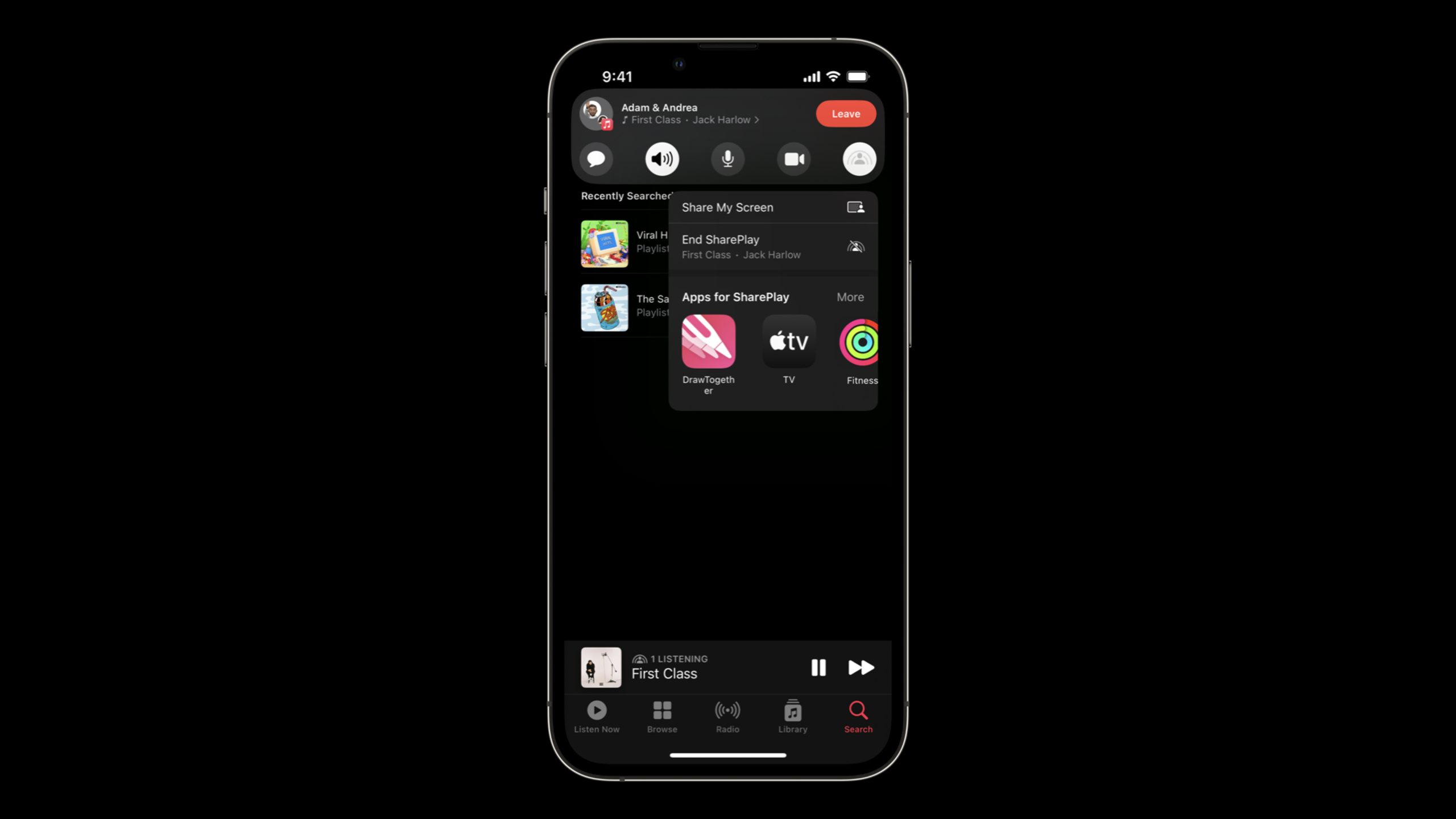
Highlight
The SharePlay update of WWDC 2022 mainly revolves around one change: developers can now use their own buttons and portals to initiate SharePlay, and no longer rely entirely on the FaceTime portal provided by the system. At the same time, GroupSessionMessenger has received reliability enhancements to make messaging for shared experiences more stable.
Core Content
SharePlay, launched at WWDC 2021, allows users to watch videos, listen to music, or use apps simultaneously during FaceTime calls. Its entrance is FaceTime - the user sees that the App supports SharePlay during the call and clicks the button provided by the system to launch it.
But there’s a problem: What if the user isn’t in the FaceTime call? If there is a “Watch with friends” button inside your app, after users click it, they have to initiate a FaceTime call and then come back and click SharePlay - this process is too long.
Updates for WWDC 2022 address this pain point. You can now place a button inside the app and directly launch a SharePlay session when clicked. The system handles setting up the FaceTime call for you, and the user doesn’t need to leave your app. at the same time,GroupSessionMessengerGained reliability improvements so that messaging between participants works properly over unreliable networks.
Detailed Content
New way to register GroupActivity
(02:06) In the past,GroupActivityIt’s through the AppInfo.plistRegistered with the declaration. WWDC 2022 offers a new programmatic registration method usingNSItemProviderandregisterGroupActivity:
// Register GroupActivity
let itemProvider = NSItemProvider()
itemProvider.registerGroupActivity(WatchTogether())

// Provide the ItemProvider to the ShareSheet
let configuration = UIActivityItemsConfiguration(itemProviders: [itemProvider])

UIActivityViewController(activityItemsConfiguration: configuration)
Key points:
registerGroupActivity(_:)Register one at runtimeGroupActivityinstance, no longer needed inInfo.pliststatic declaration. -UIActivityItemsConfigurationtake overNSItemProviderArray, used to configure the content of the share menu.- This method is integrated with the system share menu (ShareSheet), and SharePlay will appear as an activity in the sharing options.
Control how SharePlay appears in the share menu
The display mode of SharePlay in the system sharing menu can be flexibly controlled. If your scene does not require SharePlay to appear in the share menu, or does not require it as a prominent option, there is a corresponding API:
let shareSheet = UIActivityViewController(activityItemsConfiguration: configuration)

// Show SharePlay non-prominently
shareSheet.allowsProminentActivity = false
let shareSheet = UIActivityViewController(activityItemsConfiguration: configuration)
// Exclude SharePlay activity
shareSheet.excludedActivityTypes = [.sharePlay]Key points:
allowsProminentActivity = false(02:14) Let SharePlay not be a prominent option in the share menu, suitable for scenarios where you don’t want SharePlay to be eye-catching. -excludedActivityTypes = [.sharePlay](02:15) Completely remove the SharePlay option from the share menu, suitable for scenarios where SharePlay functionality is not available temporarily.- These two properties give you fine-grained control over how SharePlay appears in the share menu without modification.
GroupActivityRegistration itself.
Launch SharePlay with your own button
(02:44) The core new API isGroupActivitySharingController. You can place a button anywhere in your app that will directly render the SharePlay contact picker when clicked:
let controller = GroupActivitySharingController(WatchTogetherActivity())
present(controller, animated: true)
Key points:
GroupActivitySharingControllerreceive aGroupActivityInstance, just present it directly after initialization.- The interface the user sees is the contact selector provided by the system. After selecting a contact, a FaceTime call is automatically initiated and a SharePlay session is started.
- This means users don’t need to leave your app or manually initiate a FaceTime call.
- Where you place the button is up to you - next to the video player, to the right of the navigation bar, or wherever feels natural to you.
GroupSessionMessenger reliability enhancement
In SharePlay at WWDC 2021,GroupSessionMessengerUsed to send custom messages between participants. But there’s a problem: if one of the participants’ networks is unstable, messages can be lost.
WWDC 2022 improvedGroupSessionMessengerThe underlying transmission reliability. Apple does not provide a new API, but enhances the underlying implementation of the existing API to allow messages to be delivered even on unreliable networks.
This is especially important for apps that require real-time synchronization. For example, in a collaborative whiteboard app, the user draws a stroke on the canvas, and the stroke data needs to be sent to all participants through messenger. If the message is lost, other participants cannot see the transaction. WWDC 2022 improvements make this scenario more reliable.
Example of real-time synchronization of strokes
(08:21) A collaborative drawing board scene is shown in the session, using SwiftUIDragGestureCapture user strokes and synchronize:
var strokeGesture: some Gesture {
    DragGesture()
        .onChanged { value in
            canvas.addPointToActiveStroke(value.location)
        }
        .onEnded { value in
            canvas.addPointToActiveStroke(value.location)
            canvas.finishStroke()
        }
}
Key points:
onChangedFires continuously during dragging, adding each touch point to the current stroke. -onEndedAdd the last point at the end of dragging and callfinishStroke()Complete the stroke.- Behind this gesture, the stroke data passes
GroupSessionMessengerSend it to other participants to achieve real-time collaborative drawing among multiple people. - This example shows that SharePlay is not just for “watching videos together”, it is also suitable for collaboration scenarios that require real-time input synchronization.
Best Practices
The session also summarized several best practices for integrating SharePlay into apps:
-
Make the entrance visible but not obtrusive. If SharePlay is a core feature of your app, make it prominent. If it is just an auxiliary function, you can consider placing it in the sharing menu without a dedicated button.
-
Design UI for different number of participants. The experience of two people watching a video together is different from the experience of five people working together to draw. Consider the impact of the number of participants on UI layout.
-
Handle network interruption. even though
GroupSessionMessengerThe reliability is enhanced, the network may still be disconnected. Your app needs to handle participant disconnection and reconnection gracefully. -
Comply with Human Interface Guidelines. Apple provides HIG documentation for SharePlay, including icon usage, portal design, and in-session UI behavior.
Core Takeaways
-
Put the SharePlay portal inside the app: If the core experience of your app is suitable for sharing (watching videos together, listening to music, drawing together), don’t wait for users to discover your app in FaceTime. Put a “Watch Together” or “Listen Together” button in the app and use
GroupActivitySharingControllerJust pull up SharePlay. Why it’s worth doing: It reduces the user’s steps from “initiating FaceTime → finding the app → clicking SharePlay” to “clicking the button in the app”. How to start: Find a natural place to place the button, such as the top right corner of the video player or the right side of the navigation bar. -
Use the share menu as a lightweight entry: If you don’t want to add a dedicated button to the UI, you can use
registerGroupActivityandUIActivityViewControllerAdd SharePlay to the system share menu. The advantage of this method is that there is no need to modify the existing UI. Why it’s worth it: For apps where SharePlay isn’t a core feature, the share menu entry is the least intrusive. How to get started: RegisterGroupActivity, configurationUIActivityItemsConfiguration, pop up the share menu where needed. -
Use GroupSessionMessenger for collaboration scenarios: Messenger reliability improvements from WWDC 2022 make real-time collaboration more feasible. If you are doing whiteboarding, document collaboration, or gaming, sending custom data through messenger can achieve a richer sharing experience than “synchronizing playback progress”. Why it’s worth doing: Messenger is the key API for SharePlay to move from “passive synchronization” to “active collaboration”. How to start: at
GroupSessionGet the messenger instance in the callback, define your message type, and send it when the user operates.
Related Sessions
- What’s new in Group Activities — The latest update to the Group Activities framework, complementary to SharePlay’s group functionality
- Add SharePlay to your app — A basic introduction to SharePlay integration
- Design for SharePlay — Design principles and human interface guidelines for SharePlay experiences
Comments
GitHub Issues · utterances