
Highlight
Building on the launch of SharePlay in iOS 15, Apple has further opened up the ability to launch SharePlay directly from within the app, and provided design best practices so that developers can build synchronized group activity experiences in FaceTime and Messages.
Core Content
From “watching together” to “playing together”
Previously, video calls could only transmit sound and images. When two people are talking to each other in different places, they can at most “watch the same video at the same time”, but the operations are out of sync and the experience is fragmented. One party pauses, and the other party continues to play; one party wants to discuss a certain scene, and the other party has jumped to the next paragraph.
The core idea of SharePlay is to separate the “shared experience” from the call and turn it into an independent group activity (Group Activity). When someone starts an activity during a FaceTime call, the entire group is brought into the same app and everyone sees a synchronized state.
(02:18)
Three experience types
SharePlay supports three different experience modes, and developers need to choose according to their own scenarios:
Single-view coordinated experience (Single-view coordinated). Everyone sees the same content and operates in sync. Apple TV+ is a typical example: one person presses pause, everyone’s picture is paused, and the playback progress remains exactly the same.
(09:15)
Multiview synchronized experience (Multiview coordinated). Participants see different views, but the experience is coordinated. The game Heads Up! is an example: the person guessing the word cannot see the answer, but friends can see the answer and give hints.
(10:07)
Individual experience (Individual). Everyone works independently on their own devices but stays connected through activities. For example, working out together or meditating together, everyone may have different progress, but they know that they are together.
Create a “sense of presence”
Digital tools are often used to bridge distance, but the goal of SharePlay is to make people truly feel present with each other.
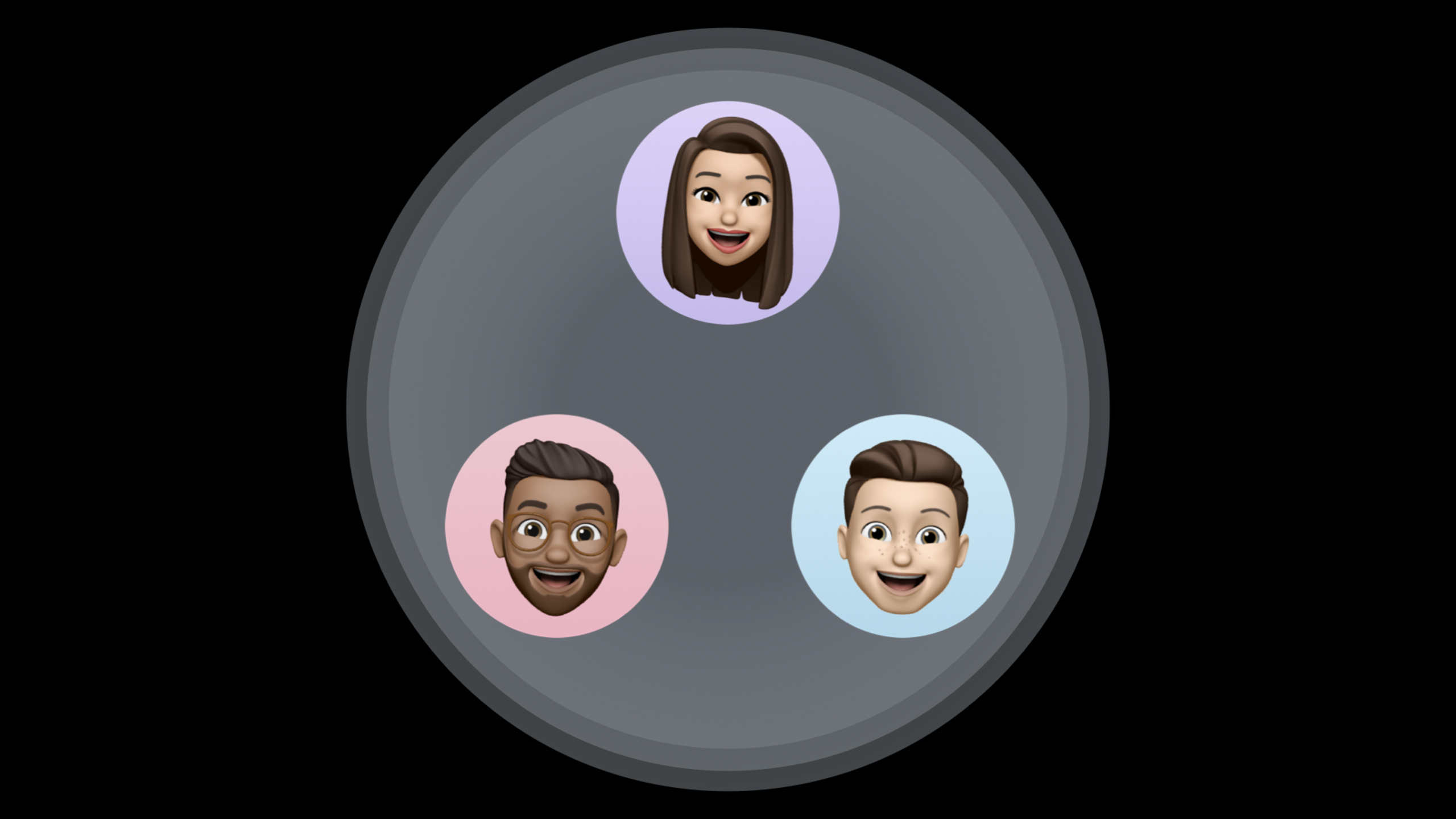
Apple recommends a design exercise: Imagine SharePlay is a portal that transports people through their phones into the same physical space. How will they use your app?
(06:17)
Several design principles can be derived from this exercise:
- Shared Control: Like a real record player, anyone can walk over and operate it. Don’t give control only to the event creator.
- Show Participants: People in reality will look around to see who is present. A list of participants should also be provided in the app.
- Contextual feedback: When the UI changes due to someone else’s operation, explain who did it. For example, “Ryan paused the video.”
Launch SharePlay from within the app
Previously SharePlay could only be launched from FaceTime. Now users can find content they want to share within the app and directly invite friends to join.
(04:35)
There are two ways to achieve this:
- Via Share Sheet: After registering the Group Activity, the Share Sheet will automatically display the SharePlay option.
- Via SharePlay Button: Use
GroupActivitySharingControllerDisplay the invitation interface directly in the App UI.
Users can choose to initiate via FaceTime or Messages. When using Messages, you don’t need to be on a call. The other party can click to join after receiving the message.
Handle activity life cycle
A complete SharePlay activity has three stages:
Starting Phase. Register the Group Activity and configure descriptive metadata (title, subtitle, picture). If possible, provide a web URL so people who don’t have the app can download it and join.
(11:44)
Processing Phase. Display participant status and support Picture in Picture so users can temporarily leave the app without interrupting the experience. If the status bar is hidden, provide a simple gesture to allow the user to redisplay it.
(15:43)
END PHASE. End the activity naturally and don’t interrupt abruptly.
Detailed Content
Register Group Activity
Register a Group Activity in your app to let the system know that your app supports SharePlay:
import GroupActivities

struct MovieActivity: GroupActivity {
    var metadata: GroupActivityMetadata {
        var metadata = GroupActivityMetadata()
        metadata.title = "Watching Inception"
        metadata.subtitle = "Sci-Fi · 2010"
        metadata.type = .watchTogether
        return metadata
    }
}
Key points:
GroupActivityA protocol defines a shareable activity -metadataProvide description information of the event, which will be displayed on the invitation interface -typeSpecify the activity type and the system will optimize the display based on the type
Launch via Share Sheet
import UIKit
import GroupActivities

class ViewController: UIViewController {
    func shareMovie(_ movie: Movie) {
        let activity = MovieActivity(movie: movie)

        // Register the Group Activity
        activity.register()

        let activityItems: [Any] = [movie.title, movie.shareURL]
        let vc = UIActivityViewController(
            activityItems: activityItems,
            applicationActivities: nil
        )
        present(vc, animated: true)
    }
}
Key points:
register()Method to make Share Sheet display SharePlay options- After the user selects SharePlay, the system displays the contact picker
- Choose FaceTime or Messages as the transfer method
Synchronized media playback
For media apps, useAVPlaybackCoordinatorTo achieve synchronous playback:
import AVFoundation

class PlayerViewController: UIViewController {
    let player = AVPlayer()
    var playbackCoordinator: AVPlaybackCoordinator?

    func joinGroupSession(_ session: GroupSession<MovieActivity>) {
        // Associate the session with the playback coordinator
        playbackCoordinator = player.playbackCoordinator
        playbackCoordinator?.coordinateWithSession(session)
    }
}
Key points:
AVPlaybackCoordinatorAutomatically handle synchronization of play, pause, and jump -coordinateWithSession(_:)Bind the player to the Group Session- The system will keep the playback progress of all participants consistent
Send targeted messages
For a multi-view experience, useGroupSessionMessengerSend a message to a specific participant:
import GroupActivities

class GameViewController: UIViewController {
    var messenger: GroupSessionMessenger?

    func sendClueToGuesser(_ clue: String, guesser: Participant) {
        let message = GameMessage(type: .clue, content: clue)

        messenger?.send(message, to: [guesser]) { error in
            if let error = error {
                print("Failed to send: \(error)")
            }
        }
    }
}
Key points:
GroupSessionMessengerProvide intra-group communication capabilities -send(_:to:)oftoParameters specify a subset of recipients- Suitable for scenarios where information needs to be hidden, such as games and Q&A
Core Takeaways
Make a synchronized viewing app
- What it does: An app specifically used to watch movies remotely and synchronously with friends, supporting real-time barrage and voice comments
- Why it’s worth doing: SharePlay
AVPlaybackCoordinatorThe most difficult synchronization problem has been solved, developers only need to focus on social experience - How to start: Use
AVPlayerViewController+AVPlaybackCoordinatorBuild a playback foundation throughGroupSessionMessengerDeliver barrage messages
Make a remote collaboration fitness app
- What to do: Complete fitness classes with friends far away and see each other’s progress and heart rate in real time
- Why it’s worth doing: SharePlay supports non-media independent experiences, and the fitness scene is naturally suitable for the “doing the same thing together” model.
- How to start: Define a
WorkoutActivity,useGroupSessionMessengerSynchronize progress data and display participant status on the UI
Make a Family Game Night App
- What to do: A series of SharePlay-enabled party games, such as Guess the Word, Draw and Guess, trivia quiz
- Why it’s worth doing: Multi-view coordination mode makes games like “one person sees the answer and others guess” possible
- How to start: Use
GroupSessionMessengerTargeted Send functionality controls message visibility, rendering different views for different roles
Make a synchronous cooking App
- What to do: Cook with friends following the same recipe. Every step is synchronized and you can see each other’s progress.
- Why it’s worth doing: SharePlay’s “sense of presence” design principle is particularly suitable for scenarios that require step-by-step collaboration.
- How to start: Definition
CookingActivity, use Group Session to synchronize the current step, and support picture-in-picture so that the other party can see it while cutting vegetables.
Related Sessions
- What’s new in SharePlay — Learn about SharePlay’s new API and how to launch it
- Meet Apple Music API and MusicKit — The technical foundation of music sharing experience
- Design for Collaboration with SharePlay — SharePlay Collaboration Design Guide
Comments
GitHub Issues · utterances