
Highlight
Xcode 14 simplifies new watchOS Apps into a single Watch App target. WatchOS 9’s TextFieldLink, Stepper, ShareLink, Swift Charts, and digitalCrownRotation allow developers to complete task entry, editing, sharing, and trend chart browsing on the watch.
Core Content
Productivity apps on the Apple Watch can’t be copied from the iPhone. The user’s wrist-raising time is short, the task must be fast, the information must be small, and the entrance must be clear. Three criteria were given at the beginning of the speech: quick interaction, easy access to important information, and design around the core purpose (01:59).
This session uses a to-do list app to string together the complete process: create a watch-only app, display the task list, add tasks, edit tasks, share tasks, and then use charts to view completion trends. Each step corresponds to a specific change in watchOS 9 or Xcode 14.
The first change is in the engineering structure. Xcode 14 uses a single Watch app target when creating a new Watch App. Code, resources, localization, Siri Intent and Widget extension are all placed in this target; this structure is supported until watchOS 7 (03:31). The icon is also simplified to a 1024x1024 image that scales to different device sizes (05:20).
The second change is in the interactive controls.TextFieldLinkResponsible for entering text input from buttons,StepperResponsible for adjusting continuous values on small screens,ShareLinkResponsible for opening the sharing form,Swift ChartsResponsible for drawing completed records into histograms. at last,digitalCrownRotationTurn the chart into a scrollable view that fits your watch.
Detailed Content
Use a single data model to drive task lists
(06:12) The demonstration first establishes a minimum data model. Each task needs to be identifiable, hashable, and have descriptive text saved for display.
struct ListItem: Identifiable, Hashable {

    let id = UUID()
    var description: String

    init(_ description: String) {
        self.description = description
    }
}

class ItemListModel: NSObject, ObservableObject {
    @Published var items = [ListItem]()
}

@main
struct WatchTaskListSampleApp: App {

    @StateObject var itemListModel = ItemListModel()

    @SceneBuilder var body: some Scene {
        WindowGroup {
            ContentView()
                .environmentObject(itemListModel)
        }
    }
}
Key points:
ListItemobeyIdentifiable,ListandForEachEach line can be distinguished stably. -HashableAllow task values to participate in SwiftUI’s data comparison and collection operations. -ItemListModelobeyObservableObject,@PublishedofitemsChanges drive interface refreshes. -@StateObjectCreate a model at the App entrance, and its life cycle follows the App scene. -.environmentObject(itemListModel)Inject the model into the view tree, and both the list row and the details page can read the same data.
(06:37) With the model, the interface can directly bind array elements. Display a prompt when the list is empty to prevent users from seeing a meaningless blank space.
struct ContentView: View {
    @EnvironmentObject private var model: ItemListModel

    var body: some View {
        List {
            ForEach($model.items) { $item in
                ItemRow(item: $item)
            }

            if model.items.isEmpty {
                Text("No items to do!")
                    .foregroundStyle(.gray)
            }
        }
        .navigationTitle("Tasks")
    }
}
Key points:
@EnvironmentObjectRead the injected at the entranceItemListModel。ForEach($model.items)Iterate through the binding array, and the row view gets the writable binding. -ItemRow(item: $item)Allow a single row to modify the corresponding task. -model.items.isEmptyBranches provide text for empty states. -.navigationTitle("Tasks")Let the top of the watch clearly show your current location.
Add tasks using TextFieldLink
(06:59) watchOS 9 NewTextFieldLink. It appears as a button, which calls the system text input capability when clicked. After submission, the input string is handed over to the closure.
struct AddItemLink: View {
    @EnvironmentObject private var model: ItemListModel

    var body: some View {
        TextFieldLink(prompt: Text("New Item")) {
            Label("Add",
                  systemImage: "plus.circle.fill")
        } onSubmit: {
            model.items.append(ListItem($0))
        }
    }
}
Key points:
TextFieldLink(prompt:)Set the prompt for the text input interface. -Label("Add", systemImage: "plus.circle.fill")Give the button both text and SF Symbol. -onSubmitThe closure receives a string entered by the user. -model.items.append(ListItem($0))Convert input directly into list items.
(07:57) Where the button is placed also affects the experience. A short list can put the main actions at the end of the list; a long list of commonly used actions is more suitable to be placed in the toolbar to avoid scrolling to the bottom every time.
struct ContentView: View {
    @EnvironmentObject private var model: ItemListModel

    var body: some View {
        List {
            ForEach($model.items) { $item in
                ItemRow(item: $item)
            }

            if model.items.isEmpty {
                Text("No items to do!")
                    .foregroundStyle(.gray)
            }
        }
        .toolbar {
            AddItemLink()
        }
        .navigationTitle("Tasks")
    }
}
Key points:
.toolbarLeave the added entry to the system layout. -AddItemLink()Reuse the previously encapsulated text input entry.- Automatic toolbar placement will select the appropriate position in the watchOS list.
Use sheet and stepper to edit tasks
(09:40) Task details belong to the editing process. The speech divides the navigation structure into hierarchical navigation, page navigation, full screen view and modal sheet. Editing tasks requires the user to complete or cancel before returning to the list, so sheet is used here.
struct ItemRow: View {
    @EnvironmentObject private var model: ItemListModel

    @Binding var item: ListItem
    @State private var showDetail = false

    var body: some View {
        Button {
            showDetail = true
        } label: {
            HStack {
                Text(item.description)
                    .strikethrough(item.isComplete)
                Spacer()
                Image(systemName: "checkmark").opacity(item.isComplete ? 100 : 0)
            }
        }
        .sheet(isPresented: $showDetail) {
            ItemDetail(item: $item)
                .toolbar {
                    ToolbarItem(placement: .confirmationAction) {
                        Button("Done") {
                            showDetail = false
                        }
                    }
                }
        }
    }
}
Key points:
@Binding var itemLet the row view edit the tasks in the original array. -showDetailControls whether the sheet is displayed. -ButtonAfter clickingshowDetailset totrue。.sheet(isPresented:)Display the details page above the current process. -ToolbarItem(placement: .confirmationAction)Place a completion button on the modal sheet.
(12:36) Add estimated workload, creation date, and completion date to the details page.isCompleteUse calculated properties to encapsulate completion status and write or clear when switching the switchcompletionDate。
struct ListItem: Identifiable, Hashable {

    let id = UUID()
    var description: String
    var estimatedWork: Double = 1.0
    var creationDate = Date()
    var completionDate: Date?

    init(_ description: String) {
        self.description = description
    }

    var isComplete: Bool {
        get {
            completionDate != nil
        }
        set {
            if newValue {
                guard completionDate == nil else { return }
                completionDate = Date()
            } else {
                completionDate = nil
            }
        }
    }
}
Key points:
estimatedWorkSave the estimated workload of the task. -creationDateRecord the task creation time. -completionDateis an optional value,nilRepresents incomplete. -isCompleteThe getter fromcompletionDateDerivation status. -isCompleteThe setter writes the current time on completion and clears the time on cancellation.
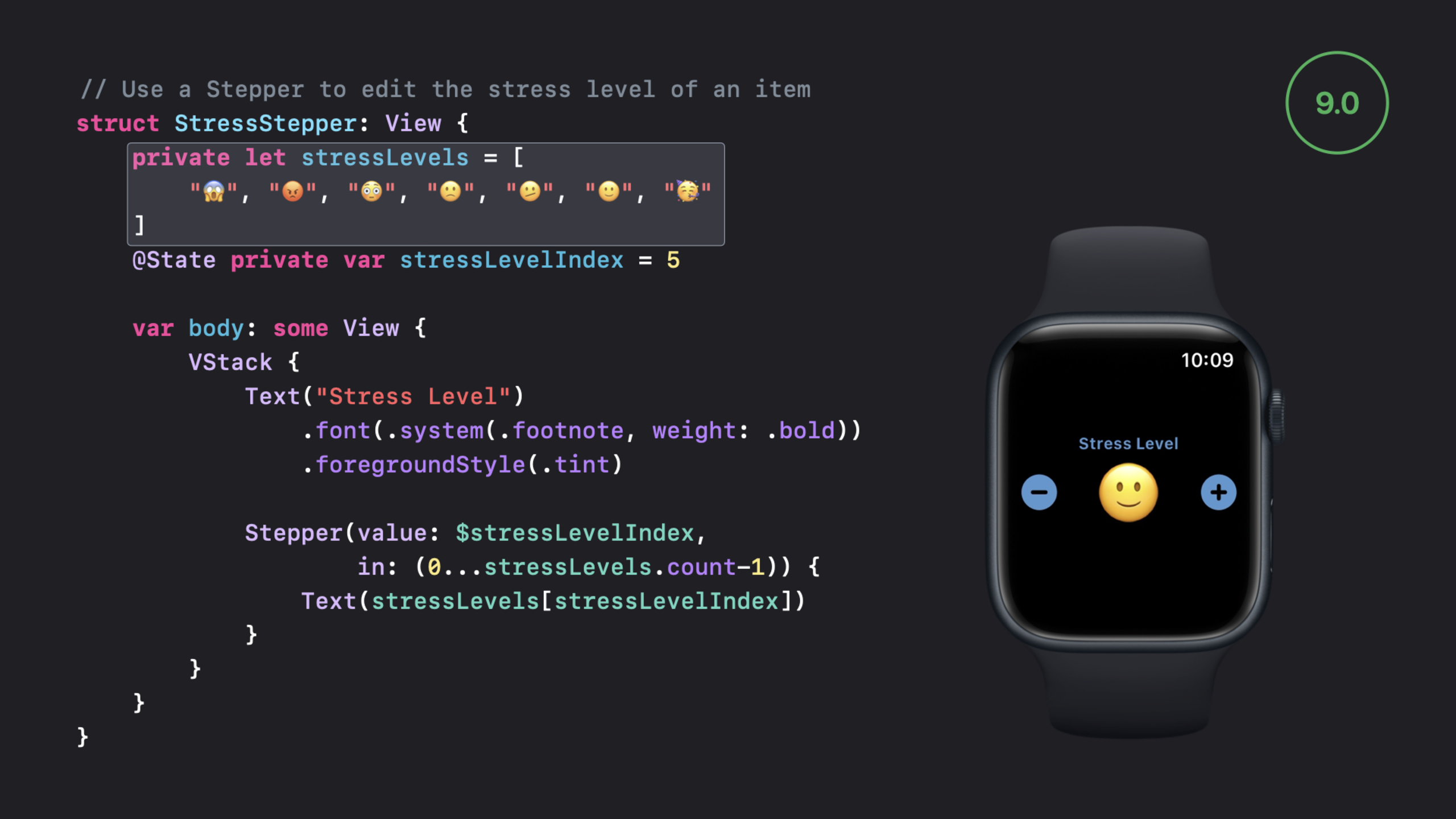
(13:11) watchOS 9StepperSuitable for editing continuous values on the watch. It can handle numbers as well as logically ordered discrete values.
struct ItemDetail: View {
    @Binding var item: ListItem

    var body: some View {
        Form {
            Section("List Item") {
                TextField("Item", text: $item.description, prompt: Text("List Item"))
            }
            Section("Estimated Work") {
                Stepper(value: $item.estimatedWork,
                        in: (0.0...14.0),
                        step: 0.5,
                        format: .number) {
                    Text("\(item.estimatedWork, specifier: "%.1f") days")
                }
            }

            Toggle(isOn: $item.isComplete) {
                Text("Completed")
            }
        }
    }
}
Key points:
FormOrganize edit items into watchOS-friendly forms. -TextFieldbindingitem.description, the user can modify the task name. -Stepper(value:in:step:format:)Limit estimates to0.0...14.0。step: 0.5Increment or decrement by half a day at a time. -Toggle(isOn: $item.isComplete)Change completion status via computed properties.
Use ShareLink to request help from Watch
(14:41)ShareLinkIt is the sharing entrance of SwiftUI in watchOS 9. This app lets you share a task and pre-populates the topic, message, and preview.
struct ItemDetail: View {
    @Binding var item: ListItem

    var body: some View {
        Form {
            Section("List Item") {
                TextField("Item", text: $item.description, prompt: Text("List Item"))
            }
            Section("Estimated Work") {
                Stepper(value: $item.estimatedWork,
                        in: (0.0...14.0),
                        step: 0.5,
                        format: .number) {
                    Text("\(item.estimatedWork, specifier: "%.1f") days")
                }
            }

            Toggle(isOn: $item.isComplete) {
                Text("Completed")
            }

            ShareLink(item: item.description,
                      subject: Text("Please help!"),
                      message: Text("(I need some help finishing this.)"),
                      preview: SharePreview("\(item.description)"))
            .buttonStyle(.borderedProminent)
            .buttonBorderShape(.roundedRectangle)
            .listRowInsets(
                EdgeInsets(top: 0, leading: 0, bottom: 0, trailing: 0)
            )
        }
    }
}
Key points:
ShareLink(item:)Specify the content to be shared, here is the task description string. -subjectProvide a topic for sharing messages. -messageProvide initial text for shared content. -SharePreviewControl the preview title in the share form. -.buttonStyle(.borderedProminent)Make the share button more visible in your form.
Use Swift Charts to display completion trends
(15:45) There is no list-detail relationship between task lists and trend charts. The speech chooses page-based navigation, allowing users to slide horizontally between list pages and chart pages.
struct ContentView: View {
    var body: some View {
        TabView {
            NavigationStack {
                ItemList()
            }
            NavigationStack {
                ProductivityChart()
            }
        }.tabViewStyle(.page)
    }
}
Key points:
TabViewHost two sibling pages.- Each page puts its own
NavigationStack。 .tabViewStyle(.page)Use watchOS page styles suitable for landscape switching.
(17:00) Swift Charts are available in watchOS 9. Here we first aggregate tasks by completion date, and then useBarMarkPlot daily completion numbers.
/// Aggregate data for charting productivity.
struct ChartData {
    struct DataElement: Identifiable {
        var id: Date { return date }
        let date: Date
        let itemsComplete: Double
    }

    /// Create aggregate chart data from list items.
    /// - Parameter items: An array of list items to aggregate for charting.
    /// - Returns: The chart data source.
    static func createData(_ items: [ListItem]) -> [DataElement] {
        return Dictionary(grouping: items, by: \.completionDate)
            .compactMap {
                guard let date = $0 else { return nil }
                return DataElement(date: date, itemsComplete: Double($1.count))
            }
            .sorted {
                $0.date < $1.date
            }
    }
}
Key points:
DataElementIs a piece of aggregated data in the chart. -idusedate, data on the same day corresponds to the same identifier. -Dictionary(grouping:by:)Group by completion date. -compactMapjump overcompletionDate == nilof unfinished tasks.Double($1.count)converts the day’s completion count into a numeric value for the chart. -sortedMake the chart appear in date order.
struct ProductivityChart: View {

    let data = ChartData.createData(
        ListItem.chartSampleData)

    var body: some View {
        Chart(data) { dataPoint in
            BarMark(
                x: .value("Date", dataPoint.date),
                y: .value("Completed", dataPoint.itemsComplete)
            )
            .foregroundStyle(Color.accentColor)
        }
        .navigationTitle("Productivity")
        .navigationBarTitleDisplayMode(.inline)
    }
}
Key points:
Chart(data)Hand over aggregated arrays to Swift Charts. -BarMarkSelect histogram, suitable for single data series and discrete values. -xDate of use,yUse the completed quantity. -.foregroundStyle(Color.accentColor)Paint the columns using the app’s accent color. -.navigationBarTitleDisplayMode(.inline)Reduce the space occupied by navigation titles.
Scroll the chart with the Digital Crown
(18:50) The Watch screen is not suitable for displaying too many columns at once. for speechdigitalCrownRotationMonitor the crown and save the current index, crown offset and idle state into SwiftUI state.
struct ProductivityChart: View {

    let data = ChartData.createData(
        ListItem.chartSampleData)

    /// The index of the highlighted chart value. This is for crown scrolling.
    @State private var highlightedDateIndex: Int = 0

    /// The current offset of the crown while it's rotating. This sample sets the offset with
    /// the value in the DigitalCrownEvent and uses it to show an intermediate
    /// (between detents) chart value in the view.
    @State private var crownOffset: Double = 0.0

    @State private var isCrownIdle = true

    var body: some View {
        chart
            .focusable()
            .digitalCrownRotation(
                detent: $highlightedDateIndex,
                from: 0,
                through: data.count - 1,
                by: 1,
                sensitivity: .medium
            ) { crownEvent in
                isCrownIdle = false
                crownOffset = crownEvent.offset
            } onIdle: {
                isCrownIdle = true
            }
            .navigationTitle("Productivity")
            .navigationBarTitleDisplayMode(.inline)
    }
}
Key points:
highlightedDateIndexSaves the currently docked data point index. -crownOffsetSaves the intermediate offset value during crown scrolling. -isCrownIdleDistinguish between rolling and stopped. -.focusable()Let the view receive Digital Crown input. -digitalCrownRotation(detent:from:through:by:sensitivity:)Map crown stops to data indexes. -onChangeThe scroll offset is recorded in the closure. -onIdleThe closure marks the scrolling stop.
(21:07) In order to display the current position of the crown, a chart is addedRuleMark. It is a straight line, suitable for marking a threshold or the current selection position.
/// The date value that corresponds to the crown offset.
private var crownOffsetDate: Date {
    let dateDistance = data[0].date.distance(
        to: data[data.count - 1].date) * (crownOffset / Double(data.count - 1))
    return data[0].date.addingTimeInterval(dateDistance)
}

private var chart: some View {
    Chart(data) { dataPoint in
        BarMark(
            x: .value("Date", dataPoint.date),
            y: .value(
                "Completed",
                dataPoint.itemsComplete)
        )
        .foregroundStyle(Color.accentColor)

        RuleMark(x: .value("Date", crownOffsetDate))
            .foregroundStyle(Color.appYellow)
    }
    .chartXAxis {
        AxisMarks(format: shortDateFormatStyle)
    }
}
Key points:
crownOffsetDateConvert crown offset to date. -data[0].date.distance(to:)Get the time span of chart data. -addingTimeIntervalDerive the current scroll position from the start date. -RuleMark(x:)Draw a vertical line at the current date. -AxisMarks(format:)Display x-axis labels with custom date format.
(22:44) The final step is to move the visible data range based on the current index. In this way, when the user turns the crown, the chart window will scroll accordingly.
@State var chartDataRange = (0...6)

private func updateChartDataRange() {
    if (highlightedDateIndex - chartDataRange.lowerBound) < 2, chartDataRange.lowerBound > 0 {
        let newLowerBound = max(0, chartDataRange.lowerBound - 1)
        let newUpperBound = min(newLowerBound + 6, data.count - 1)
        chartDataRange = (newLowerBound...newUpperBound)
        return
    }
    if (chartDataRange.upperBound - highlightedDateIndex) < 2, chartDataRange.upperBound < data.count - 1 {
        let newUpperBound = min(chartDataRange.upperBound + 1, data.count - 1)
        let newLowerBound = max(0, newUpperBound - 6)
        chartDataRange = (newLowerBound...newUpperBound)
        return
    }
}

private var chartData: [ChartData.DataElement] {
    Array(data[chartDataRange.clamped(to: (0...data.count - 1))])
}
Key points:
chartDataRangeSaves the currently displayed 7 data points.- When the highlighted index is close to the left border, the window moves one position to the left.
- When the highlighted index is close to the right border, the window moves one position to the right.
-
maxandminPrevents ranges from crossing array boundaries. -chartDataOnly pass data in the current range toChart。
Core Takeaways
-
Make a Watch-only punch list: Put 3 to 5 things that must be done every day on your watch. Why it’s worth doing: session description Watch-only App is suitable for scenarios with focused functions, fast interaction, and limited data. How to start: Use
ListItem、ObservableObject、ListandTextFieldLinkSet out the adding and display process. -
Make a workload estimator that can be updated by raising your wrist: Each task only records the name, estimated number of days and completion status. Why it’s worth doing:
StepperMake continuous numeric values manageable on small screens, eliminating the need to enter numbers on the keyboard. How to start: atFormbound inStepper(value:in:step:format:)andToggle(isOn:)。 -
Make a task sharing button to ask companions for help: When a task is stuck, send it directly to your friends from the details page. Why it’s worth doing:
ShareLinkAccess the system sharing form on watchOS without leaving the current app. How to get started: Add in the details formShareLink(item:subject:message:preview:)。 -
Make a trend chart that only displays the completion trend of the last week: The number of completions per day is displayed in a histogram, and only 7 days are displayed by default. Why it’s worth doing: The speech pointed out that the Watch screen should limit the amount of data displayed at one time, and the histogram is suitable for a single data series. How to start: Aggregate completion dates into
ChartData.DataElement, then useChartandBarMarkdraw. -
Make a chart that allows you to browse historical data using the crown: When the user turns the Digital Crown, the highlight line and visible data range move. Why it’s worth doing:
digitalCrownRotationIt’s a natural input method on the watch, suitable for browsing longer ranges on a small screen. How to start: UsehighlightedDateIndex、crownOffset、RuleMarkandchartDataRangeSave scroll state.
Related Sessions
- What’s new in SwiftUI — Learn what’s new in SwiftUI at WWDC 2022
ShareLink, Swift Charts, navigation and layout capabilities. - The SwiftUI cookbook for navigation — Learn more about what was mentioned in the speech
NavigationStackand SwiftUI navigation structures. - Meet Transferable — Continue research
ShareLinkThe shared data model behind it. - Hello Swift Charts — Start learning Swift Charts from basic syntax.
- Swift Charts: Raise the bar — Learn advanced customization of chart axes, markers, and interactions.
Comments
GitHub Issues · utterances