
Highlight
It used to be very cumbersome to keep track of photo library changes. New assets need to be queried by date, modifications need to be compared with the modification date (but it is not precise), and deletion requires full diff. Three operations require three different detection methods, which have high performance overhead and unreliable results.
Core Content
A common requirement for a photo app is to synchronize its interface with the system photo library.
The example in Session is a mountain climbing social app. After the user completes a hiking workout, the App selects relevant photos from the photo library based on the start and end time of the exercise to generate a collage. If friends later send in new hiking photos, or if the user edits a photo, the collage should update. (00:54)
The old method involves three steps.
To add a new photo, you can presscreationDateQuery. To modify the photo, re-fetch the tracked assets and check againmodificationDate. Deleting photos is the most troublesome. You have to retrieve all tracked assets and then do a diff with local records. Apple specifically states thatmodificationDateIt may also be altered by internal processing activities within the photo library, resulting in false positives. (01:25)
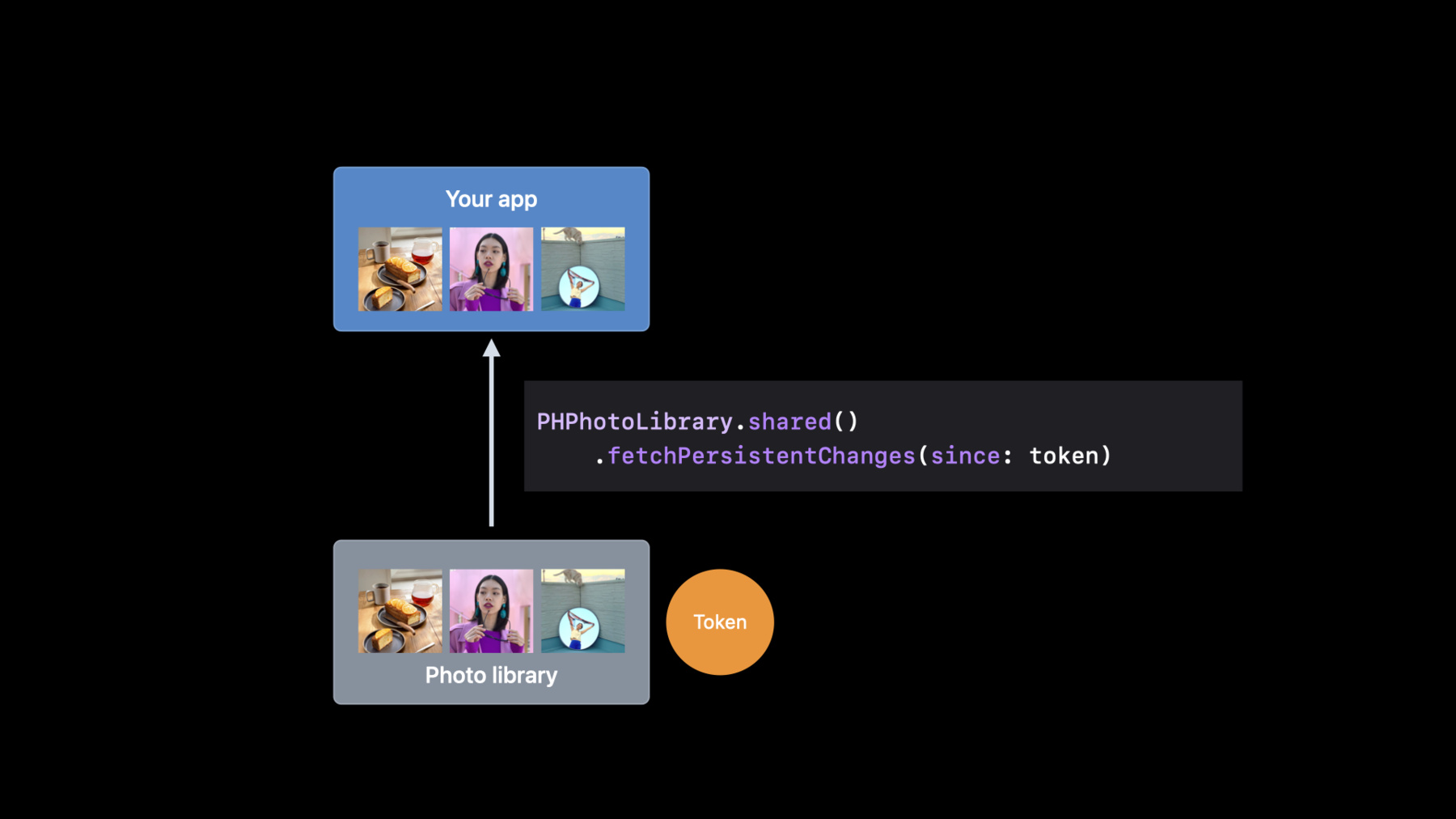
PhotoKit introduces persistent change history. It records photo library changes into a timeline, including insertions, updates, and deletions. The App saves a persistent change token and uses this token to query subsequent changes the next time it is started. (02:42)
This token represents the status of the photo library at a certain point in time and can be saved across apps. It is a local token of the device and has low access cost. If the App is in limited library mode, only PhotoKit object changes that the user has authorized will be returned. (03:17)
Persistent history complements offline changes. originalPHChangeIt is still suitable for real-time changes in fetch results in memory while the app is running; persistent history is used to track changes in the photo library when the app is inactive. The two can be combined as needed. (05:10)
Detailed Content
Old practice: Three types of changes require three sets of inspections
(01:25) Adding new assets seems simple: record the last startup time and querycreationDateLater than its photo.
// Discover added assets
let options = PHFetchOptions()
options.predicate = NSPredicate(format: "creationDate > %@", lastLaunchDate as CVarArg)
let insertedAssets = PHAsset.fetchAssets(with: options)
Key points:
PHFetchOptions()Create a PhotoKit query configuration. -predicateLimit results to assets created since the last launch. -PHAsset.fetchAssets(with:)Returns possible new photo assets.
(01:46) Modification and deletion require rechecking the assets that have been recorded by the App.
let fetchResult = PHAsset.fetchAssets(with: localIdentifiers, options: nil)
// Discover all modified and deleted assets
fetchResult.enumerateObjects { asset, idx, stop in
    if asset.modificationDate?.compare(lastLaunchDate) == .orderedDescending {
        // Asset could have been modified
    }
    if !localIdentifiers.contains(asset.localIdentifier) {
        // Asset could have been deleted
    }
}
Key points:
localIdentifiersis the local identifier of the photo that the app has tracked. -fetchAssets(with:options:)Retrieve these assets from the photo library. -modificationDateIf it is later than the last time it was started, it only means that the asset may have been modified, because the system’s internal processing may also update this date. -localIdentifierOnly when the asset is not in the local record can the App infer that an asset may have been deleted.
This code reflects the cost of the old solution: adding, modifying, and deleting each have their own logic, but the result is still not certain.
New approach: Use token to pull persistent changes
(04:33) The new entrance isPHPhotoLibrary.fetchPersistentChanges(since:). App passes in the last saved token, and PhotoKit returns the persistent changes after the token.
let persistentChanges = try! PHPhotoLibrary.shared().fetchPersistentChanges(since: self.lastStoredToken)

for persistentChange in persistentChanges {
   if let changeDetails = persistentChange.changeDetails(for: PHObjectType.asset) {
        let updatedIdentifiers = changeDetails.updatedLocalIdentifiers
        let deletedIdentifiers = changeDetails.deletedLocalIdentifiers
        let insertedIdentifiers = changeDetails.insertedLocalIdentifiers
    }
}

// After processing change details
self.lastStoredToken = lastPersistentChange.changeToken
Key points:
lastStoredTokenIt is the persistent change token saved after the last photo library change was processed. -fetchPersistentChanges(since:)Returns the changes that occurred after this token. -changeDetails(for: PHObjectType.asset)Get only the change details related to the photo asset. -updatedLocalIdentifiers、deletedLocalIdentifiers、insertedLocalIdentifiersThe updated, deleted, and added asset identifiers are given respectively.- After processing is completed, put the last persistent change
changeTokenSave it for next startup.
(04:21)changeDetails(for:)Three types of Photos objects are supported: asset, asset collection, and collection list. This session example only handlesPHObjectType.asset, because Mountaineering Collage is concerned with the photo assets themselves.
Only handle changes related to App
(05:55) After getting the change list, the App still needs to filter. The mountaineering app does not need all changes in the photo library, but only cares about three things: whether the new photos fall within the time period of a certain hike, whether the used photos have been edited, and whether the used photos have been deleted.
// Get last stored change token
let changeToken = self.lastStoredToken

// Fetch persistent changes
let persistentChanges = try!
         library.fetchPersistentChanges(since: changeToken)

for persistentChange in persistentChanges {
    // Grab change details and process updates
}
Key points:
changeTokenRepresents the photo library status that the app last synced to. -library.fetchPersistentChanges(since:)Retrieve subsequent changes in one go.- Process the change details according to the App’s business rules in the loop to avoid turning all internal changes in the photo library into UI work.
Add new photos: generate new collage with inserted identifiers
(06:51) For new assets, PhotoKit has giveninsertedIdentifiers. The app can take out these assets and use the time range of the hike to determine whether they belong to a certain movement.
let insertedAssets = PHAsset.fetchAssets(with: insertedIdentifiers, options: nil)
insertedAssets.enumerateObjects { asset, idx, stop in
   for hike in hikes {
        let dateInterval = NSDateInterval(start: hike.startDate, end: hike.endDate)
        if dateInterval.contains(asset.creationDate) {
            // This hike contains a new added asset
        }
    }
}
Key points:
insertedIdentifiersFrom persistent change details. -PHAsset.fetchAssets(with:options:)Convert the identifier to readablePHAsset.- each
hikeAll have a start and end time. -NSDateIntervalConstruct an interval using these two times. -dateInterval.contains(asset.creationDate)Determine whether the added photo belongs to this hike.
Modify photos: Use hasAdjustments to determine whether redrawing is required
(07:08) For updating assets, session introduces a newhasAdjustmentsAPI. It can determine whether an asset has been edited or not, and the mountaineering app uses it to decide whether to redraw the photo in the UI.
let updatedAssets = PHAsset.fetchAssets(with: updatedIdentifiers, options: nil)
updatedAssets.enumerateObjects { asset, idx, stop in
    if asset.hasAdjustments {
        // This asset has edits
    }
}
Key points:
updatedIdentifiersFrom persistent change details. -fetchAssetsRetrieve these updated assets. -asset.hasAdjustmentsIndicates that this asset has been edited and adjusted.- When the condition is met, the App can re-render the interface using this photo.
Deleting photos: Use deleted identifiers to find the collage you want to rebuild
(07:20) When deleting an asset, the local identifier given by PhotoKit is sufficient. The app no longer needs to fetch a non-existent asset from the photo library, it can just check which tiles reference these identifiers.
for deletedIdentifier in deletedIdentifiers {
    for collage in collages {
        if collage.assetLocalIdentifiers.contains(deletedIdentifier) {
            // This collage needs to be redrawn
        }
    }
}
Key points:
deletedIdentifiersis a collection of local identifiers for deleted assets. -collagesIt is the collage data saved locally in the App. -assetLocalIdentifiersKeep track of which photos are used in a collage.- find matching
deletedIdentifierFinally, the collage needs to be regenerated.
Error handling: re-fetch when token expires or details are unavailable
(08:20) Persistent history may return two types of errors. The first category ispersistentChangeTokenExpired, indicating that the token is older than the available history. The second category ispersistentChangeDetailsUnavailable, indicating that this persistent change cannot completely reconstruct the changes that have occurred.
do {
    let persistentChanges = try library.fetchPersistentChanges(since: changeToken)
} catch PHPhotosError.persistentChangeTokenExpired,
        PHPhotosError.persistentChangeDetailsUnavailable {
    let fetchResult = PHAsset.fetchAssets(with: trackedIdentifiers, options: options)
    // Use fetch result
}
Key points:
doIn the block, press token to pull persistent changes normally. -persistentChangeTokenExpiredThe App is required to give up the old token. -persistentChangeDetailsUnavailableThe App is required to reconfirm the current photo library status.- Fallback scheme is used
trackedIdentifiersRe-fetch the tracked object to restore the app to its correct state.
Apple also recommends placing change history queries on a background thread to avoid heavy photo library synchronization and processing activity blocking the UI. For inserted and updated assets, one large fetch is usually more appropriate than multiple smaller fetches. (07:36)
Other PhotoKit updates
(08:54) Several PhotoKit updates were also mentioned at the end of the Session: cinematic videos can be accessed through media subtype and smart album; two new error codes have been added to cover the library corruption scenario when the photo library is located in the File Provider sync root directory on macOS, and the scenario where the asset resource cannot be found due to network problems.
Core Takeaways
-
What to do: Automatically add pictures to travel, sports or parent-child photo album apps.
Why it’s worth doing: persistent change history can directly tell the App which photos have been added since the last launch.
How to start: SavelastStoredToken,useinsertedLocalIdentifiersfetch new assets, press againcreationDateMatch the activity time period. -
What to do: Have a photo collage, cover image, or timeline update automatically after the user edits a photo.
Why it’s worth doing:updatedLocalIdentifiersandhasAdjustmentsAssets being edited can be located.
How to start: Maintain the asset local identifiers referenced by each UI module, and only redraw the affected modules after detecting updates. -
What: Make deletion-aware local indexing for photo album organizers.
Why it’s worth doing:deletedLocalIdentifiersDeleted assets are directly displayed without repeated full diff.
How to start: The local database saves the asset local identifier. After receiving the deleted identifier, clean the index or mark it for reconstruction. -
What to do: Create a background synchronization portal for photo apps that have not been opened for a long time.
Why it’s worth doing: persistent history records changes over long periods of time when the app is inactive.
How to start: Call in the background queuefetchPersistentChanges(since:), only process changes to assets, asset collections or collection lists required by the business. -
What to do: Make incremental refresh for the photo function in limited library mode.
Why it’s worth doing: PhotoKit only returns changes to objects that the user has selected, which is suitable for apps with smaller permissions.
How to get started: Build synchronization logic on tokens and local identifiers, without assuming the app has access to the entire photo library.
Related Sessions
- What’s new in the Photos picker — Learn how PHPicker provides easier, more secure access to your photo library.
- Add Live Text interaction to your app — Learn to add Live Text interaction to photos and paused video frames.
- Discover advancements in iOS camera capture: Depth, focus, and multitasking — Learn about the depth, focus, and multitasking updates in iOS camera capture.
- Bring Continuity Camera to your macOS app — Learn to use your iPhone as an external camera in a macOS app.
Comments
GitHub Issues · utterances