
Highlight
One of the core problems with Sign in with Apple is account duplication: users may first register with their email address and password, and later create a second account using Sign in with Apple. The first half of the Session is dedicated to addressing this pain point.
Core Content
After an App supports both email password and Sign in with Apple, there will be more login entrances. Old users already have a password account, and new users may directly click Apple to log in. If the App creates a new account directly at this moment, the same person will get two accounts.
The first goal of this session is to reduce this duplication of accounts. Apple recommends doing Password AutoFill first, and then using Authentication Services to display the credentials that already exist on the device when the app starts. Users can choose to return to their original account before entering the login page.
The second goal is to complete the account life cycle. Sign in with Apple returnedASAuthorizationAppleIDCredentialThere are stable user IDs, names, emails, authenticity indicators, identity tokens and authorization codes. Their return timing is different, and the server-side verification methods are also different. The App cannot just connect the login button and end it.
The third goal is to extend the same set of experiences to the web. The website requires a Services ID, domain name, redirect URL, and Sign in with Apple JS. After the authorization is successful, the page gets the authorization code, identity token and user information through DOM events.
Detailed Content
Only show existing credentials on startup
(04:03)preferImmediatelyAvailableCredentialsIt is a new option in iOS 16 and is suitable for calling when the app starts. It tells the system to only display credentials that are immediately available on the device and not to guide the user to create a new Sign in with Apple account.
import AuthenticationServices

let controller = ASAuthorizationController(authorizationRequests: [
    ASAuthorizationAppleIDProvider().createRequest(),
    ASAuthorizationPasswordProvider().createRequest()
])

controller.delegate = self
controller.presentationContextProvider = self

if #available(iOS 16.0, *) {
    controller.performRequests(options: .preferImmediatelyAvailableCredentials)
} else {
    controller.performRequests()
}
Key points:
ASAuthorizationAppleIDProvider().createRequest()Query existing Sign in with Apple credentials. -ASAuthorizationPasswordProvider().createRequest()Query existing password credentials. -ASAuthorizationControllerReceive both types of requests at the same time, allowing the system to put the available login methods in a selection interface. -delegateReceives the result after the user selects the credentials. -presentationContextProviderProvides the window context needed to display the authorization interface. -preferImmediatelyAvailableCredentialsAvoid popping up the process of creating a new account during the startup phase.- Return the old system to normal
performRequests(), remain compatible.
(05:14) After the user selects the credential, the delegate will receive different types of credentials. When there are no available credentials, the system calls an error callback and the App displays the standard login interface again.
func authorizationController(controller: ASAuthorizationController,
                             didCompleteWithAuthorization authorization: ASAuthorization) {
    switch authorization.credential {
    case let appleIDCredential as ASAuthorizationAppleIDCredential:
        // Sign the user in with Apple ID credential.
        // ...

    case let passwordCredential as ASPasswordCredential:
        // Sign the user in with password credential
        // ...
    }
}

func authorizationController(controller: ASAuthorizationController,
                             didCompleteWithError error: Error) {
    // No credential found. Fall back to login UI.
}
Key points:
didCompleteWithAuthorizationIt is the entrance after the user selects the existing credentials. -ASAuthorizationAppleIDCredentialCorresponds to Sign in with Apple account. -ASPasswordCredentialCorresponding password account, suitable for bringing old users back to their original accounts. -didCompleteWithErrorTriggered when there are no existing credentials, suitable for falling back to the normal login or registration flow.
Correctly read Apple ID Credential
(06:24) After the Sign in with Apple authorization is successful, the App getsASAuthorizationAppleIDCredential. session explicitly lists several fields:user、fullName、email、realUserStatus、identityToken、authorizationCode。
// Conceptual sketch based on the fields discussed in the session.
let userID = appleIDCredential.user
let fullName = appleIDCredential.fullName
let email = appleIDCredential.email
let realUserStatus = appleIDCredential.realUserStatus
let identityToken = appleIDCredential.identityToken
let authorizationCode = appleIDCredential.authorizationCode
Key points:
userIt is a stable user ID. Apps under the same development team will get the same ID. -fullNameThis should only be requested when truly required by the business and users can provide a name of their choice. -emailIt may be an Apple ID email or a forwarding email generated by Hide My Email. -realUserStatusUse device-side machine learning, account history, and hardware attestation calculations to aid in anti-fraud. -identityTokenIt is JWT. The server needs to verify the Apple signature, issuer, audience, expiration time and nonce. -authorizationCodeIt is a short-term, one-time token that can be given to the Apple ID server in exchange for a refresh token.
(08:37)fullName、emailandrealUserStatusOnly returned when creating an account for the first time. Subsequent logins will not return these values again. If the app requires name and email, it must be cached securely before account creation and confirmation.
(09:35) When the server verifies the identity token, it must check at least four things: the issuer isappleid.apple.com, the audience is the bundle identifier of the App, the expiration time is greater than the current time, and the nonce is consistent with the value generated before creating the authorization request.
Monitor credential status and account deletion
(12:00) After authorization is completed, the user session is managed by the App. The user may disable Apple ID login in Settings or log out from the device. The credential state should be checked when the app starts.
let appleIDProvider = ASAuthorizationAppleIDProvider()
appleIDProvider.getCredentialState(forUserID: "currentUserIdentifier") { (credentialState, error) in
    switch credentialState {
    case .authorized:
        // Found valid Apple ID credential
    case .revoked:
        // Apple ID credential revoked. Log the user out.
    case .notFound:
        // No credential found. Show login UI.
    case .transferred:
        // Team is transferred
    }
}
Key points:
ASAuthorizationAppleIDProvider()It is the entrance to query Apple ID credential state. -getCredentialState(forUserID:)Check the credential status with the current user ID. -.authorizedIndicates that the credentials are still valid. -.revokedIndicates that the credentials have been revoked and the app should log out the current user. -.notFoundIndicates that the credentials were not found and the App should display the login interface. -.transferredHandle development team transfer scenarios.
(12:18) In addition to active queries, apps should also listen for credential revocation notifications.
let notificationName = ASAuthorizationAppleIDProvider.credentialRevokedNotification

NotificationCenter.default.addObserver(self,
                                       selector: #selector(signOut(_:)),
                                       name: notificationName,
                                       object: nil)
Key points:
credentialRevokedNotificationIs an Apple ID credential revocation event. -NotificationCenter.default.addObserverLet your app receive notifications when events arrive. -selector: #selector(signOut(_:))Connect the undo event to the logout logic.- When a status change is detected, the session recommends assuming that a different user has logged in and logging out the current user.
(12:32) Server-side apps should also subscribe to server-to-server notifications. Apple will send the event as a JWT signed by Apple to the same endpoint. events includeemail-disabled、consent-revoked、account-delete。
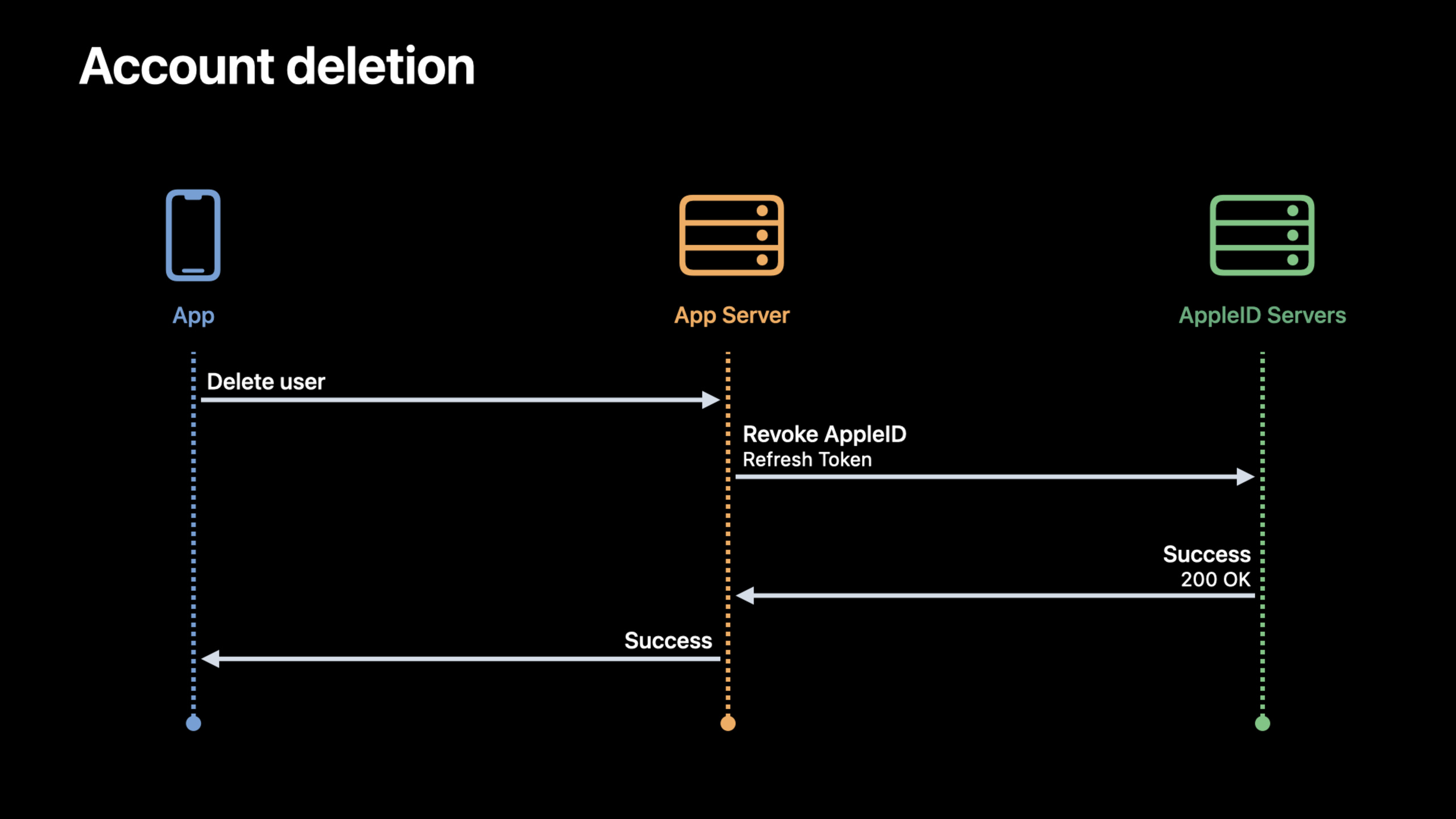
(14:22) The account deletion process can call the new REST endpoint. The server first prepares a valid refresh token or access token before callingauth/revoke. If using refresh token,token_type_hintcorrespondREFRESH_TOKEN;If access token is used, the correspondingACCESS_TOKEN. Upon success, the token and the user’s active session will become invalid immediately.
Sign in with Apple on the web
(16:35) Before accessing the website, you need to create a Services ID in the Apple Developer Portal, configure the Primary App ID, website domain name and redirect URL. Related apps are recommended to be grouped so users only need to agree to information sharing once.
(17:55) Sign in with Apple JS is responsible for loading the button and making the authorization request. After the page introduces Apple’s JS file, use adivDeclare the button and then callAppleID.auth.init。
<html>
    <body>
        <script type="text/javascript" src="https://appleid.cdn-apple.com/appleauth/static/jsapi/appleid/1/en_US/appleid.auth.js"></script>
        <div id="appleid-signin" data-color="white" data-border="true" data-type="sign in"/>
        <script type="text/javascript">
            AppleID.auth.init({
                clientId : '[CLIENT_ID]',
                scope : '[SCOPES]',
                redirectURI : '[REDIRECT_URI]',
                state : '[STATE]',
                nonce : '[NONCE]',
                usePopup : true
            });
        </script>
    </body>
</html>
Key points:
appleid.auth.jsIt is the entry script for Sign in with Apple JS. -id="appleid-signin"ofdivA Sign in with Apple button is generated. -data-color、data-border、data-typeControl button appearance and text. -clientIdIs the Services ID created in the Developer Portal. -scopeOnly fill in the name or email range that is actually required by the website. -redirectURIMust be a registered URL for the Developer Portal. -stateandnonceUsed to protect authorization requests. -usePopupControl whether the login interface uses a pop-up window or jumps to the current window.
(18:28) Buttons can be adjusted through properties. session shows four writing methods: white, black, Continue with Apple and logo-only.
<div id="appleid-signin" data-color="white" data-border="true" data-type="sign in"/>
<div id="appleid-signin" data-color="black" data-border="true" data-type="sign in"/>
<div id="appleid-signin" data-color="black" data-border="true" data-type="continue"/>
<div id="appleid-signin" data-color="black" data-border="true" data-mode="logo-only"/>
Key points:
data-color="white"Generate white button. -data-color="black"Generate black buttons. -data-type="continue"Change the button text to Continue with Apple. -data-mode="logo-only"Only the Apple logo is displayed.
(21:11) Authorization results are returned through DOM events. Success events include authorization code, identity token, and requested user information.
document.addEventListener('AppleIDSignInOnSuccess', (event) => {
    // Handle successful response.
    console.log(event.detail.data);
});

document.addEventListener('AppleIDSignInOnFailure', (event) => {
     // Handle error.
     console.log(event.detail.error);
});
Key points:
AppleIDSignInOnSuccessTriggered after successful authorization. -event.detail.dataContains success response data. -AppleIDSignInOnFailureFired after authorization fails. -event.detail.errorContains failure information, where the page should restore the UI or display an error.
Core Takeaways
-
Make an account selector that logs in upon startup: Called when the App starts
performRequests(options: .preferImmediatelyAvailableCredentials), requesting both Apple ID and password credentials. When the user selects an account with an old password, he or she can directly enter the original account to reduce duplicate accounts. -
Make a password account upgrade portal: Prompt users to upgrade their password accounts to Sign in with Apple on the settings page or after logging in. The implementation entrance is Account Authentication Modification Extension, which is suitable for helping users remember one less password.
-
Make a credential status guard: called when the App starts
getCredentialState(forUserID:), monitor at runtimecredentialRevokedNotification. When the status changes to revoked or notFound, clean up the local session and return to the login page. -
Make a server account deletion process: When deleting an account, the server uses refresh token or access token to call
auth/revoke. After success, execute the deletion or anonymization process of your own database to ensure that the Apple ID association is invalidated at the same time. -
Make a website version of a unified login page: Configure Services ID, domain name and redirect URL in Developer Portal, use Sign in with Apple JS to render the button, and monitor
AppleIDSignInOnSuccessThen give the authorization code to the server in exchange for token.
Related Sessions
- Discover Sign in with Apple at Work & School — Talks about managed Apple IDs, Roster API, and Sign in with Apple configuration in an organizational environment.
- Meet passkeys — Using Authentication Services to access passkeys is directly related to the login credential selection process of this session.
- Replace CAPTCHAs with Private Access Tokens — Explain how to use privacy protection methods to improve the confidence of real users in their judgments, which can be supplemented
realUserStatusanti-fraud scenario. - Streamline local authorization flows — Introduces LocalAuthentication’s authorization protection for local sensitive resources, which is suitable for use in conjunction with security operations after account login.
Comments
GitHub Issues · utterances