
Highlight
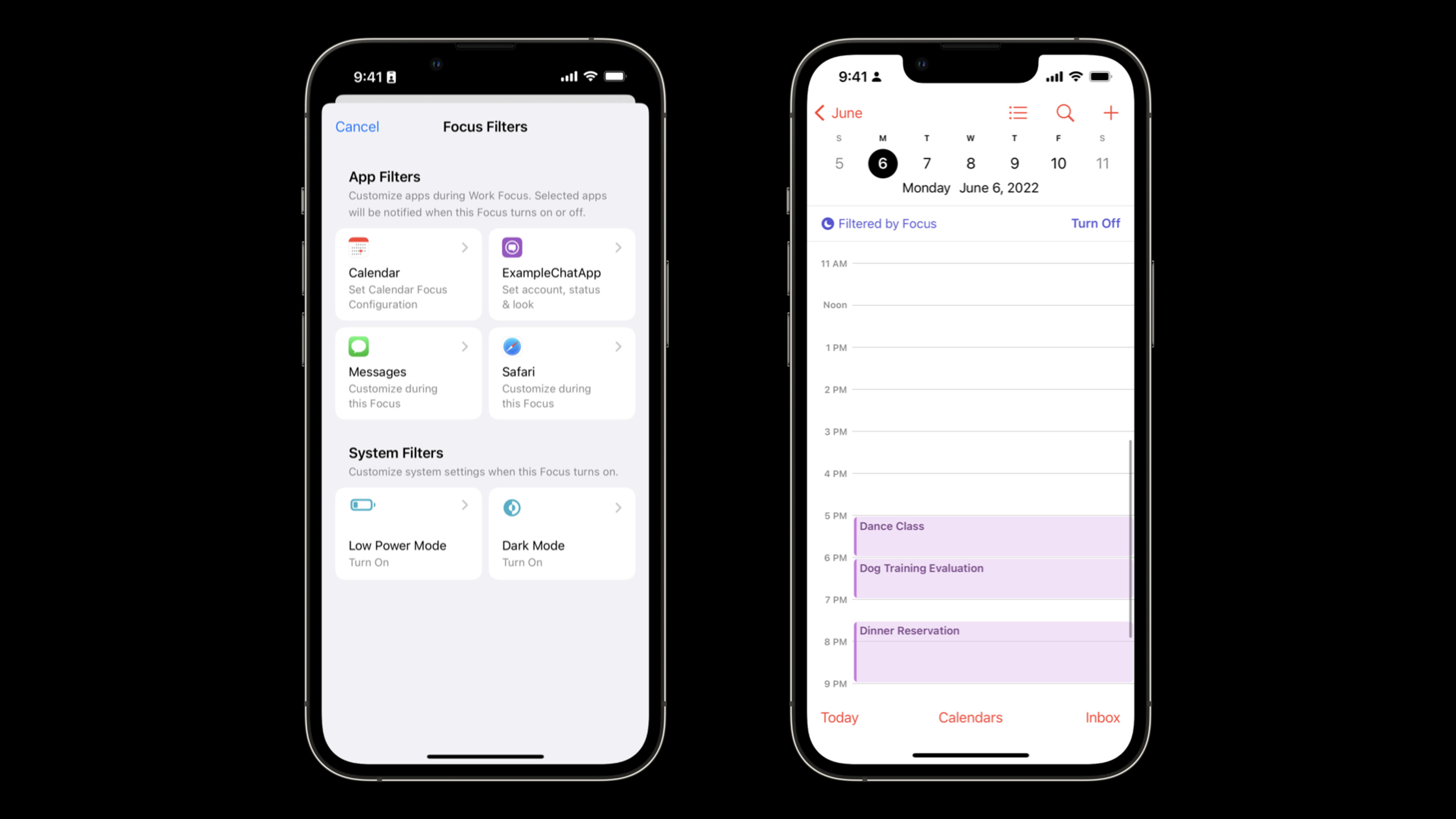
iOS 16 and macOS Ventura introduce Focus Filters mechanism for Focus (focus mode). Previously, Focus could only control notification behavior at the system level, but now it can drill down into the internal logic of each application.
Core Content
Focus comes in iOS 15, macOS Monterey, and watchOS 8. It first solves the system-level interruption control: only colleagues are allowed to notify when working, and only a few apps are allowed to remind users during personal time (00:18).
With iOS 16 and macOS Ventura, Focus filters give this capability to Apps. After the user activates a Focus, the App can switch content, accounts, appearance, notifications and badges according to the current scene. The calendar can only display the personal calendar, and the email can only display the current Focus-related mailboxes and notifications (01:04).
The example in the talk is a chat app. A user may have both a work account and a personal account. When Personal Focus is enabled, the App only displays personal accounts, changes the status to personal time, and allows the interface to follow the appearance configured by the user; when Work Focus is enabled, the App switches back to work accounts and work notifications (02:52).
Developers have to do three things. First, use App Intents to define aSetFocusFilterIntent, tells the system that this App supports Focus filter. Second, declare user-configurable options as parameters. Third, execute when Focus changesperform(), apply the parameters returned by the system to the App or Extension (03:41).
Detailed Content
Define the entrance of Focus filter
(04:57) Focus filter is essentially a complianceSetFocusFilterIntentSwift type. The system reads the app’s static title and description when it is installed and displays it on the Focus settings page.
// Implementing SetFocusFilterIntent

import AppIntents

struct ExampleChatAppFocusFilter: SetFocusFilterIntent {

    static var title: LocalizedStringResource = "Set account, status & look"
    static var description: LocalizedStringResource? = """
        Select an account, set your status, and configure
        the look of Example Chat App.
    """
}
Key points:
import AppIntentsIntroduce the App Intents capability where Focus filters are located. -ExampleChatAppFocusFilterIt is the Focus filter type provided by the App to the system. -SetFocusFilterIntentIndicates that this Intent is used to set the App behavior under a Focus. -titleIt will appear in the card subtitle position in Focus settings. -descriptionAdditional instructions will be provided after the user clicks on the configuration page.- The title and description are
static, the system reads them when the app is installed.
Declare configurable items as parameters
(07:02) What can users configure, by@ParameterDecide. Parameters can beBool、String、FloatOther standard types, or it can be an Entity defined by the App itself. Non-optional parameters need to provide default values.
// Defining your Parameters & Entities

import AppIntents

struct ExampleChatAppFocusFilter: SetFocusFilterIntent {

    @Parameter(title: "Use Dark Mode", default: false)
    var alwaysUseDarkMode: Bool

    @Parameter(title: "Status Message")
    var status: String?

    @Parameter(title: "Selected Account")
    var account: AccountEntity?

    // ...
}
Key points:
alwaysUseDarkModeis a required Boolean parameter, so usedefault: falseGive default value. -statusIs an optional string, the user can not set the status message for a Focus. -accountIt’s the App’s ownAccountEntity, used to allow users to select accounts.- each
@Parameteroftitlewill be displayed in the system settings interface to help users understand this option. - The value of the parameter is filled in by the user in each Focus setting, and the App does not need to build this configuration UI by itself.
Let the settings page display specific configurations
(08:43) After the Focus filter is configured, the system settings page will display dynamic titles and subtitles.displayRepresentationUsed to describe “which parameters are configured” and “the current values of these parameters”.
// Display Representation

struct ExampleChatAppFocusFilter: SetFocusFilterIntent {
    // ...

    var localizedDarkModeString: String {
        return self.alwaysUseDarkMode ? "Dark" : "Dynamic"
    }

    var displayRepresentation: DisplayRepresentation {
        var titleList: [LocalizedStringResource] = [], subtitleList: [String] = []
        if let account = self.account {
            titleList.append("Account")
            subtitleList.append(account.displayName)
        }
        if let status = self.status {
            titleList.append("Status")
            subtitleList.append(status)
        }
        titleList.append("Look")
        subtitleList.append(self.localizedDarkModeString)

        let title = LocalizedStringResource("Set \(titleList, format: .list(type: .and))")
        let subtitle = LocalizedStringResource("\(subtitleList.formatted())")

        return DisplayRepresentation(title: title, subtitle: subtitle)
    }

    // ...
}
Key points:
localizedDarkModeStringConvert Boolean values into user-readable appearance descriptions. -titleListSave the configured parameter names, such as Account, Status, Look. -subtitleListSave parameter values such as account display name, status message, Dark or Dynamic. -accountandstatusIt is optional and only enters the display content after the user sets it. -alwaysUseDarkModeis a required parameter, so Look will always be displayed. -DisplayRepresentationoftitleandsubtitleWill become the main copy and sub-copy on the Focus settings card.
Update App when Focus changes
(09:23) When the system determines that the App needs to respond to Focus changes, it will call the Focus filterperform(). If the App is running, the call occurs within the App; if the App is not running, the developer can implement an Extension and let the system start the Extension to handle the change. When you only update the app’s own views, the in-app implementation is usually enough; when you need to change widgets, notifications, or badges, you should consider Extension.
(11:24)perform()When called, the parameters are filled with the values configured by the user in the Focus settings. The example assembles these values intoAppData, and then hand it over to the App’s model layer to update the interface and behavior.
// Implementing Perform on your Focus filter

import AppIntents

struct ExampleChatAppFocusFilter: SetFocusFilterIntent {
    // ...

    func perform() async throws -> some IntentResult {
        let myData = AppData(
            alwaysUseDarkMode: self.alwaysUseDarkMode,
            status: self.status,
            account: self.account
        )
        myModel.shared.updateAppWithData(myData)
        return .result()
    }

    // ...
}
Key points:
perform()It is the execution entry after Focus transition. -self.alwaysUseDarkModeRead the appearance options configured by the user for the current Focus. -self.statusRead status messages under the current Focus. -self.accountRead the account currently bound to Focus. -AppDataIt is the sample App’s own data structure used to centrally transfer these configurations. -updateAppWithData(myData)Apply the Focus configuration to the app. -return .result()Tell the system that this Intent execution is complete.
Actively query the current Focus filter
(11:47) Sometimes the App needs to actively read the current Focus filter instead of waiting for a system callperform(). At this time, you can access the specific Focus filter typecurrent。
// Calling Current

import AppIntents

func updateCurrentFilter() async throws {
    do {
        let currentFilter = try await ExampleChatAppFocusFilter.current
        let myData = AppData(
            myRequiredBoolValue: currentFilter.myRequiredBoolValue,
            myOptionalStringValue: currentFilter.myOptionalStringValue,
            myOptionalAppEnum: currentFilter.myOptionalAppEnum,
            myAppEntity: currentFilter.myAppEntity
        )
        myModel.shared.updateAppWithData(myData)
    } catch let error {
        print("Error loading current filter: \(error.localizedDescription)")
        throw error
    }
}
Key points:
ExampleChatAppFocusFilter.currentAsynchronously returns the currently effective Focus filter parameters. -try awaitIndicates that reading the current configuration may fail, or you may need to wait for system results. -currentFilter.myRequiredBoolValueRead required parameters. -currentFilter.myOptionalStringValue、myOptionalAppEnumandmyAppEntityRead optional parameters or custom objects. -updateAppWithData(myData)reuse andperform()Same update path. -catchRecords errors and rethrows them to avoid silent lost read failures.
Use App Context to filter notifications
(12:16) Focus filter can also return the current context of the App to the system. A typical use is notification filtering: Apps inFocusFilterAppContextMedium settingsfilterPredicate, the notification content will be provided againfilterCriteria. If the two don’t match, the notification will be muted.
// Set filterPredicate on an App context

import AppIntents

struct ExampleChatAppFocusFilter: SetFocusFilterIntent {

    var appContext: FocusFilterAppContext {
        let allowedAccountList = [account.identifier]
        let predicate = NSPredicate(format: "SELF IN %@", allowedAccountList)
        return FocusFilterAppContext(notificationFilterPredicate: predicate)
    }
}
Key points:
appContextReturns additional context required by the system. -allowedAccountListSaves the account identifier of the user currently allowed to interrupt Focus. -NSPredicate(format: "SELF IN %@", allowedAccountList)Define notification filter conditions. -FocusFilterAppContext(notificationFilterPredicate: predicate)Submit filtering conditions to the system.- This context can be used as
perform()The result is returned, and you can also use invalidate to let the system re-read it when needed.
(13:53) When sending a notification, the App must write the account to which the notification belongsfilterCriteria. In the speech example, Personal Focus currently only allows personal accounts; a work account notification comes withwork-account-identifier, so it will be muted by the system.
// Pass filterCriteria on UNNotificationContent

let content = UNMutableNotificationContent()
content.title = "Curt Rothert"
content.subtitle = "Slide Feedback"
content.body = "The run through today was great. I had few comments about slide 22 and 28."
content.filterCriteria = "work-account-identifier"
Key points:
UNMutableNotificationContent()Create local notification content. -title、subtitleandbodyFill in the text of the notification. -filterCriteriaWrite the context ID to which this notification belongs.- The system will
filterCriteriaSupplied with Focus filterfilterPredicatematch. - Remote notifications can also set filter criteria in the JSON payload.
(14:29) The corner mark should also follow the current Focus. The speech mentionedUNUserNotificationCenterNewsetBadgeCount, developers can change the corner mark to the number that is really important under the current Focus to reduce irrelevant reminders.
Core Takeaways
1. Focus account switching for multi-account apps
- What to do: Make chat, email, customer service or social apps display only work accounts under Work Focus, and only personal accounts under Personal Focus.
- Why it’s worth doing: The speech clearly mentioned that multi-account apps are suitable for linking a certain Focus to a certain account to prevent users from seeing irrelevant content in wrong scenarios.
- How to start: Model the account as
AppEntity,existSetFocusFilterIntentStatement in@Parameter(title: "Selected Account") var account: AccountEntity?, againperform()Refresh the current account and list.
2. Switch status and appearance according to Focus
- What: Automatically set a “working” status message in Work Focus and use a more lightweight interface layout or appearance in Personal Focus.
- Why it’s worth doing: example Focus filter also contains
statusandalwaysUseDarkMode, indicating that Focus filter is not limited to filtering content, but can also control App behavior and appearance. - How to start: Declare separately for status message and appearance
@Parameter,usedisplayRepresentationDisplay the user configuration clearly and avoid only vague names on the settings page.
3. Add contextual filtering to notifications
- What to do: Write the account, project or channel ID before sending the notification, so that the system will only highlight relevant notifications under the current Focus.
- Why it’s worth doing: Speech Notes
filterPredicateandfilterCriteriaWhen there is no match, the notification will be muted, which is suitable for reducing interruptions in non-current scenes. - How to start: In
FocusFilterAppContextreturn innotificationFilterPredicate, notified locallyUNMutableNotificationContent.filterCriteriaOr write the same set of identifiers in the remote notification payload.
4. Let the corner mark only reflect the pending items of the current Focus
- What to do: The Work Focus subscript only counts work account unreads, and the Personal Focus subscript only counts personal content.
- Why it’s worth doing: The presentation lists badges as a way for apps to provide additional context to the system to reduce irrelevant reminders.
- How to start: Recalculate the importance count of the current Focus after the Focus changes, call
UNUserNotificationCenterofsetBadgeCountUpdate badge.
Related Sessions
- Dive into App Intents — Used by Focus filters
SetFocusFilterIntentDefinition and understanding AppIntent, Parameter and Entity are prerequisites for access. - Implement App Shortcuts with App Intents — Also based on App Intents, shows how to hand over App functions to system discovery and operation.
- Design App Shortcuts — Supplement the copywriting, icons and user understanding of the system entrance, adjacent to the display representation design of the Focus settings page.
- Efficiency awaits: Background tasks in SwiftUI — Good for understanding how apps schedule background updates when responding to system events.
Comments
GitHub Issues · utterances