
Highlight
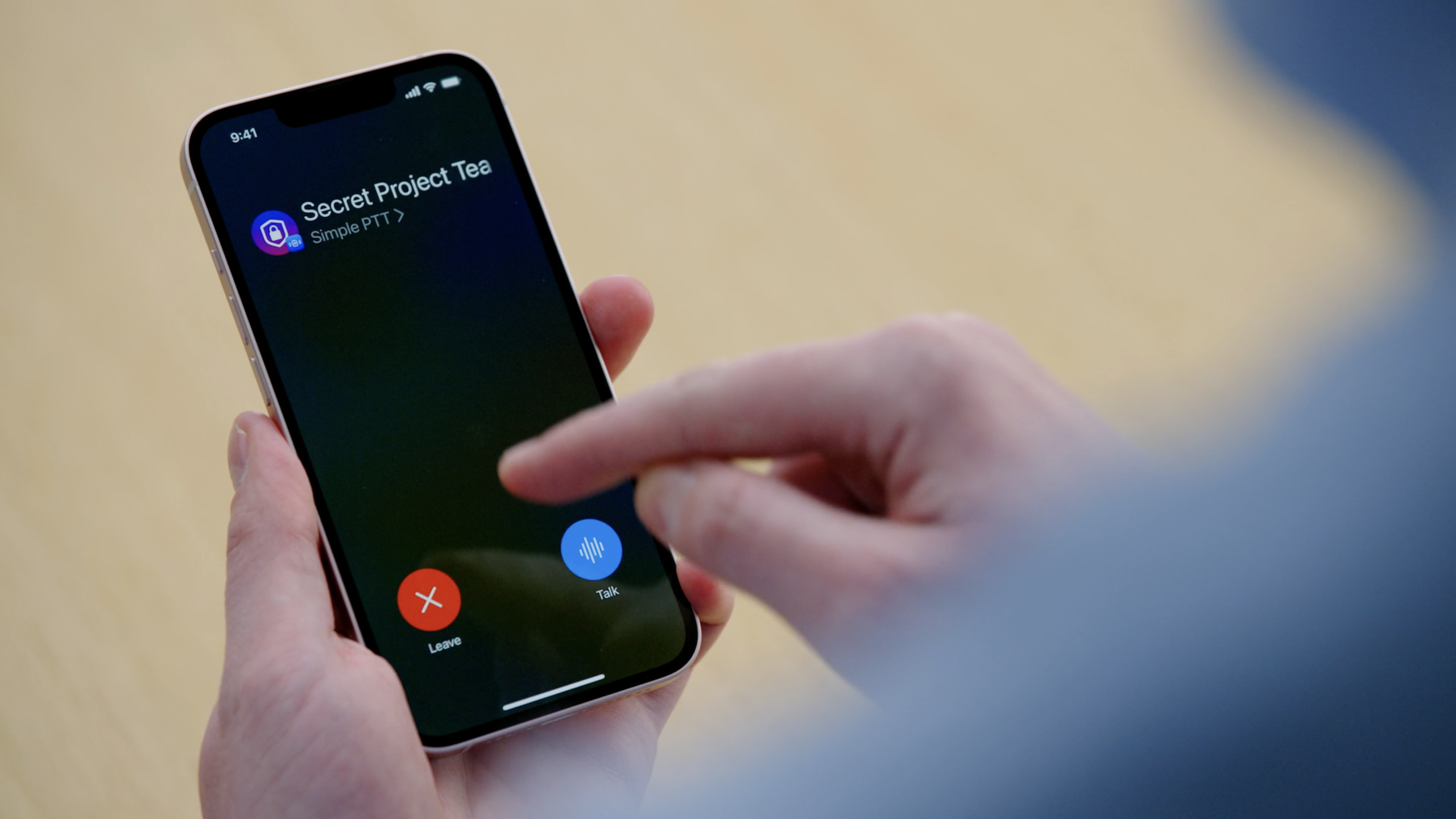
iOS 16’s PushToTalk framework provides system-level intercom UI, background microphone activation, Push to Talk-specific APNS notification and channel recovery mechanism, allowing intercom apps to access the lock screen and system interface while continuing to use their own audio encoding, streaming media and back-end transmission links.
Core Content
The difficulty with intercom apps is not a button. The user may start speaking while on the lock screen, in another app, on a Bluetooth accessory, or while reconnecting to the network; the receiver may also receive audio while the app is already suspended. Developers should not only make the experience as real-time as a system call, but also avoid consuming microphone, network and background running time for a long time.
PushToTalk framework breaks this link into several clear boundaries. The system is responsible for channel entrance, status bar blue capsule, lock screen UI, microphone activation, audio session activation and background wake-up after receiving notifications. App is responsible for its own business channel, server, audio encoding, audio streaming and member status.
The main line of this session is very clear: first add a channel to let the system know the current intercom session; then passPTChannelManagerHandles starting and ending speech; finally wakes up the receiver with a new Push to Talk APNS notification and reports the current speaker. The system only allows background running time when transmitting or receiving audio, and suspends the app when idle to save power.
Detailed Content
Join channel: System UI starts from channel
(05:33) Before accessing, you must turn on Push To Talk background mode, Push To Talk capability and Push Notifications capability in the Xcode project. The app also requests permission to record and provides a description of the microphone’s purpose in the Info.plist.
(06:16) The Push to Talk session is called channel. The App must first join the channel before the system UI will appear. The App will also receive the APNS push token available during the channel life cycle.
func setupChannelManager() async throws {
    channelManager = try await PTChannelManager.channelManager(delegate: self,
                                                               restorationDelegate: self)
}
Key points:
PTChannelManager.channelManagerCreate a channel manager, which is the main entrance for the App to interact with the PushToTalk framework. -delegate: selfReceive join, leave, speak, and audio session events. -restorationDelegate: selfUsed by the system to restore existing channels after app restart or device restart.- Speech suggestions at
ApplicationDelegateofdidFinishLaunchingWithOptionsInitialize it as early as possible to ensure that the channel can be restored and push received when the background is started.
(07:33) When joining a channel, the App provides a UUID and a description object. The UUID will be used throughout all manager calls; the description object provides the name and picture of the system UI display.
func joinChannel(channelUUID: UUID) {
    let channelImage = UIImage(named: "ChannelIcon")
    channelDescriptor = PTChannelDescriptor(name: "Awesome Crew", image: channelImage)

    // Ensure that your channel descriptor and UUID are persisted to disk for later use.
    channelManager.requestJoinChannel(channelUUID: channelUUID,
                                      descriptor: channelDescriptor)
}
Key points:
channelUUIDIt is the stable logo of this Push to Talk channel. -PTChannelDescriptorProvide a channel name and image, which the system UI will use to help users identify the channel.- Comments remind you to persist the descriptor and UUID to disk because they will be used when restoring the channel.
-
requestJoinChannelYou can only request to join when the app is running in the foreground, which is a restriction explicitly given by transcript.
(08:11) After successful joining, the delegate will receive the joining result and temporary push token. This token is sent to the server for sending Push to Talk notifications to the device.
func channelManager(_ channelManager: PTChannelManager,
                    didJoinChannel channelUUID: UUID,
                    reason: PTChannelJoinReason) {
    // Process joining the channel
    print("Joined channel with UUID: \(channelUUID)")
}

func channelManager(_ channelManager: PTChannelManager,
                    receivedEphemeralPushToken pushToken: Data) {
    // Send the variable length push token to the server
    print("Received push token")
}
Key points:
didJoinChannelIt is the confirmation point that the App has joined the channel. -receivedEphemeralPushTokenReturns the APNS tokens available during the life cycle of this channel.- Code comments emphasize that push token is variable-length data, and neither the server nor the client should hard-code the length.
- The server will later use this token to notify the receiving end that new audio is available for playback.
Recovery and status updates: Don’t let the system UI display out-of-date information
(09:22) PushToTalk supports restoring the previous channel after the app is terminated or the device is restarted. When restoring, the system asks the restoration delegate for a channel descriptor.
func channelDescriptor(restoredChannelUUID channelUUID: UUID) -> PTChannelDescriptor {
    return getCachedChannelDescriptor(channelUUID)
}
Key points:
restoredChannelUUIDIs the channel that the system is recovering from. -getCachedChannelDescriptorIndicates fetching the descriptor from the local cache.- transcript explicitly requires this method to return as soon as possible and do not make network requests or other blocking tasks here.
- This is also the reason why UUID and descriptor were persisted earlier.
(10:12) When the channel name, picture, or network connection status changes, the App must actively notify the system. The system UI will update the display accordingly and prevent the user from speaking if the service connection is unavailable.
func updateChannel(_ channelDescriptor: PTChannelDescriptor) async throws {
    try await channelManager.setChannelDescriptor(channelDescriptor,
                                                  channelUUID: channelUUID)
}
Key points:
setChannelDescriptorUpdate the channel information saved by the system with the new descriptor. -channelUUIDIndicate which channel to update.- Applicable scenarios include channel name change, channel avatar change or local cache refresh.
func reportServiceIsReconnecting() async throws {
    try await channelManager.setServiceStatus(.connecting, channelUUID: channelUUID)
}

func reportServiceIsConnected() async throws {
    try await channelManager.setServiceStatus(.ready, channelUUID: channelUUID)
}
Key points:
.connectingTell the system that the service is reconnecting.- transcript Description This status updates the system UI and prevents the user from speaking when connecting or disconnected.
-
.readyIndicates that the connection is restored and the user can continue transmitting audio. - PushToTalk does not replace the App’s network layer, and the service status is still determined by the App based on its own backend connection.
Speak: Wait for the system to activate the audio session before recording
(11:09) Users can start speaking from within the app or from the system UI. If the App supports hardware buttons through CoreBluetooth, it can also request to start transmission after responding to changes in the peripheral characteristics in the background.
func startTransmitting() {
    channelManager.requestBeginTransmitting(channelUUID: channelUUID)
}

// PTChannelManagerDelegate

func channelManager(_ channelManager: PTChannelManager,
                    failedToBeginTransmittingInChannel channelUUID: UUID,
                    error: Error) {
    let error = error as NSError

    switch error.code {
    case PTChannelError.callIsActive.rawValue:
        print("The system has another ongoing call that is preventing transmission.")
    default:
        break
    }
}
Key points:
requestBeginTransmittingRequests to start speaking on the specified channel.- This request can come from the foreground app or from a supported Bluetooth peripheral event.
-
failedToBeginTransmittingInChannelHandles situations where the system refuses to start speaking. - in the example
PTChannelError.callIsActiveCorresponding to the scenario in the transcript: an ongoing cellular call blocks Push to Talk transmission.
(12:41) Requesting to start speaking does not mean recording immediately. The real recording time is when the delegate receives the start transmission event and the system is activatedAVAudioSession。
func channelManager(_ channelManager: PTChannelManager,
                    channelUUID: UUID,
                    didBeginTransmittingFrom source: PTChannelTransmitRequestSource) {
    print("Did begin transmission from: \(source)")
}

func channelManager(_ channelManager: PTChannelManager,
                    didActivate audioSession: AVAudioSession) {
    print("Did activate audio session")
    // Configure your audio session and begin recording
}
Key points:
didBeginTransmittingFromWill tell the App whether the speech started from the system UI, program API, or hardware button event. -didActivate audioSessionis the signal to start recording.- transcript clearly says not to start or stop the audio session by yourself, the system will activate it at the appropriate time.
- App can configure recording and send the audio stream to its own server after the audio session is activated.
(13:19) The end of the speech is also completed by the cooperation of the manager and the delegate. After the system deactivates the audio session, the App will clean up the recording resources.
func channelManager(_ channelManager: PTChannelManager,
                    channelUUID: UUID,
                    didEndTransmittingFrom source: PTChannelTransmitRequestSource) {
    print("Did end transmission from: \(source)")
}

func channelManager(_ channelManager: PTChannelManager,
                    didDeactivate audioSession: AVAudioSession) {
    print("Did deactivate audio session")
    // Stop recording and clean up resources
}
Key points:
didEndTransmittingFromRecord the end of the statement and the source of the end. -didDeactivate audioSessionIndicates that the audio session has been disabled by the system.- The App stops recording and releases resources here.
- Audio interruptions such as phone calls and FaceTime calls still have to be handled during transmission.
Receive: Push to Talk dedicated APNS notification wake-up App
(13:42) Receiving audio relies on the new Push to Talk push notification type. When there is new audio on the server, it sends a notification using the device push token obtained when joining the channel. The push type in the APNS header should be set topushtotalk, topic needs to use bundle identifier plus.voip-pttFor suffix, priority is recommended to be 10 and expiration is recommended to be 0.
(15:29) After the App is started in the background, it needs to return as soon as possiblePTPushResult. If there is a remote speaker, active participant is returned; if the server requests to leave the channel, leave channel is returned.
func incomingPushResult(channelManager: PTChannelManager,
                        channelUUID: UUID,
                        pushPayload: [String : Any]) -> PTPushResult {

    guard let activeSpeaker = pushPayload["activeSpeaker"] as? String else {
        // If no active speaker is set, the only other valid operation
        // is to leave the channel
        return .leaveChannel
    }

    let activeSpeakerImage = getActiveSpeakerImage(activeSpeaker)
    let participant = PTParticipant(name: activeSpeaker, image: activeSpeakerImage)
    return .activeRemoteParticipant(participant)
}
Key points:
pushPayloadCan contain App custom key, example usesactiveSpeakerIndicates the current speaker.- When there is no active speaker, the example returns
.leaveChannel。 PTParticipantContains the speaker’s name and optional image, which the system UI uses to show who is speaking.- return
.activeRemoteParticipantAfterwards, the system will set the channel to receive mode, activate the audio session, and call the audio session to activate the delegate. - Transcript requires this method to return as soon as possible; if the avatar is not local, you can first return only the name, and then download the image asynchronously and update the active participant.
(17:03) When the remote conversation ends, the App should clear the active remote participant. The system then updates the Push to Talk UI and allows the user to speak again.
func stopReceivingAudio() {
    channelManager.setActiveRemoteParticipant(nil, channelUUID: channelUUID)
}
Key points:
setActiveRemoteParticipant(nil, channelUUID:)Indicates that the remote audio is no longer being received.- The app’s audio session will be disabled.
- The UI will leave receive mode and the user can press Talk again.
- This step must be aligned with the server-side audio stream end event, otherwise the system UI will mistakenly think that it is still receiving.
Battery and network: background running time only appears when needed
(17:37) PushToTalk uses shared system resources. There can only be one active Push To Talk App on the system at the same time, and cellular calls, FaceTime and VoIP calls will take priority over Push To Talk. Apps must handle failure callbacks gracefully.
(18:18) The system is responsible for activating and deactivating the audio session, but the App should still set the audio session category to play and record when starting. The system also provides microphone activation and deactivation sounds, and apps should no longer play their own tones.
(19:05) PushToTalk only gives background runtime when necessary to transmit and receive audio. When idle, the app will be suspended by the system and the network connection will be disconnected. The talk recommends considering Network.framework and QUIC to reduce the steps required to re-establish a secure TLS connection and improve initial connection speed.
func reportServiceIsReconnecting() async throws {
    try await channelManager.setServiceStatus(.connecting, channelUUID: channelUUID)
}

func reportServiceIsConnected() async throws {
    try await channelManager.setServiceStatus(.ready, channelUUID: channelUUID)
}
Key points:
- Disconnecting network connections after background suspend is part of the system’s power saving strategy.
- Used during reconnection
.connectingUpdate the system UI to prevent users from pressing Talk only to discover that the service is unavailable. - Will report back after the connection is restored
.ready. - If the real-time audio link is sensitive to recovery speed, you can combine Network.framework and QUIC to optimize connection establishment.
Core Takeaways
-
What to do: Add “channel-style voice calling” to the team collaboration app. Why it’s worth doing: PushToTalk provides system UI and lock screen access, so users can reply without opening the app. How to start: Use first
PTChannelManager.channelManagerInitialize manager and then userequestJoinChannelJoin a team channel and putreceivedEphemeralPushTokenSend it to your server. -
What to do: Add Bluetooth button speech to warehousing, medical care or on-site inspection apps. Why it’s worth doing: The session clearly mentions that the App can continue to use CoreBluetooth to integrate wireless Bluetooth accessories and request to speak when the peripheral characteristics change. How to start: Map peripheral button events to
requestBeginTransmitting(channelUUID:),existdidActivate audioSessionThen start recording and uploading the audio stream. -
What: Make a transparent reminder of “who is speaking” on the receiving end. Why it’s worth doing: The system UI will display the name and picture of the active participant, so the user can know whose audio is currently being received. How to start: The server puts the speaker ID in the Push to Talk payload, and the App
incomingPushResultmedium structurePTParticipantand return.activeRemoteParticipant。 -
What to do: Add network status protection to the intercom service. Why it’s worth doing: The system UI can prevent users from speaking when the service is connecting or disconnected based on service status, reducing the failure experience. How to start: Synchronize the backend connection status to
setServiceStatus(.connecting, channelUUID:)andsetServiceStatus(.ready, channelUUID:)。 -
What to do: Move avatar loading out of the critical path for receiving pushes. Why it’s worth doing: The transcript requires the incoming push delegate to return as soon as possible, and blocking will affect the receiving link. How to start: If there is no local avatar, return only the name first.
PTParticipant, then download the image in the background, and then callsetActiveRemoteParticipantUpdate display.
Related Sessions
- Reduce networking delays for a more responsive app — Push to Talk App The network will be disconnected when idle. This session talks about how Network.framework, HTTP/3 and QUIC can reduce reconnection and request delays.
- Power down: Improve battery consumption — PushToTalk’s background model focuses on power saving. This session system explains background data processing, long tasks and power consumption.
- Meet Web Push for Safari — Both sessions involve the server reaching the client through the Apple push link. You can compare and understand the complete process of subscribing, sending and debugging push.
Comments
GitHub Issues · utterances