
Highlight
This Session introduces CKTool JS, a CloudKit command line tool based on Node.js. Its positioning is to allow daily management operations of CloudKit to be automated through scripts instead of relying on Xcode or web consoles.
Core Content
CloudKit application data is placed in iCloud containers. During development, developers have to repeatedly change the schema, check records, and write test data. In the past, Apple platform apps could use the CloudKit framework, web pages could use CloudKit JS, and automation scripts mainly relied on the macOS command line tools introduced in Xcode 13.cktool。
(00:57) CKTool JS brings this workflow to JavaScript. It provides a set of npm packages that allow scripts to directly call CloudKit management and database APIs. Session explicitly says that it supports andcktoolThe same operation types as the command line tools are also used by the CloudKit Console to implement functions such as adding record types and querying records.
This thing solves the tool chain problem. Teams that already have Node.js build scripts, CI scripts, and data preparation scripts don’t have to switch to another tool for CloudKit schema and record operations. schema can be obtained from.ckdbFile import, records can be queried, created, updated, and deleted using JavaScript.
(01:43) CKTool JS also comes with TypeScript type definitions. Wrong calling methods can be exposed at compile time, and the IDE can also complete the API. For automated scripts that are going to be maintained over time, this is easier to review than a string of bare JSON requests.
Detailed Content
Configure CKTool JS
(02:38) CKTool JS consists of multiple@appleComposed of npm package under scope. The main package is@apple/cktool.database. If running on Node.js, you also need@apple/cktool.target.nodejs;If running in a browser, use@apple/cktool.target.browser。
(03:10) Because CKTool JS will access iCloud directly, the script requires a token. Management operations such as schema import, export, verification, and reset to production use management tokens. A user token is required to access user private data. Both types of tokens are obtained from the CloudKit Console.
// Create security object and setup default args

const { CKEnvironment } = require("@apple/cktool.database");

const security = {
    "ManagementTokenAuth": "<YOUR_MANAGEMENT_TOKEN>",
    "UserTokenAuth": "<YOUR_USER_TOKEN>"
};

const defaultArgs = {
    "teamId": "<YOUR_TEAM_ID>",
    "containerId": "<YOUR_CONTAINER_ID>",
    "environment": CKEnvironment.DEVELOPMENT
};
Key points:
- Line 3 starts from
@apple/cktool.databasetake outCKEnvironment. - Lines 5 to 8 hold authentication information. The management token is used for management operations such as schema, and the user token is used to access user data.
- Lines 10 to 14 save the parameters used in each call: team, container, environment.
-
CKEnvironment.DEVELOPMENTCorresponding to the development environment. Session recommends testing schema changes in the development environment to avoid affecting production data.
(07:17) With authentication and default parameters in place, you need to create platform configuration and API objects.createConfigurationComes from the target package, so Node.js and the browser will use different underlying configurations.
// Create configuration and API objects

const { createConfiguration } = require("@apple/cktool.target.nodejs");
const { PromisesApi } = require("@apple/cktool.database");

const configuration = createConfiguration();
const api = new PromisesApi({
    "configuration": configuration,
    "security": security
});
Key points:
- Line 3 uses the Node.js target package provided
createConfiguration. -Introduced by line 4PromisesApi, which contains asynchronous methods for accessing iCloud. - Line 6 creates platform dependent configuration.
- Lines 7 to 10 hand over the configuration and token
PromisesApi, subsequent schema and record operations start fromapiInitiate.
use.ckdbfile management schema
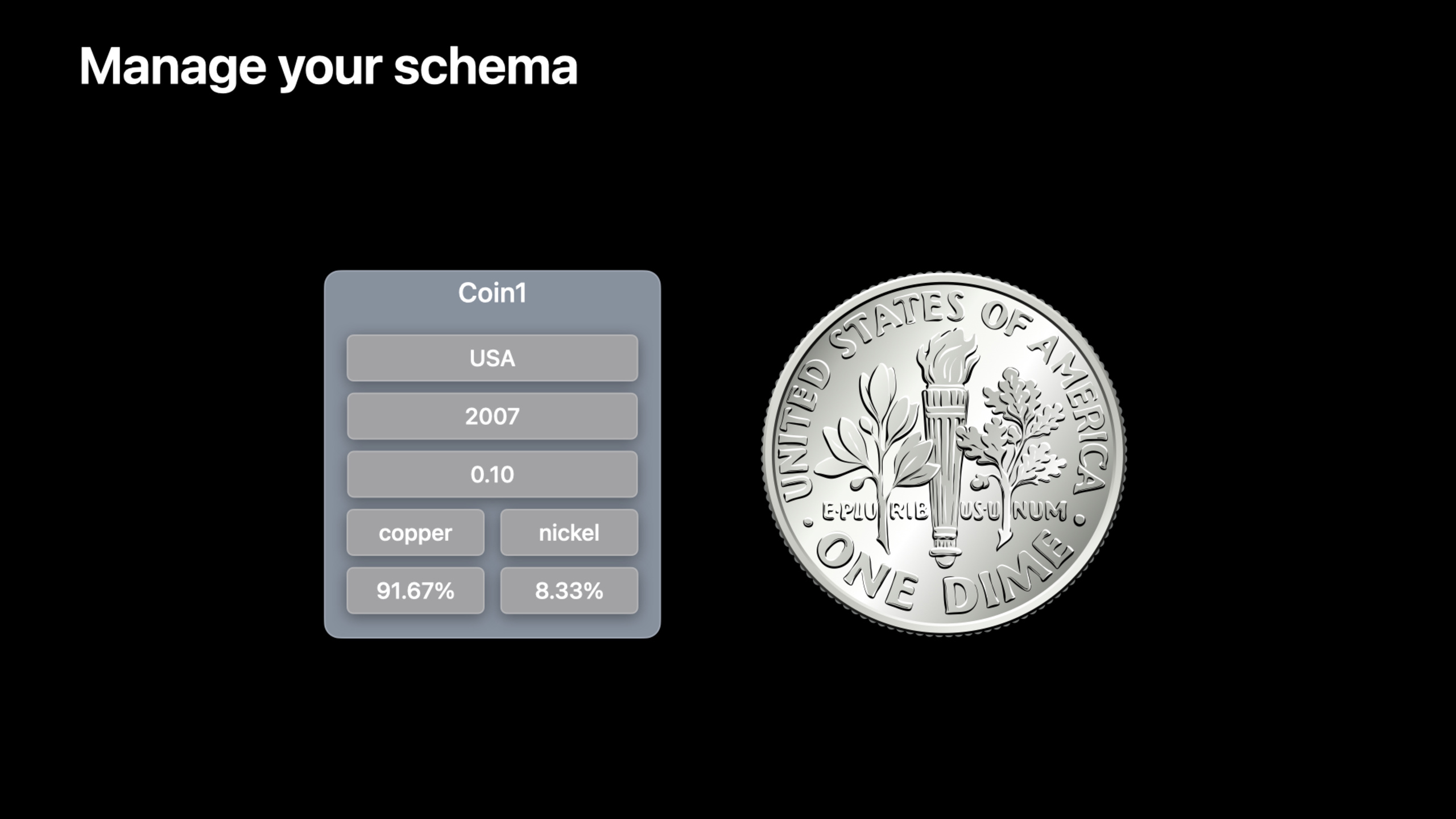
(08:40) Session uses a coin collection App as an example. This App hasCountries、Coins、Componentsetc. record type. Schema can be written as a CloudKit Schema Language text file, and the agreed extension is.ckdb。
(09:05) Before applying the new schema, the development environment is usually reset to the production environment state. CKTool JS providesresetToProduction. Then useimportSchemaput local.ckdbFiles are uploaded to the container.
// Create a function to apply a schema

const { File } = require("@apple/cktool.target.nodejs");
const fs = require("fs/promises");
const path = require("path");

const importMySchema = async () => {
    const schemaPath = "<YOUR_SCHEMA_FILE>.ckdb";
    const buffer = await fs.readFile(schemaPath);
    const file = new File([buffer], schemaPath);
    await api.importSchema({ ...defaultArgs, "file": file });
}

// Chain the calls
api.resetToProduction(defaultArgs)
  .then(() => importMySchema());
Key points:
- Line 3 introduces CKTool JS
File, used to construct upload files. - Line 4 reads the schema file using Node.js’ promise version of the file system API.
- Specified on line 8
.ckdbschema file path. - Line 9 reads the file into
Buffer. - Line 10
BufferPackaged into CKTool JS and can be uploadedFile. - Line 11 calls
api.importSchema, and reused through the expansion syntaxdefaultArgs. - Lines 15 to 16 are executed first
resetToProduction, and then import the schema after success to ensure that the two asynchronous steps run in order.
This process is suitable for putting into CI. The schema file enters version control. The script first restores the development environment to the production state each time, and then applies the schema of the current branch. The test can run in a predictable container state.
Query record
(10:52) In addition to schema, CKTool JS can also read and write data. Session reminds that the field value of the record will be type and range checked on the client side. JavaScript native types such as large integers are not suitable for directly representing values, and you need to use CKTool JS’s type conversion or field value factory function.
(12:02) Before accessing record, first organize the database parameters. Select private database and default zone here.
// Create a database arguments object.

const {
    CKDatabaseType, CKEnvironment
} = require("@apple/cktool.database");

const databaseArgs = {
    "containerID": "<YOUR_CONTAINER_ID>",
    "environment": CKEnvironment.DEVELOPMENT,
    "databaseType": CKDatabaseType.PRIVATE,
    "zoneName": "_defaultZone"
};
Key points:
- Lines 3 to 5 introduce database type and environment constants.
- Line 8 specifies the target container.
- Line 9 continues using the development environment.
- Line 10 limits the operation to private database.
- Line 11 specifies the default zone. Subsequent queries, creations, updates, and deletions will reuse this object.
(12:16) Query usagequeryRecords. Example of finding a country based on its three-digit ISO codeCountries record。
// Define helper function for querying records

const { CKDBQueryFilterType } = require("@apple/cktool.database");
const countryQueryRecordForCountryCode3 = async (countryCode3) => {
    const response = await api.queryRecords({
        ...databaseArgs,
        "body": {
            "query": {
                "recordType": "Countries",
                "filters": [{
                    "fieldName": "isoCode3",
                    "fieldValue": makeRecordFieldValue.string(countryCode3),
                    "type": CKDBQueryFilterType.EQUALS
                }]
            }
        }
    });
    return response.result.records[0];
}
Key points:
- Line 3 introduces the query filter type.
- Line 4 defines an asynchronous helper, and the input is a three-digit country code.
- Expand line 6
databaseArgs, to avoid repeatedly passing container, environment, database, and zone each time. - Lines 8 to 15 describe the CloudKit query body.
- Query line 9
Countriesrecord type. - Lines 11 to 13 use
makeRecordFieldValue.string(countryCode3)Construct the string field value and useEQUALSDo equality filtering. - Line 18 from
response.result.recordsGet the first matching record.
Create record
(12:58) Before creating a record, you need to convert the ordinary JavaScript value into a CloudKit record field value. In the example, the coin’s country field is reference, its year of issue is Int64, and its face value is Double.
// Define a helper function for creating field values

const {
    makeRecordFieldValue, CKDBRecordReferenceAction
} = require("@apple/cktool.database");

const makeCoinFieldValues = ({ countryRecordName, issueYear, nominalValue }) => ({
    "country": makeRecordFieldValue.reference({
        recordName: countryRecordName,
        action: CKDBRecordReferenceAction.DELETE_SELF
    }),
    "issueYear": makeRecordFieldValue.int64(issueYear),
    "nominalValue": makeRecordFieldValue.double(nominalValue)
});
Key points:
- Lines 3 to 5 introduce field value factory and reference action constants.
- Line 7 defines a helper to convert raw coin data into a CloudKit field value dictionary.
- Lines 8 to 11 convert the country record name into a reference field value.
- Line 10 uses
DELETE_SELF, indicating that when the referenced record is deleted, the record where this reference is located will also be processed according to this action. - Line 12 converts the year of issue to an Int64 field value.
- Line 13 converts the face value to a Double field value.
(13:26) When actually creating data, callcreateRecord, put the record type and fields into the request body.
// Define helper method for creating coins

const coinCreateRecord = async (fields) => {
    const response = await api.createRecord({
        ...databaseArgs,
        "body": {
            "recordType": "Coins",
            "fields": fields
        },
    });
    return response.result.record;
}
Key points:
- Line 3 defines an asynchronous helper that creates the coin record.
- Line 5 continues reuse
databaseArgs. - Line 7 specifies the record type as
Coins. - Line 8 passes the field value dictionary generated by the previous helper to CloudKit.
- Line 11 returns the record after the server was created.
(13:48) Before creating a coin, the script first queries the country record, and then adds the country’srecordNameWrite reference.
// Call coin creation method with field values

const countryRecord = await countryQueryRecordForCountryCode3("USA");

const coinRecord1 = await coinCreateRecord(
    makeCoinFieldValues({
        "countryRecordName": countryRecord.recordName,
        "issueYear": 2007,
        "nominalValue": 0.10
    })
);
Key points:
- Line 3 queries the ISO code as
USAcountry record. - Line 5 calls the helper that creates the record.
- Line 7 records the country
recordNamePassed to reference field. - Line 8 sets the year of issue of the coin.
- Line 9 sets the coin value.
- Lines 5 to 11 return the newly created
coinRecord1, it will continue to be used in subsequent updates or deletions.
Update and delete records
(14:16) Update record usingupdateRecord. Session is specially marked and needs to be passed in when updating.recordChangeTag。
// Define helper method for updating coins.
// Note that recordChangeTag is required

const coinUpdate =
    async (recordName, recordChangeTag, fields) => {
        const response = await api.updateRecord({
            ...databaseArgs,
            "recordName": recordName,
            "body": {
                "recordType": "Coins",
                "recordChangeTag": recordChangeTag,
                "fields": fields
            }
        });
        return response.result.record;
    }
Key points:
- The helper on line 5 receives the record name, record change tag, and new fields.
- Line 7 reuses database parameters.
- Line 8 specifies the record to be updated.
- Line 10 specifies the record type.
- Line 11 passed in
recordChangeTag, used to update CloudKit records. - Line 12 commits the new field value dictionary.
- Line 15 returns the updated record.
(14:57) Deleting record is more straightforward, just pass in the database parameters and record name.
// Deleting a record

await api.deleteRecord({
    ...databaseArgs,
   "recordName": coinRecord1.recordName
});
Key points:
- Line 3 calls the asynchronous delete method.
- Line 4 reuses the container, environment, database, and zone parameters.
- Line 5 specifies the record name to delete.
- Session examples operate in a development environment. The production environment script should first query and confirm the target record before deleting it.
Core Takeaways
1. Perform PR-level verification for CloudKit schema
- What to do: Put
.ckdbThe schema file is put into the warehouse, and the CKTool JS script is run once for each PR. - Why it’s worth doing: Session shows
resetToProductionandimportSchemaThe combination can restore the development environment to the production state and then apply the current schema. - How to start: Prepare management token and execute it in CI
api.resetToProduction(defaultArgs).then(() => importMySchema()), preventing the merge on failure.
2. Prepare repeatable data sets for testing
- What: Create a fixed set of
Countries、CoinsOr business record, delete it after testing. - Why is it worth doing: CKTool JS can query, create, update, and delete records using JavaScript, and is suitable for connecting to the existing Node.js testing tool chain.
- How to start: Use first
queryRecordsFind the dependency record and use itmakeRecordFieldValueConstruct the field and finally callcreateRecordWrite test data.
3. Make a local checking tool before schema import
- What to do: Check the schema before submitting it
.ckdbWhether the file exists, whether it can be read, and whether the target environment is development. - Why is it worth doing: The import example of Session needs to read local files and package them into
File, callimportSchema. These steps are suitable for verification in advance in the script. - How to start: Reuse
fs.readFileand CKTool JSFileThe import process is actually calledapi.importSchemaBefore printing team, container, environment.
4. Create restricted data repair scripts for operations or support teams
- What to do: Encapsulate common repair actions into parameterized scripts, such as querying records by unique fields and then correcting a certain field.
- Why it’s worth doing: Session shows the button
isoCode3Query record, userecordChangeTagUpdate the full path of the record. - How to start: Limit the query conditions to unique fields, and pass in the current record when updating
recordNameandrecordChangeTag, only allows scripts to operate on record types explicitly listed by the developer.
Related Sessions
- Automate CloudKit tests with cktool and declarative schema — CKTool JS continues the CloudKit automation idea in this session, bringing schema and test preparation work into the JavaScript tool chain.
- Meet CloudKit Console — CKTool JS is used to implement some functions of CloudKit Console. Understanding Console helps to understand the usage scenarios of these APIs.
- What’s new in CloudKit Console — In the same year, CloudKit Console continued to enhance web-side management capabilities, complementing the scripted management of CKTool JS.
- Optimize your use of Core Data and CloudKit — If the App uses Core Data to synchronize to CloudKit, this session talks about how to test and optimize the synchronization process.
Comments
GitHub Issues · utterances