
Highlight
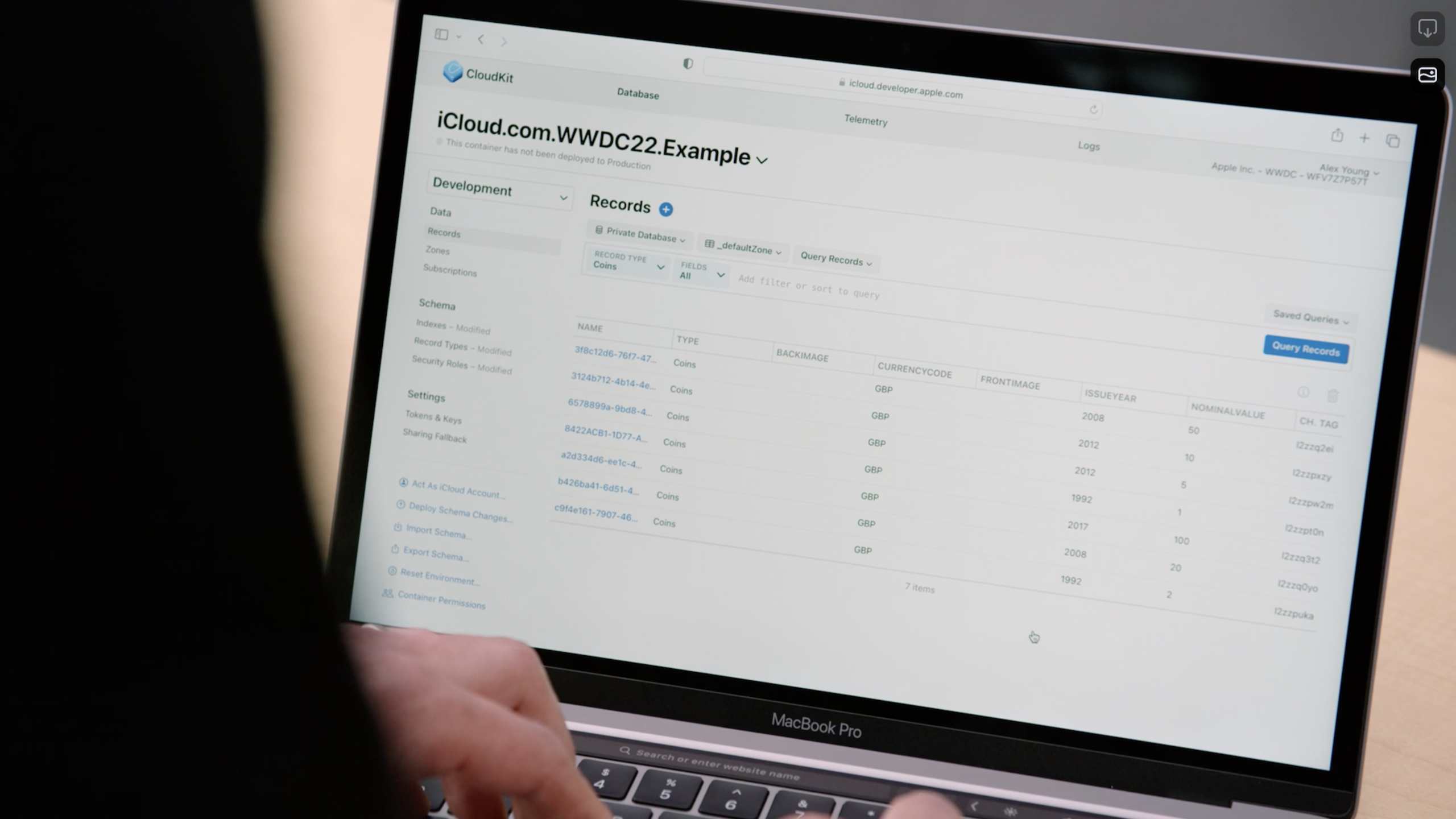
CloudKit Console adds hidden container, Act As iCloud and shared zone management, allowing teams to organize container lists, query private data from the perspective of iCloud accounts, and configure zone-wide sharing on web pages.
Core Content
CloudKit applications typically have multiple containers. During the development phase, test containers, prototype containers, and temporary experiment containers will be built. Over time, the Xcode and CloudKit Console lists can become cluttered, and team members will see the same noise.
(00:51) This Session will solve this problem first. CloudKit Console has new hidden containers. Developers can choose which containers are visible and which containers are hidden in the Console. The hidden state works at the team level and will be synchronized to developer tools such as Xcode.
Another common problem is harder to debug: users say their private database data is wrong, but developers query it using their own developer accounts and don’t see the same perspective.
(02:08) Act As iCloud solves this debugging entry. Developers can log in to an iCloud account in the Console, so that subsequent record queries and zone views are executed from the perspective of the iCloud account. It only acts on data-related areas and does not allow schema operations.
Finally, there is shared data. CloudKit sharing allows apps to securely share records between users. In the past, to understand the state of a shared zone, developers needed to check back and forth between app logic and CloudKit data.
(04:23) The new version of the Console provides tools to create and view zone shares. Developers can select a zone on the Zones page, configure public or private share, and get a short ID for participants to join. Afterwards, new records in this zone will be automatically shared.
Detailed Content
Hide containers that are no longer in use
(01:00) Hidden containers are entered from the container selector. After opening the Console, open the container selector in the top-level navigation and click Manage Containers. This menu lists all containers for the current team and allows toggling visibility.
Conceptual flow (not an API):
1. Open CloudKit Console
2. Open the container selector from the top navigation
3. Click Manage Containers
4. Find a test or prototype container that is no longer needed
5. Turn off its visibility
6. Refresh Xcode's container list
Key points:
- Steps 1 to 3 lead to the new Manage Containers menu, which is the entrance to the Session demo.
- Step 4 is suitable for processing test containers, prototype containers, and old project containers.
- Step 5 Hide the container. Session indicates that the hidden state works at the team level.
- Step 6 Verify results. The hidden container not only disappears from the Console list, but also disappears from the Xcode list.
This function does not change the schema and does not delete data. It only changes the visibility in developer tools. Suitable for cleaning up containers that are no longer active but cannot be deleted temporarily.
Use Act As iCloud to debug user-perspective data
(02:16) Act As iCloud allows Console to view data as an iCloud account. The scenario given by Session is: some users encounter data problems in private databases, and developers need to understand the records and zones they see.
Conceptual flow (not an API):
1. Run a normal query in CloudKit Console
2. Open the Act As iCloud account menu
3. Sign in to an iCloud account in the dialog
4. Observe the Act As banner at the top of the page
5. Query records again or view zones
6. Stop the Act As session through the banner button
Key points:
- Step 1 Establish controls. Normal queries use the context of the developer account.
- Steps 2 to 3 switch to iCloud account. After switching, the context of the Console will change.
- Step 4 is a safety tip. Session says a banner will appear at the top of the page to remind you to use your iCloud account for subsequent operations.
- Step 5 only covers the data area: query records and view zones.
- Step 6 Exit this context. Switching container or environment will also stop Act As session.
(03:45) This ability has clear boundaries. Act As iCloud acts on records, not schema. Accessing the schema will stop Act As session. It also cannot read encrypted fields. Session explicitly says that encrypted fields remain unreadable to developers and can only be decrypted by the original user.
Configure shared zone in Console
(04:47) Zone sharing rules apply to each record in a zone. A shared zone will have a CloudKit share record that holds options for accessing records in the zone. Session also reminds: shared zone cannot already contain existing shared records.
Conceptual flow (not an API):
1. Open the Zones page
2. Select the zone to share
3. Click Configure zone wide sharing... in the details view
4. Choose public share or private share
5. Choose read-only or read/write for a public share
6. Or configure participant-level permissions for a private share
7. After creating the share, send the short ID to participants
8. Participants join from the Accept Shared Record menu on the Records page
Key points:
- Steps 1 to 3 are the shared entrance to the Console.
- Step 4 Decide on the type of sharing. Public shared zone is suitable for anyone who gets a short share code to join.
- Step 5 is only for the public zone, and the Session shows two permissions: read-only and read/write.
- Step 6 is for private share. Private shared zone requires members to be in the participant list to join.
- Step 7 Use the short unique ID generated by the Console.
- Step 8 is how to join. Session Description The Accept Shared Record menu is on the Records page.
(06:31) After the configuration is completed, the newly created record in the zone will be automatically shared. This capability is suitable for checking share configurations in development and production environments, especially when verifying participant permissions, share types, and join processes.
Core Takeaways
1. Make a CloudKit container cleanup checklist
- What to do: Check the team’s test containers, prototype containers, and historical demonstration containers into groups, and hide projects that are no longer active.
- Why it’s worth doing: The hidden state will affect the entire team and be synchronized to Xcode, which can reduce irrelevant containers seen by team members.
- How to start: Enter Manage Containers from the container selector of the CloudKit Console, and first deal with the containers that are no longer used for development.
2. Create a recurrence account for user data problems
- What to do: Prepare a test iCloud account for common data issues by querying its private database using Act As iCloud.
- Why is it worth doing: Console query will switch to the perspective of the iCloud account, which is suitable for troubleshooting the problem of “certain records cannot be seen in an account”.
- How to start: Log in to the test account in the Act As iCloud account menu, re-execute the record query, and record the difference in results before and after the switch.
3. Do permission matrix verification for sharing functions
- What to do: Build public read-only, public read/write, and private participant permissions into test cases respectively.
- Why is it worth doing: Session description The joining rules of public and private shared zones are different, and the permission configurations are also different.
- How to start: Create a shared zone on the Zones page, and use short IDs to allow different test accounts to join from the Accept Shared Record menu.
4. Check debugging expectations for sensitive fields
- What to do: List the encrypted fields in the app and identify which fields cannot be read by developers even using Act As iCloud.
- Why it’s worth doing: Session explicitly says that encrypted fields can still be decrypted only by the original user, which is a privacy and security boundary.
- How to get started: Use Act As iCloud to view records containing encrypted fields and confirm that the team’s debugging documentation does not require reading the clear text of these fields.
Related Sessions
- Meet CKTool JS — Automate CloudKit schema, record, and toolchain workflows with JavaScript.
- Optimize your use of Core Data and CloudKit — Optimize Core Data and CloudKit synchronization from a testing and data scale perspective.
- Evolve your Core Data schema — Work with Core Data schema migration and understand how it relates to CloudKit synchronization.
Comments
GitHub Issues · utterances