
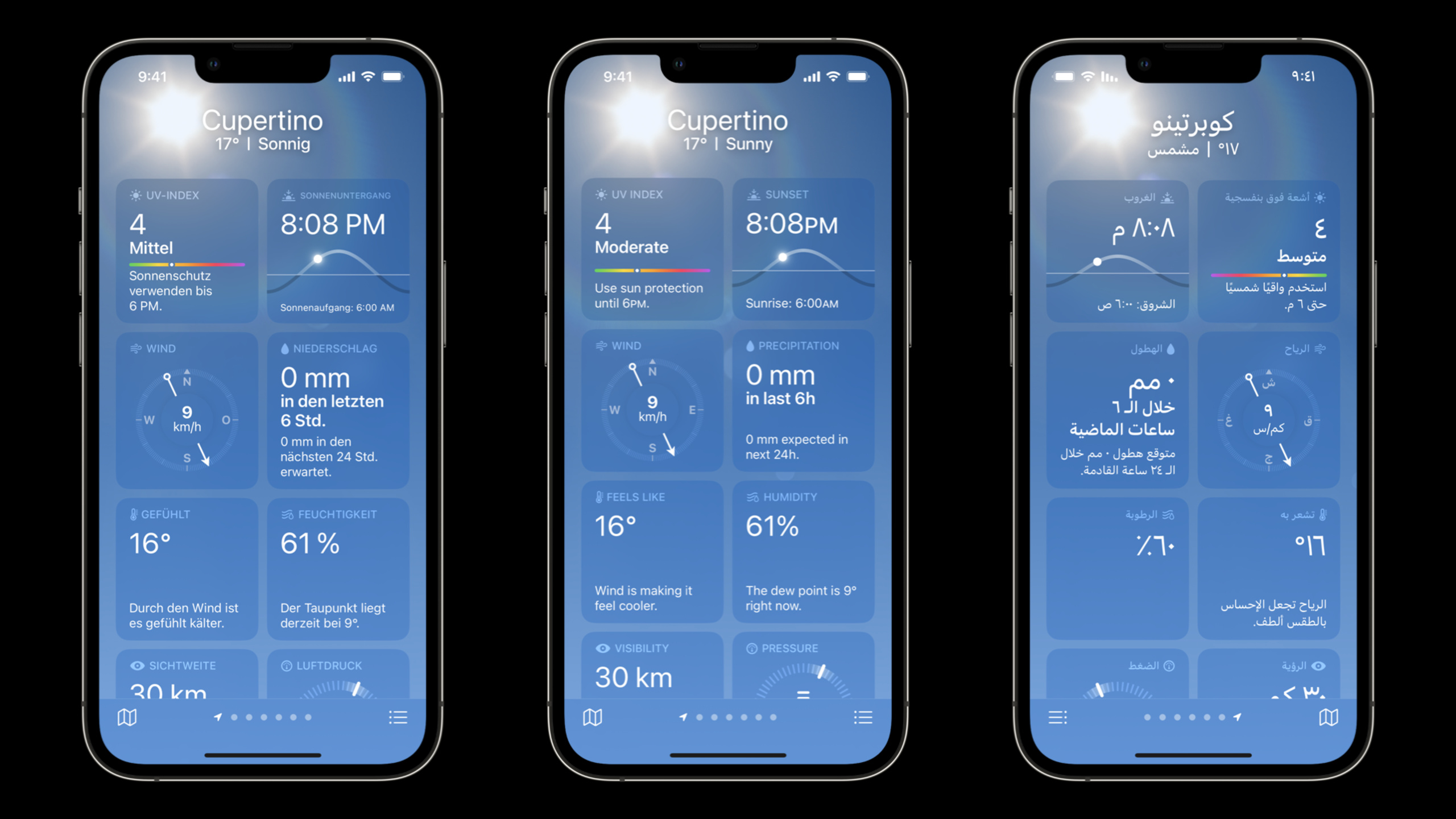
Highlight
Andreas from Apple’s localization team took the weather application as the core case and systematically explained how to build high-quality multilingual applications from string declaration, formatting to layout adaptation.
Core Content
The weather app looks pretty ordinary: a line describing wind speed, a rainfall number, and a ten-day forecast sheet.
Put into a multi-language environment, they become three engineering problems.
The same English word may become two words in Spanish due to context. A city name inserted into a sentence may change the preposition in German. A 44 point tall label may not fit the text in Hindi.
This session uses the weather app to string together a complete link: first write the string into a translatable resource, then use the system API to select the remote content language, then use the formatting API to process numbers, units, and plurals, and finally let the SwiftUI layout handle longer, taller, and different directions text.
Detailed Content
Strings need to be given context from the code
(01:59) The first step in localization is to useString(localized:)Declare user-visible text. Xcode will discover these strings when exporting localized content and pass them to the translator for processing.
let windPerceptionLabelText = String(
    localized: "Wind is making it feel cooler",
    comment: "Explains the wind is lowering the apparent temperature"
)
Key points:
String(localized:)Marking this text requires entering the localization process. -localizedThe English in is the displayed text in the development language. -commentTell the translator that this sentence describes how the wind makes the body feel cooler.- Comments belong to the translation context and are not displayed to the user.
(02:46) The problem will appear with the same English word. “Archive” in Mail can be either a sidebar folder name or a menu action. It’s the same in English, but requires a different translation in Spanish.
let filter = String(localized: "Archive.label",
                 defaultValue: "Archive",
                      comment: "Name of the Archive folder in the sidebar")

let filter = String(localized: "Archive.menuItem",
                 defaultValue: "Archive",
                      comment: "Menu item title for moving the email into the Archive folder")
Key points:
Archive.labelandArchive.menuItemare two different localization keys. -defaultValueLet the English runtime still display the same “Archive”.- first
commentSpecify that it is the name of the folder in the sidebar. - the second
commentIndicates that this is a menu item that moves messages to an archive folder. - Translators can treat nouns and actions separately in other languages.
(03:40) String interpolation should also be used with caution.Show weather in CupertinoandShow weather in My LocationThis is true in English, but may require different grammar in German.
String(localized: "Show weather in \(locationName)",
       comment: "Title for a user activity to show weather at a specific city")

String(localized: "Show weather in My Location",
       comment: "Title for a user activity to show weather at the user's current location")
Key points:
- The first paragraph is only used to insert the specific city name.
-
locationNameThe runtime meaning of is clearly stated in the comments. - “My Location” is split into separate strings instead of being used as variables and stuffed into the same sentence.
- This allows the translator to choose a different syntax for the current targeting scenario.
The remote content must also match the user language
(06:40) Weather warnings come from the server. The server may support multiple languages, but the device only knows the user’s language preference. Apple recommends having the server return a supported language ID, which can then be called by the clientBundle.preferredLocalizations(from:)Make a match.
let allServerLanguages = ["bg", "de", "en", "es", "kk", "uk"]
let language = Bundle.preferredLocalizations(from: allServerLanguages).first
Key points:
allServerLanguagesRepresents the list of languages in which the server can return content.- The language ID is handled by the system framework, and there is no need to compare user preferences yourself.
-
Bundle.preferredLocalizations(from:)Returns candidate languages sorted by degree of match. -.firstUsually the language that best suits the current user settings. - Subsequent requests should use this language to load user-visible content.
This detail is easy to miss. The app shell is localized, the server-side alerts are in another language, and users cannot read the information at critical moments.
Leave numbers, units, and plurals to the system for formatting
(07:56) Copywriting such as rainfall often contains numbers. “One hour” and “two hours” are no longer the same in English, and languages such as Ukrainian have more complicated plural rules. Session gives two directions:stringsdictPlural rule, or Automatic Grammar Agreement.
String(localized: "\(amountOfRain) in last \(numberOfHours) hour",
         comment: "Label showing how much rain has fallen in the last number of hours")

String(localized: "\(amountOfRain) in last ^[\(numberOfHours) hour](inflect: true)",
         comment: "Label showing how much rain has fallen in the last number of hours")
Key points:
- The first paragraph
numberOfHoursInsert English sentences directly. - For the second paragraph
^[...](inflect: true)Mark the segments that need to be deformed by the amount. -amountOfRainandnumberOfHoursBoth enter localized strings via string interpolation. - Note: This is a label showing the amount of rainfall over the past few hours.
(09:29) If the value has units, percentages, dates, or times, use the formatting API in preference. It handles symbol placement, spacing, and the user’s preferred number system.
let humidity = 54

// In a SwiftUI view
Text(humidity, format: .percent)

// In Swift code
humidity.formatted(.percent)
Key points:
humiditySave the original value.- Used in SwiftUI
Text(_:format:)Specify the percentage format directly. - Used in normal Swift code
.formatted(.percent)Get formatted results. - Percent sign position and number system are handled by the system based on user settings.
(11:10) A more complex example is rainfall over the next 24 hours. The code first converts the millimeter value returned by the server into the user’s preferred unit, and then puts the formatted value into a localizable sentence.
func expectedPrecipitationIn24Hours(for valueInMillimeters: Measurement<UnitLength>) -> String {
    // Use user's preferred measures
    let preferredUnit = UnitLength(forLocale: .current, usage: .rainfall)

    let valueInPreferredSystem = valueInMillimeters.converted(to: preferredUnit)

    // Format the amount of rainfall
    let formattedValue = valueInPreferredSystem
        .formatted(.measurement(width: .narrow, usage: .asProvided))

    let integerValue = Int(valueInPreferredSystem.value.rounded())

    // Load and use formatting string
    return String(localized: "EXPECTED_RAINFALL",
               defaultValue: "\(integerValue) \(formattedValue) expected in next \(24)h.",
                    comment: "Label - How much precipitation (2nd formatted value, in mm or Inches) is expected in the next 24 hours (3rd, always 24).")
}
Key points:
- function parameters
Measurement<UnitLength>Indicates the rainfall amount passed in by the server. -UnitLength(forLocale: .current, usage: .rainfall)Select the current user’s preferred unit for viewing rainfall. -converted(to:)Convert millimeter values to user units. -.formatted(.measurement(width: .narrow, usage: .asProvided))Generates narrow-width unit text. -integerValueUsed to trigger plurality rules. -EXPECTED_RAINFALLcorrespondstringsdictkey in. -defaultValueAlso inserts complex judgment values, formatted rainfall amounts, and a fixed 24 hours. -commentClearly explain the meaning of each interpolation parameter to facilitate translators in processing word order.
(12:22)stringsdictThen he is responsible for the plural branch of the language. English onlyother, Spanish foroneandotherProvide different sentences.
<key>EXPECTED_RAINFALL</key>
<dict>
    <key>NSStringLocalizedFormatKey</key>
    <string>%#@next_expected_precipitation_amount_24h@</string>
    <key>next_expected_precipitation_amount_24h</key>
    <dict>
        <key>NSStringFormatSpecTypeKey</key>
        <string>NSStringPluralRuleType</string>
        <key>NSStringFormatValueTypeKey</key>
        <string>d</string>
        <key>one</key>
        <string>Se prevé %2$@ en las próximas %3$d h.</string>
        <key>other</key>
        <string>Se prevén %2$@ en las próximas %3$d h.</string>
    </dict>
</dict>
Key points:
EXPECTED_RAINFALLCorresponds to the key in Swift code. -NSStringLocalizedFormatKeyPoints to a plural rule entry. -NSStringPluralRuleTypeRepresents the selection of branches according to the linguistic plurality rules. -NSStringFormatValueTypeKeyused, corresponding to the integer value passed in Swift. -oneIs the singular branch of Spanish. -otherare other quantitative branches. -%2$@Use formatted rainfall text. -%3$dUse a fixed number of hours.
Swift Package also enters the Xcode localization process
(13:40) If user-visible text is in a Swift Package, the default localization language needs to be declared in the package manifest. Xcode 2022 will read this parameter and provide the Export Localizations / Import Localizations workflow for the package in the Product menu.
let package = Package(
    name: "FoodTruckKit",

    defaultLocalization: "en",

    products: [
       .library(
            name: "FoodTruckKit",
            targets: ["FoodTruckKit"]),
    ],
    …
)
Key points:
PackageDescribe the structure of a Swift Package. -defaultLocalization: "en"Declares that the development language for user-visible content within the package is English.- When Xcode sees this setting, it will include the package in the localized export and import process.
- Localization files will pass
.xclocGive it to the translator and then redirect it back to the correct path in the package.
(14:41) When loading a string in the package, you must also specifybundle: .module。
let title = String(localized: "Wind",
                      bundle: .module,
                     comment: "Title for section that
                               shows data about wind.")
Key points:
localized: "Wind"Is the user-visible title of the package. -bundle: .moduleTells the system to look for localized content from the current Swift Package’s resource bundle. -commentDescription This title is used for the area displaying wind-related data.
The layout should allow the text to change in length, height, and direction.
(16:37) The text may be longer when translated, or it may be due to a higher writing system. Session clearly reminds you: Don’t give all languages a fixed height just because English is 44 points higher.
(18:19) SwiftUIGridSuitable for column-aligned interfaces such as weather forecasts. The longest day of the week label determines the column width, and the weather icon still maintains vertical alignment.
// Requires data types "Row" and "row" to be defined

struct WeatherTestView: View {
    var rows: [Row]
    var body: some View {
        Grid(alignment: .leading) {
            ForEach(rows) { row in
                GridRow {
                    Text(row.dayOfWeek)

                    Image(systemName: row.weatherCondition)
                        .symbolRenderingMode(.multicolor)

                    Text(row.minimumTemperature)
                        .gridColumnAlignment(.trailing)

                    Capsule().fill(Color.orange).frame(height: 4)

                    Text(row.maximumTemperature)
                }
                .foregroundColor(.white)
            }
        }
    }
}
Key points:
Grid(alignment: .leading)Use leading alignment; left-to-right languages are justified on the left, right-to-left languages are justified on the right. -ForEach(rows)Generate one row for each day. -GridRowDefine a set of horizontal content. -Text(row.dayOfWeek)Show day of the week labels, column width will be affected by the longest text. -Image(systemName:)Display weather symbols. -.gridColumnAlignment(.trailing)Align the minimum temperature column to the tail. -Capsule()It is the most flexible element and can shrink when the text becomes longer. -foregroundColor(.white)Set the inline foreground color uniformly.
(19:53) When there is not enough space, SwiftUI also providesViewThatFits. The approach in the verbatim draft is to prepare multiple layouts and put them inViewThatFits, telling SwiftUI to choose the first version that won’t be cropped. Apple also emphasizes: only switch layouts, do not hide interface elements because the translation is too long.
Core Takeaways
1. Conduct a string context audit for existing projects
- What to do: Find where the same English text is reused in different interface locations.
- Why it’s worth doing: Session’s “Archive” example illustrates that the same English word may require different translations in other languages.
- How to start: Split the reused string into different keys, use
String(localized:defaultValue:comment:),existcommentClearly write down the type of control and the interface where it is located.
2. Add language negotiation for server-side copywriting
- What: Let the client select the server-side content language based on the user’s language preference.
- Why it’s worth doing: If remote content such as weather warnings is not localized, users may not be able to read key prompts.
- How to start: Let the server return the supported language ID array, and the client calls
Bundle.preferredLocalizations(from:), using the first candidate language for subsequent requests.
3. Change digital copywriting from string concatenation to formatting API
- What: Check display logic for percentages, dates, units, file size, distance and rainfall.
- Why it’s worth it: The formatting API handles units, symbol placement, and the user’s preferred number system.
- How to get started: Used in SwiftUI
Text(value, format:), used in normal Swift codevalue.formatted(...), sentences with plurals are then addedstringsdict。
4. Let Swift Package expose localized resources
- What: Complete localization configuration for Swift Packages that contain user-visible text.
- Why it’s worth doing: Xcode can export and import packages directly
.xcloc, library authors can incorporate localization into the regular release process. - How to start: In
Package.swiftsettings indefaultLocalization, specified when loading the string in the packagebundle: .module。
5. Test layout flexibility with real language
- What to do: Run the core interface in Arabic, Spanish, Greek, Hindi and other languages.
- Why it’s worth it: The verbatim draft shows how changes in orientation, longer text, and taller text can affect layout.
- How to start: Remove fixed altitude assumption; try out table interfaces such as ten-day forecast
Grid; Prepare multiple layouts for space-restricted operating areas and hand them over toViewThatFitschoose.
Related Sessions
- Get it right (to left) — Continue to talk about layout direction, symbols and interface adaptation in right-to-left languages.
- Design for Arabic — Supplement the typography, text and cultural details of the Arabic interface from the design level.
- Compose custom layouts with SwiftUI — An in-depth explanation of SwiftUI Grid, custom Layout and layout capabilities that adapt to different content sizes.
Comments
GitHub Issues · utterances