
Highlight
iOS 16 and macOS Ventura tighten device name, location, Gatekeeper, login items and clipboard access, while adding UIKit paste controls, DeviceDiscoveryExtension, PHPicker, Private Access Tokens, Passkeys and Safety Check to help developers reduce data exposure and give users clearer control.
Core Content
Many privacy issues come from one detail: In order to complete a small function, the App obtains more data than the function itself.
For example, the App only wants to let the user select a screen-casting device, but first applies for local network permissions and Bluetooth permissions; the App only wants to paste a verification code, but directly reads the clipboard; the App only wants to display the current device in a multi-device list, but gets the device name containing the user’s name.
The main line of changes in iOS 16 and macOS Ventura is to tighten these boundaries.The system provides less data by default, allowing users to make clear choices when necessary, and developers use a smaller range of APIs to complete functions.
This session can be divided into three categories: changes in platform behavior, proposed new privacy capabilities, and Safety Check for user safety scenarios.It’s more like a migration checklist: which old practices will trigger prompts or be restricted, and which new APIs will keep the experience smooth.
Detailed Content
Device name:UIDevice.nameUser-defined names are no longer exposed by default
(03:00) Prior to iOS 16,UIDevice.nameCan return the name given to the device by the user.This name often includes the user’s name, such as “so-and-so’s iPhone.”
Starting with iOS 16,UIDevice.nameThe device model is returned by default instead of the user-defined name.Only apps that really require multi-device experience can applycom.apple.developer.device-information.user-assigned-device-nameentitlement.Even if entitlement is obtained, the device name cannot be shared with third parties other than the cloud hosting provider.
// Conceptual example: after iOS 16, the default value is the device model, so do not assume it contains the user's name.
let displayName = UIDevice.current.name

// When displaying it in the UI, treat it as a device label, not a user identity.
deviceLabel.text = displayName
Key points:
UIDevice.current.nameis the API explicitly mentioned in the transcript.- After iOS 16, the default value will be closer to the device model.
- If the product logic relies on “the name given by the user to the device”, you need to re-evaluate whether it meets the application conditions for entitlement.
- This code can only express how to use the read results and cannot bypass system restrictions.
Gatekeeper: notarized App must also keep the signature intact
(04:32) In macOS Ventura, Gatekeeper will check the integrity of all notarized apps, no longer only checking newly downloaded apps marked with quarantine.
This has a big impact on updaters.The speech made it clear that the App’s executable and bundle must be signed correctly; the signature must remain valid after updates.Apps signed by the same development team can still update each other.If you need to allow another team’s process to update your App, you can declare it in Info.plistNSUpdateSecurityPolicy。
<!-- Conceptual example: express allowed updaters based on the NSUpdateSecurityPolicy structure described in the talk. -->
<key>NSUpdateSecurityPolicy</key>
<dict>
  <key>AllowProcesses</key>
  <dict>
    <key>TEAMID12345</key>
    <array>
      <string>com.example.pal.about</string>
    </array>
  </dict>
</dict>
Key points:
NSUpdateSecurityPolicyIs the Info.plist key used in macOS Ventura to declare update policies.AllowProcessesis a dictionary, key is team identifier.- Put the signing identifier in the array to limit which processes can modify the App.
- If the modification does not belong to the same team and is not in the policy, macOS will block the modification and notify the user.
Login items: Start the background and enter the management panel visible to the user.
(07:07) In macOS Monterey and earlier versions, Apps can run at login through launch agents, daemons, SMLoginItems and other mechanisms.Users often don’t know which background items are accessing data or sensors.
macOS Ventura merges these entries into the Login Items panel of System Settings.The speech mentioned that developers can use the new single API to launch apps, launch agents or daemons.Background items can be started by default, but users will receive notifications; daemons that require elevated privileges also require administrator approval.
// Conceptual example: the talk only explains using the SMAppService API to manage login startup and does not provide a complete call signature.
// Real projects should use the ServiceManagement documentation as the source of truth.
import ServiceManagement

// Centrally manage login items inside the app so users receive system notifications and see the source in Settings.
let serviceAPI = "SMAppService"
Key points:
SMAppServiceis the new API name explicitly mentioned in the transcript.- Agents and daemons should be placed in the App bundle. The speech pointed out that this does not require the installer to write the launch agent, nor does it require a cleanup script.
- The call entrance should be placed within the app to facilitate control of the timing of notifications and the app icon displayed in Settings.
- This paragraph is a conceptual example; the speech does not give specific Swift method signatures, so no registration code that can be directly copied is written.
Clipboard: read directlyUIPasteboardWill trigger intent confirmation
(09:24) iOS 16 adds intent confirmation for clipboard content written by other apps.continue to useUIPasteboardWhen reading directly, the system displays a modal prompt.
If the user initiates the paste via the edit menu or a keyboard shortcut, the system can already confirm the intent.The third way is to use UIKit paste controls.After the user clicks the visible paste button, the system confirms that the button is indeed displayed and clicked, and then allows the paste without additional pop-up windows.
// Conceptual example: avoid proactively reading the clipboard before the user expresses intent.
// The old approach is more likely to trigger system confirmation.
let pastedText = UIPasteboard.general.string

// The recommended direction in iOS 16 is to use UIKit paste controls,
// letting users express paste intent through a visible button.
let recommendedControl = "UIKit paste controls"
Key points:
UIPasteboardIt is the legacy access method that will trigger prompts mentioned in the speech.- UIKit paste controls make pasting an action where the user actively clicks a button.
- Buttons can adjust rounded corners, text color, icon color and background color.
- The button cannot be hidden behind other elements and must have sufficient contrast, otherwise the system will not recognize the interaction.
Media device discovery: App only gets the device selected by the user
(11:19) In the past, media apps often had to apply for local network and Bluetooth permissions in order to discover screen casting devices.The problem is that in order to select a device, the App first sees the list of devices in the entire network, which brings fingerprinting risks.
Media device discovery changes the data flow.DeviceDiscoveryExtensionIt can scan the local network and Bluetooth devices, but it runs in a sandbox separate from the App and cannot directly send the scan results back to the App.Discovered devices enterDeviceDiscoveryExtensionThe picker displayed by the framework.After the user selects it, the system opens communication only with the selected device.
// Conceptual example: integration steps from the talk, not complete code.
let extensionPoint = "DeviceDiscoveryExtension"
let routePicker = "AVRoutePickerView"

// Protocol provider: create a DeviceDiscoveryExtension.
// App developer: handle the user-selected device in AVRoutePickerView's selection callback.
Key points:
DeviceDiscoveryExtensionResponsible for device discovery, but cannot hand over full scan results to the app.AVRoutePickerViewIt is the user selection portal mentioned in the speech.- The App only gets the device selected by the user, not the entire local network and Bluetooth environment.
- For apps that use third-party streaming protocols, the speech recommends contacting the protocol provider to implement corresponding extensions.
PHPicker, Private Access Tokens and Passkeys: Take less data and complete the core process
(13:48) The talk puts PHPicker and media device discovery on the same line: grant only objects selected by the user.PHPicker is available on macOS Ventura and watchOS 9, allowing Mac and watch apps to access user-selected photos without having to request permissions for all photos.
(14:17) Private Access Tokens use blinded tokens to help the server identify legitimate devices while avoiding tracking specific devices.Apple does not know which websites the device obtained the token for, nor does the server know the identity of the device sending the token.It belongs to the Privacy Pass IETF open standard and is used for Private Relay user authenticity verification.
(15:08) Passkeys replaces passwords with public key cryptography.The server saves the public key, and it will not become a loginable secret even if it is leaked.Passkeys are bound to the corresponding website, so they are resistant to phishing.
Conceptual flow: Private Access Tokens
1. Website or API server needs confidence that a request is legitimate.
2. Device obtains a blinded token through the system mechanism.
3. Server receives a token that proves legitimacy.
4. Server does not learn the device identity from that token.
Key points:
- This is a conceptual flow, the talk does not show HTTP fields or server-side code.
- “legitimate device” and “not exposing device identity” are the core boundaries of Private Access Tokens.
- Further implementation should look at separate sessions: Replace CAPTCHAs with Private Access Tokens.
- The implementation details of Passkeys are also expanded in a separate session. Only the privacy and security motivations are introduced here.
Safety Check: Users can centrally revoke access to people and apps
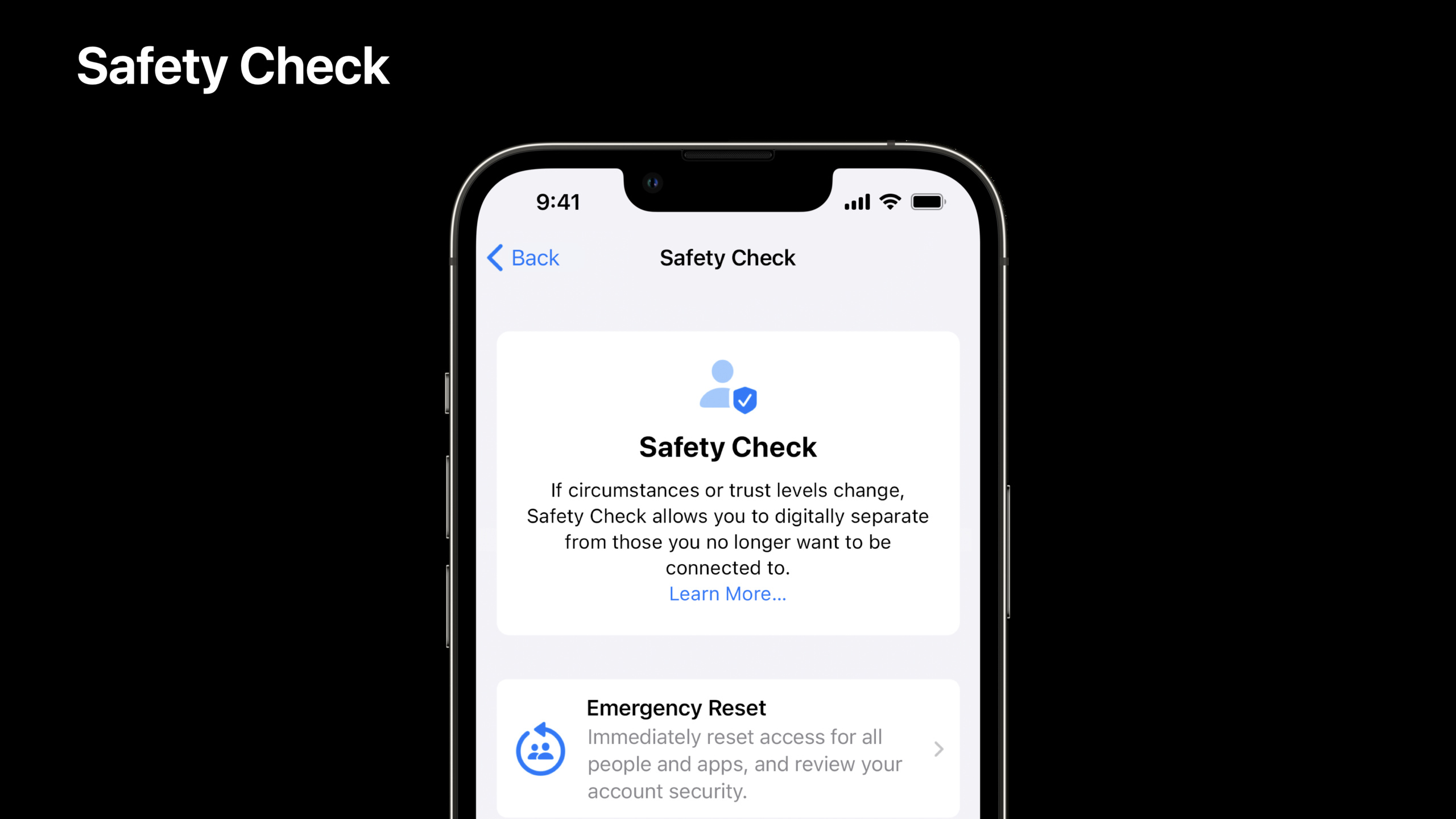
(16:18) Safety Check is an iOS 16 privacy tool for domestic or intimate partner violence risk scenarios.It can stop sharing with people, such as Find My location sharing, Photos, Notes, and Calendar; it can also reset the system privacy permissions of third-party apps.
Safety Check has two entrances.Emergency Reset is used in crisis scenarios to quickly reset access across everyone and all apps, and restrict other devices from receiving FaceTime and iMessage.Manage Sharing & Access is more granular and can check shared content by person or by app.All processes have Quick Exit so users can quickly leave and return to the home screen.
Conceptual checklist: access affected by Safety Check
- Location sharing in Find My
- Photos, Notes, Calendar sharing
- System privacy permissions for third-party apps
- FaceTime and iMessage on other iCloud devices
- Trusted devices, passwords, emergency contacts
Key points:
- Safety Check is a user-level system function, and the speech does not require the App to access an API.
- If the app relies on persistent permissions, such as location or photo access, be prepared for the experience to be revoked centrally by the user.
- Apps should provide a clear recovery path when permissions expire, rather than assuming permissions are permanent.
- Quick Exit explains that privacy design also considers real-world security pressures.
Core Takeaways
-
Make a low-interference verification code pasting entrance: Combine the verification code input on the login page with UIKit paste controls.Why it’s worth doing: iOS 16 will do intent confirmation to directly read the clipboard written by other apps.How to start: Change the automatic loading of the clipboard to a paste control that the user clicks, and test button visibility and contrast.
-
Complete signing and update policy checks for Mac App updaters: Verify the signatures of all executables and bundles before publishing, and sort out the presence of cross-team updaters.Why it’s worth doing: macOS Ventura’s Gatekeeper checks the integrity of notarized apps.How to start: List all processes that modify the App bundle, adding in Info.plist if necessary
NSUpdateSecurityPolicy。 -
Migrate background login items to user-visible management model: Use ServiceManagement
SMAppServiceDirection management login startup items.Why it’s worth doing: macOS Ventura will display agents, daemons, SMLoginItems, etc. in the Login Items panel.How to start: Put the agent or daemon into the App bundle and control the activation time in the App. -
Reduce permission requests before media casting: For streaming protocols that need to discover local devices, evaluate DeviceDiscoveryExtension.Why it’s worth it: Apps no longer need to see the entire local network or Bluetooth environment in order to select a device.How to start: Let the protocol provider implement the extension and handle it on the App side
AVRoutePickerViewuser selection. -
Test permission revocation as a regular path: Design invalidated interfaces for sensitive permissions such as location, photos, and calendars.Why it’s worth doing: Safety Check can centrally revoke system privacy permissions for third-party apps.How to start: Simulate permissions being revoked during the test process, verify that the app can interpret the current state and guide the user to re-authorize.
Related Sessions
- Replace CAPTCHAs with Private Access Tokens — An in-depth explanation of how Private Access Tokens can replace CAPTCHA and protect the device identity from being tracked by the server.
- Improve DNS security for apps and servers — Supplements network layer privacy and security, explaining how DNSSEC and DDR protect domain name resolution.
- Streamline local authorization flows — Expand how LocalAuthentication protects sensitive resources in the app, suitable for understanding together with Passkeys and permission control.
- Discover Managed Device Attestation — Extended from the perspective of enterprise device trust, it explains how the server verifies the authenticity of the managed device.
Comments
GitHub Issues · utterances