
Highlight
iOS 16 and macOS Ventura introduce the Collaboration with Messages feature, allowing users to initiate and participate in collaboration directly through Messages.Collaborators can tie documents to conversations, and collaboration activity appears in real-time in Messages conversations and FaceTime calls.
Core Content
When multiple people edit a document together, the most easily disconnected link is usually not in the editor, but in communication.
Files are shared, but discussions are scattered across Messages.Someone changed the title, someone added a comment, someone left the group chat, and the application has to find a way to synchronize these statuses to the participants.
01:02 iOS 16 and macOS Ventura connect the collaboration portal to Messages.When users initiate collaboration from the share panel or drag-and-drop, the document is bound to a Messages conversation.Collaboration activities can appear at the top of the Messages thread or within an ongoing FaceTime call.
This session talks about the access path on the system side.Apple supports three types of collaboration infrastructure: CloudKit, iCloud Drive, and custom collaboration systems.CloudKit uses the newNSItemProviderAPI wrapperCKShare; iCloud Drive uses file URL directly; customized system usesSWCollaborationMetadata。
Detailed Content
First hand over the collaboration object to the system
03:13 The first step of CloudKit App is to create a collaboration object that the system can recognize.This object is based onNSItemProvider, it carriesCKShare、CKContainer, and optional permission configuration.
// CloudKit collaboration object

// Starting collaboration
let itemProvider = NSItemProvider()
itemProvider.registerCKShare(container: container,
                             allowedSharingOptions: CKAllowedSharingOptions.standard,
                             preparationHandler: {
    // Create your share and save to server, or throw error
    return savedShare
})

// Inviting to existing collaboration
let itemProvider = NSItemProvider()
itemProvider.registerCKShare(share,
                             container: container,
                             allowedSharingOptions: CKAllowedSharingOptions.standard)
Key points:
NSItemProvider()Create a data provider that can be shared with the system.registerCKShare(container:allowedSharingOptions:preparationHandler:)For collaboration that has not yet started.preparationHandlermust be createdCKShare, and save it to the server.CKAllowedSharingOptions.standardUse the default combination of access and permissions.- Existing collaborations are imported directly
share, the system uses it to continue inviting new participants.
If the app uses iCloud Drive, the collaboration object is the file URL.The system will recognize it and does not require developers to manually construct itCKShare。
The sharing panel enters collaboration mode
06:16 There are two ways to initiate collaboration: the new Share Sheet collaboration mode, and dragging documents to Messages.A collaboration indicator appears in the header of the Share Sheet, and users can choose to collaborate or send a copy.
On iOS and Mac Catalyst, the entry is stillUIActivityViewController。
// Setting up Share Sheet - iOS and Mac Catalyst

let activityViewController = UIActivityViewController(activityItems: [collaborationObject], applicationActivities: nil)

presentingViewController.present(activityViewController, animated: true)
Key points:
collaborationObjectIt was prepared in advanceNSItemProvider, file URL, or custom collaboration metadata.UIActivityViewControllerAfter receiving this object, the system will display the collaboration mode.presentResponsible for displaying the sharing panel to the user.
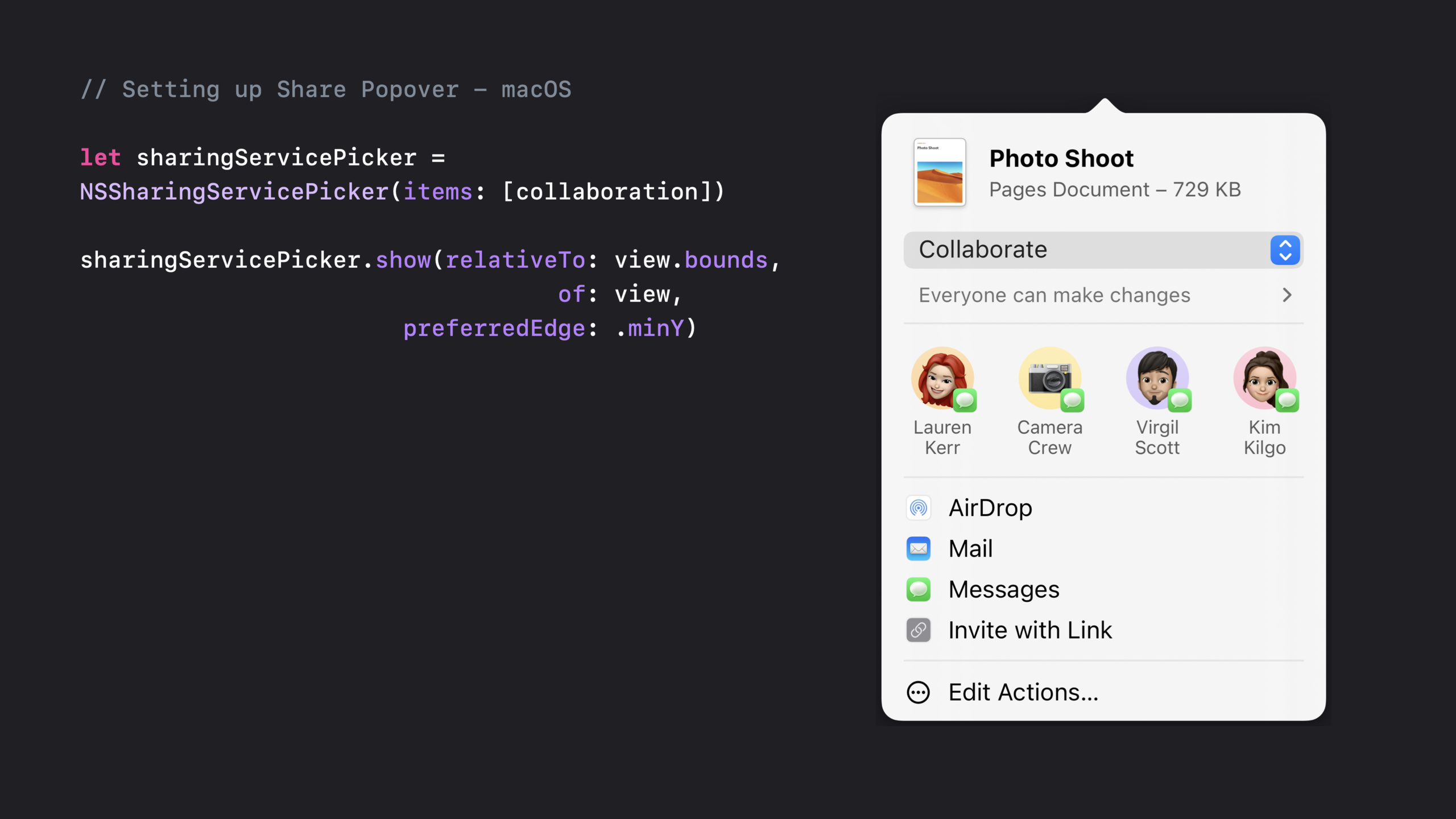
07:47 macOS uses NSSharingServicePicker and displays the new Share Popover in Ventura.
// Setting up Share Popover - macOS

let sharingServicePicker = NSSharingServicePicker(items: [collaborationObject])

sharingServicePicker.show(relativeTo: view.bounds, of: view, preferredEdge: .minY)
Key points:
NSSharingServicePicker(items:)Collaboration objects are also received.show(relativeTo:of:preferredEdge:)Pops up the sharing UI near the specified view.- The system will display the title, image, conversation suggestions and available sharing methods in a pop-up window.
CloudKit needs to add sharing header metadata
07:57 CloudKit App also needs to provide a title and image for the sharing header.Otherwise the system knows that this is a collaboration, but does not have enough information to display the content being shared.
iOS and Mac Catalyst are available viaUIActivityItemsConfigurationreturnLPLinkMetadata。
// Providing CloudKit metadata - iOS

let configuration = UIActivityItemsConfiguration(itemProviders: [collaborationItemProvider])
configuration.perItemMetadataProvider = { (_, key) in
    switch key {
    case .linkPresentationMetadata:
        // Create LPLinkMetadata with title and imageProvider
        return metadata
    default:
        return nil
    }
}

let activityViewController = UIActivityViewController(activityItemsConfiguration: configuration)
Key points:
UIActivityItemsConfigurationBind CloudKit’s collaborative item provider.perItemMetadataProviderProvide display information by metadata key..linkPresentationMetadataCorrespond to the title and picture required for the Share Sheet header.- Other keys return
nil, leave it to the system for default processing. UIActivityViewController(activityItemsConfiguration:)Use this configuration to display the sharing panel.
09:03 macOS uses NSPreviewRepresentingActivityItem to package the item, title, preview image, and source icon into the sharing popover.
// Providing CloudKit metadata - macOS

let title = "Shared Item"
let image = NSImage(contentsOfFile: "Shared_Item_Preview_Image.png")
let icon = NSImage(contentsOfFile: "App_Icon.png") // Shared item source

let previewRepresentingItem = NSPreviewRepresentingActivityItem(item: collaborationItemProvider,
                                                                title: title,
                                                                image: image,
                                                                icon: icon)

let picker = NSSharingServicePicker(items: [previewRepresentingItem])
Key points:
titleis the name of the shared content.imageIndicates the document or project being shared.iconIndicates the source of the content, such as an app icon.NSPreviewRepresentingActivityItemCombine collaborative item providers with preview metadata.NSSharingServicePickerAfter receiving the preview item, the complete macOS sharing pop-up window will be displayed.
SwiftUI uses Transferable and ShareLink
09:41 SwiftUI’s ShareLink also supports collaboration mode. The requirement is that the shared model conforms to Transferable.
CloudKit App viaCKShareTransferRepresentationdescribe how to obtainCKShare。
// SwiftUI CloudKit Transferable

struct Note: Transferable {
    // Properties of the note e.g. name, preview image, content, ID, …
    var share: CKShare?
    func saveCKShareToServer() async throws -> CKShare { … }

    static var transferRepresentation: some TransferRepresentation {
        CKShareTransferRepresentation { note in
            if let share = note.share {
                return .existing(share, container: container, options: options)
            } else {
                return .prepareShare(container: container, options: options) {
                    return try await note.saveCKShareToServer()
                }
            }
        }
    }
}
Key points:
Note: TransferableLets the SwiftUI sharing system know that this model can be passed around.share: CKShare?Indicates that the document may already be in collaboration.saveCKShareToServer()Create and save when new collaboration is neededCKShare。CKShareTransferRepresentationConvert the model to a CloudKit collaborative representation..existingProcess existingCKShareinvitation process..prepareShareHandle the process of initiating collaboration for the first time.
11:33 YesTransferableAfter the model, the view layer just needs to be placedShareLink。
// SwiftUI ShareLink adoption

struct ContentView: View {
    @State let item = ShareItem()

    var body: some View {
        ShareLink(item: item, preview: SharePreview(item.title, image: item.previewImage))
    }
}
Key points:
@State let itemSave the collaboration you want to share.ShareLink(item:preview:)Responsible for launching the system sharing UI.SharePreviewProvide a title and image for the sharing header.- if
itemofTransferableIndicates returning to CloudKit collaboration and ShareLink will enter collaboration mode.
Display collaboration portal and pop-up window in App
13:42 Initiating a collaboration is just the first step.After the user returns to the app, they also need to see which Messages group the current document is collaborating with, how many people are online, and how to continue communication.
SharedWithYou framework providesSWCollaborationView.It is the collaboration button in the navigation bar and is responsible for popping up the collaboration popover.
// Collaboration View

let collaborationView = SWCollaborationView(itemProvider: itemProvider)

collaborationView.activeParticipantCount = myModel.activePeople.count

collaborationView.contentView = MyView(model: myModel)

collaborationView.manageButtonTitle = "Custom Manage Button"
Key points:
SWCollaborationView(itemProvider:)Initialize the button view with the collaboration object.activeParticipantCountDisplays the current number of active participants.contentViewPut custom content into the popover, such as a participant list or collaboration toggle.manageButtonTitleCustomize the admin button title.- CloudKit and iCloud Drive will get system-provided management buttons for adding, removing participants, or modifying sharing settings.
Monitor share start and stop
17:44 CloudKit App needs to know when a sharing actually starts and when it stops.CKSystemSharingUIObserverThese two callbacks are provided without requiring developers to expose the CloudKit Sharing UI themselves.
// Observing CKShare Changes

let observer = CKSystemSharingUIObserver(container: container)

observer.systemSharingUIDidSaveShareBlock = { _, result in
    switch result {
    case .success(let share):
        // Handle successfully starting share
    case .failure(let error):
        // Handle error
    }
}
Key points:
CKSystemSharingUIObserver(container:)Bind the current App’s CloudKit container.systemSharingUIDidSaveShareBlockexistCKShareSave and execute..success(let share)Indicates that collaboration has started and returns the correspondingCKShare。.failure(let error)Indicates that the save failed and the App should handle the error.
18:47 There is also a corresponding callback for stopping sharing.
// Observing CKShare Changes

observer.systemSharingUIDidStopSharingBlock = { _, result in
    switch result {
    case .success(let share):
        // Handle successfully starting share
    case .failure(let error):
        // Handle error
    }
}
Key points:
systemSharingUIDidStopSharingBlockExecuted after the document owner stops sharing.- Returned on success
CKSharehas been deleted. - On failure, the closure receives an error and the App can restore local state or prompt the user.
Send collaboration updates back to Messages
19:14 The system also allows apps to publish collaborative updates to the top of the relevant Messages thread.Users can see who made what updates.
These notices are based onSWCollaborationHighlightandSWHighlightEvent.Supported events include content changes, mentions, moves or renames, and member additions and decreases.
// Post an SWHighlightChangeEvent Notice

let highlightCenter: SWHighlightCenter = self.highlightCenter

let highlight = try highlightCenter.collaborationHighlight(forURL: ckShareURL, error: &error)

let editEvent = SWHighlightChangeEvent(highlight: highlight, trigger: .edit)

highlightCenter.postNotice(for: editEvent)
Key points:
SWHighlightCenterIt is the entrance to issue notices.collaborationHighlight(forURL:error:)useCKShareURL found corresponding collaboration highlight.SWHighlightChangeEventIndicates content updates or comments..edittrigger indicates that this update comes from an editing operation.postNotice(for:)Publish the event to the relevant Messages conversation.
21:30 When mentioning a participant, use mention event and pass in the CloudKit share handle of the mentioned user.
// Post an SWHighlightMentionEvent Notice

let highlightCenter: SWHighlightCenter = self.highlightCenter

let highlight = try highlightCenter.collaborationHighlight(forURL: ckShareURL, error: &error)

let mentionEvent = SWHighlightMentionEvent(highlight: highlight,
           mentionedPersonCloudKitShareHandle: ckShareParticipantHandle)

highlightCenter.postNotice(for: mentionEvent)
Key points:
SWHighlightMentionEventIndicates that a user is mentioned in the collaborative content.mentionedPersonCloudKitShareHandlepoint to the mentionedCKShareparticipants.- This notice will only be shown to the mentioned user.
21:58 Use the persistence event when a document is renamed, moved, or deleted.
// Post an SWHighlightPersistenceEvent Notice

let highlightCenter: SWHighlightCenter = self.highlightCenter

let highlight = try highlightCenter.collaborationHighlight(forURL: ckShareURL, error: &error)

let renamedEvent = SWHighlightPersistenceEvent(highlight: highlight, trigger: .renamed)

highlightCenter.postNotice(for: renamedEvent)
Key points:
SWHighlightPersistenceEventIndicates a change in the persistent state of the content..renamedtrigger indicates that the document name has been modified.- The same type of event is also used for changes such as moves or deletions.
22:11 Member changes use the membership event.
// Post an SWHighlightMembershipEvent Notice

let highlightCenter: SWHighlightCenter = self.highlightCenter

let highlight = try highlightCenter.collaborationHighlight(forURL: ckShareURL, error: &error)

let membershipEvent = SWHighlightMembershipEvent(highlight: highlight,
                                           trigger: .addedCollaborator)

highlightCenter.postNotice(for: membershipEvent)
Key points:
SWHighlightMembershipEventIndicates a change in collaborator membership..addedCollaboratorIndicates adding a new collaborator.- You can also use the trigger corresponding to remove collaborators.
- CloudKit and iCloud Drive will prompt the document owner to update the share when the Messages group membership changes.
Core Takeaways
-
What to do: Add a “Collaborate in Messages” entry to the note app. Why it’s worth doing: CloudKit documentation is available via
NSItemProvider.registerCKShareEnter the system collaboration process. How to start: First save the document modelCKShare, and then hand over the item providerUIActivityViewControllerorNSSharingServicePicker。 -
What to do: Display the current collaboration group and the number of people online in the document navigation bar. Why it’s worth doing:
SWCollaborationViewCan display Messages group avatar, number of active users and system popover. How to get started: Initialize with collaborative item providerSWCollaborationView,set upactiveParticipantCountand customcontentView。 -
What: Sync comments, mentions, and renames to Messages conversations. Why it’s worth doing:
SWHighlightEventCollaborative updates can be displayed directly at the top of the relevant thread. How to start: UseSWHighlightCenterfromCKShareRetrieve the highlight from the URL and create a change, mention, persistence or membership event according to the scenario. -
What to do: Make a native share button for the SwiftUI document model. Why it’s worth doing:
ShareLinkSupport collaboration mode, the model only needs to be implementedTransferable。
How to start: In the modeltransferRepresentationreturn inCKShareTransferRepresentation, used in the viewShareLink(item:preview:)。
Related Sessions
- Integrate your custom collaboration app with Messages — For collaboration backends other than CloudKit or iCloud Drive, talk
SWCollaborationMetadata, custom invitations and participant synchronization. - Add Shared with You to your app — Talking about SharedWithYou shelf, attribution view and content menu is understanding
SWHighlightCenterthe basis of. - Meet Transferable — Explains how
Transferablesupports sharing, drag-and-drop, copy-paste, and SwiftUIShareLink. - What’s new in SwiftUI — Overview of shared updates for SwiftUI 2022, including
ShareLinkandTransferable。
Comments
GitHub Issues · utterances