
Highlight
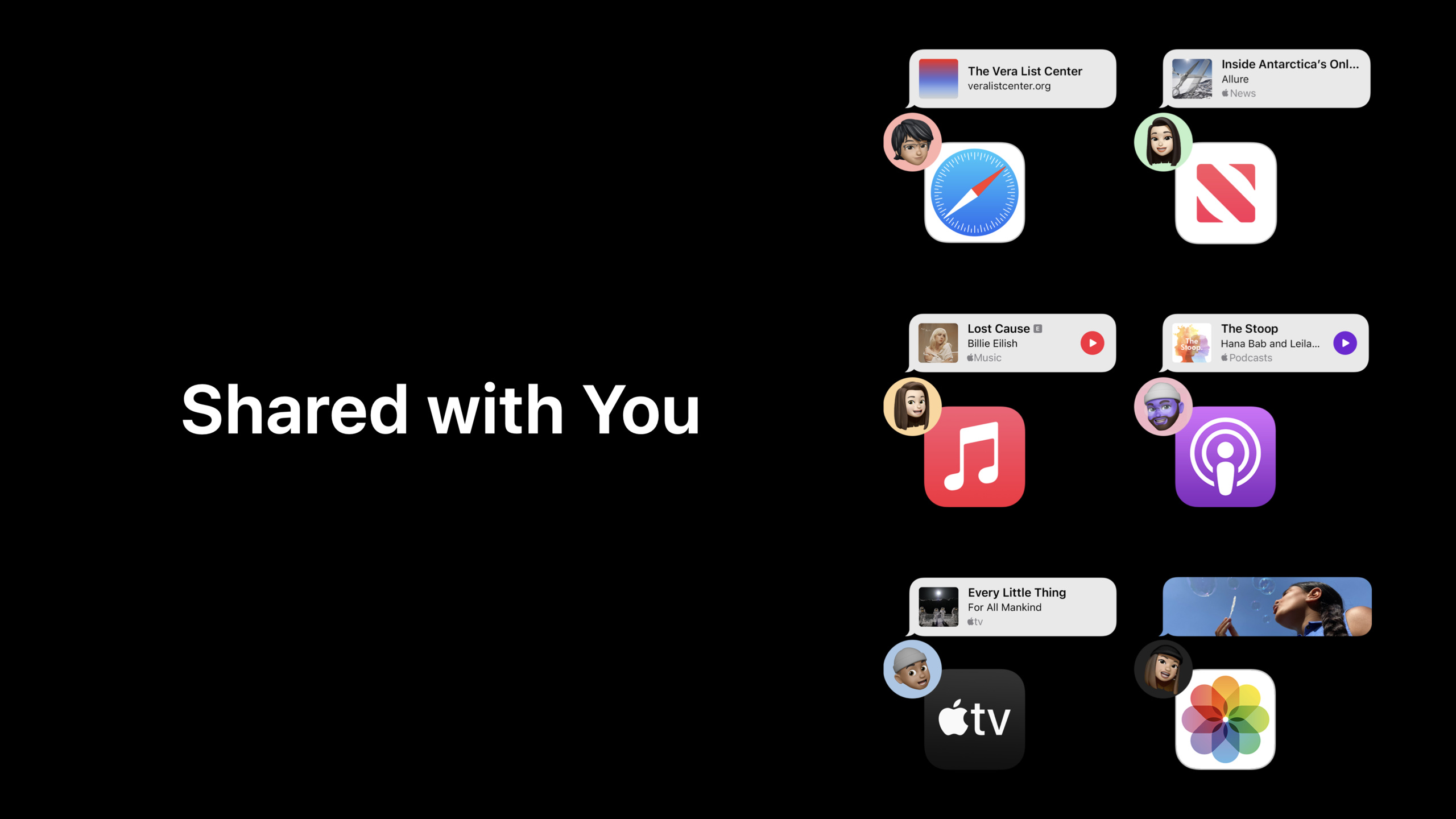
Shared with You is a feature introduced in iOS 15 and opened to third-party developers in iOS 16.Its core concept is: the content your friends send you in Messages should not be buried in the chat history, but should automatically surface when you open the relevant app.
Core Content
When a friend sends a drama, an article or a song in Messages, the user is often not in the context of consuming the content.The example given in the speech is: when a friend recommends a TV show, you are shopping in the supermarket; when you open the TV app and want to watch the show, the message has been flooded by new chats (00:46).
Shared with You solves this breakpoint.Content is still shared from Messages, but the system can resurface those links when the user enters the app where the content is actually consumed.iOS 15 first allows Safari, News, Music, Podcasts, TV apps and Photos to be accessed; iOS 16 extends Shared with You to third-party apps, links and content (01:51).
The access experience consists of two parts.Shared with You shelf is placed on the browsing page of the App to display the content shared in Messages; Shared with You attribution view is placed on the content card or details page to show who shared it and allows users to directly return to the corresponding Messages conversation (02:16).
The underlying dependency is Universal Links.The system determines which App the link belongs to through the two-way association between the App and the website; the user does not need to authorize it in advance, and the pinned link itself is an implicit permission to display the content to Shared with You.After automatic sharing is turned on, subsequent content of the same App can also be automatically entered into the list (05:59).
Detailed Content
First use Universal Links to establish content attribution
(09:27) The order of access is clear: support Universal Links first, then add Shared with You Capability to Capabilities in Xcode, and finally use the Shared with You framework in the App.
Universal Links requires that the App and the website establish a two-way association: the App adds Associated Domains entitlement, and the website provides a JSON file declaring which URLs are processed by the App.When the user clicks on the shared link, the system will hand over the universal link as user activity to the App delegate for processing (09:51).
// Conceptual example: Universal Links entry point
func application(
    _ application: UIApplication,
    continue userActivity: NSUserActivity,
    restorationHandler: @escaping ([UIUserActivityRestoring]?) -> Void
) -> Bool {
    guard userActivity.activityType == NSUserActivityTypeBrowsingWeb,
          let url = userActivity.webpageURL else {
        return false
    }

    // Navigate to the corresponding in-app content based on the URL
    return openContent(for: url)
}
Key points:
NSUserActivityTypeBrowsingWeb: Indicates that this call comes from universal link.userActivity.webpageURL: Shared with You The subsequent content URL passed to the App is also based on the same set of link attribution mechanisms.openContent(for:): This is the App’s own routing logic, which is responsible for mapping the URL to the content details page.- This paragraph is a conceptual example; the speech does not give the complete App delegate code, it only explains how to respond to the user activity provided by the system.
Enumerate the contents of Shared with You shelf
(10:42) iOS 16 adds Shared with You framework, which has three core classes:SWHighlightCenter、SWHighlight、SWAttributionView。SWHighlightCenterResponsible for obtaining the Shared with You content of the current App;SWHighlightWrap a shared content URL;SWAttributionViewResponsible for displaying sharer information and connecting back to the Messages conversation.
// Enumerate Shared with You shelf

class SharedWithYouViewController: UIViewController, SWHighlightCenterDelegate {
    let highlightCenter = SWHighlightCenter()

    override func viewDidLoad() {
        super.viewDidLoad()
        highlightCenter.delegate = self
    }

    func highlightCenterHighlightsDidChange(_ highlightCenter: SWHighlightCenter) {
        for highlight in highlightCenter.highlights {
            let highlightURL = highlight.url
            // Generate a rich preview for the Highlight
        }
    }
}
Key points:
SWHighlightCenter(): Create an entry object for reading Shared with You content.highlightCenter.delegate = self: Let the current controller receive content addition, deletion or update notifications.highlightCenterHighlightsDidChange: Shared with You is called when the list changes.highlightCenter.highlights:returnSWHighlightArray, App can keep the old array and do diff with the new array.highlight.url: Take out the content URL shared by Messages and use it to generate thumbnails, titles and subtitles in the shelf.
Display attribution view on content
(13:01) Attribution view is an independent view drawn by the system, showing the name and avatar of the sharer, and also showing whether the content is pinned in Messages.Apple emphasizes that it is out of process rendering: App only gets the content and view, and cannot access Messages recipients or specific conversations (08:47).
// Setting appearance of Attribution View

let attributionView = SWAttributionView()
attributionView.highlight = self.highlightCenter.highlights[index]
attributionView.preferredMaxLayoutWidth = maximumWidthForView
Key points:
SWAttributionView(): Create a system view showing the sharing source.attributionView.highlight:put somethingSWHighlightBind to the attribution view; after setting, it will trigger the system to render the sharer information.preferredMaxLayoutWidth: Tells the view the maximum available width, and the view will fill or fit within this space.- Lecture reminder to leave enough vertical space for attribution view; the height will change with the Dynamic Type font size (14:18).
Controlling alignment and display of scenes
(14:36) Attribution view can set horizontal alignment within the maximum width.The speech showedleading, and the description can also be set tocenterortrailing。
// Horizontal Alignment for Attribution View

let attributionView = SWAttributionView()
attributionView.highlight = self.highlightCenter.highlights[index]
attributionView.preferredMaxLayoutWidth = maximumWidthForView
attributionView.horizontalAlignment = .leading
Key points:
horizontalAlignment: Controls the position of the attribution view content within the maximum width..leading: Suitable for layouts such as the bottom of the card that are read from the left.preferredMaxLayoutWidthandhorizontalAlignmentUsed together; the former defines available space and the latter defines position within space.
(14:51)displayContextTells the system how users are consuming content.The default value issummary, indicating that the content is in summary or browsing state; in scenarios such as when the user is watching a movie or listening to a podcast, it should be set todetail.This feedback affects how Siri Suggestions ranks Shared with You content.
// Display Context for Attribution View

let attributionView = SWAttributionView()
attributionView.highlight = self.highlightCenter.highlights[index]
attributionView.preferredMaxLayoutWidth = maximumWidthForView
attributionView.horizontalAlignment = .center
attributionView.displayContext = .summary
Key points:
displayContext = .summary: Indicates that the content is displayed in the form of browsing summary.displayContext = .detail: Suitable for detailed scenarios where users are actually consuming content; watching movies and listening to podcasts are used as examples for speeches.- This property must be set before the view is added to the window.
- The system also allows you to select the background style of the attribution view by background: color is available for single-color backgrounds, and material blur is available for multi-color backgrounds (15:47).
Integrate the Shared with You menu into the content menu
(16:21) Attribution view comes with context menus such as Reply and Remove.The user can enter the corresponding Messages dialog by clicking Reply or directly clicking the attribution view; Remove is used to tell Shared with You not to display this content in the future.
Apps can also append attribution view menu items to their own content menus.The title of Remove can be customized, but the string needs to contain the localized “Remove”.A Safari example is “Remove Link” (16:48).
// Add Shared with You Content Menu to your app’s content

let attributionView = SWAttributionView()
attributionView.highlight = self.highlightCenter.highlights[index]
attributionView.menuTitleForHideAction = "Remove Item"

let contextMenuConfig = UIContextMenuConfiguration(identifier: nil,previewProvider: nil) { [weak self] _ in
        let additionalMenu = attributionView.supplementalMenu
        // Append additionalMenu items to your content’s menu items
}
Key points:
menuTitleForHideAction: Customize the Remove menu item title, suitable for clear copywriting such as “Remove Link” or “Remove Item”.UIContextMenuConfiguration: Configure the context menu of the content itself.attributionView.supplementalMenu: Get the additional menu provided by Shared with You.Append additionalMenu: Append system menu items to the inline position or end of the content menu, allowing users to reply or remove them even when long-pressing on the content.
Core Takeaways
-
Make a content recommendation recycle bin: Add the Shared with You shelf to the homepage of video, podcast, and article apps to re-display the Messages links that users have not consumed.The entrance is
SWHighlightCenter.highlights,usehighlight.urlGenerate content cards. -
Add “Who recommended” entry to the details page: Place it on the movie, music, recipe or product details page
SWAttributionView, allowing users to see the source of the share and return directly to Messages to reply.The entrance isSWAttributionView.highlightInteract with attribution view clicks. -
Use display context to improve sorting feedback: used on browsing pages
.summary, use on play page or reading page.detail, letting the system know whether the user is consuming content.The entrance isattributionView.displayContext, the setting time is before the view is added to the window. -
Unified content long press menu: Add the Reply/Remove menu of Shared with You to the original card menu of the App.The entrance is
attributionView.supplementalMenuandmenuTitleForHideAction。 -
Prioritize fixing Universal Links diagnosis: Shared with You relies on Universal Links to identify content attribution.You can first write an internal check page to verify whether the Associated Domains entitlement, website JSON file, and in-App URL routing are complete, and then access the shelf and attribution views.
Related Sessions
- Integrate your custom collaboration app with Messages — Also using the SharedWithYou framework, we will talk about how a custom collaboration app can integrate sharing, permissions, and notifications into Messages.
- Enhance collaboration experiences with Messages — Talking about the collaboration experience in Messages, it is suitable to be understood together with the message reflow capability of Shared with You.
- What’s new in App Clips — App Clips also rely on Universal Links, and the diagnostic tools in the talk can help troubleshoot link configuration issues.
- What’s new in Universal Links — Shared with You is built on Universal Links, and this session is suitable for completing the basics of link association and routing.
Comments
GitHub Issues · utterances