
Highlight
Devin and Lance from the Messages team detail the new custom collaboration APIs in iOS 16 and macOS Ventura.This set of APIs allows third-party collaboration applications to be deeply integrated into the conversation process of messaging apps. Users can share documents, set permissions, and instantly verify access without leaving the conversation.
Core Content
Many collaboration apps already have their own servers, permission models, and document links.The problem lies at the moment of sharing: the user copies the link in the App and sends it in Messages; after the recipient clicks on the link, the server has to confirm whether the account has permission.When group chat members change, document permissions must be synchronized manually.
iOS 16 and macOS Ventura complement system-level processes for custom collaboration infrastructure.App firstSWCollaborationMetadataDescribe what you want to share, give it to the Share Sheet or drag and drop.The user selects recipients and sharing options in Messages, and before sending, the system calls back to the App and asks it to generate a Universal Link and collaboration identifier (01:51).
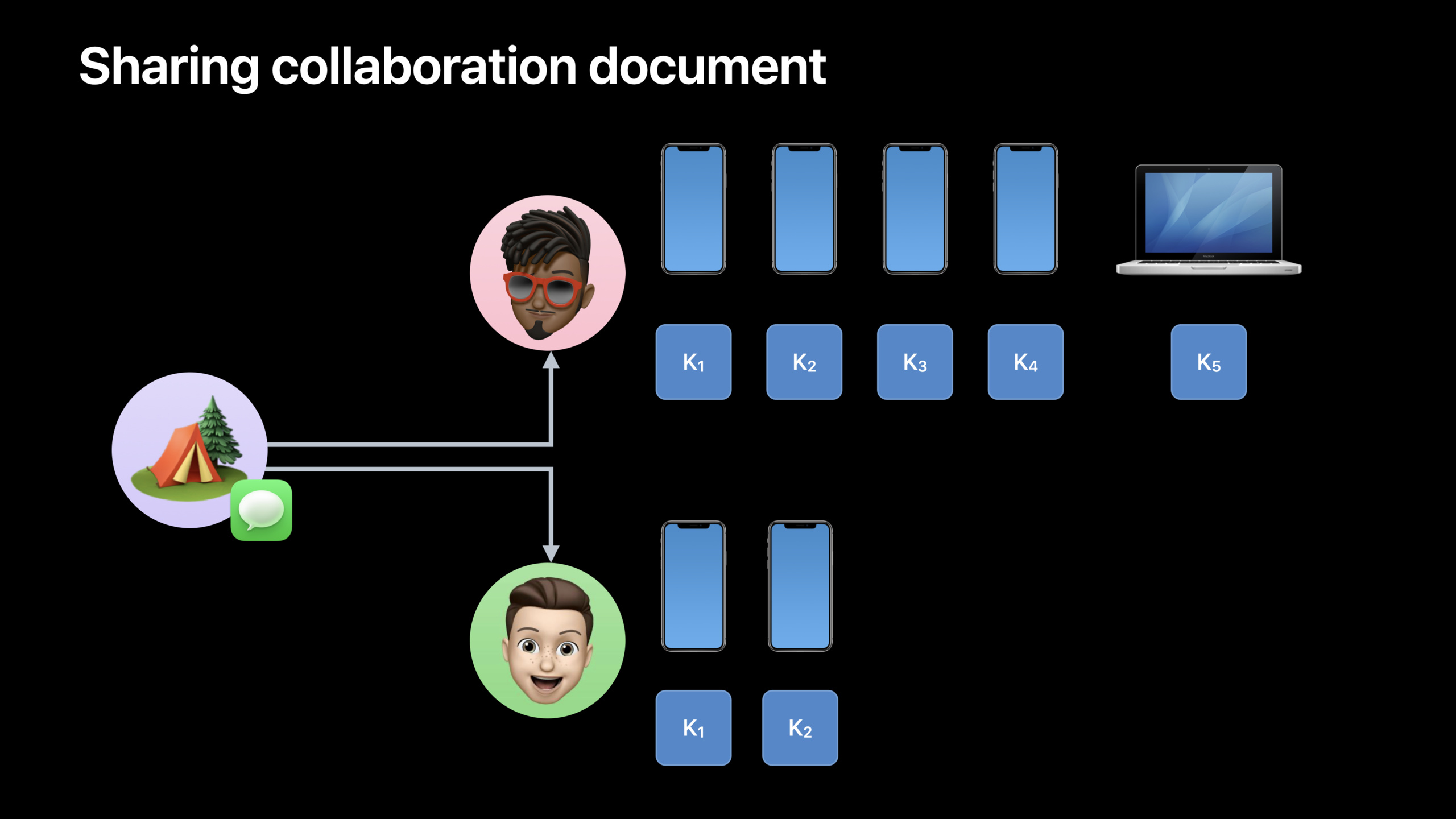
The design of this delayed link generation is critical.Links can be generated based on the final recipient and user-selected permissions.The sending device also gives the App a set of encrypted identities for the recipients, and the App stores these identities on the server.When the recipient opens Universal Link, the system can generate a signed identity certificate, and after verification by the server, document access rights are directly granted to the current account (02:50).
Session talks about a complete link: preparing collaboration metadata, starting collaboration, saving participant identities, verifying access, processing member changes, and sending edit and mention notifications back to Messages.Suitable for apps that already have a collaboration backend and support Universal Links.
Detailed Content
1. UseSWCollaborationMetadataDescribe collaboration content
(04:21) The system first needs to know what this collaborative sharing represents.SWCollaborationMetadataStores a local identifier, title, originator’s account prompt, and user-configurable sharing options.
let localIdentifier = SWLocalCollaborationIdentifier(rawValue: "identifier")
let metadata = SWCollaborationMetadata(localIdentifier: localIdentifier)
metadata.title = "Content Title"
metadata.initiatorHandle = "[email protected]"

let formatter = PersonNameComponentsFormatter()
if let components = formatter.personNameComponents(from: "Devin") {
    metadata.initiatorNameComponents = components
}

metadata.defaultShareOptions = ...
Key points:
SWLocalCollaborationIdentifierJust let your app find this content locally, Session makes it clear that it doesn’t need to be consistent across devices.SWCollaborationMetadataIt is the core object used by subsequent Share Sheet, drag and drop and send callbacks.metadata.titleIt will be displayed to the user to help them confirm which content is being shared.metadata.initiatorHandleandinitiatorNameComponentsOnly used for local display to allow users to confirm the current sharing account.defaultShareOptionsPut the default permission settings, and the user can modify them in the system UI before sending.
Sharing options consist of three layers of objects.SWCollaborationOptionRepresents a single option;SWCollaborationOptionsPickerGroupIndicates mutually exclusive options;SWCollaborationOptionsGroupRepresents multiple independent switches;SWCollaborationShareOptionsHook these group options to metadata (06:34).
let permission = SWCollaborationOptionsPickerGroup(identifier: UUID().uuidString,
                                                   options: [
    SWCollaborationOption(title: "Can make changes", identifier: UUID().uuidString),
    SWCollaborationOption(title: "Read only", identifier: UUID().uuidString)
])
permission.options[0].isSelected = true
permission.title = "Permission"

let additionalOptions = SWCollaborationOptionsGroup(identifier: UUID().uuidString,
                                                    options: [
    SWCollaborationOption(title: "Allow mentions", identifier: UUID().uuidString),
    SWCollaborationOption(title: "Allow comments", identifier: UUID().uuidString)
])
additionalOptions.title = "Additional Settings"
let optionsGroups = [permission, additionalOptions]
metadata.defaultShareOptions = SWCollaborationShareOptions(optionsGroups: optionsGroups)
Key points:
permissionuseSWCollaborationOptionsPickerGroup, the user can only choose between “editable” and “read-only”.permission.options[0].isSelected = trueSet the default selection, which can still be modified by the user before sending.additionalOptionsuseSWCollaborationOptionsGroup, mentions and comments are two independent switches.- Each group and option has an identifier, and the App will use these identifiers to read the user’s final selection before sending.
SWCollaborationShareOptions(optionsGroups:)Yesmetadata.defaultShareOptionsentrance.
2. Hand over collaboration metadata to the sharing portal
(07:58) SwiftUI can passTransferableandShareLinkExpose collaborative content.The model object returns aSWCollaborationMetadataproxy representation, directly hand over the model to the viewShareLink。
struct CustomCollaboration: Transferable {
    var name: String

    static var transferRepresentation: some TransferRepresentation {
        ProxyRepresentation { customCollaboration in
            SWCollaborationMetadata(
                localIdentifier: .init(rawValue: "com.example.customcollaboration"),
                title: customCollaboration.name,
                defaultShareOptions: nil,
                initiatorHandle: "[email protected]",
                initiatorNameComponents: nil
            )
        }
    }
}
struct ContentView: View {
var body: some View {
ShareLink(item: CustomCollaboration(name: "Example"), preview: .init("Example"))
}
}Key points:
CustomCollaborationobeyTransferable, allowing model objects to participate in the system sharing and drag-and-drop process.ProxyRepresentationreturnSWCollaborationMetadata, the system gets collaborative metadata instead of ordinary file content.localIdentifierandtitleFrom the current model, the app can return to its own content record when sending a callback.ShareLink(item:preview:)It is the sharing entrance of SwiftUI, and Session uses it together with collaborative metadata.
UIKit, AppKit and drag-and-drop usageNSItemProvider。SWCollaborationMetadataobeyNSItemProviderReadingandNSItemProviderWriting, so you can register directly to the item provider (09:08).
func presentActivityViewController(metadata: SWCollaborationMetadata) {
    let itemProvider = NSItemProvider()
    itemProvider.registerObject(metadata, visibility: .all)
    let activityConfig = UIActivityItemsConfiguration(itemProviders: [itemProvider])
    let shareSheet = UIActivityViewController(activityItemsConfiguration: activityConfig)
    present(shareSheet, animated: true)
}
func createDragItem(metadata: SWCollaborationMetadata) -> UIDragItem {
let itemProvider = NSItemProvider()
itemProvider.registerObject(metadata, visibility: .all)
return UIDragItem(itemProvider: itemProvider)
}Key points:
NSItemProvider()It is the container for collaborative metadata to enter the UIKit sharing system.registerObject(metadata, visibility: .all)Allow system processes to read this metadata.UIActivityItemsConfigurationGive the item provider to the Share Sheet.UIDragItem(itemProvider:)Allow the same metadata to support iOS and iPadOS drag and drop.- Session recommends registering multiple representations, such as providing file representations at the same time, so that Messages can provide a “send a copy” option when needed.
3. Use before sendingSWCollaborationCoordinatorStart collaboration
(11:22) After the user clicks Send, Messages will passSWCollaborationCoordinatorCoordinate the app to complete the preparation work.This coordinator is a singleton, and the App should set the action handler as early as possible after startup, because the system may start the App in the background to handle collaboration.
private let collaborationCoordinator = SWCollaborationCoordinator.shared

func application(_ application: UIApplication, didFinishLaunchingWithOptions launchOptions: [UIApplication.LaunchOptionsKey : Any]?) -> Bool {
    // Conform to the SWCollaborationActionHandler protocol
    collaborationCoordinator.actionHandler = self
}
Key points:
SWCollaborationCoordinator.sharedIt is the global coordination entrance.didFinishLaunchingWithOptionssettings inactionHandler, to avoid not being able to find the delegate during background processing collaboration.- The handler object needs to comply with
SWCollaborationActionHandler。 - Session reminds you to process the action immediately. Timeout will affect the sending process.
The first action isSWStartCollaborationAction.It carries the metadata of the user’s final selection.The App now prepares for collaboration with the server, gets the Universal Link and device-independent collaboration identifier, and then fulfills this action (12:27).
func collaborationCoordinator(_ coordinator: SWCollaborationCoordinator,
                              handle action: SWStartCollaborationAction) {
    let localID = action.collaborationMetadata.localIdentifier.rawValue
    let selectedOptions = action.collaborationMetadata.userSelectedShareOptions
    let prepareRequest = APIRequest.PrepareCollaboration(localID: localID, selectedOptions)
    Task {
        do {
            let response = try await apiController.send(request: prepareRequest)
            let identifier = response.deviceIndependentIdentifier
            action.fulfill(using: response.url, collaborationIdentifier: identifier)
        } catch {
            Log.error("Caught error while preparing the collaboration: \(error)")
            action.fail() // cancels the message
        }
    }
}
Key points:
action.collaborationMetadata.localIdentifier.rawValueMap the system callback before sending back to App local content.userSelectedShareOptionsIt is the permission configuration finally selected by the user in the system UI.APIRequest.PrepareCollaborationis an example server-side request that generates the link and identifier for this collaboration on behalf of your backend.action.fulfill(using:collaborationIdentifier:)Also hand over Universal Link and device-independent collaboration identifiers.action.fail()The message sending will be canceled, which is suitable for the situation where the server side fails to prepare.
4. Save participant identities for immediate verification later
(13:40) After the collaboration is successfully started, the system will sendSWUpdateCollaborationParticipantsAction.This action contains the participant’s cryptographic identity.App wants toaddedIdentitiesinsiderootHashSave it to the server and associate it with this collaborative content.
func collaborationCoordinator(_ coordinator: SWCollaborationCoordinator,
                              handle action: SWUpdateCollaborationParticipantsAction) {
    let identifier = action.collaborationMetadata.collaborationIdentifier
    let participants: [Data] = action.addedIdentities.compactMap { $0.rootHash }
    let addParticipants = APIRequest.AddParticipants(identifier: identifier, participants)
    Task {
        do {
            try await apiController.send(request: addParticipants)
            action.fulfill() // sends the URL provided by the start action
        } catch {
            Log.error("Caught error while adding participants to collaboration: \(error)")
            action.fail() // cancels the message
        }
    }
}
Key points:
collaborationIdentifierfulfill call from the previous start action.addedIdentitiesIs a collection of identities generated by Messages based on recipient and collaboration identifiers.rootHashYes Session specifies the data to be saved to the server, which will be used to match the recipient when subsequently authenticating access.action.fulfill()Without parameters, Messages will send the URL generated in the previous step after success.- called on failure
action.fail(), the sending will be cancelled.
5. Generate signed identity certificate when the recipient opens the link
(19:12) When the receiver opens Universal Link, the App first passesSWHighlightCenterFind the collaboration highlight and call it againgetSignedIdentityProof.This certificate contains signature data, and the server verifies the signature before rebuilding the root hash.
func application(_ app: UIApplication, open url: URL,
               options: [UIApplication.OpenURLOptionsKey : Any] = [:]) -> Bool {
    let highlightCenter: SWHighlightCenter = self.highlightCenter
    let challengeRequest = APIRequest.GetChallengeData()
    Task {
        do {
            let highlight = try highlightCenter.collaborationHighlight(for: url)
            let challenge = try await apiController.send(request: challengeRequest)
            let proof = try await highlightCenter.getSignedIdentityProof(for: highlight,
                                                                       using: challenge.data)
    let proofOfInclusionRequest = APIRequest.SubmitProofOfInclusion(for: proof)
            let result = try await apiController.send(request: proofOfInclusionRequest)
            documentController.update(currentDocument, with: result)
        } catch {
            Log.error("Caught error while generating proof of inclusion: \(error)")
        }
    }
}
Key points:
collaborationHighlight(for: url)Determine whether the current Universal Link corresponds to collaborative content.APIRequest.GetChallengeData()It is the server-side challenge in the example, used to prevent replay requests.getSignedIdentityProof(for:using:)Let the device sign the challenge data and returnSWPersonIdentityProof。APIRequest.SubmitProofOfInclusionThe representative submits the certificate to the server for verification.- After the server verification is passed, the App will update the current document access status.
Session explains the mathematical origin of server-side validation.Each device on the receiving end has an encrypted public key. The system uses these public keys to construct a Merkle tree. The root hash represents the identity of a recipient in this collaboration.After the server verifies the signature, it uses the proof of inclusion to reconstruct the root hash, and then compares it with the root hash list saved when sending (20:09).
func generateRootHashFromArray(localHash: SHA256Digest, inclusionHashes: [SHA256Digest],
                       publicKeyIndex: Int) -> SHA256Digest {
    guard let firstHash = inclusionHashes.first else { return localHash }
    // Check if the node is the left or the right child
    let isLeft = publicKeyIndex.isMultiple(of: 2)
    // Calculate the combined hash
    var rootHash: SHA256Digest
    if isLeft {
        rootHash = hash(concatenate([localHash, firstHash]), using: .sha256)
    } else {
        rootHash = hash(concatenate([firstHash, localHash]), using: .sha256)
    }
    // Recursively pass in elements and move up the Merkle tree
    let newInclusionHashes = inclusionHashes.dropFirst()
    rootHash = generateRootHashFromArray(
        localHash: rootHash,
        inclusionHashes: Array(newInclusionHashes),
        publicKeyIndex: (publicKeyIndex / 2)
    )
    return rootHash
}
Key points:
localHashIt is the current device public key hash or the calculation result of the previous layer.inclusionHashes.firstTake out the first sibling node provided by proof of inclusion.publicKeyIndex.isMultiple(of: 2)Determines whether the current node is on the left or right.- The splicing order must be determined based on the left and right positions. Different orders will result in different root hashes.
dropFirst()Consume the current sibling node and continue to move recursively toward the root node of the Merkle tree.- eventually returned
rootHashCompare with the recipient root hash saved on the server.
6. Synchronize permissions when group chat members change
(24:12) When the members of the Messages group chat where the collaboration is located change, users can synchronize the changes to the App from the banner in the conversation.What the App receives is stillSWUpdateCollaborationParticipantsAction, to be processed this timeaddedIdentitiesandremovedIdentities。
func collaborationCoordinator(_ coordinator: SWCollaborationCoordinator,
                              handle action: SWUpdateCollaborationParticipantsAction) {
    // Example of removing participants only. Handle the added identities here too.
    let identifier = action.collaborationMetadata.collaborationIdentifier
    let removed: [Data] = action.removedIdentities.compactMap { $0.rootHash }
    let removeParticipants = APIRequest.RemoveParticipants(identifier: identifier, removed)
    Task {
        do {
            try await apiController.send(request: removeParticipants)
            action.fulfill()
        } catch {
            log.error("Caught error while adding participants to collaboration: \(error)")
            action.fail()
        }
    }
}
Key points:
removedIdentitiesRead the same inrootHash, use it to locate the person whose access you want to revoke.- If there is an account associated with removed identity, the server revokes the account’s access rights.
- If there is no account association yet, the server can delete the previously saved root hash.
- The code comments indicate that the example only shows deletion, and the complete implementation also needs to handle new identities.
action.fulfill()Indicates that the App has completed permission synchronization.
7. Send collaboration updates back to the Messages conversation
(25:54) After the collaboration content changes, the App canSWHighlightCenterIssue notice.Messages will display banners in conversations where the link is shared, such as when content has been edited, members have joined or left, someone has been mentioned, or content has been moved or renamed.
func postContentEditEvent(identifier: SWCollaborationIdentifier) throws {
    let highlightCenter: SWHighlightCenter = self.highlightCenter
    let highlight = try highlightCenter.collaborationHighlight(forIdentifier: identifier)

    let editEvent = SWHighlightChangeEvent(highlight: highlight, trigger: .edit)

    highlightCenter.postNotice(for: editEvent)
}
Key points:
collaborationHighlight(forIdentifier:)Retrieve highlights from the system using collaboration identifiers.SWHighlightChangeEventIndicates content updates or comments on such changes.trigger: .editIndicates that this notice is an editing event.postNotice(for:)Hand the event to the system, and Messages is responsible for displaying it in the relevant conversation.
When referring to a collaborator, first create it with the root hashSWPerson.Identity, create againSWHighlightMentionEvent.Session indicates that this notice will only be displayed to the mentioned user (26:50).
func postMentionEvent(identifier: SWCollaborationIdentifier, mentionedRootHash: Data) throws {
    let mentionedIdentity = SWPerson.Identity(rootHash: mentionedRootHash)

    let highlightCenter: SWHighlightCenter = self.highlightCenter
    let highlight = try highlightCenter.collaborationHighlight(forIdentifier: identifier)

    let mentionEvent = SWHighlightMentionEvent(highlight: highlight,
                                               mentionedPersonIdentity: mentionedIdentity)
    highlightCenter.postNotice(for: mentionEvent)
}
Key points:
mentionedRootHashFrom the identity data that has been associated with the user account during previous verification access.SWPerson.Identity(rootHash:)Convert the identity saved on the server into a person identifiable by the system.SWHighlightMentionEventBind collaboration highlight and mentioned identity.postNotice(for:)After publishing, Messages will only display the mention of notice to the corresponding user.
Use persistence events when content is moved, renamed, or deleted.The following code shows a rename trigger (27:23).
func postContentRenamedEvent(identifier: SWCollaborationIdentifier) throws {
    let highlightCenter: SWHighlightCenter = self.highlightCenter
    let highlight = try highlightCenter.collaborationHighlight(forIdentifier: identifier)

    let renamedEvent = SWHighlightPersistenceEvent(highlight: highlight, trigger: .renamed)
    highlightCenter.postNotice(for: renamedEvent)
}
Key points:
SWHighlightPersistenceEventCovers status changes such as content movement, renaming, and deletion.trigger: .renamedExplicitly tell the system that this change is a rename.- App only needs to publish events, and Messages will bring users back to the corresponding collaboration content.
Core Takeaways
-
Make a group chat-driven document invitation process: Change the share button of the document to
SWCollaborationMetadata+ Share Sheet.After the user selects the person and permissions in Messages, the server generates the link.This way links, permissions and recipients remain consistent. -
Make a collaborative joining process without copying accounts: After the recipient opens Universal Link, use
SWHighlightCenter.getSignedIdentityProofTaking the signature certificate, the server reconstructs the root hash and matches the identity saved when sending.Suitable for multi-person collaboration products such as documents, whiteboards, and code reviews. -
Do a background task to automatically synchronize permissions for group chat members: in
SWUpdateCollaborationParticipantsActionprocessed simultaneouslyaddedIdentitiesandremovedIdentities.Adding new members is written into the root hash, removing members revokes account access rights or deletes unbound root hashes. -
Make a notification system for collaborative dynamic reflow of Messages: publish separately when editing, commenting, mentioning, and renaming
SWHighlightChangeEvent、SWHighlightMentionEventandSWHighlightPersistenceEvent.After users see the banner in the conversation, they can directly return to the corresponding content. -
Make a SwiftUI native sharing model: Make the collaborative document model comply
Transferable,existProxyRepresentationreturn inSWCollaborationMetadata, then useShareLinkExposed entrance.This way the same model can serve sharing, drag-and-drop and system collaboration processes.
Related Sessions
- Add Shared with You to your app — This article talks about how ordinary Shared with You content appears in the app, which is to understand
SWHighlightCenterand the basis of attribution UI. - Enhance collaboration experiences with Messages — This article talks about how CloudKit, iCloud Drive, and custom collaboration can be connected to the Messages collaboration UI, which complements the custom backend process of this session.
- Meet Transferable — SwiftUI example dependency for this session
TransferableandProxyRepresentation, this conference systematically explains the model layer shared representation. - What’s new in SwiftUI — Use this session
ShareLinkAs the SwiftUI sharing entrance, this session will cover the related sharing capabilities of SwiftUI 2022.
Comments
GitHub Issues · utterances