
Highlight
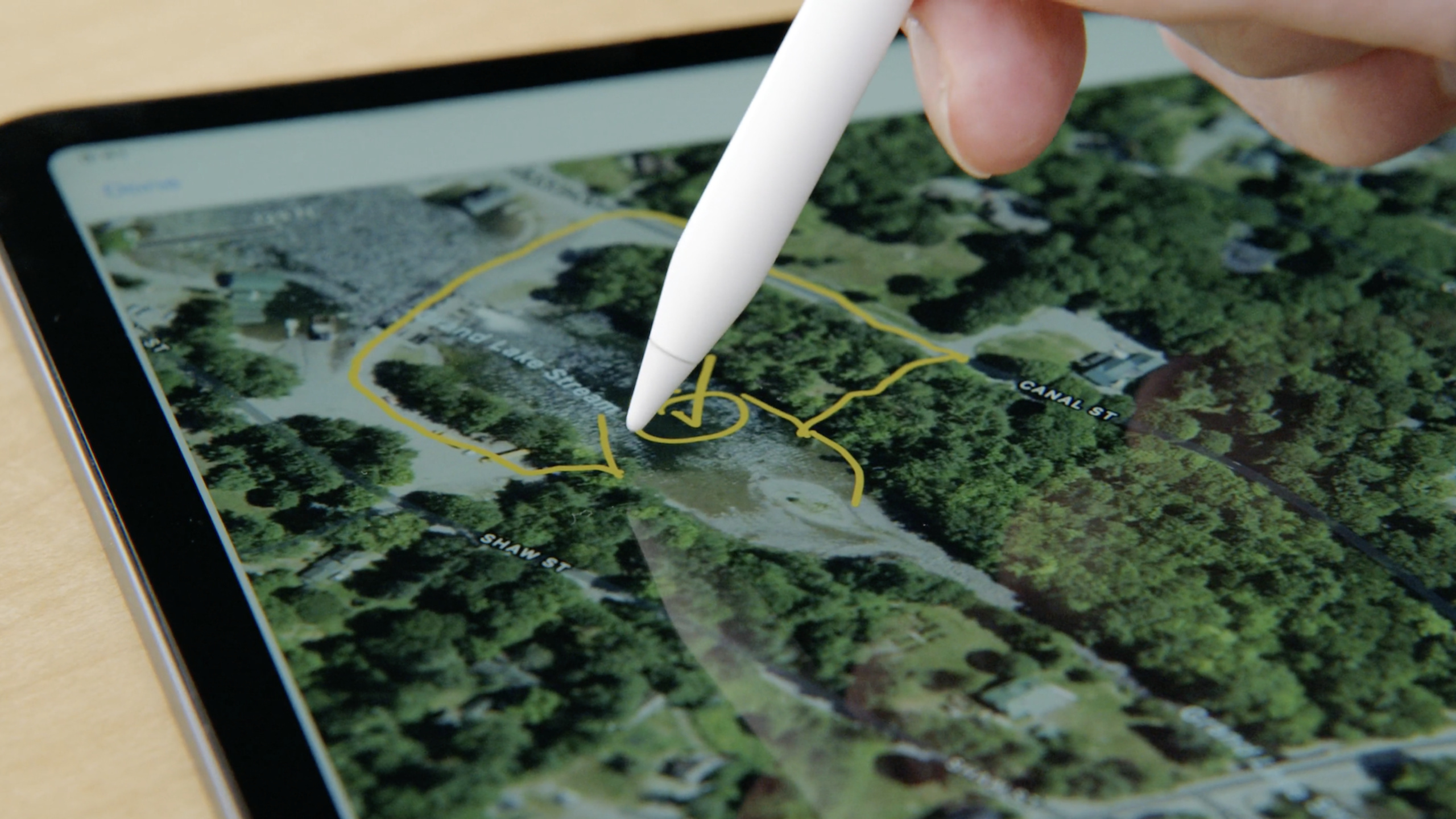
PDFKit for iOS 16 and macOS Ventura supports on-demand Live Text for scanning PDFs, creating PDF pages from CGImage, installing interactive overlay views for each page, and saving PencilKit drawings as PDF annotations.
Core Content
Many document apps have the same problem: PDF is responsible for displaying and turning pages, but what users want to do is more and more like an editor.
The text in the scanned document must be selectable.The form must be filled out.Photos need to be able to be turned into PDF pages.Annotations drawn by users on the page with Apple Pencil remain after the file is closed.
In the past, drawing additional PDF content usually required subclassingPDFPageand override the drawing method, or directly create a customPDFAnnotation.This approach is closer to a one-time draw.It’s not suitable for putting a zoomable, gesture-responsive, and real-time editable view onto the page.
(04:18) iOS 16 and macOS Ventura add overlay view to PDFKit.PDFKit requests the view from the app before the page comes into view, is responsible for constraining it to the page size, and handles page rotation.App only needs to return oneUIVieworNSView。
This makes using PencilKit straightforward: place aPKCanvasView.When the user draws a line, he or she is drawing a live view.When the page scrolls off the screen, putPKDrawingSave back customizationPDFPage.When saving the file, convert these drawings into annotations.
Detailed Content
The four core objects of PDFKit
(00:54) This session first reviews the PDFKit object model.PDFViewPlaced in the interface, responsible for displaying, navigating, zooming and copying text.PDFDocumentRepresents the entire PDF file.PDFPagerepresents each page.PDFAnnotationis an interactive addition to the page.
// Conceptual example, not a complete API signature
let pdfView = PDFView()
let document = PDFDocument(url: fileURL)
pdfView.document = document
let page = document?.page(at: 0)
let annotations = page?.annotations
Key points:
PDFViewIt is the view object put into the layout, which can be passed in SwiftUIUIViewRepresentableaccess.PDFDocumentIs the root object. A document contains multiple pages.page(at:)Take out a single page, the page is responsible for rendering the content and saving the resources of the page.annotationsIt is an editable additional object on the page that will be used to host PencilKit drawings in the subsequent save process.
Live Text and Form Recognition
(02:08) PDFKit now supports Live Text.Users can select and search text in a scanned PDF, even if it is just a bitmap and has no text layer.
PDFs can have many pages.PDFKit does not run OCR on all pages when opening a document.It processes a page on demand as the user interacts with it.OCR is done in-place on the original document, no files need to be copied.When saving, you can also choose to save the recognized text for the entire document.
(02:58) Form handling has also been updated.PDFKit automatically recognizes form fields in documents, even if the original PDF has no built-in text fields.Users can use Tab to jump between fields and enter text.
// After opening a document with PDFView, Live Text and form recognition are provided by PDFKit.
// There is no extra enablement switch here; this example only shows where PDFKit is integrated.
let pdfView = PDFView()
pdfView.document = PDFDocument(url: scannedPDFURL)
Key points:
PDFViewThis is where the user interacts with the PDF page, where Live Text selections and searches occur.PDFDocument(url:)The loaded file can be a scanned PDF; the session explicitly states that the sample document does not have a text layer.- Live Text’s OCR is performed on a page-by-page basis, on-demand, to avoid processing all pages at once when opening a large document.
- Form field recognition is also handled by PDFKit, giving users a keyboard jumping experience close to that of web forms.
Create PDF pages from images
(03:14) iOS 16 and macOS Ventura provide new APIs for creating PDF pages from images.Enter image to useCGImageRef, PDFKit will compress the image using high-quality JPEG encoding.
This path is suitable for apps that scan, take photos and archive them, and organize pictures into PDFs.becauseCGImageRefIt is a CoreGraphics native type, and the App does not need to convert the image into an intermediate format first.
// Conceptual example, not an API signature: demonstrates the inputs and options mentioned in the session.
let sourceImage: CGImage = scannedImage
let pageOptions = [
    "MediaBox": pageSize,
    "Rotation": pageRotation,
    "UpscaleIfSmaller": true,
]
let pdfPage = PDFPage(image: sourceImage, options: pageOptions)
Key points:
sourceImageuseCGImage, corresponding to transcript inCGImageRefenter.MediaBoxDecide the page size, you can fit the picture, or choose a paper size such as Letter.RotationUsed to specify portrait or landscape orientation.UpscaleIfSmallerIndicates that small images will also be enlarged to fill the page; large images will still be reduced to fit the page.- This paragraph is a conceptual example, not an official snippet; the session does not give a complete Swift signature.
Install interactive views using PDFPageOverlayViewProvider
(05:47) The entrance to the overlay view isPDFPageOverlayViewProvider.The most important method isoverlayViewFor page.When PDFKit needs to display a certain page, it will call this method to request the view.
class Coordinator: NSObject, PDFPageOverlayViewProvider {

    var pageToViewMapping = [PDFPage: UIView]()

    func pdfView(_ view: PDFView, overlayViewFor page: PDFPage) -> UIView? {
        var resultView: PKCanvasView? = nil

        if let overlayView = pageToViewMapping[page] {
            resultView = overlayView
        } else {
            let canvasView = PKCanvasView(frame: .zero)
            canvasView.drawingPolicy = .anyInput
            canvasView.tool = PKInkingTool(.pen, color: .systemYellow, width: 20)
            canvasView.backgroundColor = UIColor.clear
            pageToViewMapping[page] = canvasView
            resultView = canvasView
        }

        // If we have stored a drawing on the page, set it on the canvas
        let page = page as! MyPDFPage
        if let drawing = page.drawing {
            resultView?.drawing = drawing;
        }
        return resultView
    }

    func pdfView(_ pdfView: PDFView, willEndDisplayingOverlayView
        overlayView: UIView, for page: PDFPage) {
        let overlayView = overlayView as! PKCanvasView
        let page = page as! MyPDFPage
        page.drawing = overlayView.drawing
        pageToViewMapping.removeValue(forKey: page)
    }
}
Key points:
CoordinatoraccomplishPDFPageOverlayViewProvider, which is the object that PDFKit requests the overlay view for.pageToViewMappingBundlePDFPagemapped to already createdUIView, to avoid repeatedly creating canvas on the same page.overlayViewFor pageCheck the cache first and create a new one if there is no cachePKCanvasView。drawingPolicy = .anyInputAllows Pencil or finger input.PKInkingTool(.pen, color: .systemYellow, width: 20)Set up the yellow brush in the example.backgroundColor = UIColor.clearLet PDF page content shine through.MyPDFPageIt’s in the examplePDFPagesubclass, only one addeddrawingproperty.willEndDisplayingOverlayViewCalled when the page scrolls out of view, the currentPKCanvasView.drawingSave the page back and remove the cached view.
Save PencilKit drawings to PDF annotation
(09:28) Overlay view only solves on-screen interactions.When you save the file, you also write the drawing back to the PDF.
PDF annotation has two features that are useful for this.First, it can have an appearance stream, which is a PDF drawing command stream to ensure consistent display in readers such as Adobe Reader and Chrome.Second, it is stored in the form of a dictionary, where private key/value data can be placed to restore the editing state the next time it is opened.
// Implement a subclass with a drawing override

class MyPDFAnnotation: PDFAnnotation {

    override func draw(with box: PDFDisplayBox, in context: CGContext) {
        UIGraphicsPushContext(context)
        context.saveGState()

        let page = self.page as! MyPDFPage
        if let drawing = page.drawing {
            let image = drawing.image(from: drawing.bounds, scale: 1)
            image.draw(in: drawing.bounds)
        }

        context.restoreGState()
        UIGraphicsPopContext()
    }
}
Key points:
MyPDFAnnotationinheritPDFAnnotation, the purpose is to override the drawing behavior.draw(with:in:)Will be called when PDFKit saves the annotation’s appearance stream.UIGraphicsPushContext(context)Connect the Core Graphics context to the UIKit drawing environment.context.saveGState()andrestoreGState()Wrap custom drawing to avoid contaminating the outer drawing state.self.page as! MyPDFPageretrieval tapedrawingCustom page for properties.drawing.image(from:scale:)BundlePKDrawingRendered into a picture.image.draw(in:)Draw the image into the bounds of the annotation.
Save the annotation and choose whether to burn in
(10:35) Example atUIDocumentofcontents(forType:)Traverse all pages.Every page with a drawing gets a custom annotation.For drawing itselfNSKeyedArchiverAfter encoding, write the private key of the annotation.
override func contents(forType typeName: String) throws -> Any {

    if let pdfDocument = pdfDocument {

        // Go through all pages in the document
        for i in 0...pdfDocument.pageCount-1 {
            if let page = pdfDocument.page(at: i) {
                if let drawing = (page as! MyPDFPage).drawing {

                    // Create an annotation of our custom subclass
                    let newAnnotation = MyPDFAnnotation(bounds: drawing.bounds,
                                                        forType: .stamp, withProperties: nil)

                    // Add our custom data
                    let codedData = try! NSKeyedArchiver.archivedData(withRootObject: drawing,
                                                                      requiringSecureCoding: true)
                    newAnnotation.setValue(codedData,
                                           forAnnotationKey: PDFAnnotationKey(rawValue: "drawingData"))

                    // Add our annotation to the page
                    page.addAnnotation(newAnnotation)
                }
            }
        }

        // -- Option #1: Save the document to a data representation
        if let resultData = pdfDocument.dataRepresentation() {
            return resultData
        }

        // -- Option #2: Save the document to a data representation and "burn in" annotations
        let options = [PDFDocumentWriteOption.burnInAnnotationsOption: true]
        if let resultData = pdfDocument.dataRepresentation(options: options) {
            return resultData
        }
    }

    // Fall through to returning empty data
    return Data()
}
Key points:
contents(forType:)yesUIDocumentWhere to write the content.0...pdfDocument.pageCount-1Go through all PDF pages.(page as! MyPDFPage).drawingOnly processes pages that already have PencilKit drawings on them.MyPDFAnnotation(bounds:forType:withProperties:)Create a custom annotation, an example type is.stamp。NSKeyedArchiver.archivedDataBundlePKDrawingEncoded into data for resume round-trip editing after opening next time.setValue(_:forAnnotationKey:)Use private keydrawingDataSave drawing data.page.addAnnotation(newAnnotation)Attach annotation to the page.dataRepresentation()Returns PDF data that can be written; annotations can still be moved, scaled, or deleted by the recipient.burnInAnnotationsOption: trueThe annotation will be burned into the page content, which is suitable for files that do not want the recipient to continue editing annotations.
Control PDF writing volume and network loading
(11:50) iOS 16 and macOS Ventura also open up more PDF writing options.
By default, CoreGraphics tries to preserve image quality, using full resolution and lossless compression.This is fine for large prints, but may result in files that are too large for screen reading.saveAllImagesAsJPEGThe image will be saved in JPEG encoding.optimizeImagesForScreenThe image will be downsampled to the HiDPI screen resolution limit.Both can be used together.
(12:41)createLinearizedPDFUsed to create linearized PDFs suitable for network loading.It puts the data needed to display the first page at the beginning of the file, so the browser can display the first page first and then continue loading the remaining content.
// Conceptual example, not a complete API signature: the session explains that these options are passed to dataRepresentation or writeToURL.
let options = [
    "saveAllImagesAsJPEG": true,
    "optimizeImagesForScreen": true,
    "createLinearizedPDF": true,
]
let data = pdfDocument.dataRepresentation(options: options)
Key points:
saveAllImagesAsJPEGSuitable for reducing the size of PDF files containing a large number of images.optimizeImagesForScreenFor screen reading, the cost of high-resolution images will be reduced.createLinearizedPDFImprove the first screen display speed in network distribution scenarios.- These write-out options can be passed to
PDFDocumentofdataRepresentationorwriteToURL。 - This paragraph is a conceptual example; session only gives
burnInAnnotationsOptionComplete Swift writing method.
Core Takeaways
- Make a text searcher for scanning PDF
- What to do: After opening the scan, let the user search the text directly within it.
- Why it’s worth doing: PDFKit provides on-demand Live Text for scanning PDFs without text layers, without the need for the app to OCR the entire document when opening it.
- How to start: Use
PDFViewloadPDFDocument, place the interactive entry on the page view, and provide a path to save the recognized text when saving.
- Make an archiving tool for converting images to PDF
- What to do: Organize photos or imported images into fixed paper size PDFs.
- Why it’s worth doing: Eat the new API directly
CGImageRef, PDFKit is responsible for JPEG compression and provides options such as page size, orientation, and small image enlargement. - How to start: Save scanned images as
CGImage, set MediaBox, Rotation and UpscaleIfSmaller for each page, and then combine them intoPDFDocument。
- Make a PDF reader with Apple Pencil annotation
- What: Users can make handwritten annotations directly on the page while flipping through the PDF.
- Why it’s worth doing:
PDFPageOverlayViewProviderAllow overlays per pagePKCanvasView, PDFKit takes care of creation, layout and rotation on demand. - How to start: Implementation
overlayViewFor pagereturnPKCanvasView,existwillEndDisplayingOverlayViewMiddle handlePKDrawingSave back customizationPDFPage。
- Make a PDF annotation saving process that can be edited
- What to do: After saving the handwritten annotation, you can continue editing next time you open it.
- Why is it worth doing: PDF annotation can save the appearance stream, and can also use private key/value to save the original
PKDrawingdata. - How to start: Subclassing
PDFAnnotationrewritedraw(with:in:), when savingPKDrawingencode todrawingData, and then read back the overlay view when it is opened.
- Make a PDF export option suitable for web distribution
- What to do: Provide users with export switches such as “Small file”, “Fit to screen”, “Fit to web page preview”.
- Why it’s worth doing: PDFKit’s JPEG, screen optimization and linearized PDF writing options correspond to size, screen reading and first screen loading respectively.
- How to get started: Map these options in the export panel to
PDFDocumentofdataRepresentationorwriteToURLWrite the parameters.
Related Sessions
- Add Live Text interaction to your app — Explain how to connect Live Text to static images and paused video frames, and complement PDFKit’s scanned PDF text interaction.
- Capture machine-readable codes and text with VisionKit — Shows how VisionKit captures text and codes from real-time camera footage, which is another entry point for understanding the system’s text recognition capabilities.
- What’s new in Vision — Introducing Vision’s text recognition, barcode detection, and task debugging updates, which is the relevant background on the recognition capabilities behind Live Text.
- Use SwiftUI with UIKit — Explains the combination of UIKit views and SwiftUI, suitable for
PDFViewReference when connecting to SwiftUI App.
Comments
GitHub Issues · utterances