
Highlight
Apple’s software power consumption team breaks down battery optimization into four executable actions: supporting dark mode, reviewing animation frame rates, ending background locations and audio sessions, and deferring non-urgent work to the system.
Core Content
When a user opens an app, he or she will not first ask how much CPU it uses.Users will only feel that the phone is hot and loses power quickly, and then turn it off.
The entry point for this session is straightforward: Apps provide functions, but functions consume battery.The Apple Software Power Consumption Team has long studied the power consumption of system components and here are four types of changes that developers can directly control (00:37).
The first type of change occurs on the screen.In OLED devices, each pixel consumes power individually, and dark content consumes less power than light content.In the Food Truck example, after the large-area background is switched to dark color, Apple estimates that it can save up to 70% of the display power consumption (02:24).
The second type of change occurs in animation.On ProMotion devices, the screen refresh rate is affected by the highest frame rate animation in the app.The main content only needs 30fps, if a secondary scrolling text runs to 60fps, the entire screen will be stretched to 60fps.Slowing this secondary animation down to 30fps can save up to 20% of battery consumption in this example (05:42).
The third type of change occurs behind the scenes.Location and audio services continue to run in the background, keeping the device active.Your app is invisible to the user, but the system is still using power for it.The principle of session is: clearly tell the system to end when it is not in use (09:21).
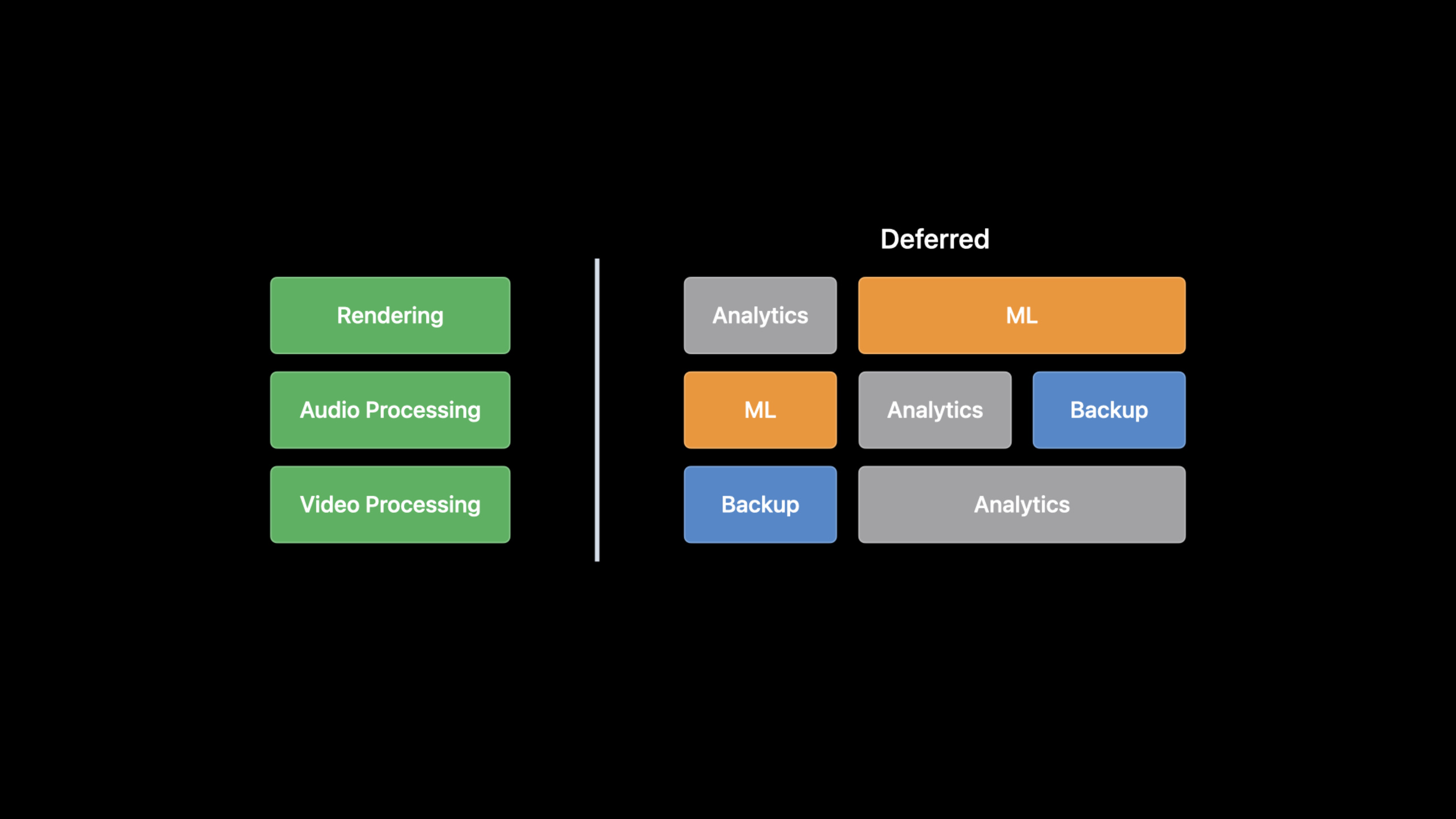
The fourth type of change occurs in scheduling.Machine learning, backups, telemetry uploads, and next episode downloads don’t all have to be done right away.Deferring this work until the device is charging, connected to Wi-Fi, or in a suitable window can reduce battery contention (13:18).
Detailed Content
Use dark mode to reduce OLED display power consumption
(01:24) On OLED screens, darker pixels require less power.Display is often the largest source of system power consumption, so apps with large light-colored backgrounds are most likely to benefit from dark mode.
The approach for native apps is to avoid hard-coded colors and instead use dynamic colors, allowing the system to switch the correct background, text, and image resources between Light Mode and Dark Mode (03:18).
// Conceptual example: use dynamic colors instead of a hard-coded light background
view.backgroundColor = UIColor.systemBackground
label.textColor = UIColor.label
Key points:
UIColor.systemBackgroundIt will change with the appearance of the system, changing to a dark background in dark mode.UIColor.labelThe same dynamic colors keep text readable in light and dark modes.- This code is based on the concept example of “Using dynamic colors to support backgrounds, images, and text” in transcript, not the original snippet of the session Code tab.
(04:00) Web content is also handled separately.Safari does not automatically darken web pages.The web page needs a statementcolor-scheme, and use style variables to manage colors.
:root {
  color-scheme: light dark;
  --page-background: Canvas;
  --page-text: CanvasText;
}

body {
  background: var(--page-background);
  color: var(--page-text);
}
Key points:
color-scheme: light darkMatch default text, background, form controls, and scroll bars to the system’s appearance.CanvasandCanvasTextIt is the system color and will change with the current color scheme.var(--page-background)andvar(--page-text)Group colors into variables to provide different values for different modes.- This CSS is based on transcript
color-schemeand conceptual examples of stylesheet variables.
Use Instruments to find excessively high secondary animation frame rates
(05:11) High refresh rates will increase power consumption.The problem often lies with secondary elements: the main content only requires 30fps, but the decorative animation in the corner refreshes at 60fps.
Apple recommends using Instruments’ CoreAnimation FPS instrument to first look at the timeline and confirm whether there are elements in the main process that are rendered at a frame rate that exceeds the required frame rate (06:36).If your custom animation usesCADisplayLink, you can give the system a frame rate range.
// Create a display link

func createDisplayLink() {
   let displayLink = CADisplayLink(target: self, selector: #selector(step))

    // Configure your desired refresh rate by calling preferredFrameRateRange
    displayLink.preferredFrameRateRange = CAFrameRateRange(minimum: 10,
                                                           maximum: 60,
                                                           preferred: 30)

// then activate your CADisplayLink by adding it to the main runloop.
    displayLink.add(to: .current, forMode: .defaultRunLoopMode)
}
Key points:
CADisplayLink(target:selector:)Create a timer that is synchronized with display refresh.#selector(step)Points to custom animation logic to be executed on each refresh.preferredFrameRateRangeTell the system the minimum, maximum, and preferred frame rates.minimum: 10Indicates that the system can drop down to 10fps when needed.maximum: 60Indicates that this animation does not require more than 60fps.preferred: 30The ideal frame rate for representing content is 30fps.add(to:forMode:)After adding the display link to the current run loop, the animation will start to receive refresh callbacks.
Background location and audio: stop when finished
(09:49) Background location will cause the device to continuously stream its location.session explicitly states that when the location session is no longer needed, it should be calledstopUpdatingLocation()。
// Conceptual example: stop location updates after a background location task ends
locationManager.stopUpdatingLocation()
Key points:
locationManageris yoursCLLocationManagerExample.stopUpdatingLocation()End persistent location updates to avoid consuming battery when the app is not visible.- This code corresponds to the API call mentioned directly in the transcript.
(10:25) The troubleshooting method is used in stages.Look at Xcode gauges for CPU, Network, Location and energy timeline when developing.MetricKit is used during the testing phasecumulativeBackgroundLocationTimeView the cumulative time spent using the background location in a day.Starting from iOS 16, users can also see apps currently using location services in Control Center.
Audio follows the same principle.After the user stops playing, the App should not only pause the sound, but also stop or pause the Audio Engine to avoid idling the audio hardware (12:03).
// Conceptual example: let AVAudioEngine automatically shut down audio hardware after becoming idle
audioEngine.autoShutdownEnabled = true
Key points:
audioEngineyesAVAudioEngineExample.autoShutdownEnabledWhen enabled, the audio engine will continue to detect idle status.- After being idle for a period of time, the system will turn off the audio hardware; when the audio source becomes active again, it will be dynamically turned on again.
- On watchOS, auto shutdown is mandatory.
Defer non-urgent work to system scheduling
(13:37) session divides work that can be postponed into three categories: machine learning tasks, uploading analytics, and backup.They do not directly serve the user’s current operations and can be left to the system to choose a more appropriate time.
BGProcessingTaskSuitable for long-term processing tasks, such as database cleaning, backup, and machine learning training.Provide the task identifier when creating the request and indicate whether external power or network is required. The system will wake up the App in the appropriate window and give it a few minutes to run in the background (14:22).
// Conceptual example: submit a deferrable long-running processing task
let request = BGProcessingTaskRequest(identifier: "com.app.cleanup")
request.requiresExternalPower = true
request.requiresNetworkConnectivity = false
try BGTaskScheduler.shared.submit(request)
Key points:
BGProcessingTaskRequestRepresents a long-term background processing request.identifierIt must be consistent with the background task identifier registered by the App.requiresExternalPowerTell the system that this job is suitable to be performed while charging.requiresNetworkConnectivityTells the system whether this job relies on the network.submitSubmit the request to the system for scheduling; the specific execution time is determined by the system.- This code is based on the conceptual example of BGProcessingTaskRequest, external power supply, and network requirements in the transcript.
(15:12) Deferrable network tasks use backgroundURLSessionAdd discretionary flag.The system can execute under better conditions such as the device is plugged in and connected to Wi-Fi, and after the network affairs are handed over to the system, the app does not need to be running all the time.
// Set up background URL session
let config = URLSessionConfiguration.background(withIdentifier: "com.app.attachments")
let session = URLSession(configuration: config, delegate: ..., delegateQueue: ...)

// Set discretionary
config.isDiscretionary = true

// Set timeout intervals
config.timeoutIntervalForResource = 24 * 60 * 60
config.timeoutIntervalForRequest = 60

// Create request and task
var request = URLRequest(url: url)
request.addValue("...", forHTTPHeaderField: "...")
let task = session.downloadTask(with: request)

// Set time window of two hours
task.earliestBeginDate = Date(timeIntervalSinceNow: 2 * 60 * 60)

// Set workload size
task.countOfBytesClientExpectsToSend = 160
task.countOfBytesClientExpectsToReceive = 4096

task.resume()
Key points:
URLSessionConfiguration.background(withIdentifier:)Create a background URL session configuration.URLSession(configuration:delegate:delegateQueue:)Create a session with this configuration.isDiscretionary = trueIndicates that network transactions can be postponed by the system to a more appropriate time.timeoutIntervalForResourceLimit the maximum time for entire resource transfer to avoid unlimited downloads.timeoutIntervalForRequestLimit the waiting time for a single request.URLRequest(url:)Create a download request.downloadTask(with:)Create a background download task.earliestBeginDateYou can also tell the system to wait two hours before starting again.countOfBytesClientExpectsToSendandcountOfBytesClientExpectsToReceiveProvide expected workload to help the system load balance.resume()Start the task.
(16:48) Pushes also have urgency levels.Severe weather warnings are suitable for high priority; non-urgent passive notifications can be used for low priority, allowing the server to delay sending until the device wakes up or other appropriate times.
apns-priority: 5Key points:
apns-priorityIs the APNs request header.- value
5Indicates low priority push. - Low-priority push is suitable for messages that can be postponed to reduce the number of times the device wakes up from sleep.
Core Takeaways
-
Make a “Background Positioning Checkup” debugging page: Display whether the current positioning session is still running, the latest stop time, and the cumulative background positioning time in MetricKit.This way you can find out during the testing phase that you forgot to call
stopUpdatingLocation()path.The entry API isCLLocationManager.stopUpdatingLocation()and MetricKitcumulativeBackgroundLocationTime。 -
Add “target frame rate” configuration to custom animations: Reduce the target frame rate of decorative animations, marquees, and particle effects to the range required by the content.First use the CoreAnimation FPS instrument of Instruments to find the excessive frame rate, and then
CADisplayLink.preferredFrameRateRangeMedium settingspreferredvalue. -
Change large file downloads into deferrable tasks: Prefetching of podcasts, videos, and attachments does not require immediate network access.Use background
URLSession,set upisDiscretionary、earliestBeginDateand expected bytes, letting the system choose a more appropriate window such as plugged in or Wi-Fi. -
Complement dark resources for pages with large light backgrounds: First find the background color and image that takes up the largest screen area, and then change it to dynamic color or paired image resources.On OLED devices, large areas of dark content can directly reduce display power consumption.
-
Add priority rules to server push: Keep serious alarms and instant chats as high priority; change summaries, recommendations, and synchronization reminders to
apns-priority: 5.This reduces the number of times the device wakes up for non-urgent messages.
Related Sessions
- Optimize for variable refresh rate displays — Continue to talk about dynamic display timing and display link, suitable for in-depth understanding
preferredFrameRateRange。 - Efficiency awaits: Background tasks in SwiftUI — Talk about registering and processing background tasks in SwiftUI, which complements the delayed execution strategy of this session.
- What’s new in MetricKit — Talks about how to collect power consumption and performance indicators, suitable for verifying whether background position, animation and network optimization have an effect.
Comments
GitHub Issues · utterances