
Highlight
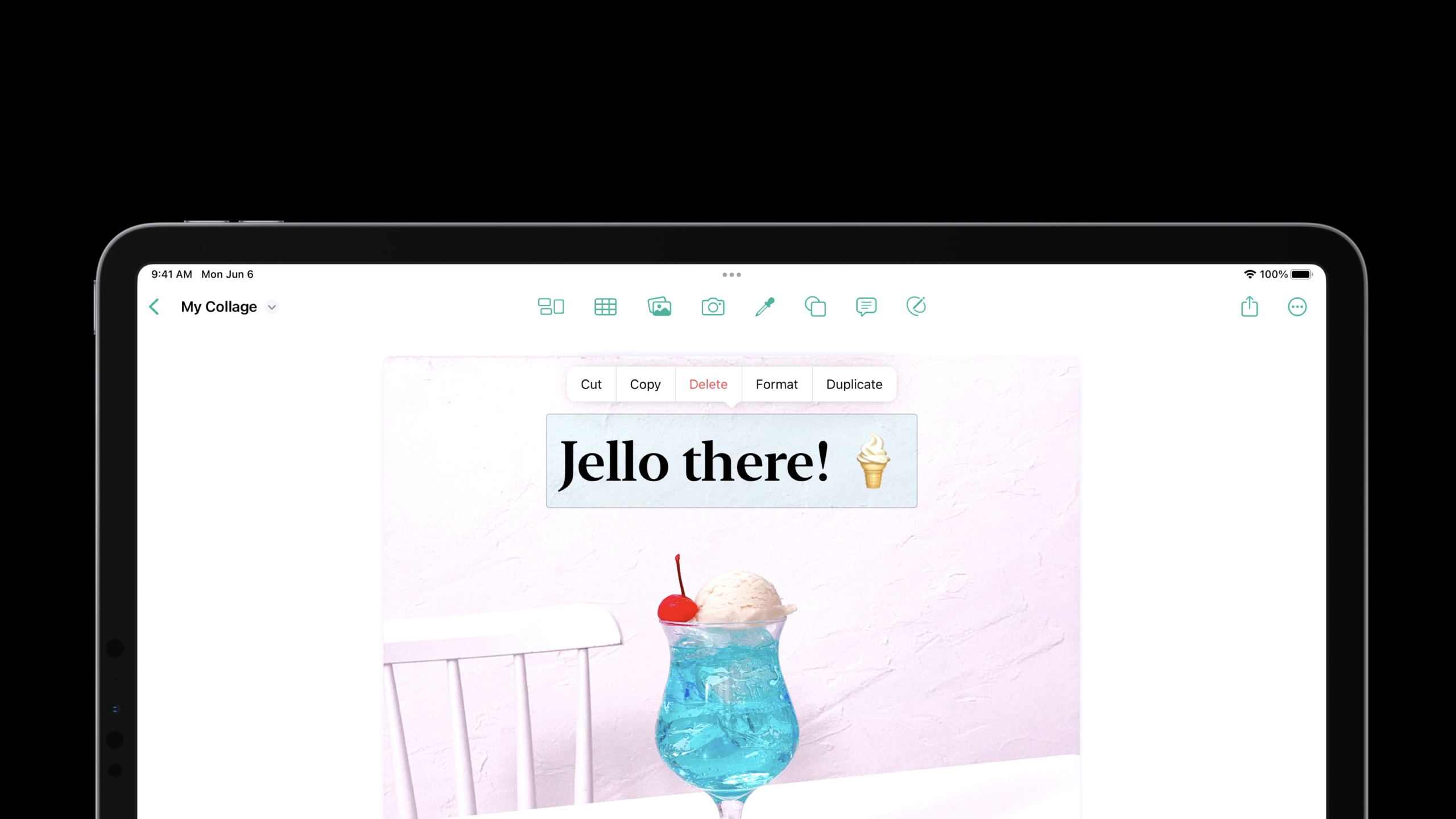
iOS 16 introduces the concept of “desktop-class editing interactions”, which is specially upgraded for the text editing and interactive experience on iPad. The core change is
UIEditMenuInteractionreplacedUIMenuController, the new API provides a position-aware editing menu, and the visual effect is closer to the right-click menu of macOS.
Core Content
A common problem with iPad apps in the past was inconsistent interaction between text editing and custom canvases. System text views include copy, paste, and search. If you want to add the same capabilities to a custom view, you often have to handle gestures, menu positions, keyboard shortcuts, and Mac Catalyst’s right-click menu.
iOS 16 takes this type of editing operations back into system interaction. The text menu has a new look that switches based on the input method: still a compact menu when touched, a context menu closer to the desktop when right-clicking on the trackpad or Magic Keyboard, and bridged to a menu familiar to Mac users on Mac Catalyst (00:55).
This session is divided into two lines. The first is the new edit menu: use text proxy methods andUIEditMenuInteractionsubstituteUIMenuController. The second one is to find and replace: useUIFindInteractionAccess the text content to the system search panel and letCommand-F、Command-GThis type of shortcut keys work according to system habits (11:44).
Detailed Content
The text editing menu no longer relies on UIMenuController
Go toUITextViewThe edit menu is stuffed with custom actions. A common practice is to focus onUIMenuControllerDo processing. iOS 16 explicitly marks this path as deprecated, requiring Apple to use the new text proxy method instead, leaving customUIMenuElementMerged behind the system recommended actions (02:42).
func textView(
    _ textView: UITextView,
    editMenuForTextIn range: NSRange,
    suggestedActions: [UIMenuElement]
) -> UIMenu? {
    var additionalActions: [UIMenuElement] = []
    if range.length > 0 {
        let highlightAction = UIAction(title: "Highlight", ...)
        additionalActions.append(highlightAction)
    }
    let insertPhotoAction = UIAction(title: "Insert Photo", ...)
    additionalActions.append(insertPhotoAction)
    return UIMenu(children: suggestedActions + additionalActions)
}
Key points:
editMenuForTextIn rangeCalled when the menu is displayed, it is suitable for dynamically determining actions based on the current selection. -suggestedActionsThese are Cut, Copy, Paste and other actions that the system has prepared. -range.length > 0letHighlightAppears only when text is selected. -Insert PhotoDoes not rely on selection, so it is added to the menu every time.- return
UIMenu(children: suggestedActions + additionalActions), retain the system action, and then add the business action.
Apple also stated thatUITextFieldDelegateandUITextInputThere are similar methods. Return when there is no custom requirementnil, the system will display the standard menu (02:55).
Use UIEditMenuInteraction for custom views
Outside of text view, the problem is even more apparent. For example, when an object is selected in a custom canvas and the user clicks or right-clicks it, you want a menu of copy, paste, delete, and copy to appear. The answer for iOS 16 isUIEditMenuInteraction(04:54)。
let editMenuInteraction = UIEditMenuInteraction(delegate: self)
view.addInteraction(editMenuInteraction)

let tapRecognizer = UITapGestureRecognizer(target: self, action: #selector(didTap(_:)))
tapRecognizer.allowedTouchTypes = [UITouch.TouchType.direct.rawValue as NSNumber]
view.addGestureRecognizer(tapRecognizer)

@objc func didTap(_ recognizer: UITapGestureRecognizer) {
    let location = recognizer.location(in: self.view)
    if self.hasSelectedObjectView(at: location) {
        let configuration = UIEditMenuConfiguration(identifier: nil, sourcePoint: location)
        editMenuInteraction.presentEditMenu(with: configuration)
    }
}
Key points:
UIEditMenuInteraction(delegate: self)Create an interactive object responsible for displaying the edit menu. -view.addInteraction(editMenuInteraction)Install interactions on the view that hosts the content. -UITapGestureRecognizerResponsible for defining touch trigger paths. -allowedTouchTypesLimit to direct touch to prevent indirect pointer clicks from reaching the same set of touch logic. -location(in:)Take out where the user triggers the menu. -hasSelectedObjectView(at:)It’s a business judgment: the menu is displayed only when the operable object is clicked. -UIEditMenuConfigurationofsourcePointWill participate in deciding which responder actions can be executed. -presentEditMenu(with:)Display menu.
This code solves “how to pop up the menu”. The next step is to solve “the menu should not block the content” and “how to add business actions”. Both of these points are completed in the delegate (07:13).
func editMenuInteraction(
    _ interaction: UIEditMenuInteraction,
    targetRectFor configuration: UIEditMenuConfiguration
) -> CGRect {
    guard let selectedView = objectView(at: configuration.sourcePoint) else { return .null }
    return selectedView.frame
}

func editMenuInteraction(
    _ interaction: UIEditMenuInteraction,
    menuFor configuration: UIEditMenuConfiguration,
    suggestedActions: [UIMenuElement]
) -> UIMenu? {
    let duplicateAction = UIAction(title: "Duplicate") { ... }
    return UIMenu(children: suggestedActions + [duplicateAction])
}
Key points:
targetRectFor configurationReturn to the menu anchor area.- Returned when the object is not found
.null, the system will return to the source point of the configuration. - return
selectedView.frameFinally, the menu is displayed around the selected object to avoid covering the content. -menuFor configurationUsed to customize the content of this menu. -suggestedActionsStill from the system and responder chain. -DuplicateIt is a business action and is appended after the system action.
This set can also serve Mac Catalyst. The session explicitly states that in Mac Catalyst apps, right-click bridges to the context menu Mac users expect; in iPad idiom Catalyst apps, programmatically presented edit menus bridge over as well (08:25).
Menu actions can be executed continuously
The edit menu also supports continuous operations. iOS 16 givesUIMenuElementadded.keepsMenuPresentedAttribute, suitable for actions such as indent increase and indent decrease that require continuous clicks (10:34).
UIAction(title: "Increase",
         image: UIImage(systemName: "increase.indent"),
         attributes: .keepsMenuPresented) { ... }

UIAction(title: "Decrease",
         image: UIImage(systemName: "decrease.indent"),
         attributes: .keepsMenuPresented) { ... }
Key points:
titleProvide human-readable names for different rendering styles. -imageMake menus more complete in both compact and desktop styles. -attributes: .keepsMenuPresentedIndicates that the menu continues to stay after the action is executed.- The business logic in the processing closure can be triggered repeatedly, and the user does not need to reopen the menu every time.
This is especially useful with text editors. When users adjust indentation, list level, or format, continuous clicks are closer to desktop operations than “click once, make the menu disappear, and then open it again.”
Start search in one line of system view
The second part is find and replace. iOS 16 provides a new system find panel, which will automatically adapt according to the device form: it floats near the shortcut bar when there is a hardware keyboard, and sticks to the software keyboard when there is no hardware keyboard. It becomes a compact layout on the iPhone, and is embedded in the content like the AppKit find bar on the Mac (12:02).
If the content is provided byUITextView、WKWebVieworPDFViewDemonstration, the access is very small (12:46).
open var findInteraction: UIFindInteraction? { get }
textView.isFindInteractionEnabled = true
Key points:
- System view has been provided
findInteractionproperty. -textView.isFindInteractionEnabled = trueEnable system search interaction. - When enabled, the
Command-F、Command-G、Command-Shift-GWill work according to system rules. - The view needs to be the first responder for the shortcut key to have a target.
When there is no hardware keyboard, you can put the entry in the navigation bar button and then call find interactionpresentFindNavigator. On Mac, you also need to leave an embedded content area for the find panel; if the interaction is installed on the scroll view, the system will automatically adjust the content inset (13:43).
Access custom text content to UIFindInteraction
If your content is carried by self-drawn documents, list documents, or you already have your own set of search implementations,UIFindInteractionCan still be installed on any view (15:14).
Apple provides two paths: when there is already a search implementation, vend one yourselfUIFindSessionSubclass, bridge the existing state to the system UI; when there is no search implementation, let the document object implement itUITextSearching, then returnUITextSearchingFindSession(16:10)。
let customDocument = MyDocument(string: "")
lazy var customView = MyTextView(document: customDocument)

lazy var findInteraction = UIFindInteraction(sessionDelegate: self)

override var canBecomeFirstResponder: Bool { true }

override func viewDidLoad() {
    customView.addInteraction(findInteraction)
}

func findInteraction(_ interaction: UIFindInteraction, sessionFor view: UIView) -> UIFindSession? {
    return UITextSearchingFindSession(searchableObject: customDocument)
}
Key points:
customDocumentSave the actual text content. -customViewResponsible for displaying this document. -UIFindInteraction(sessionDelegate: self)Let the current object be responsible for providing the find session. -canBecomeFirstResponderreturntrue, so keyboard shortcuts can fall here. -customView.addInteraction(findInteraction)Install the system discovery UI into a custom view. -sessionFor viewReturns a when calledUIFindSession。UITextSearchingFindSession(searchableObject:)Leave the search status to the system management and leave the actual search to the implementationUITextSearchingdocument object.
accomplishUITextSearchingAfterwards, the system will callperformTextSearch, and pass in the aggregator. You give the result to the aggregator, and the result isUITextRangeexpress. The aggregator is thread-safe, so results can be provided on a background thread (18:19).
If an interface displays multiple documents at the same time, such as multiple email contents similar to the Mail conversation view,UITextSearchingandUITextSearchingFindSessionIt also supports reusing the same interaction across multiple visible documents, and users can jump between search results of different documents (19:19).
Core Takeaways
-
What to do: Add “Highlight” and “Insert Photo” to the selected text in the Markdown editor. Why it’s worth doing:
UITextViewDelegateofeditMenuForTextInActions can be dynamically added based on the selection while retaining system Cut, Copy, and Paste. How to get started: ImplementationtextView(_:editMenuForTextIn:suggestedActions:), appended when there is a selectionHighlight, always appendInsert Photo。 -
What to do: Add right-click menu and “Duplicate” to the selected object of the whiteboard or layout tool. Why it’s worth doing:
UIEditMenuInteractionCan use the same setUIMenuElementAlso serves touch menu, trackpad right-click and Mac Catalyst context menu. How to start: PutUIEditMenuInteractionAdded to the canvas view, called after the gesture hits the objectpresentEditMenu(with:), return the object frame in the delegate and appendDuplicate。 -
What to do: Access the system search panel for large text readers. Why it’s worth doing:
UITextView、WKWebView、PDFViewJust enable find interaction and you’ll get the system panel and standard keyboard shortcuts. How to get started: Setting up the text viewisFindInteractionEnabled = true, confirm that the hosting view can become the first responder, and provide a navigation bar search button in the scenario without hardware keyboard. -
What to do: Implement cross-page search for self-drawn documents. Why it’s worth doing:
UIFindInteractionNot limited to system text controls,UITextSearchingFindSessionAbility to connect system search UI to custom document models. How to start: Let the document object implementUITextSearching,existfindInteraction(_:sessionFor:)return inUITextSearchingFindSession(searchableObject:)。 -
What to do: Reserve menus for actions such as indentation, level adjustment, and format switching. Why it’s worth doing:
.keepsMenuPresentedAllow users to continuously perform the same menu action to reduce repeated menu openings. How to get started: CreateUIActiontime settingattributes: .keepsMenuPresented, and provide a title and SF Symbol icon for the action.
Related Sessions
- Build a desktop-class iPad app — Demonstrates the overall route of desktop-class transformation of iPad applications from the perspective of navigation, toolbars, menus, and editing APIs.
- Bring multiple windows to your SwiftUI app — Talking about SwiftUI multi-window capabilities, it belongs to the same type of productivity transformation as the desktop iPad workflow.
- Compose custom layouts with SwiftUI — Talk about SwiftUI custom layout, suitable for understanding together with the complex layout of desktop-level editing interface.
- Adopt Variable Color in SF Symbols — Talk about the variable color of SF Symbols, suitable as a supplement to the presentation of menus and editing operation icons.
Comments
GitHub Issues · utterances