
Highlight
Session focuses on the comprehensive upgrade of UINavigationBar, divided into three sections: interface discoverability, document support, and search enhancement.
Core Content
In the early days of iPad Apps, main functions were often crammed into the bar button items on the left and right sides. As the screen becomes larger, this layout will waste space in the middle of the navigation bar. When users connect a keyboard, trackpad, or run an app to Mac Catalyst, they will also expect the toolbar to directly expose commonly used operations like a desktop app.
Apple gives in iOS 16UINavigationBarAdded a set of capabilities for desktop-class iPads. It first divides the navigation bar into three styles, and then allows developers to put groups of tools into the central area of the navigation bar. In this way, operations such as drawing, inserting, and formatting do not need to be hidden in more menus, but can become customizable toolbar items. (02:00)
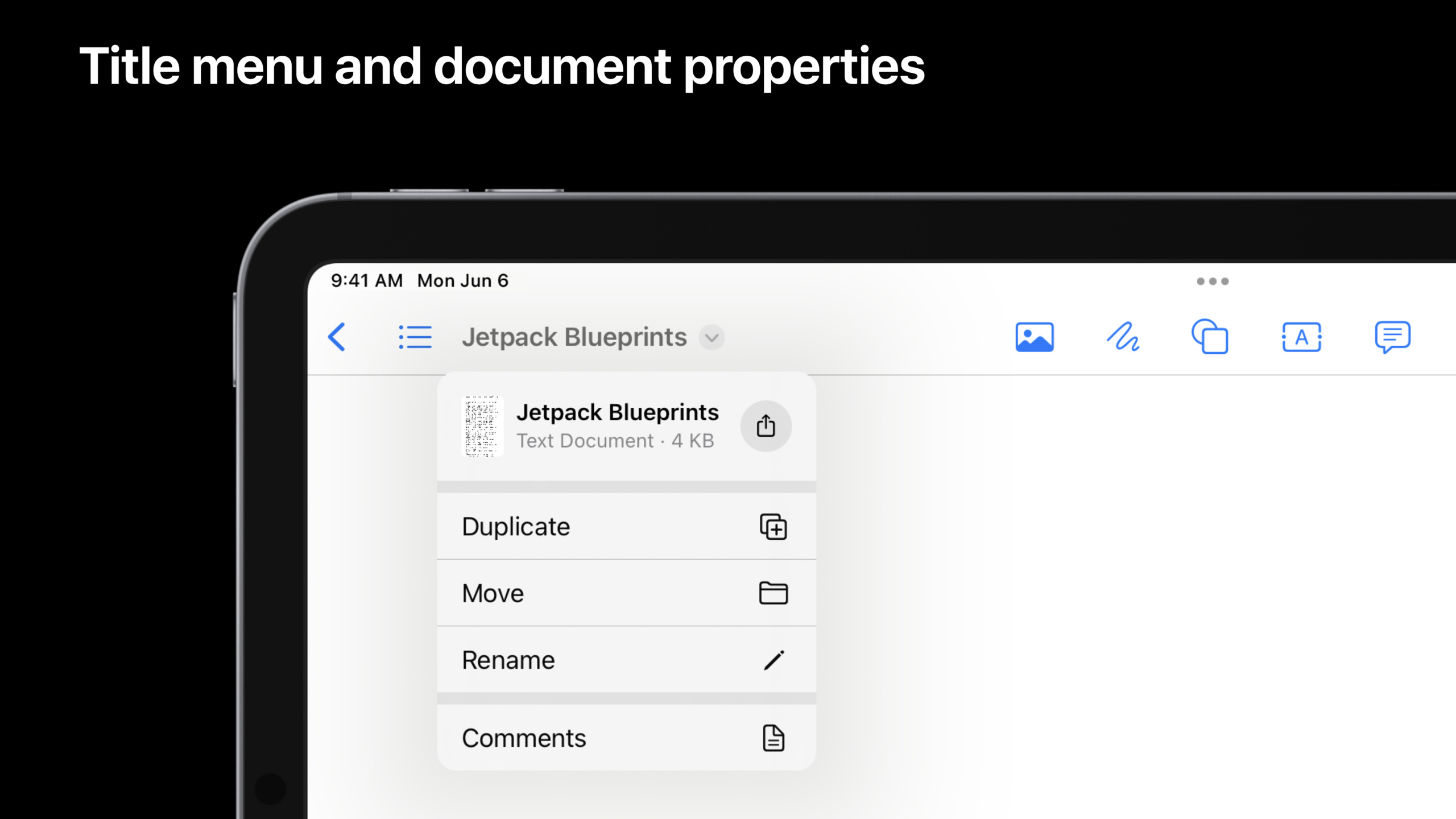
The second change is for Documents apps. The title is no longer just a string. Developers can add menus to titles to provide actions such as copy, move, rename, export, and print. They can also initiate drag-and-drop and share from the title menu. (08:43)
The third change is search. iPadOS 16 inlines the search bar into the navigation bar by default, reducing the vertical space it takes up.UISearchControllerA new search suggestion capability is added. When the user inputs, the App can simultaneously give clickable suggestions. (13:12)
These changes have an added benefit: when optimizing your Mac,UINavigationBarWill automatically translate the three groups of content leading, center, and trailing intoNSToolbar, and respect the custom rules of the central toolset. (07:59)
Detailed Content
Select navigation bar style
UINavigationItemAdded in iOS 16styleproperty. session introduces three styles. (02:13)
navigator: The default style, the title is centered, and the behavior is consistent with the traditional navigation bar. -browser: The title is moved to the left, suitable for interfaces such as Files and Safari where historical navigation and current location are equally important. -editor: The title is also left-aligned and provides a return button, suitable for the editing interface entered from the document selector.
The lecture does not give a settingstylecode snippet. According to the API relationship, it can be understood as being given to the current pagenavigationItemChoose a layout strategy:
// Conceptual example: choose the navigation bar style based on the page type
navigationItem.style = .editor
Key points:
navigationItemIs the navigation item of the current view controller. -.editorCorresponds to the document editing scenario in the session.- choose
browseroreditorFinally, the title is moved to the leading area, freeing up more space in the center of the navigation bar.
Use UIBarButtonItemGroup to organize central tool items
Browser and editor styles free up the middle area of the navigation bar. For iOS 16centerItemGroupsreceive a groupUIBarButtonItemGroup, allowing tool items to be displayed, moved, collapsed, and overflowed in groups. (03:23)
The simplest fixed group can be made from aUIBarButtonItemcreate:
let insertGroup = UIBarButtonItem(title: "Insert", image: UIImage(systemName: "photo"), primaryAction: UIAction { _ in }).creatingFixedGroup()Key points:
UIBarButtonItemDefine a single button with the titleInsert, icons from SF Symbolsphoto。primaryActionIs the action performed when the button is clicked. -creatingFixedGroup()Wrap buttons into fixed groups.- Fixed groups always appear first in the navigation bar and users cannot move or remove them. (04:47)
If a group must remain in the toolbar but allow users to change its position, create a movable group:
// Creating the 'Draw' group

// Convenient form of
// UIBarButtonItemGroup.movableGroup(customizationIdentifier:representativeItem:items:)
let drawGroup = UIBarButtonItem(title: "Draw", …)
    .creatingMovableGroup(customizationIdentifier: "Draw")
Key points:
DrawIs the name of this tool group in the interface. -creatingMovableGroup(customizationIdentifier:)Create a removable group.- Movable groups cannot be removed, but can be reordered by the user.
-
customizationIdentifierUsed to track and save the user’s adjusted position. (05:13)
When you need a multi-button, removable, collapsible tool group, use optional group:
let shapeGroup = UIBarButtonItemGroup.optionalGroup(
    customizationIdentifier: "Shapes",
    representativeItem: UIBarButtonItem(title: "Shapes", image: UIImage(systemName: "square.on.circle")),
    items: [
        UIBarButtonItem(title: "Square", image: UIImage(systemName: "square"), primaryAction: UIAction { _ in }),
        UIBarButtonItem(title: "Circle", image: UIImage(systemName: "circle"), primaryAction: UIAction { _ in }),
        UIBarButtonItem(title: "Rectangle", image: UIImage(systemName: "rectangle"), primaryAction: UIAction { _ in }),
        UIBarButtonItem(title: "Diamond", image: UIImage(systemName: "diamond"), primaryAction: UIAction { _ in }),
    ])
Key points:
optionalGroupIndicates that this group can be moved or removed by the user. -customizationIdentifier: "Shapes"Let UIKit save the custom state of this group. -representativeItemIt is the representative button displayed when there is insufficient space. -representativeItemWhen there is no action, UIKit can synthesize a menu to let the user select items in the group. (05:45) -itemsThe four buttons inside correspond to Square, Circle, Rectangle, and Diamond respectively.
Finally, give these groups to the navigation items:
navigationItem.customizationIdentifier = "com.jetpack.blueprints.maineditor"
navigationItem.centerItemGroups = [
    // groups in the default customization
    UIBarButtonItem(title: "Insert", image: UIImage(systemName: "photo"), primaryAction: UIAction { _ in }).creatingFixedGroup(),
    UIBarButtonItem(title: "Draw", image: UIImage(systemName: "scribble"), primaryAction: UIAction { _ in }).creatingMovableGroup(customizationIdentifier: "Draw"),
    .optionalGroup(customizationIdentifier: "Shapes",
                   representativeItem: UIBarButtonItem(title: "Shapes", image: UIImage(systemName: "square.on.circle")),
                   items: [
                    UIBarButtonItem(title: "Square", image: UIImage(systemName: "square"), primaryAction: UIAction { _ in }),
                    UIBarButtonItem(title: "Circle", image: UIImage(systemName: "circle"), primaryAction: UIAction { _ in }),
                    UIBarButtonItem(title: "Rectangle", image: UIImage(systemName: "rectangle"), primaryAction: UIAction { _ in }),
                    UIBarButtonItem(title: "Diamond", image: UIImage(systemName: "diamond"), primaryAction: UIAction { _ in }),
                   ]),
    .optionalGroup(customizationIdentifier: "Text",
                   items: [
                    UIBarButtonItem(title: "Label", image: UIImage(systemName: "character.textbox"), primaryAction: UIAction { _ in }),
                    UIBarButtonItem(title: "Text", image: UIImage(systemName: "text.bubble"), primaryAction: UIAction { _ in }),
                   ]),

    // additional group not in the default customization
    .optionalGroup(customizationIdentifier: "Format",
                   isInDefaultCustomization: false,
                   representativeItem: UIBarButtonItem(title: "BIU", image: UIImage(systemName: "bold.italic.underline")),
                   items:[
                    UIBarButtonItem(title: "Bold", image: UIImage(systemName: "bold"), primaryAction: UIAction { _ in }),
                    UIBarButtonItem(title: "Italic", image: UIImage(systemName: "italic"), primaryAction: UIAction { _ in }),
                    UIBarButtonItem(title: "Underline", image: UIImage(systemName: "underline"), primaryAction: UIAction { _ in }),
                   ])
]
Key points:
navigationItem.customizationIdentifierEnable navigation bar customization and configure a unique identifier for this set.- UIKit will automatically save and restore user-defined results based on this identifier. (07:02)
-
centerItemGroupsIs the default tool group list in the center area of the navigation bar. -InsertIt is a fixed group and is always reserved. -DrawIs a movable group that retains but can be positioned. -ShapesandTextIs an optional group and can be removed by the user. -FormatsetisInDefaultCustomization: false, indicating that it is available, but is not displayed in the navigation bar by default. (07:34)
Add document menu to title
In Documents apps, the title usually represents the current document. iOS 16 allows throughtitleMenuProviderAdd a menu to the title. After enabling, the system suggestion menu can contain five commands: duplicate, move, rename, export, and print. Specific items will be filtered according to the responder chain. (09:04)
navigationItem.titleMenuProvider = { suggestedActions in
    var children = suggestedActions
    children += [
        UIAction(title: "Comments", image: UIImage(systemName: "text.bubble")) { _ in }
    ]
    return UIMenu(children: children)
}
Key points:
titleMenuProviderIs a closure used to return the final displayed title menu. -suggestedActionsAre suggested menu items provided by UIKit based on the current environment. -childrenKeep the system suggestions first, and then add customized ones.Commentsaction. -UIMenu(children:)Combine system items and custom items into a title menu.
Support drag, drop and sharing from title menu
The title menu also displays the document header and provides drag-and-drop and sharing access. The key object isUIDocumentProperties。(10:06)
let url = <#T##URL#>
let documentProperties = UIDocumentProperties(url: url)

if let itemProvider = NSItemProvider(contentsOf: url) {
    documentProperties.dragItemsProvider = { _ in
        [UIDragItem(itemProvider: itemProvider)]
    }

    documentProperties.activityViewControllerProvider = {
        UIActivityViewController(activityItems: [itemProvider], applicationActivities: nil)
    }
}

navigationItem.documentProperties = documentProperties
Key points:
UIDocumentProperties(url:)Describes the current document as a file URL from which UIKit can obtain metadata and previews. -NSItemProvider(contentsOf:)Wrap documents into drag-and-drop, shareable data providers. -dragItemsProviderreturnUIDragItemArray that enables the ability to drag documents out of the title menu. -activityViewControllerProviderreturnUIActivityViewController, enable the share form. -navigationItem.documentPropertiesLeave this document information to the navigation bar.
Implement inline renaming
UIKit provides two renaming entries: SettingsUINavigationItem.renameDelegateUse the system inline UI, or implementUIResponder.rename(_:)Provide your own renaming interface. The code for session demonstrates the inline scheme. (11:57)
class ViewController: UIViewController {
    override func viewDidLoad() {
        super.viewDidLoad()
        navigationItem.renameDelegate = self
    }
}

extension ViewController: UINavigationItemRenameDelegate {
    func navigationItem(_ navigationItem: UINavigationItem, didEndRenamingWith title: String) {
        // Try renaming our document, the completion handler will have the updated URL or return an error.
        documentBrowserViewController.renameDocument(at: <#T##URL#>, proposedName: title, completionHandler: <#T##(URL?, Error?) -> Void#>)
    }
}
Key points:
navigationItem.renameDelegate = selfEnables inline renaming of titles. -ViewControllerCompliance via extensionUINavigationItemRenameDelegate。navigationItem(_:didEndRenamingWith:)Receive new title after user confirmation.- File-type App can be called
UIDocumentBrowserViewControllerThe rename API applies the new title to the document URL.
Add search suggestions
iPadOS 16 puts the search bar inside the navigation bar by default. After the user activates a search, the app can provide suggestions that follow the input. (13:23)
class ViewController: UIViewController {
    override func viewDidLoad() {
        super.viewDidLoad()
        searchController.searchResultsUpdater = self
    }
}

extension ViewController: UISearchResultsUpdating {
    func fetchQuerySuggestions(for searchController: UISearchController) -> [(String, UIImage?)] {
        let queryText = searchController.searchBar.text
        // Here you would decide how to transform the queryText into search results. This example just returns something fixed.
        return [("Sample Suggestion", UIImage(systemName: "rectangle.and.text.magnifyingglass"))]
    }

    func updateSearch(_ searchController: UISearchController, query: String) {
        // This method is used to update the search UI from our query text change
        // You should also update internal state related to when the query changes, as you might for when the user changes the query by typing.
        searchController.searchBar.text = query
    }

    func updateSearchResults(for searchController: UISearchController) {
        let querySuggestions = self.fetchQuerySuggestions(for: searchController)
        searchController.searchSuggestions = querySuggestions.map { name, icon in
            UISearchSuggestionItem(localizedSuggestion: name, localizedDescription: nil, iconImage: icon)
        }
    }

    func updateSearchResults(for searchController: UISearchController, selecting searchSuggestion: UISearchSuggestion) {
        if let suggestion = searchSuggestion.localizedSuggestion {
            updateSearch(searchController, query: suggestion)
        }
    }
}
Key points:
searchController.searchResultsUpdater = selfHand the search update callback to the current object. -fetchQuerySuggestions(for:)according tosearchBar.textGenerates suggestion data and the example returns fixed suggestions. -updateSearchResults(for:)Called when the query changes and used to updatesearchSuggestions。UISearchSuggestionItemDefine a suggestion’s text, description, and icon. -updateSearchResults(for:selecting:)Called when the user selects a suggestion.- The example writes the selected suggested text back to the search box, taking the same update path as the user manually inputting the query.
Core Takeaways
-
Place the common tools of the drawing app in the center of the navigation bar: The canvas app can separate the inserted pictures, brushes, shapes, text, and formatting tools into fixed, movable, and optional groups. use
centerItemGroupsTo provide a default combination, usecustomizationIdentifierSaves the user’s toolbar arrangement. -
Add project-level operation menu to document title: Notes, whiteboard, and document editor can put comments, export, print, and rename into
titleMenuProvider. The entry is close to the title, so the user knows that these actions affect the current document. -
Make documents drag-and-drop and shareable from the title: File management, design drafts, and PDF readers can be used
UIDocumentPropertiesandNSItemProviderSupports dragging out the current document from the title menu, or directly opening the share form. -
Make renaming an inline operation: Document-based App can be set
renameDelegate, allowing users to change the name directly at the navigation bar title. After completion innavigationItem(_:didEndRenamingWith:)Call the real document renaming logic. -
Add clickable suggestions to the search box: available for databases, favorites, and project management apps
UISearchController.searchSuggestionsProvide recent searches, frequently used filters, or matching results to help keyboard and trackpad users complete queries faster.
Related Sessions
- Build a desktop-class iPad app — Shows how to combine the navigation bar capabilities of this session with editing, multi-window and other functions into a complete App.
- Adopt desktop-class editing interactions — Continue to talk about Find and Replace, Edit menu and selection interactions to complete the desktop-class editing experience.
- Bring multiple windows to your SwiftUI app — Talk about SwiftUI multi-window management, suitable for projects that need to extend iPad App to desktop workflow.
- Adopt Variable Color in SF Symbols — Talk about the variable color of SF Symbols, which can be used to improve the expression of navigation bar and toolbar icon status.
Comments
GitHub Issues · utterances