
Highlight
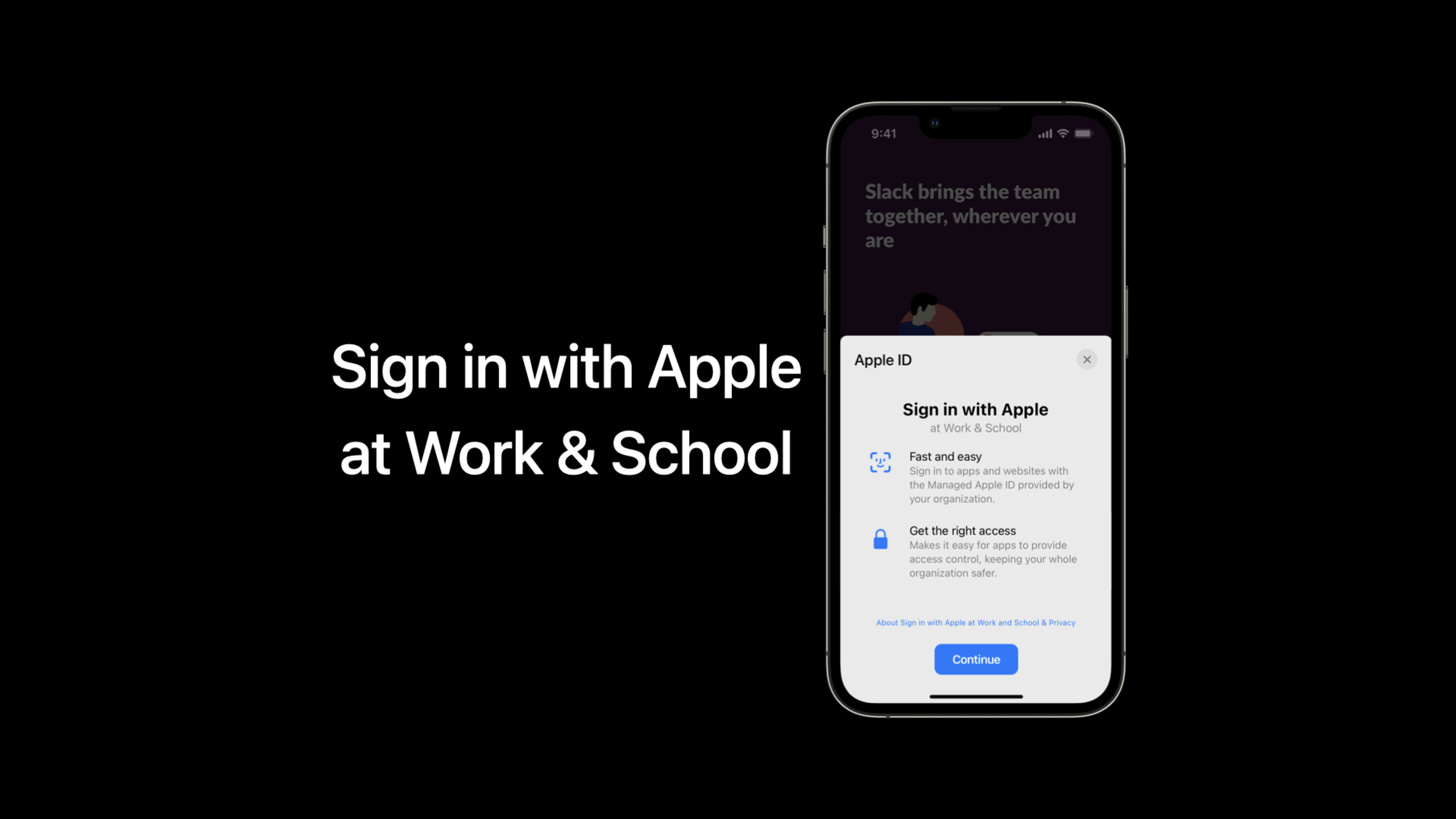
Sign in with Apple initially only supports personal Apple IDs. This update extends this to Managed Apple IDs—accounts managed by an organization (school or business) through Apple School Manager or Apple Business Manager. This means students, teachers, and staff can log into your apps with one click using their Managed Apple ID.
Core Content
The login issues in schools and enterprises are different from those in personal apps.
When individual users use Sign in with Apple, they can edit their name and hide their email address. The appeal of organizing accounts is more direct: the app needs to know who is logging in and then give him the correct permissions. Slack’s example is typical. After an employee logs in with a work account, Slack needs to determine which channels he can access based on his name and email address. (02:15)
Changes for WWDC 2022: Sign in with Apple supports Managed Apple ID. Managed Apple IDs are owned by the organization and managed through Apple School Manager or Apple Business Manager. Students, teachers, and employees can use this type of account to log in to apps that support Sign in with Apple. (01:10)
For educational apps, logging in is only the first step. When teachers want to send assignments and notifications, the system also needs to import students, teachers, and classes in advance. If a school district has hundreds or thousands of students, manual entry by IT administrators can be slow. The Roster API is prepared for this: it allows apps to read user and class data in Apple School Manager through REST endpoints. (05:35)
The whole process is divided into three layers:
- The user logs in to the app with a Managed Apple ID.
- IT administrator agrees to share organizational data via OAuth 2.0.
- The App backend calls the Roster API using the access token to import users and classes.
There are no official code tab snippets for this session. The following examples are organized according to the fields and processes demonstrated in the speech. They are conceptual codes used to illustrate the request structure and do not represent the complete endpoint address or SDK signature in Apple documents.
Detailed Content
How to handle name and email when logging in with Managed Apple ID
(03:12) When using Sign in with Apple at Work & School, the app can access the name and email fields. Provided that the authorization request contains full name and email scopes.
The speech also reminded of a borderline situation: Some schools won’t assign mailboxes to younger students. When encountering this kind of account, the account creation interface only displays the name, and the email address does not exist. (04:18)
Concept flow: read fields from the sign-in result after successful authorization

userIdentifier = authorizationResult.user
fullName = authorizationResult.fullName
email = authorizationResult.email

saveOrUpdateAccount(
  stableUserID: userIdentifier,
  displayName: fullName,
  emailAddress: email
)
Key points:
userIdentifierIt is a stable user ID, which can be later matched with the user ID returned by the Roster API. -fullNameFrom the authorization result; in the Managed Apple ID login scenario, the App needs it for intra-organizational identification. -emailIt may not exist, and education scenarios especially have to deal with null values. -stableUserIDIt should be used as the primary key associated with the account, and the email address is more suitable for display or auxiliary matching.
If you’ve already implemented Sign in with Apple, no additional work is required to support Managed Apple ID. With this release, Apple is extending the existing login experience to organizational accounts. (05:04)
Apply for organizational data scope in Developer Portal
(08:24) Access to the Roster API starts with the Developer Portal. Developers enter Certificates, Identifiers & Profiles, configure the main App ID under Account & Organizational Data Sharing, and select the required Organizational Data Sharing scopes.
This release provides two scopes:
- user access: access user data.
- class access: access class data.
Also configure return URLs. After subsequent OAuth 2.0 authorization is completed, the authorization code will be returned to these URLs. (08:51)
# Concept checklist: Developer Portal configuration items
Primary App ID: com.example.education-app
Organizational Data Sharing Scopes:
  - user access
  - class access
Return URLs:
  - https://example.com/apple-school-manager/callback
Key points:
Primary App IDBind the app that requests the organization’s data. -user accessDetermines whether the backend can read user information in Apple School Manager. -class accessDetermines whether the backend can read the class and its membership. -Return URLsYou will enter the OAuth 2.0 authorization process. Configuration errors will prevent the authorization code from being returned to your server.
Obtain Roster API access token using OAuth 2.0
(09:47) The second step is to ask your IT administrator for authorization. The example in the speech is that the App provides a “Connect to Apple School Manager” button, and the administrator clicks it to enter the OAuth 2.0 process.
The first request is the GET authorize endpoint. The request containsclient_id、redirect_uri、state、response_typeandscopes. The response will take the administrator to Apple’s consent interface. (10:16)
# Concept request: start the authorization flow
GET {authorize endpoint}?
  client_id={your-client-id}&
  redirect_uri={registered-return-url}&
  state={csrf-protection-token}&
  response_type=code&
  scope={requested-organizational-data-scopes}
Key points:
client_idIdentifies the app requesting data access. -redirect_uriMust match the return URL configured in the Developer Portal. -stateUsed to verify the source of the request during callback to avoid changing the authorization process. -response_type=codeIndicates requesting an authorization code. -scopeCorresponds to the organizational data access scope applied for previously.
After the administrator clicks Allow, Apple will pass the authorization code to your return URL. Then the App backend sends a POST request to the token endpoint, exchanging the authorization code for the access token, expiration time, and refresh token. (11:08)
# Concept request: exchange the authorization code for an access token
POST {token endpoint}
Content-Type: application/x-www-form-urlencoded

grant_type=authorization_code&
code={authorization-code-from-return-url}&
redirect_uri={registered-return-url}&
client_id={your-client-id}
Key points:
authorization_codeCallback from administrator after approval. -redirect_uriContinue to use the registered return URL.- response contains
access token, put the Authorization header when calling the Roster API later. - The response also contains
refresh token, use it to exchange for a new token after the access token expires.
The refresh token is also a POST token endpoint. The speech clearly stated that the request body contains standard OAuth parameters and refresh token, and the response returns a new access token and expiration time. (11:49)
# Concept request: update the access token with a refresh token
POST {token endpoint}
Content-Type: application/x-www-form-urlencoded

grant_type=refresh_token&
refresh_token={refresh-token}&
client_id={your-client-id}
Key points:
grant_type=refresh_tokenIndicates that this time it is not re-authorization by the administrator. -refresh_tokenShould be saved on the server and should not be exposed to the client.- new
access tokenContinue to be used to read users and classes.
Call users endpoint to import students, teachers and employees
(12:18) The current release contains five types of Roster API queries: get class list, get user list, get specific class, get specific user, get users in a class.
The speech first shows the users endpoint. It has three query parameters:pageToken、limitand optionalrole。pageTokenandlimitfor paging,roleFilter by students, instructors or staff. The request header needs to carry the access token generated by the previous OAuth process. (12:53)
# Concept request: read up to 10 students
GET {users endpoint}?limit=10&role=students
Authorization: Bearer {access-token}
Key points:
limit=10Controls the maximum number of users returned in a single response. -role=studentsLimit results to students. -Authorizationheader uses OAuth 2.0 access token.- The first request does not need to be sent
pageToken。
The response is a JSON payload containingusers、nextPageTokenandmoreToFollow. The user object contains information such as givenName, familyName, email, roles, etc. The speech specifically pointed out that the response also contains a stable user unique identifier, which is the same identifier that the app receives when the user authenticates through Sign in with Apple. (13:14)
{
  "users": [
    {
      "id": "stable-user-identifier",
      "givenName": "Fatima",
      "familyName": "Silva",
      "email": null,
      "roles": ["student"]
    }
  ],
  "nextPageToken": "next-page-token",
  "moreToFollow": true
}
Key points:
usersIs the user array of the current page. -idIs a stable user ID that can be associated with Sign in with Apple login results. -emailmay benull, the account model cannot rely heavily on email. -nextPageTokenUsed for next paging request. -moreToFollowfortrue, the instructions are on the next page.
Call classes endpoint to establish class relationship
(14:24) After importing the user, the App backend then requests the classes endpoint. It returns a list of classes in the school district and the relationships between classes, students, and teachers.
classes request containspageTokenandlimitTwo query parameters. The request header is the same as the users endpoint, and both require access token. (14:45)
# Concept request: read up to 200 classes
GET {classes endpoint}?limit=200&pageToken={next-page-token}
Authorization: Bearer {access-token}
Key points:
limit=200Corresponds to the scale of the examples in the lecture. -pageTokenIndicates that this request is in the process of paging import. -AuthorizationThe header continues to use the access token obtained from the same authorization process.
in responseclassesContains the class name, class ID, list of teacher IDs, and list of student IDs. In this way, the App can associate the previously imported users with classes. (15:10)
{
  "classes": [
    {
      "id": "class-identifier",
      "name": "Biology 101",
      "instructorIds": ["teacher-user-id"],
      "studentIds": ["student-user-id-1", "student-user-id-2"]
    }
  ]
}
Key points:
classesIs the class array of the current page. -idIs the class identifier, used to update or deduplicate local class records. -instructorIdsReferences the teacher user ID. -studentIdsReference the student user ID.- These IDs allow the App to build a local relationship table of “teacher-class-student”.
IT administrators have two levels of access control
(15:47) Organizational data is managed by the organization. Personal Sign in with Apple allows users to decide which apps to use; in the Work & School scenario, IT administrators need to control which apps can log in and which apps can access organizational data for the organization.
Apple School Manager, Apple Business Manager, and Business Essentials offer the same control model:
- Allow all apps: Users in the organization can log in with all apps that support Sign in with Apple.
- Allow only certain apps: The administrator adds allowed apps to the list, and an error will be displayed for apps outside the list. (16:50)
Organizational Data Sharing has the same pattern. Administrators can restrict access to user and class information through the Roster API to only specific apps. This is a second layer of control beyond the consent interface. (17:56)
Organization-side access control

Sign in with Apple at Work & School:
  - Allow all apps
  - Allow only certain apps

Organizational Data Sharing:
  - Allow all apps
  - Allow only certain apps
  - IT admin consent screen
Key points:
- Login permissions and organizational data access permissions are two sets of controls.
- “Allow only certain apps” will limit the available apps to a list maintained by the administrator.
- Roster API access requires administrator consent and is subject to Organizational Data Sharing access mode restrictions.
- When connecting to an educational organization, developers must write administrator authorization and access control instructions into the onboarding process.
Core Takeaways
1. Make one-click start-up import for education apps
- What to do: Have the administrator click “Connect to Apple School Manager” to automatically import students, teachers, and classes.
- Why it’s worth doing: Roster API solves the problem of manually entering hundreds or thousands of accounts before the start of school.
- How to start: First apply for user access and class access, then implement the OAuth 2.0 authorization process, and finally call users and classes endpoints in pages.
2. Merge login account and roster account with stable user ID
- What: The first time a student logs in with a Managed Apple ID, automatically finds the corresponding user record in the Roster API.
- Why it’s worth doing: The speech explains that the stable user ID returned by the Roster API is the same as the ID received by the App when signing in with Apple authentication.
- How to start: The account table uses the user identifier of Sign in with Apple as the primary key. Roster uses the same identifier to update the name, role, and class relationship when importing.
3. Design an account model for students without email
- What to do: Allow student accounts to have no email address and only display name and class information.
- Why it’s worth it: Apple explicitly mentions that some schools will not assign email addresses to younger students.
- How to start: Set the email field to be nullable; login, import, and notification settings are all centered on stable user IDs and organizational roles.
4. Create permission troubleshooting page for IT administrators
- What to do: Display in the background whether user access, class access is currently obtained, and whether the administrator allows the app to access organizational data.
- Why it’s worth it: Roster API access is affected by both the OAuth consent interface and Organizational Data Sharing access control.
- How to start: When authorization fails, token refresh fails, or the interface returns rejection, the error will be classified into three categories: “Unauthorized”, “Insufficient scope” and “App not allowed on the organization side”.
5. Do incremental tasks for class synchronization
- What to do: Synchronize users and classes in scheduled pages, update the local student list and teacher relationship.
- Why it’s worth it: Roster API’s responsive design includes paginated fields, suitable for back-end batch imports and continuous synchronization.
- How to start: Save
nextPageToken, synchronization time and local imported version; switch online class data after each synchronization is completed.
Related Sessions
- Enhance your Sign in with Apple experience — Talk about the account discovery and account association experience of Sign in with Apple in iOS 16, suitable for filling in the login details.
- Get the most out of Sign in with Apple — Review Sign in with Apple’s full integration, ID Tokens, web flows, and privacy capabilities.
- What’s new in managing Apple devices — A fellow organization management topic covering identity technology and Apple device management updates from WWDC22.
- Adopt declarative device management — Continue to look at the declarative MDM model on the enterprise and school device management side.
Comments
GitHub Issues · utterances