
Highlight
ShazamKit at WWDC 2022 adds Shazam CLI,
SHSignatureGenerator.signatureFromAsset, Timed MediaItem, and frequency skew ranges, letting developers generate custom catalogs in bulk and sync match results precisely to specific time ranges in audio.
Core Content
The basic workflow for a custom ShazamKit catalog is not complicated. Turn audio into a signature, combine the signature with media metadata into a custom catalog, then match against that catalog in your app.
Problems appear at scale. The session opens with a concrete example: if you want 10 seasons of a TV show to be matchable, manually handling sample rates, audio buffers, signature generation, and media item association quickly gets out of hand (02:12). Every content update repeats that work.
Apple fills three gaps in this session. First, macOS 13 ships Shazam CLI to generate signatures from media files, create catalogs, update catalogs, and display catalog contents. Second, SHSignatureGenerator can generate signatures directly from AVAsset without manually pulling audio buffers. Third, media items can carry time ranges and frequency skew ranges so matches return only within specified segments or variants.
The FoodMath sample app shows the result: as video plays through question, countdown, or answer segments, SwiftUI UI appears and disappears. The app has little complex timing logic; most work lives in catalog media item metadata (04:11).
Detailed Content
1. Receive match results with AsyncSequence (04:26)
When using ShazamKit in the past, a common pattern was delegate callbacks for match results. This session shows the new session.results. It is an AsyncSequence returning matches, no matches, or errors.
The FoodMath app only cares about successful matches, so the code filters with for await case .match. On each match, it reduces SHMatch into the MatchResult the UI needs.
class Matcher: NSObject, ObservableObject, SHSessionDelegate {
    @Published var matchResult: MatchResult?

    private var session: SHSession!
    private let audioEngine = AVAudioEngine()
    private var matchingTask: Task<Void, Never>? = nil

    func match(catalog: SHCustomCatalog) throws {

        session = SHSession(catalog: catalog)
        session.delegate = self

        let audioFormat = AVAudioFormat(standardFormatWithSampleRate: audioEngine.inputNode.outputFormat(forBus: 0).sampleRate,
                                        channels: 1)
        audioEngine.inputNode.installTap(onBus: 0, bufferSize: 2048, format: audioFormat) { [weak session] buffer, audioTime in
            session?.matchStreamingBuffer(buffer, at: audioTime)
        }

        try AVAudioSession.sharedInstance().setCategory(.record)
        AVAudioSession.sharedInstance().requestRecordPermission { [weak self] success in
            guard success, let self = self else { return }

            Task.detached {
                try? self.audioEngine.start()
            }
        }

        Task { @MainActor in
            for await case .match(let match) in session.results {
                self.matchResult = match.matchResult
            }
        }
    }
}
Key points:
SHSession(catalog: catalog)creates a matching session with a custom catalog.installTapgets audio buffers from the microphone input node.matchStreamingBuffer(buffer, at: audioTime)feeds live audio to ShazamKit for matching.requestRecordPermissionrequests microphone permission before recording starts.for await case .match(let match) in session.resultshandles only successful match events.@MainActorensuresmatchResultupdates happen on the main thread for SwiftUI.
SHMatch may contain multiple media items. FoodMath takes title, episode, equation, and answer range from those items and combines them into a UI-friendly result object.
extension SHMatch {

    var matchResult: MatchResult {
        mediaItems.reduce(into: MatchResult()) { result, mediaItem in
            result.title = result.title ?? mediaItem.title
            result.episode = result.episode ?? mediaItem.episode
            result.equation = result.equation ?? mediaItem.equation
            result.answerRange = result.answerRange ?? mediaItem.answerRange
        }
    }
}
Key points:
mediaItems.reduce(into:)iterates all media items returned by this match.result.title = result.title ?? mediaItem.titlekeeps the first available title.episode,equation, andanswerRangefollow the same logic.- This code relies on catalog media item metadata; the app does not need to determine which second of video is playing.
2. Create and update catalogs in bulk with Shazam CLI (05:24)
Shazam CLI ships with macOS 13. The session workflow fits content libraries: use the signature command to turn video or audio into signatures, describe media items with CSV, use create to combine signatures and media items into a catalog, then use update when content changes.
CSV headers map to SHMediaItem properties. In the FoodMath example, CSV stores titles and custom JSON fields for question data (06:33). After matching a time range, the app can read the question to display directly from media item fields.
Conceptual workflow based on the session CLI flow:
# Conceptual CLI workflow from transcript, not exact command syntax
1. Run the signature command on the media file to create a signature file.
2. Run the custom catalog create command with the signature file and CSV metadata.
3. Run the update command when adding a new episode or media file.
4. Run the display command to inspect catalog contents.
Key points:
- The
signaturecommand generates a signature from a media file with an audio track. - The
createcommand combines signatures and CSV media items into a custom catalog. - The
updatecommand appends new media content to an existing catalog. - The
displaycommand shows which signatures and media items a catalog contains. - This expresses transcript-level workflow, not copy-paste-ready full CLI syntax.
CLI removes repetitive work. For TV shows, multi-episode podcasts, or course videos, scripts can traverse each episode folder, auto-generate signatures, bind media items, update catalogs, and display catalog contents at the end (08:20).
3. Generate signatures directly from AVAsset (11:18)
The first step in catalog creation is the signature. Previously developers might read audio tracks from media themselves and handle sample rates and buffers. The session states that SHSignatureGenerator now has signatureFromAsset on all platforms.
This method accepts an AVAsset with an audio track. If the asset has multiple audio tracks, ShazamKit mixes them so the signature captures the full audio content.
Conceptual API flow from the session transcript:
# Conceptual API flow from transcript, not exact Swift syntax
1. Create an AVAsset for a media file that contains an audio track.
2. Ask SHSignatureGenerator to create a signature from that asset using signatureFromAsset.
3. Combine the generated signature with media items to form a reference signature.
4. Store the reference signature in a custom catalog.
Key points:
AVAssetrepresents local or remote media resources.signatureFromAssetis the new capability mentioned in the session; Swift call syntax beyond verified code snippets is not expanded here.- The returned signature combines with media items into a reference signature stored in a custom catalog.
- Developers do not need to manually pull audio buffers from media files.
In an app or toolchain, this API fits batch processing. It converges “turn media into a matchable signature” into one clear entry point.
4. Timed MediaItem binds content to audio time ranges (11:51)
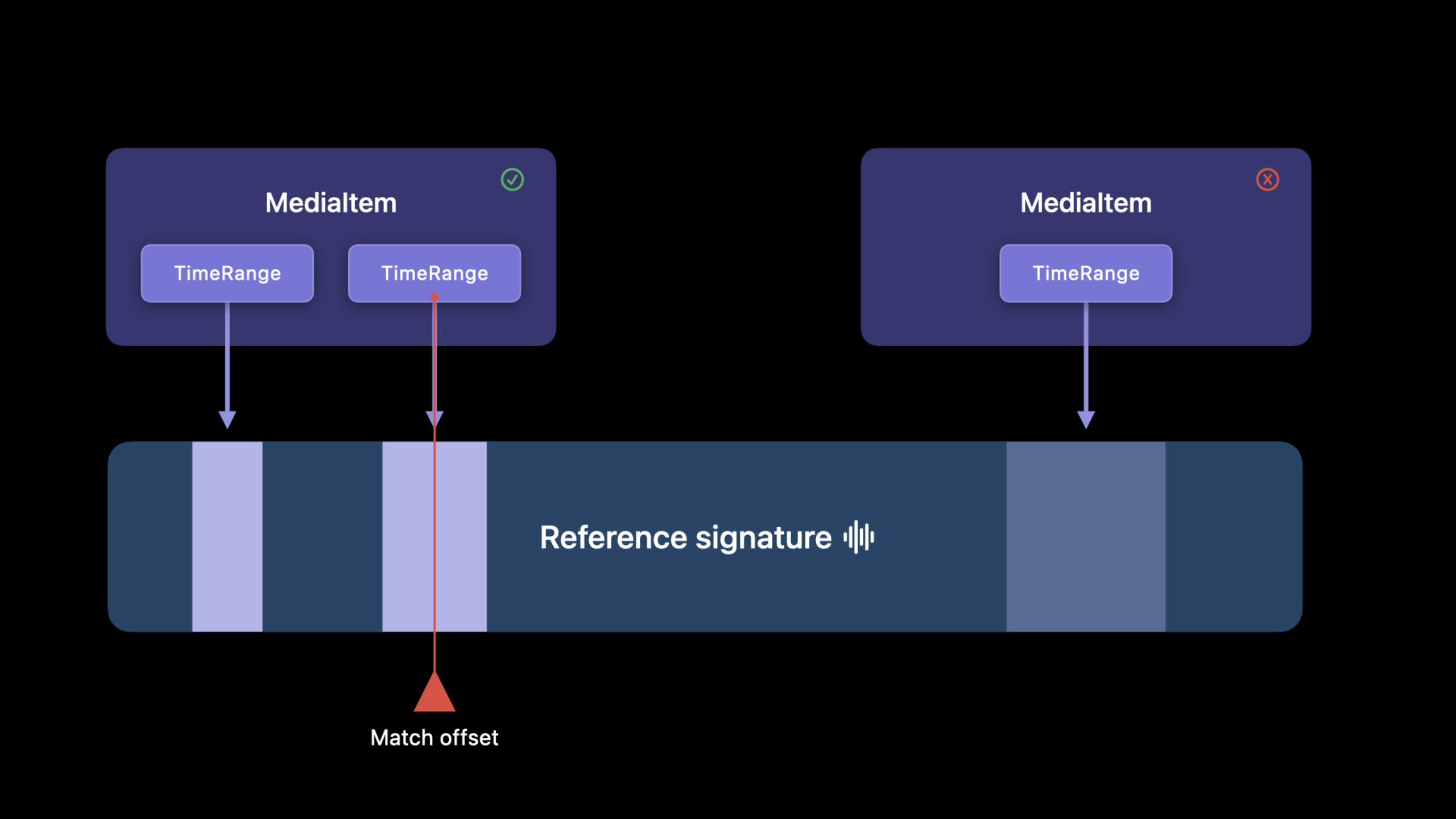
FoodMath’s precise UI sync relies on the Timed MediaItem API. Media items can carry one or more time ranges. ShazamKit sends match callbacks when ranges start and end, and callbacks include only media items in the current range.
This fits scenes where one audio segment has multiple pieces of content to show. For example, a lesson video with questions, countdowns, answers, and chapter titles; a song with multiple chorus sections; a podcast showing different links at different timestamps.
// Restrict this media item to only describe the first 5 seconds

 let mediaItem = SHMediaItem(properties: [
            .title: "Title",
            .timeRanges:[0.0..<5.0]
        ])

 let timeRanges: [Range<TimeInterval>] = mediaItem.timeRanges
Key points:
.titlesets title metadata on the media item..timeRanges:[0.0..<5.0]limits this media item to the first 5 seconds of the signature.timeRangesis an array of Swift ranges; one media item can bind multiple segments.mediaItem.timeRangesreads time ranges back.
The session gives three return rules (12:40). Media items outside time ranges are not returned; items within ranges are returned with the most recent event first; media items without time ranges are always returned last with no guaranteed order. FoodMath uses items without time ranges for whole-episode info such as episode names.
5. Compose large catalogs at runtime as needed (15:01)
A large content library does not have to fit in one catalog. The session recommends keeping catalogs focused: split by single track, full album, single episode, or a related group, and avoid putting an entire artist catalog in one catalog.
The reason is practical. One catalog per media asset means the app must know which catalog to load. Putting everything in one catalog widens match scope but increases download size and memory use. Developers trade off runtime loading flexibility against catalog size.
let parentCatalog = SHCustomCatalog()

parentCatalog.add(from: URL(fileURLWithPath: "/path/to/Episode1.shazamcatalog"))
parentCatalog.add(from: URL(fileURLWithPath: "/path/to/Episode2.shazamcatalog"))
parentCatalog.add(from: URL(fileURLWithPath: "/path/to/Episode3.shazamcatalog"))
Key points:
SHCustomCatalog()creates an empty catalog.parentCatalog.add(from:)loads content from a local catalog file.- Calling
add(from:)multiple times combines multiple episode catalogs into one runtime catalog. - This lets the app dynamically decide load scope based on the course, album, or season the user is viewing.
Session best practice: create one complete signature per media asset; do not split one audio segment into many small signatures (14:16). Longer signatures provide more audio peaks for better match accuracy and avoid query signatures spanning multiple reference signatures.
6. Use frequencySkew to distinguish audio that sounds the same (16:06)
Some content sounds the same but the app needs different experiences. The session gives two examples: the same intro music on every episode, or a song that samples another song. Consider frequency skew.
Slightly raise or lower playback frequency. When the offset is small enough, listeners barely notice, but ShazamKit can report frequencySkew. The session recommends keeping offset within 5% to reduce perceptibility while leaving room for multiple variants (16:58).
func within(range: Range<Float>, for matchedMediaItem: SHMatchedMediaItem) -> Bool {

	range.contains(matchedMediaItem.frequencySkew)
}
Key points:
SHMatchedMediaItemrepresents a media item returned after a match.matchedMediaItem.frequencySkewis the frequency offset ShazamKit reports.range.contains(...)checks whether the current match falls in the range the app cares about.- This check fits secondary filtering or debugging after media items are returned.
A more direct approach is writing frequency skew ranges into the media item. ShazamKit returns that media item only when the match falls within the range.
// Restrict this media item to only describe the first 5 seconds

 let mediaItem = SHMediaItem(properties: [
            .title: "Frequency Skewed Audio",
            .frequencySkewRanges:[0.01..<0.02]
        ])

 let frequencySkewRanges: [Range<Float>] = mediaItem.frequencySkewRanges
Key points:
.frequencySkewRangessets returnable frequency offset intervals on the media item.0.01..<0.02represents a 1% to 2% offset range.frequencySkewRangesreads offset ranges back from the media item.- Unshifted audio or audio outside the range does not return this restricted media item.
Core Takeaways
-
What to build: Quiz cards that appear over time on course videos.
Why it’s worth it: Timed MediaItem binds questions, countdowns, and answer explanations to video segments; match callbacks fire when ranges start and end.
How to start: Create one complete signature per episode; set.timeRangeson each quiz media item in CSV or code; update SwiftUI state withsession.results. -
What to build: Chapter metadata and link prompts for a podcast player.
Why it’s worth it: One signature can hold multiple media items, each corresponding to a podcast time segment. Items without time ranges can store show-wide info.
How to start: Use Shazam CLI to generate signatures from audio files; build media items in CSV for chapter titles, links, and time ranges; read current chapter data fromSHMatch.mediaItemsafter matching. -
What to build: Load match catalogs based on episodes the user has downloaded.
Why it’s worth it: Catalogs can split by episode and combine at runtime withSHCustomCatalog.add(from:), reducing one-time download and memory use.
How to start: Generate one.shazamcatalogper episode; when the user enters a season or playlist, add related catalogs to a parent catalog before creatingSHSession. -
What to build: Distinguish episodes that share the same intro music.
Why it’s worth it: Frequency skew gives ShazamKit detectable differences with minimal audible change.
How to start: Create a reference signature from original audio; set.frequencySkewRangesfor different variants; apply a small frequency offset on playback, staying within the session’s recommended 5%.
Related Sessions
- Explore ShazamKit — Understanding ShazamKit signatures, catalogs, matching sessions, and the Shazam music catalog is prerequisite content for this session.
- Create custom audio experiences with ShazamKit — Learn the WWDC21 custom catalog matching workflow, then see how this session scales it to large amounts of audio content.
- Create a great ShazamKit experience — Continue with ShazamKit matching experience, error handling, and UX recommendations from 2023.
- Create a more responsive media app — Learn how media apps use AVFoundation and system capabilities to improve playback and interaction responsiveness.
Comments
GitHub Issues · utterances