
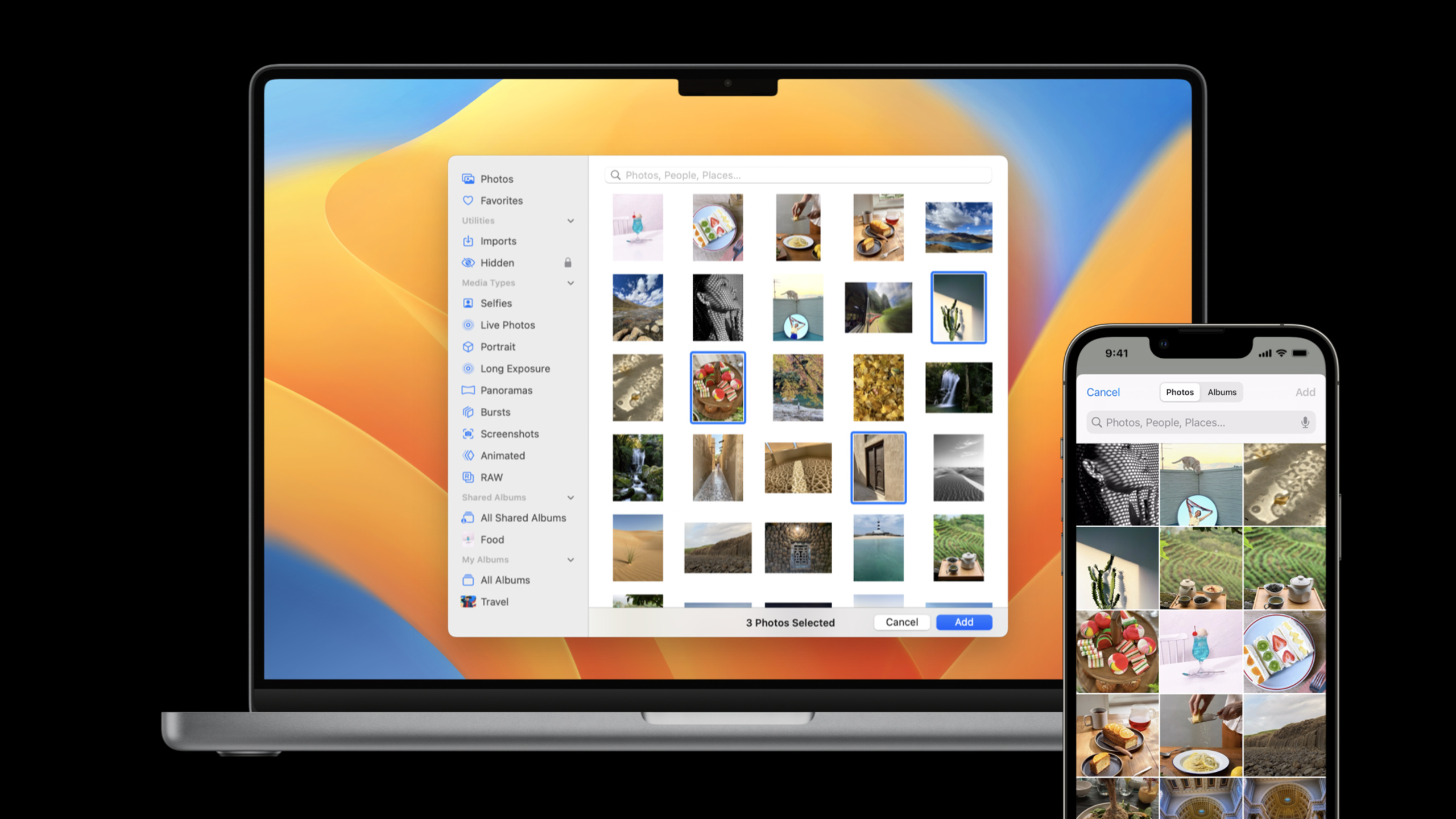
Highlight
Photos picker in iOS 16 adds filters for screenshots, screen recordings, slow motion, and cinematic videos, new
all/notcompound filtering, and brings the same privacy-preserving selection flow to more platforms via AppKit, SwiftUI, NSOpenPanel, and watchOS.
Core Content
Many apps only need users to pick a few photos.
If you build your own photo selection UI, the app often must request photo library permission, handle permission states, maintain album UI, and explain why it needs access to the entire library. Photos picker is more direct: the system provides the selection UI and it runs outside the app process. After the user selects assets, the app receives only the results without requesting photo library access. (00:18)
WWDC 2022 updates address three problems.
First, finer filtering. Previously you could filter images, videos, and Live Photos; now you can filter screenshots, screen recordings, and slow-motion video, or create filters with PHAsset.PlaybackStyle. all and not bring filtering closer to real product needs, such as “all images except screenshots.” (00:59)
Second, the picker can fit workflows beyond a half-height sheet. iOS 16 lets you deselect assets by identifier and call moveAsset to reorder selections—useful when managing selected photos in custom UI. (02:32)
Third, Photos picker is no longer just an iOS / iPadOS API. Apple brought it to macOS and watchOS with AppKit and SwiftUI interfaces. SwiftUI’s PhotosPicker works on iOS, iPadOS, macOS, and watchOS; the picker chooses an appropriate layout per platform and available space. (03:24, 07:43)
Detailed Content
Control selectable content with more precise PHPickerFilter
(02:04) Filters are the most practical update in this session. Justin’s examples are simple: a screenshot-stitching app should show only screenshots; a video editing app may want only specific video types. Keeping irrelevant assets out of the picker means fewer taps for users and less invalid input for your app.
var configuration = PHPickerConfiguration()

// iOS 15
// Shows videos and Live Photos
configuration.filter = .any(of: [.videos, .livePhotos])

// New: iOS 15
// Shows screenshots only
configuration.filter = .screenshots

// New: iOS 15
// Shows images excluding screenshots
configuration.filter = .all(of: [.images, .not(.screenshots)])

// New: iOS 16
// Shows cinematic videos
configuration.filter = .cinematicVideos
Key points:
PHPickerConfiguration()creates picker configuration; filtering, selection order, and limits all attach to it..any(of: [.videos, .livePhotos])shows assets matching any listed type—good for “video or Live Photo” union needs..screenshotsis a new asset-type filter for screenshot stitching, bug reports, and tutorial markup apps..all(of: [.images, .not(.screenshots)])combinesallandnotfor “images but not screenshots.”.cinematicVideostargets iOS 16 cinematic videos; the session notes that except Cinematic videos, depth effect photos, and bursts, other new filters compiled with the iOS 16 SDK can deploy back to iOS 15. (01:38)
Continue using PHPickerConfiguration in UIKit
(00:18) If your project already uses PHPickerViewController in UIKit, 2022 changes do not require replacing the entire entry point. Keep creating configuration, set filter, selection order, and limit, then create the picker.
var configuration = PHPickerConfiguration()
configuration.filter = .images
configuration.selection = .ordered
configuration.selectionLimit = 10

let picker = PHPickerViewController(configuration: configuration)
Key points:
configuration.filter = .imagesshows only images.configuration.selection = .orderedpreserves user selection order—good for albums, collages, and storyboards.configuration.selectionLimit = 10caps selection at 10 items to avoid processing too many assets.PHPickerViewController(configuration:)creates the system picker; it runs in a separate process so the app does not need photo library access. (00:24)
AppKit version brings the same configuration to macOS
(07:00) macOS Photos picker supports multi-select, grid zoom, and search. The AppKit API is close to UIKit and still uses PHPickerConfiguration; the difference is PHPickerViewController is an NSViewController subclass in AppKit.
var configuration = PHPickerConfiguration()
configuration.filter = .images
configuration.selectionLimit = 10

let picker = PHPickerViewController(configuration: configuration)
Key points:
- The AppKit version reuses
PHPickerConfiguration; UIKit and AppKit projects can share most configuration patterns. configuration.filter = .imageslimits the macOS picker to images only.configuration.selectionLimit = 10controls multi-select cap.- The session recommends media Mac apps default to the new Photos picker while keeping
NSOpenPanelfor filesystem assets. (05:23)
NSOpenPanel automatically gains photo library entry
(04:30) If a Mac app only occasionally picks a few images or videos, NSOpenPanel may already suffice. In 2022, NSOpenPanel also shows the new photo selection UI and can select assets from iCloud Photos without extra adaptation.
Lifecycle detail: files selected from the photo library may be deleted by the system at any time. If your app needs them long term, copy them to a location you manage. (05:00)
SwiftUI PhotosPicker receives selection via Binding
(07:43) SwiftUI adds a PhotosPicker view. It writes selection results to a binding; you provide the label. The same code works on iOS, iPadOS, macOS, and watchOS; the system picks an appropriate layout.
struct ContentView: View {
    @Binding selection: [PhotosPickerItem]

    var body: some View {
        PhotosPicker(
            selection: $selection,
            matching: .images
        ) {
            Text("Select Photos")
        }
    }
}
Key points:
@Binding selection: [PhotosPickerItem]holds selection results—placeholder objects without actual image or video data yet.PhotosPicker(selection:matching:)creates the SwiftUI picker.selection: $selectionwrites user choices back to external state, suitable for view model reactions.matching: .imagesreuses filter semantics to show images only.Text("Select Photos")is the picker trigger label; replace with buttons, icons, or custom views.
Load selection results on demand
(08:29) PhotosPickerItem is a placeholder. Load real data after user selection. Loading can fail—for example when the device must download from iCloud Photos but has no network. Large videos may take long to download, so the session recommends per-item inline loading UI instead of one blocking loader over the entire interface.
PhotosPicker loads data with Transferable. Simple cases can load SwiftUI Image directly; for controlled data types, define your own Transferable model. For many items or large videos, use FileTransferRepresentation to load as files and avoid putting everything in memory. (09:21, 09:54)
File-based loading also implies responsibility: copy received files to your app directory and delete when no longer needed. (10:11)
watchOS suits short-flow image selection
(05:50) watchOS has Photos picker too, also running in a separate process without photo library access permission. It supports grid and collection browsing and configurable selection order and limits.
Limits are clear: watchOS picker shows images only. Generally, if the device has more than 500 images, only the most recent 500 appear. In Family Setup mode, users can select up to 1000 recent images from iCloud Photos; if network download is needed, the picker shows loading UI before closing. (06:29, 13:17)
Core Takeaways
1. Screenshot stitching entry point
- What to do: Connect the import button of a screenshot-stitching app to Photos picker showing only screenshots.
- Why it is worth doing: The session explicitly targets screenshot-stitching apps with the new filter;
.screenshotsreduces the cost of finding screenshots in the full library. - How to start: Create
PHPickerConfiguration, setconfiguration.filter = .screenshots, present withPHPickerViewControlleror SwiftUIPhotosPicker.
2. Avatar picker excluding screenshots
- What to do: Let profile pages pick avatars from regular photos only, automatically excluding screenshots.
- Why it is worth doing: Avatar selection usually does not need screenshots;
allandnotencode the rule in the picker itself. - How to start: Use
.all(of: [.images, .not(.screenshots)])as the filter; loadPhotosPickerItemon demand when selection changes.
3. Cross-platform profile image editing
- What to do: Share one SwiftUI
PhotosPickerselection flow for profile pages on iOS and macOS. - Why it is worth doing: The session demo shows the same SwiftUI code compiles on iOS and macOS; watchOS supports the same API.
- How to start: Store
PhotosPickerItembinding in the view model, trigger withPhotosPicker(selection:matching:)in the view, load images with Transferable.
4. Large-video import flow
- What to do: After a video editing app selects assets, show per-item loading state and save results to an app-managed directory.
- Why it is worth doing: The session warns large videos may download for a long time; loading all data into memory at once is not viable.
- How to start: Load selected assets as files with
FileTransferRepresentation, copy immediately to the app directory, and manage deletion timing.
5. Dual-entry selection for Mac media apps
- What to do: Default to Photos picker for photo library assets while keeping
NSOpenPanelfor filesystem media. - Why it is worth doing: The session recommends media macOS apps default to the new Photos picker, but users may still need files outside the photo library.
- How to start: Use AppKit
PHPickerViewControllerfor the library entry; keepNSOpenPanelfor files and copy photo library selections to an app-managed location.
Related Sessions
- Meet the new Photos picker — iOS 14 first introduced
PHPickerViewController, explaining how users select photos and videos without full photo library permission. - Improve access to Photos in your app — Covers iOS 15 Photos permission model, Limited Library, and PHPicker configuration improvements.
- Meet Transferable — Introduces SwiftUI’s Transferable protocol—the transfer model
PhotosPickerItemuses when loading data. - Discover PhotoKit change history — If your app must track photo library changes beyond selection, this session covers persistent change history.
- Embed the Photos Picker in your app — WWDC 2023 extends Photos Picker with embedded pickers and more SwiftUI options.
Comments
GitHub Issues · utterances