
Highlight
With Stage Manager, external display support, and Display Zoom in iPadOS 16, iPad apps need to adapt to larger screens, different window sizes, and multiple input methods. The Apple Design Team presents eight design updates: toolbars, document menus, edit menus, find and replace, navigation, search, tables, and selection.
Core Content
iPad apps were often treated as scaled-up iPhone apps. That approach works for simple browsing, but once users connect a keyboard, trackpad, or external display, the problems show up: tools are buried too deep, document operations are scattered, batch selection is awkward, and search placement is unclear.
iPadOS 16 shifts the design goal toward “desktop-level efficiency while keeping iPad’s touch and direct manipulation.” Stage Manager, external displays, and Display Zoom expand available space and introduce more window sizes. Apple updated a set of system-level UI patterns accordingly.
This session covers two scenario types: document editing and content browsing. The former focuses on toolbars, document menus, edit menus, and find and replace; the latter on navigation, search, tables, and selection.
Detailed Content
Toolbars: Put Common Workflows in the Center
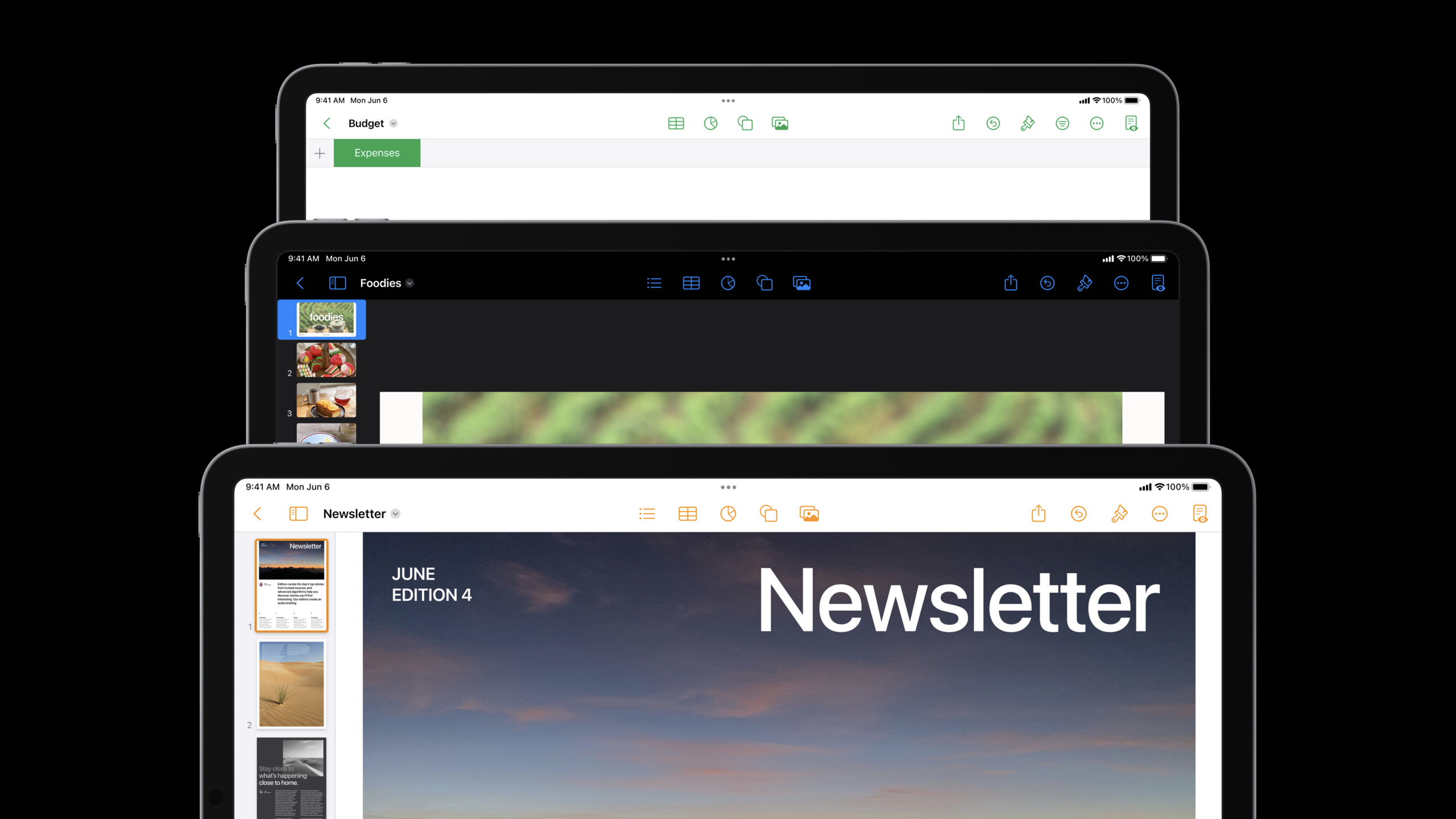
(01:34) The new iPadOS 16 toolbar layout places the title on the left and gives the center area more room for actions. In the Pages example, operations like inserting tables, charts, shapes, and photos are elevated to the toolbar center.
The center area is customizable. Users can add, remove, and reorder buttons. System guidance: enable customization when you have many features or advanced features not everyone needs. Navigation buttons and important functions that must always be visible should not go in the customizable area.
(03:30) As the window shrinks, center buttons move into an overflow menu; at smaller sizes only the leading and trailing areas remain. Keep important buttons in the trailing area.
Document Menus: Centralize Document-Level Actions in the Title
(04:32) The document menu lives in the title area and suits document viewers and editors. Put operations that affect the entire document here, such as Duplicate, Rename, Move, Export, and Print. Share is still for sending content out of the app; operations that affect content inside the document belong in the toolbar or edit menu.
Edit Menus and Find and Replace
(05:54) Edit menus adapt to touch and pointer. Touch users scroll horizontally; pointer users see a fuller vertical list. Standard Cut, Copy, and Paste actions should not be removed. Place custom actions near related system actions—for example, Notes groups checklist and text formatting options together.
(07:20) Find and Replace is integrated into the system keyboard, supporting partial phrase matching and replace-all. With a hardware keyboard connected, the UI appears in a compact form above the app. Apple recommends providing access in both the overflow menu and keyboard shortcuts.
Content Browsing: Navigation, Search, and Multi-Selection
(08:36) Browser-style navigation suits apps with complex hierarchies, such as file browsers or web browsers. Files uses forward/back buttons so users can move between folders from different sidebar locations. Flat hierarchies do not need this pattern.
(09:45) Search in the navigation bar’s top-right corner suits filtering the current screen’s content and can show recent searches, suggested searches, and filters. If search scope is the entire app, use a dedicated search tab.
(10:45) Band selection no longer automatically enters edit mode. Pointer users can multi-select with Command and Shift, then right-click for batch actions; touch users long-press for the same context menu. Lists also support Command multi-select, drag-to-move, and batch menus.
Core Takeaways
-
Elevate high-frequency actions to the toolbar center: Document, drawing, and editing apps can put “insert image,” “add chart,” or “new layer” in the center area. Let them move into the overflow menu automatically when the window shrinks.
-
Add a menu to the document title: If your app opens standalone documents, centralize Duplicate, Rename, Move, Export, and Print at the title. Users do not need to go back to a file list for these operations.
-
Support both touch and pointer editing: Canvas objects, list items, and text should all support edit menus. Touch users see a horizontal menu; pointer users see a full vertical menu.
-
Add forward/back for complex hierarchies: Knowledge bases, file managers, and project management apps often jump between levels. Browser-style navigation reduces “go back to the sidebar and tap again” operations.
Related Sessions
- Meet desktop-class iPad — Add desktop-class features to your iPad app
- Build a desktop-class iPad app — Create iPad apps that take advantage of desktop-class features
- SwiftUI on iPad: Organize your interface — iPad adaptation with SwiftUI lists and tables
- Adopt desktop-class editing interactions — Advanced desktop-class editing features
Comments
GitHub Issues · utterances