
Highlight
Jon Schoenberg from Apple’s Location Technologies team introduces two major new features in the Nearby Interaction framework for iOS 16: ARKit-enhanced mode and background sessions.
Core Content
Nearby Interaction originally solved “where is a nearby device?” It relies on the U1 chip and Ultra Wideband (UWB) ranging to obtain distance and direction between two devices or between a device and an accessory. In 2020 it supported two iPhones; in 2021 it expanded to Apple Watch and third-party UWB accessories.
This model suits users actively searching for a target while holding their phone. Problems appear in two places. First, UWB direction information has field-of-view and occlusion limits—users may turn to an angle where stable direction is unavailable. Second, when the app enters the background or the user locks the screen, a running NISession pauses, and accessories cannot continue seamless interaction.
iOS 16 updates address both problems. Camera assistance feeds ARKit-computed device trajectory to Nearby Interaction to expand the effective field of view and generate more stable direction information. Accessory background sessions allow UWB accessories paired via Bluetooth LE to continue Nearby Interaction sessions while the app is in the background.
The museum example in the session is concrete: after the user selects the next exhibit, the app discovers the UWB accessory beside it, prompts the user to sweep the phone left and right, then shows arrows, determines whether the target is behind the user, and overlays AR content on the exhibit location. Coordinating UWB, ARKit, Bluetooth, and foreground/background state used to be your job. Nearby Interaction now folds the critical path into the framework.
Detailed Content
Enabling ARKit-Enhanced Mode
(04:47) If your app already has a flow that receives an NIDiscoveryToken, creates a configuration, and runs an NISession, enabling ARKit-enhanced mode only requires setting isCameraAssistanceEnabled on your NIConfiguration subclass. This works for interactions between Apple devices and between Apple devices and third-party UWB accessories.
// Illustrative code: the session did not provide a complete code snippet; only the API flow named in the transcript is shown.
let configuration = /* Your existing flow: create NIConfiguration subclass with NIDiscoveryToken */
configuration.isCameraAssistanceEnabled = true

let session = NISession()
session.delegate = self
session.run(configuration)
Key points:
NIDiscoveryTokencomes from the nearby peer; your app uses it to create anNIConfigurationsubclass.isCameraAssistanceEnabledis a new iOS 16 property; set it totrueto enable camera assistance.NISessionremains the session entry point for Nearby Interaction.run(configuration)starts the session; camera assistance causes the framework to automatically create and run an internalARSession.
(05:27) The framework-created ARSession runs in the app process, so the app must provide a camera usage description in Info.plist. This description should tell users why finding nearby objects requires the camera.
<!-- Info.plist: illustrative configuration; customize the string for your app scenario. -->
<key>NSCameraUsageDescription</key>
<string>Uses the camera to improve nearby object direction and display spatial guidance.</string>
Key points:
NSCameraUsageDescriptionis the system camera permission description key.- Camera assistance uses ARKit and therefore triggers a camera permission request.
- The description should explain the relationship between “finding nearby objects” and “camera” so users are not confused by the permission prompt.
Sharing ARSession with an Existing ARKit Experience
(06:19) An app can only run one ARSession at a time. If your app already has an ARKit experience, Nearby Interaction cannot automatically create a second session. Call the new setARSession before NISession.run to hand your own ARSession to Nearby Interaction.
// Illustrative code: sharing the underlying ARSession in a SwiftUI/ARView scenario.
let niSession = NISession()
let arSession = arView.session

niSession.setARSession(arSession)
niSession.run(configuration)
Key points:
arView.sessionrepresents the underlyingARSessionin your existing ARKit view.setARSessionmust be called beforeNISession.run.- After calling it, Nearby Interaction no longer automatically creates an internal
ARSession. - ARKit rendering and Nearby Interaction camera assistance can then share the same trajectory data source.
(07:16) When managing ARSession directly, Apple requires running with ARWorldTrackingConfiguration and setting configuration as specified: worldAlignment is gravity, collaboration and user face tracking are disabled, initialWorldMap is nil, and the delegate’s sessionShouldAttemptRelocalization returns false.
// Illustrative code: only configuration items explicitly required by the transcript are listed.
let arConfiguration = ARWorldTrackingConfiguration()
arConfiguration.worldAlignment = .gravity
arConfiguration.isCollaborationEnabled = false
arConfiguration.userFaceTrackingEnabled = false
arConfiguration.initialWorldMap = nil

arSession.run(arConfiguration)
Key points:
ARWorldTrackingConfigurationis the run configuration when sharing an ARSession..gravityaligns the world coordinate system to the gravity direction.- Collaboration and user face tracking must be disabled.
initialWorldMapmust benil.- If configuration does not meet requirements,
NISessionDelegate’sdidInvalidateWithreceives the newNIError.invalidARConfiguration.
Using New Spatial Output Properties
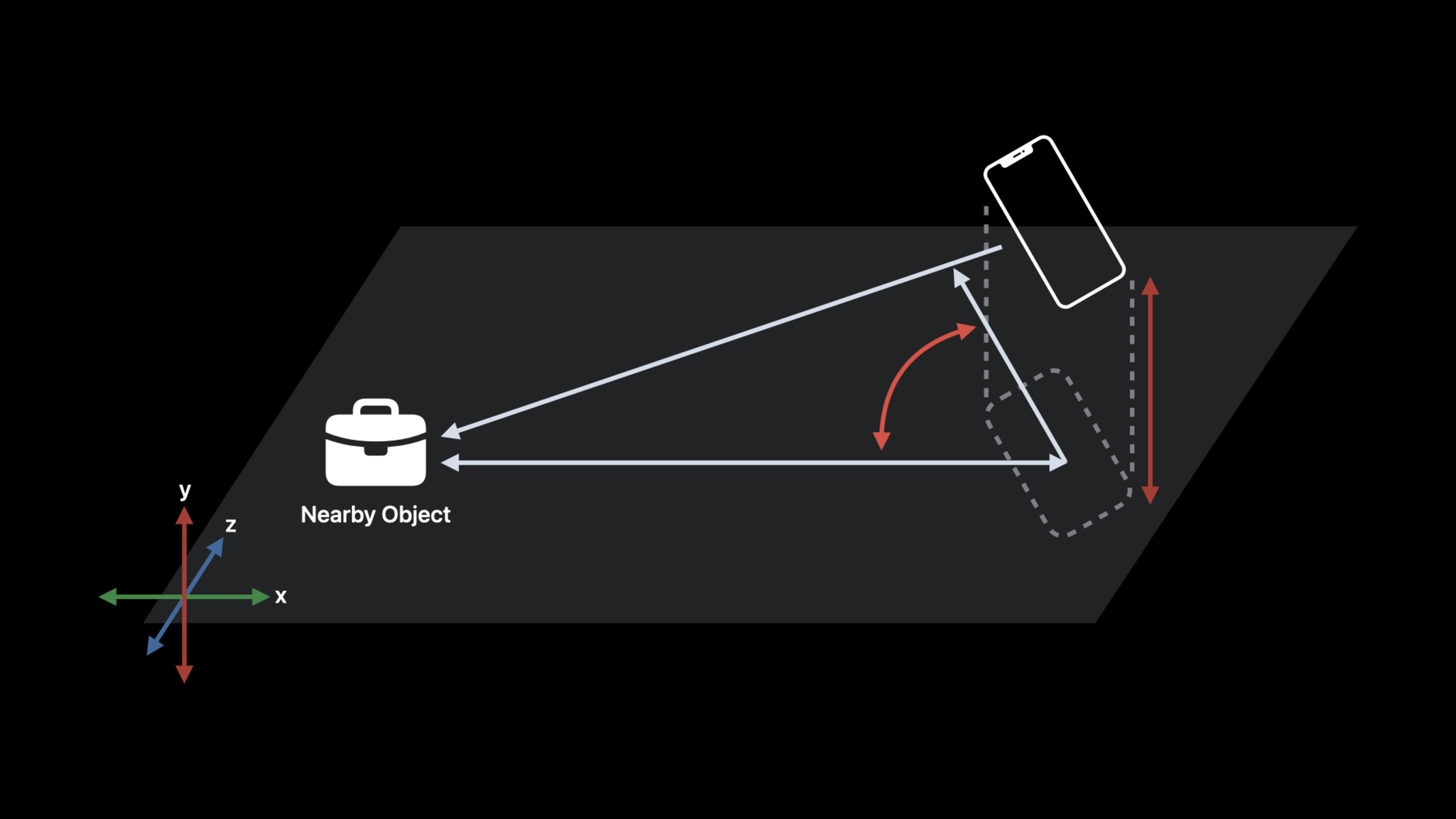
(08:21) Apps continue receiving nearby object updates through NISessionDelegate’s didUpdateNearbyObjects. With camera assistance enabled, NINearbyObject gains two new properties: horizontalAngle and verticalDirectionEstimate. Together with the existing distance and direction, they describe the spatial relationship between the device and nearby objects.
// Illustrative code: handling optional spatial properties mentioned in the transcript.
func session(_ session: NISession, didUpdate nearbyObjects: [NINearbyObject]) {
    guard let object = nearbyObjects.first else { return }

    // distance can be used to display distance in meters.
    let distance = object.distance

    // direction can be used for 3D pointing; when unavailable, fall back to horizontalAngle.
    let direction = object.direction
    let horizontalAngle = object.horizontalAngle

    // Check for unknown before using verticalDirectionEstimate.
    let vertical = object.verticalDirectionEstimate
}
Key points:
distanceis in meters; the transcript defines it as one of the key spatial relationships between the user device and nearby objects.directionis a 3D vector from the current device toward the nearby object; it may benil.horizontalAngleis a 1D angle in radians on the horizontal plane; it may still be available when 3D direction cannot be resolved.verticalDirectionEstimateis a qualitative vertical relationship: same, above, below, aboveOrBelow, or unknown.- Check for unknown before using
verticalDirectionEstimateto avoid displaying uncertain state as floor guidance.
Placing Nearby Objects in the AR World
(11:39) iOS 16 adds a worldTransform helper on NISession. It returns a transform in ARKit coordinate space representing a nearby object’s position in the physical environment. The sphere floating at the exhibit location in the session demo uses it to place AR content.
// Illustrative code: using worldTransform to place AR content.
if let transform = niSession.worldTransform(for: nearbyObject) {
    // Place AR marker at the position corresponding to transform.
} else {
    // Prompt the user to sweep the device horizontally and vertically.
}
Key points:
worldTransformis a new helper method onNISession.- The return value is in ARKit’s coordinate space.
- Returns
nilwhen the transform is unavailable. - Users need to sweep the device sufficiently in horizontal and vertical directions for camera assistance to converge to a usable transform.
- When the transform matters to the experience, the session recommends prompting the user to take action.
Guiding Users with Algorithm Convergence State
(13:11) To help apps explain why horizontalAngle, verticalDirectionEstimate, or worldTransform is temporarily unavailable, NISessionDelegate adds didUpdateAlgorithmConvergence. It returns NIAlgorithmConvergence and an optional NINearbyObject. This delegate is only called when camera assistance is enabled.
// Illustrative code: prompting users based on convergence status.
func session(_ session: NISession,
             didUpdateAlgorithmConvergence convergence: NIAlgorithmConvergence,
             for nearbyObject: NINearbyObject?) {
    switch convergence.status {
    case .converged:
        showReadyState()
    case .unknown:
        showPreparingState()
    case .notConverged(let reasons):
        showGuidance(for: reasons)
    }
}
Key points:
NIAlgorithmConvergencehas astatusproperty.statusisNIAlgorithmConvergenceStatus, indicating whether the algorithm has converged.- When
nearbyObjectisnil, convergence status applies to the whole session; when non-nil, it corresponds to a specific object. notConvergedcarries a reasons array; apps can provide action prompts per reason.- Reasons may include insufficient total motion, insufficient horizontal sweep, insufficient vertical sweep, and insufficient lighting.
- Multiple reasons can coexist; the session recommends guiding users in the order your app needs.
Tailoring the Experience by Device Capability
(16:23) The original NISession.isSupported only answered whether the device supports Nearby Interaction. iOS 16 adds NISession.deviceCapabilities, returning NIDeviceCapability so apps can check precise ranging, direction measurement, and camera assistance separately.
// Illustrative code: choosing UI by capability.
let capabilities = NISession.deviceCapabilities

guard capabilities.supportsPreciseDistanceMeasurement else {
    showUnsupportedState()
    return
}

if capabilities.supportsCameraAssistance {
    enableARGuidanceMode()
} else if capabilities.supportsDirectionMeasurement {
    enableDirectionOnlyMode()
} else {
    enableDistanceOnlyMode()
}
Key points:
NISession.deviceCapabilitiesreplaces checking onlyisSupported.supportsPreciseDistanceMeasurementis at least equivalent to the old support check.supportsDirectionMeasurementindicates whether the device can provide direction measurement.supportsCameraAssistanceindicates whether the device supports ARKit-enhanced mode.- The session specifically reminds you to preserve distance-only experiences to support Apple Watch.
Running Accessory Sessions in the Background
(18:03) Previously, when the app entered the background or the user locked the screen, a running NISession paused. iOS 16 accessory background sessions let apps use Core Bluetooth background capabilities to start and continue Nearby Interaction sessions with paired Bluetooth LE UWB accessories.
Conceptual flow:
1. Receive Ultra Wideband configuration data from the accessory.
2. Obtain the Bluetooth peer identifier for that accessory from the paired Bluetooth LE connection.
3. Create NINearbyAccessoryConfiguration with both pieces of data.
4. Run NISession with this configuration.
Key points:
- Ultra Wideband configuration data is configuration data the accessory sends to the app over a data channel.
- The Bluetooth peer identifier comes from a paired Bluetooth LE accessory.
- The transcript only states that the new initializer receives these two pieces of data: UWB configuration data and Bluetooth peer identifier; Swift parameter labels are not given.
- The accessory must already be paired via Bluetooth LE.
- The accessory must also implement the new Nearby Interaction GATT service so iOS can verify the association between the Bluetooth identifier and UWB configuration.
(22:15) The Nearby Interaction GATT service includes an encrypted characteristic: Accessory Configuration Data. It contains the same UWB configuration data. The app cannot read this characteristic directly; iOS uses it to verify that the accessory’s Bluetooth identity matches the Nearby Interaction session.
// Illustrative code: App configuration required for background sessions.
// Info.plist UIBackgroundModes:
// - nearby-interaction
// - bluetooth-central
Key points:
nearby-interactioncorresponds to the Nearby Interaction background mode mentioned in the session.bluetooth-centralcorresponds to the “Uses Bluetooth LE accessories” capability in Xcode.- The app must connect to accessories in the background, so implement Core Bluetooth background connection and state restoration flows.
- Triggering LE pairing shows a user confirmation dialog; the session recommends placing it in setup flow or when the user explicitly wants to interact.
(25:35) Background sessions have a key limitation: the app does not receive didUpdateNearbyObjects callbacks in the background and does not get runtime. NISession continues running and UWB measurements reach the accessory. Background actions must therefore be executed on the accessory based on measurement results.
// Illustrative flow: accessory consumes UWB measurements while in background.
// App: establish background NISession and send sharable configuration to accessory.
// Accessory: receive UWB measurements.
// Accessory: trigger actions based on distance or direction, e.g., turn on lights, play music, or unlock eBike.
// App: only woken by accessory for important interactions, e.g., showing a notification.
Key points:
- While the app is in the background,
NISessiondoes not pause. - While the app is in the background,
didUpdateNearbyObjectsdoes not callback to the app. - The accessory receives UWB measurements and should directly decide user actions.
- To save power, the session recommends sending data from accessory to app only for important user interactions.
Core Takeaways
-
What to do: Museum or gallery exhibit navigation. Why it’s worth it: Camera assistance makes distance, direction, horizontal angle, and vertical relationship more stable—ideal for guiding users toward stationary objects. How to start: Place a UWB accessory at each exhibit, enable
isCameraAssistanceEnabledin the app, draw arrows withhorizontalAngle, and place AR markers withworldTransform. -
What to do: Multi-floor object-finding app. Why it’s worth it:
verticalDirectionEstimateprovides floor-level hints like same, above, below, and aboveOrBelow—better suited for indoor search than distance alone. How to start: Read bothdistanceandverticalDirectionEstimateindidUpdateNearbyObjects; prompt floor relationship first, then show horizontal navigation. -
What to do: Smart speaker auto-play on entry. Why it’s worth it: Accessory background sessions let UWB accessories continue receiving measurements while the app is in the background—ideal for hands-free scenarios. How to start: Pair the speaker via Bluetooth LE, implement the Nearby Interaction GATT service, bind UWB data and
CBPeripheral.identifierwith the newNINearbyAccessoryConfigurationinitializer, and handle measurements on the accessory. -
What to do: E-bike proximity unlock. Why it’s worth it: Users do not need to open the app; the accessory can determine whether the user is truly nearby from UWB measurements in a background session. How to start: The app handles pairing, background connection, and session configuration; the bike executes unlock based on measurements and only notifies the app when user prompting is needed.
-
What to do: Capability-adaptive spatial interaction UI. Why it’s worth it: Not all devices support direction measurement or camera assistance; Apple Watch still needs distance-only experiences. How to start: Read
NISession.deviceCapabilitiesbefore launch and choose AR guidance, direction guidance, or distance-only mode based onsupportsCameraAssistance,supportsDirectionMeasurement, andsupportsPreciseDistanceMeasurement.
Related Sessions
- Meet Nearby Interaction — Foundational session model for Nearby Interaction, distance, and direction updates.
- Explore Nearby Interaction with third-party accessories — Prerequisites for third-party UWB accessory integration with Nearby Interaction.
- Design for spatial interaction — How to help users understand positional relationships between devices when designing spatial awareness experiences.
- Get timely alerts from Bluetooth devices on watchOS — Related practices for Core Bluetooth background discovery and accessory notifications.
Comments
GitHub Issues · utterances