
Highlight
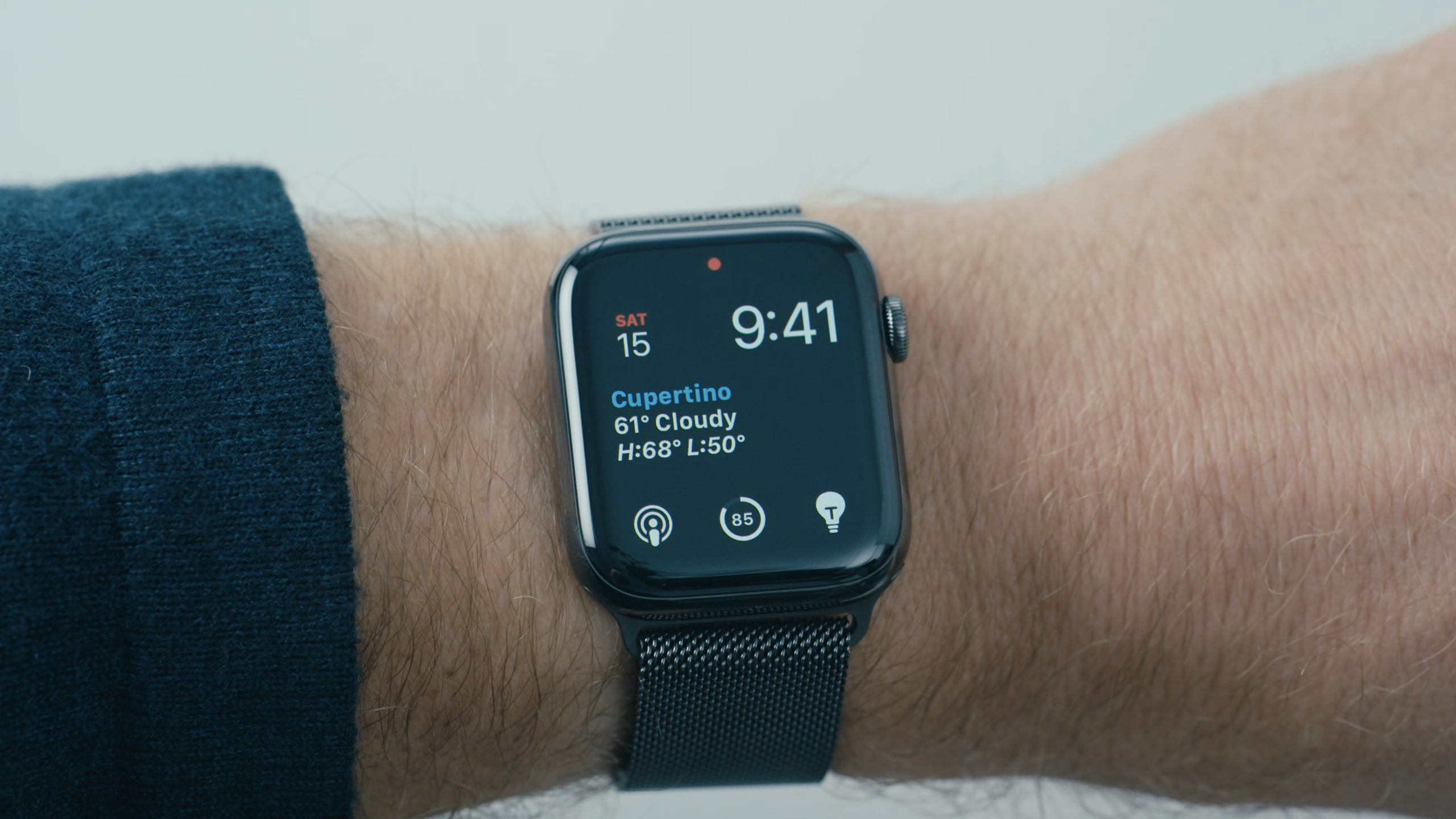
Apple takes Apple Watch as an example to illustrate that barrier-free design should start from the core mission of the product, allowing more users to use the watch independently through high-contrast dials, Taptic Time, VoiceOver customized sounds and AssistiveTouch gestures.
Core Content
The core mission of Apple Watch is simple: tell the time quickly, and quietly when necessary. Put this task on blind people, low vision users, and one-handed users, and the problem will immediately become more specific.
Users with low vision may only have central vision left. A bigger screen is not necessarily better. A small screen on your wrist is more likely to fall into the visible area. The black background and clear text of Apple Watch initially served everyone’s reading time and also directly helped low-vision users.
Blind users walk with a cane in one hand. If you stop, raise your hand, or touch the screen to listen to the time, it will interrupt movement and may affect safety. Taptic Time and raising your wrist to announce the time compress this action into one raising of your wrist.
The dial has the same problem. The Mickey Mouse watch face has character animations and foot movements for sighted users, and VoiceOver users will initially only hear normal text-to-speech. Apple later partnered with Disney to let Mickey tell the time in more than 30 languages and adjust the frequency of laughter based on VoiceOver status.
Users with limited movement of one hand or arm have another type of pain point: wearing the watch on their wrist but not having another hand to touch the screen. Apple started testing with large arm movements, and finally converged on four low-energy gestures: pinch, double pinch, clench and double clench.
The conclusions these stories give developers are straightforward. First ask what the core task of the product is, and then ask where a certain type of user will get stuck when completing this task. Technical solutions must grow from this stuck point.
Detailed Content
Start with the core mission of the product
(01:05) Apple Watch is a personal computing device that wears on your skin. When Apple designs accessibility features, it starts by asking what its core values are. For a watch, the first thing is to read the time.
There is no official code tab for this session. The following uses a runnable Swift snippet to write a minimal model of the design review process that appeared repeatedly in the speech. It is an example of an article used to solidify the judgment sequence in the verbatim draft into an executable checklist during development.
struct AccessibilityNeed {
    let userGroup: String
    let productTask: String
    let barrier: String
    let designResponse: String
}

let watchNeeds = [
    AccessibilityNeed(
        userGroup: "low-vision users",
        productTask: "read the time",
        barrier: "small text and low contrast make the time hard to read",
        designResponse: "use a black background, legible letters, and a large-type watch face"
    ),
    AccessibilityNeed(
        userGroup: "blind users walking with a cane",
        productTask: "check the time while moving",
        barrier: "touching the screen requires stopping and taking one hand off the cane",
        designResponse: "speak the time after wrist raise and offer Taptic Time"
    )
]

for need in watchNeeds {
    print("For \(need.userGroup), \(need.designResponse) helps them \(need.productTask).")
}
Key points:
AccessibilityNeedPut the user group, product mission, obstacles, and design responses in the same structure. -userGroupCorresponds to specific groups such as low-vision users and blind users in the speech. -productTaskCorresponds to the core task of Apple Watch: reading time. -barrierWrite down the actions the user takes to get stuck, such as stopping, letting go of the cane, or touching the screen. -designResponseCorresponds to high-contrast text, large text dials, wrist-raise announcements and Taptic Time in speeches. -forLoops turn inspection items into printable acceptance sentences that can be discussed one by one during team reviews.
High contrast and large text dial
(01:34) The black background and clear fonts of Apple Watch were originally designed to allow all users to read the time quickly. This option also helps low vision users. The speech mentioned a user with Usher syndrome. Her vision was concentrated in the central area, and the small screen made it easier to read emails.
(02:19) Apple also mentioned a large-type watch face (large text dial). It is designed for low vision users but is also accessible to all users.
struct WatchFaceAccessibilityProfile {
    let name: String
    let background: String
    let typography: String
    let intendedBenefit: String
    let availableToEveryone: Bool
}

let largeTypeFace = WatchFaceAccessibilityProfile(
    name: "Large Type",
    background: "black",
    typography: "legible large letters",
    intendedBenefit: "help low-vision users read the time quickly",
    availableToEveryone: true
)

print("\(largeTypeFace.name): \(largeTypeFace.typography) on \(largeTypeFace.background)")
Key points:
WatchFaceAccessibilityProfileDocument why a watch face is helpful for accessibility. -backgroundUse the black background mentioned in the verbatim draft. -typographyUse clear letters and large text as mentioned in verbatim drafts. -intendedBenefitState the goal to help low-vision users read time quickly. -availableToEveryoneCorresponds to the fact that “designed for low vision users, but accessible to everyone” in the speech.
Taptic Time and raising your wrist to announce the time
(02:37) Taptic Time allows users to sense time through touch. The test scenario in the presentation was specific: a blind user is moving and, if he wants to touch his watch with his hand, he has to stop and remove one hand from his cane. A safer way is to raise your wrist and hear the time, or know the time by touch.
enum TimeFeedbackMode: String {
    case spokenAfterWristRaise
    case tapticTime
    case visualFace
}

struct TimeCheckScenario {
    let situation: String
    let unsafeStep: String
    let preferredFeedback: [TimeFeedbackMode]
}

let walkingWithCane = TimeCheckScenario(
    situation: "user is walking with a cane",
    unsafeStep: "stop and take one hand off the cane to touch Apple Watch",
    preferredFeedback: [.spokenAfterWristRaise, .tapticTime]
)

print(walkingWithCane.preferredFeedback.map(\.rawValue).joined(separator: ", "))
Key points:
TimeFeedbackModeList the three time feedback methods mentioned in this speech: voice, touch, and visual dial. -spokenAfterWristRaiseCorresponds to hearing the time after raising your wrist. -tapticTimePlayback time for tactile applications. -TimeCheckScenarioWrite out the dangerous actions separately and avoid discussing only the function names. -preferredFeedbackIt means that in mobile scenarios, voice and touch are more suitable than touch screens.
Customize character voices for VoiceOver
(03:30) The Mickey Mouse watch face initially received insufficient feedback from blind and low vision users. When touching the watch face, they can only hear a description or a normal text-to-speech readout of the time. Apple heard that users wanted Mickey to speak for himself, so it partnered with Disney to record the voice.
(04:29) The voices are recorded in over 30 languages. After the prototype was shown, feedback went from “is this a suitable accessibility feature?” to “can it be used by everyone?” Apple also sets different laughter frequencies for VoiceOver on and off: Mickey laughs more often when VoiceOver is on.
struct CharacterVoiceFeedback {
    let character: String
    let languages: Int
    let voiceOverEnabledLaughsMoreOften: Bool
    let defaultExperienceLaughsLessOften: Bool
}

let mickeyFeedback = CharacterVoiceFeedback(
    character: "Mickey Mouse",
    languages: 30,
    voiceOverEnabledLaughsMoreOften: true,
    defaultExperienceLaughsLessOften: true
)

if mickeyFeedback.voiceOverEnabledLaughsMoreOften {
    print("\(mickeyFeedback.character) uses richer audio feedback for VoiceOver users.")
}
Key points:
CharacterVoiceFeedbackDocument design facts for character vocal feedback. -languagesUse verbatim in over 30 languages, here with30expressed as a lower limit. -voiceOverEnabledLaughsMoreOftenCorresponds to more laughter when VoiceOver is on. -defaultExperienceLaughsLessOftenThere is less laughter when VoiceOver is turned off. -ifBranch highlights that the same dial adjusts audio density based on VoiceOver state.
Low-energy gestures for AssistiveTouch
(05:55) Some users don’t have an arm, or another hand, to touch their Apple Watch. The question for Apple becomes: Can it create a human-computer interaction method entirely based on gestures.
(06:33) The team first tried large movements such as raising hands and turning wrists, and soon discovered that gestures with lower energy consumption were needed. Finally, Apple uses accelerometers, gyroscopes, and health sensors to detect subtle muscle movements in the arm, and then lets a machine learning model distinguish the differences.
(07:33) The final simple gestures include pinch, double pinch, clench, double clench for complete access to Apple Watch.
enum AssistiveTouchGesture: String, CaseIterable {
    case pinch
    case doublePinch
    case clench
    case doubleClench
}

struct GestureDetectionInput {
    let sensors: [String]
    let modelPurpose: String
    let gestures: [AssistiveTouchGesture]
}

let watchGestureInput = GestureDetectionInput(
    sensors: ["accelerometer", "gyroscope", "heart rate sensors"],
    modelPurpose: "distinguish minute muscle movement differences in the arm",
    gestures: AssistiveTouchGesture.allCases
)

for gesture in watchGestureInput.gestures {
    print(gesture.rawValue)
}
Key points:
AssistiveTouchGestureList only four gestures that are explicitly mentioned in the speech. -CaseIterableLet the example iterate over all gestures. -sensorsCorresponds to accelerometer, gyroscope and health sensor that detects heart rate. -modelPurposeCorresponding to the task of the machine learning model: distinguishing very subtle muscle movements in the arm. -forPrint supported gestures in a loop, making it easy to use gesture collections for testing or documentation generation.
Core Takeaways
-
What to do: Make a “User, Task, Obstacle, Response” table for key tasks of the watchOS App. Why it’s worth it: Accessibility design for Apple Watch starts with the core task of “reading the time,” not with a list of controls. How to start: First list 3 actions that users in the app will do repeatedly every day, and then write an obstacle record for low vision, blind, and one-handed users.
-
What to do: Provide tactile or voice feedback for short messages such as time, status, and progress. Why it’s worth doing: Taptic Time solves the specific problem of “it’s inconvenient to touch the screen while walking”. How to get started: Check if key states are only visually accessible in watchOS, then design VoiceOver text and haptic cues for those states.
-
What: Complete the voice experience under VoiceOver for the character-based interface. Why it’s worth doing: The case of Mickey Mouse dial shows that ordinary text-to-speech will lose the experience of the character itself. How to get started: Identify places in your app that have character, branded sound effects, or animation feedback, and prepare equivalent audio feedback and localized text for VoiceOver users.
-
What to do: Condensate common operations into low-energy gestures or quick actions. Why it’s worth doing: AssistiveTouch’s gesture selection comes from real testing, and the goal is to reduce the physical exertion of users to complete tasks. How to get started: Count the number of touches users need to complete core tasks, and expose the most commonly used operations to system accessibility actions or keyboard shortcuts.
-
WHAT: Make accessibility features default into the main experience instead of hiding in a separate mode. Why it’s worth it: The large text dial was originally intended for low-vision users and later opened to all users; Mickey voice feedback is also needed by everyone. How to get started: When reviewing each accessibility improvement, add a question: Does the improvement also improve efficiency, clarity, or security in common use cases?
Related Sessions
- SwiftUI Accessibility: Beyond the basics — Talk about more detailed accessibility semantics, preview and interaction optimization in SwiftUI.
- Support Full Keyboard Access in your iOS app — Talk about how users with motor disabilities can operate iPhone and iPad entirely through the keyboard.
- Tailor the VoiceOver experience in your data-rich apps — Talk about how to provide more appropriate VoiceOver content for complex data interfaces.
- Bring accessibility to charts in your app — Talk about how charts convey data through accessible labels, summaries, and sound maps.
- Create accessible experiences for watchOS — Talk about how watchOS App supports large text, VoiceOver, and assisted interaction.
Comments
GitHub Issues · utterances