
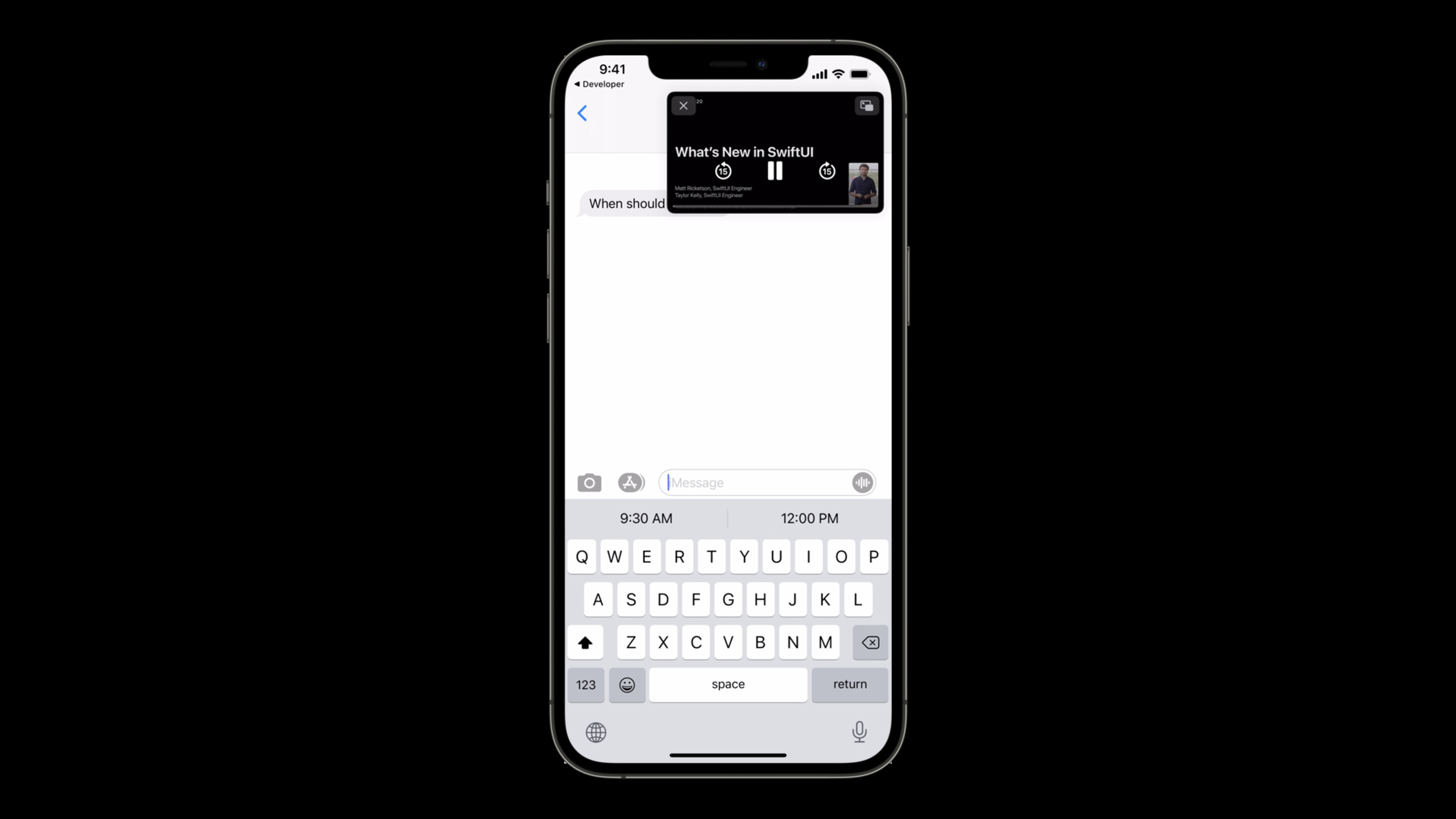
Highlight
AVKit enables inline video to automatically enter picture-in-picture in iOS 15 and macOS Monterey, giving
AVSampleBufferDisplayLayerAdd system picture-in-picture support and give Mac Catalyst videos a true full-screen playback experience.
Core Content
A video app is most afraid of users leaving the playback page.
The user is watching a video and receives a message. He slid back to the home screen to reply. If the player does not have Picture in Picture (PiP), the video will stop where it is. The user needs to return to the app, find the original page, and continue playing.
In the past, AVKit has been able to handleAVPlayerDriven video. useAVPlayerViewController, the system control will help you access picture-in-picture. Custom players are availableAVPictureInPictureController, but its core object is stillAVPlayerLayer。
This is not enough for a custom playback pipeline. For example, WebRTC, real-time streaming, custom codecs, the picture may beAVSampleBufferDisplayLayershow. Playing status is not inAVPlayerHere, the system does not know when to pause, when to fast forward, and where to draw the timeline.
The WWDC21 AVKit update adds this. Apple added content source API to allowAVPictureInPictureControllercan serveAVSampleBufferDisplayLayer. Developers need to provide playback status and respond to control commands, and the system is responsible for the picture-in-picture window and interaction.
macOS Monterey also fixes another pain point. The Mac Catalyst App’s video full screen used to only fill the window, without going into true full screen. Videos can now fill the entire screen. After the user slides back from the full-screen video to the app, playback can continue, provided that the app keeps the player object alive.
Detailed Content
Inline video automatically enters picture-in-picture
(01:16)
Apple addedcanStartPictureInPictureAutomaticallyFromInline. it’s inAVPlayerViewControllerandAVPictureInPictureControllerAvailable on.
import AVKit

let playerViewController = AVPlayerViewController()
playerViewController.canStartPictureInPictureAutomaticallyFromInline = true
Key points:
import AVKitIntroducing AVKit’s player view controller. -AVPlayerViewController()Create a player container that uses system playback controls. -canStartPictureInPictureAutomaticallyFromInline = trueAllow videos played inline to automatically enter picture-in-picture when the user slides back to the home screen.
This switch is only suitable for main content videos. The verbatim draft clearly reminds: Only when the playback content is the user’s main focus, set it totrue。
(01:40)
If the app uses a custom UI, you can still useAVPictureInPictureController。
func setupPictureInPicture() {
    // Ensure PiP is supported by current device.
    if AVPictureInPictureController.isPictureInPictureSupported() {
        // Create a new controller, passing the reference to the AVPlayerLayer.
        pictureInPictureController = AVPictureInPictureController(playerLayer: playerLayer)
        pictureInPictureController.delegate = self

        // Observe AVPictureInPictureController.isPictureInPicturePossible to update the PiP
        // button’s enabled state.
    } else {
        // PiP isn't supported by the current device. Disable the PiP button.
        pictureInPictureButton.isEnabled = false
    }
}
Key points:
isPictureInPictureSupported()First check whether the current device supports picture-in-picture. -AVPictureInPictureController(playerLayer: playerLayer)Put the picture-in-picture controller andAVPlayerLayerBinding. -pictureInPictureController.delegate = selfLet the current object receive picture-in-picture lifecycle callbacks. -pictureInPictureButton.isEnabled = falseDisable entry when the device does not support it to avoid giving the user an unavailable button.
(02:11)
When the button is clicked, just call start or stop based on the current state.
@IBAction func togglePictureInPictureMode(_ sender: UIButton) {
    if pictureInPictureController.isPictureInPictureActive {
        pictureInPictureController.stopPictureInPicture()
    } else {
        pictureInPictureController.startPictureInPicture()
    }
}
Key points:
@IBActionConnect the button click to this method. -isPictureInPictureActiveDetermine whether it is currently in picture-in-picture. -stopPictureInPicture()End the current picture-in-picture. -startPictureInPicture()Activate picture-in-picture.
AVSampleBufferDisplayLayerGet picture-in-picture support
(02:28)
Picture-in-picture of the past surroundsAVPlayerContent construction. From WWDC21 onwards,AVPictureInPictureControllersupportAVSampleBufferDisplayLayer。
The process given in the verbatim draft is: first createContentSource, then useAVPlayerLayerorAVSampleBufferDisplayLayerConfigure it. For users, the picture-in-picture experience is consistent. For developers, it isAVPlayerPlayback requires additional playback status.
(02:56)
The new delegation agreement isAVPictureInPictureSampleBufferPlaybackDelegate。
public protocol AVPictureInPictureSampleBufferPlaybackDelegate: NSObjectProtocol{

    // Delegate is responsible for:
    //
    // - Supplying playback state information for PiP UI.
    // - Responding to user input from PiP UI.

}
Key points:
AVPictureInPictureSampleBufferPlaybackDelegateResponsible for telling the picture-in-picture UI the playback status. -Supplying playback state informationCorresponds to timeline, playing, paused and other states. -Responding to user inputCorresponds to the user clicking play, pause, and jump in the picture-in-picture window.
The reason for this step is straightforward:AVSampleBufferDisplayLayerCan’t help butAVPlayerManagement, the system cannot read status from the player object.
Handle playback control in picture-in-picture window
(03:17)
When the user clicks play, pause, rewind, or fast forward in the picture-in-picture window, AVKit will forward the command to the delegate.
func pictureInPictureController(_ pictureInPictureController: AVPictureInPictureController, setPlaying playing: Bool)

func pictureInPictureController(_ pictureInPictureController: AVPictureInPictureController, skipByInterval skipInterval: CMTime, completion completionHandler: @escaping () -> Void)
Key points:
setPlaying playing: BoolCalled when the user clicks the play or pause button. -playingIs the target state that the system wants the player to switch to. -skipByInterval skipInterval: CMTimeCalled when the user clicks the jump button. -completionHandlerCalled after the jump processing is completed to let the system know that the command has been processed.
(03:31)
A picture-in-picture window also requires a timeline. For entrustmentCMTimeRangeReturns the playable range.
func pictureInPictureControllerTimeRangeForPlayback(_ pictureInPictureController: AVPictureInPictureController) -> CMTimeRangeKey points:
- return value
CMTimeRangeDescribes the current playable time range. - Verbatim description: The limited duration range should include the current time of the sample buffer display layer timebase.
- Infinite duration range represents live content.
(03:51)
The picture-in-picture window size will change. For example, the user pinches the zoom window. AVKit provides render size callbacks.
func pictureInPictureController(_ pictureInPictureController: AVPictureInPictureController, didTransitionToRenderSize newRenderSize: CMVideoDimensions)Key points:
didTransitionToRenderSizeCalled when the picture-in-picture window size changes. -newRenderSizeis the new rendering size.- Verbatim recommends choosing the appropriate media variant based on this size to avoid additional decoding overhead.
(04:06)
AVKit will periodically ask if it is currently paused.
func pictureInPictureControllerIsPlaybackPaused(pictureInPictureController: AVPictureInPictureController) -> BoolKey points:
- return
trueIndicates that the player is currently paused. - return
falseIndicates that the player is currently playing. - Verbatim compares it to
AVPlayeroftimeControlStatus。
Mac Catalyst gets true full-screen playback
(04:23)
In Big Sur, the Mac Catalyst App’s full-screen video only fills the entire window. macOS Monterey changes to fill the entire screen. Playback controls are also consistent between native macOS Apps and Mac Catalyst Apps.
This behavior automatically takes effect for all Mac Catalyst Apps. Users can also slide back the app window just like native macOS full screen. A placeholder view will be displayed at the original player position, indicating that the content is playing in full screen.
(06:05)
What developers really need to deal with is the life cycle. The user may continue browsing the list after swiping back into the app, causing the original player controller to leave the view hierarchy. If the object is released, full screen playback will end.
func playerViewController(_ playerViewController: AVPlayerViewController, willBeginFullScreenPresentationWithAnimationCoordinator coordinator: UIViewControllerTransitionCoordinator) {
    coordinator.animate(alongsideTransition: nil) { context in
        // Keep a strong reference to the playerViewController while in full screen.
        self.detachedPlayerViewController = playerViewController
    }
}
Key points:
willBeginFullScreenPresentationWithAnimationCoordinatorCalled when about to enter full screen. -coordinator.animateArrange reference saving during the transition completion phase. -self.detachedPlayerViewController = playerViewControllerMaintain a strong reference to prevent the controller from being released when it is removed from the view hierarchy.
(06:38)
After exiting full screen, the app can release this temporary reference.
func playerViewController(_ playerViewController: AVPlayerViewController, willEndFullScreenPresentationWithAnimationCoordinator coordinator: UIViewControllerTransitionCoordinator){
    coordinator.animate(alongsideTransition: nil) { context in
        // Stop keeping the playerViewController alive when transition completes,
        self.detachedPlayerViewController = nil
    }
}
Key points:
willEndFullScreenPresentationWithAnimationCoordinatorCalled when full screen is about to exit. -coordinator.animateWait for the exit transition to complete. -self.detachedPlayerViewController = nilRelease strong references and return the object life cycle to the app’s original management logic.
(06:46)
Native macOS App usageAVPlayerViewdelegate method.
func playerViewWillEnterFullScreen(_ playerView: AVPlayerView) {
    // Start keeping the player view alive while it is not in the view hierarchy.
    self.detachedPlayerView = playerView
}

func playerViewWillExitFullScreen(_ playerView: AVPlayerView) {
    // Stop keeping the player view alive.
    self.detachedPlayerView = nil
}
Key points:
playerViewWillEnterFullScreenexistAVPlayerViewCalled when entering full screen. -self.detachedPlayerView = playerViewKeep the player view alive. -playerViewWillExitFullScreenCalled when exiting full screen. -self.detachedPlayerView = nilRelease the temporary reference.
Restore the interface when exiting full screen
(06:55)
When the user exits full screen, the App can navigate back to the original playback page. AVKit provides asynchronous resume callbacks.
// Restoring UI when exiting full screen

// iOS / MacCatalyst
func playerViewControllerRestoreUserInterfaceForFullScreenExit(_ playerViewController: AVPlayerViewController) async -> Bool {
	// Custom UI restoration logic
	return true
}

// macOS
func playerViewRestoreUserInterfaceForFullScreenExit(_ playerView: AVPlayerView) async -> Bool {
	// custom UI restore logic here
	return true
}
Key points:
playerViewControllerRestoreUserInterfaceForFullScreenExitAvailable on iOS and Mac Catalyst. -playerViewRestoreUserInterfaceForFullScreenExitfor macOS. -return trueIndicates that the interface is restored successfully.- Verbatim reminder to return as soon as possible to avoid blocking the transition from full screen back to inline.
- return
falseIndicates that the restore failed or cannot be restored, and the content exits full screen without animation.
Core Takeaways
-
What to do: Enable inline automatic picture-in-picture for the course video page. Why it’s worth it: The video can continue playing when the user slides back to the home screen to reply to a message. How to get started: Use
AVPlayerViewControllerwhen, putcanStartPictureInPictureAutomaticallyFromInlineset totrue, and is only enabled when the main video is playing. -
What to do: Add system picture-in-picture to WebRTC or real-time video player. Why it’s worth doing:
AVSampleBufferDisplayLayerCan be accessed through the content source APIAVPictureInPictureController. How to start: Implementation for sample buffer playbackAVPictureInPictureSampleBufferPlaybackDelegate, process firstsetPlaying、skipByIntervalandisPlaybackPaused。 -
What: Switch video variants based on picture-in-picture window size. Why it’s worth it: When the picture-in-picture window is small, high-resolution decoding creates additional overhead. How to get started: Implementation
pictureInPictureController(_:didTransitionToRenderSize:),useCMVideoDimensionsChoose a more appropriate media variant. -
What to do: Enable Mac Catalyst Video App to support continued full-screen playback after leaving the page. Why it’s worth doing: After users slide back from the full-screen video to the app, they can continue browsing the content without interrupting the full-screen playback. How to start: In
willBeginFullScreenPresentationsaveplayerViewControllerstrong reference, inwillEndFullScreenPresentationrelease. -
What to do: Automatically return to the video details page after exiting full screen. Why it’s worth it: Users don’t lose playback context when returning to the app from Mission Control or gestures. How to get started: Implementation
playerViewControllerRestoreUserInterfaceForFullScreenExitorplayerViewRestoreUserInterfaceForFullScreenExit, quickly complete navigation and returntrue。
Related Sessions
- What’s new in AVFoundation — Learn about AVFoundation’s updates to media attribute loading, video composition, and subtitle creation.
- Explore HLS variants in AVFoundation — Learn how to examine HLS variants and select appropriate content for different playback sizes.
- Explore low-latency video encoding with VideoToolbox — Learn about low-latency H.264 encoding in real-time video scenarios.
- Coordinate media experiences with Group Activities — Learn capabilities related to SharePlay media synchronization and picture-in-picture layout.
Comments
GitHub Issues · utterances