
Highlight
Apple uses actions to expose common tasks in apps to Shortcuts, Siri, and Suggestions, allowing users to complete repeatable, combinable, and voice-triggered actions when the app is not open.
Core Content
Developers usually design the application interface first. Where to place buttons, how to fill in forms, and how to filter lists, all happen after the app is opened.
Shortcuts handle another scenario: the user doesn’t have your app open, but still wants to complete a task. For example, the calendar application can add events, find today’s events, and modify events. If these tasks are turned into actions, users can drag them into shortcuts and combine them with actions from other applications.
The core judgment given by Apple in this session is very straightforward: Actions must be useful, modular, support multiple interaction methods, express clearly, and be easy to discover.
From application functions to composable actions
Previously, an app feature was typically only available within the app. If users want to connect multiple applications together, they have to switch between different interfaces. Checking the calendar for the next meeting, then opening the messaging app to notify participants that you will be late is a typical example.
Actions break this process into composable building blocks. The calendar offers “Get next event” and the Messages app offers “Send message.” Users connect them in Shortcuts and get a new automated process.
From opening the app to completing the task in place
A good action should try to complete the task in the background. When adding a reminder, if the title is given, the action should directly add the reminder instead of pulling the user back to the Reminders app.
If the information is insufficient, the action should first ask a follow-up question. Like “What would you like to be reminded of?”. Open the app only if the target itself requires the full interface.
From a single big action to multiple small actions
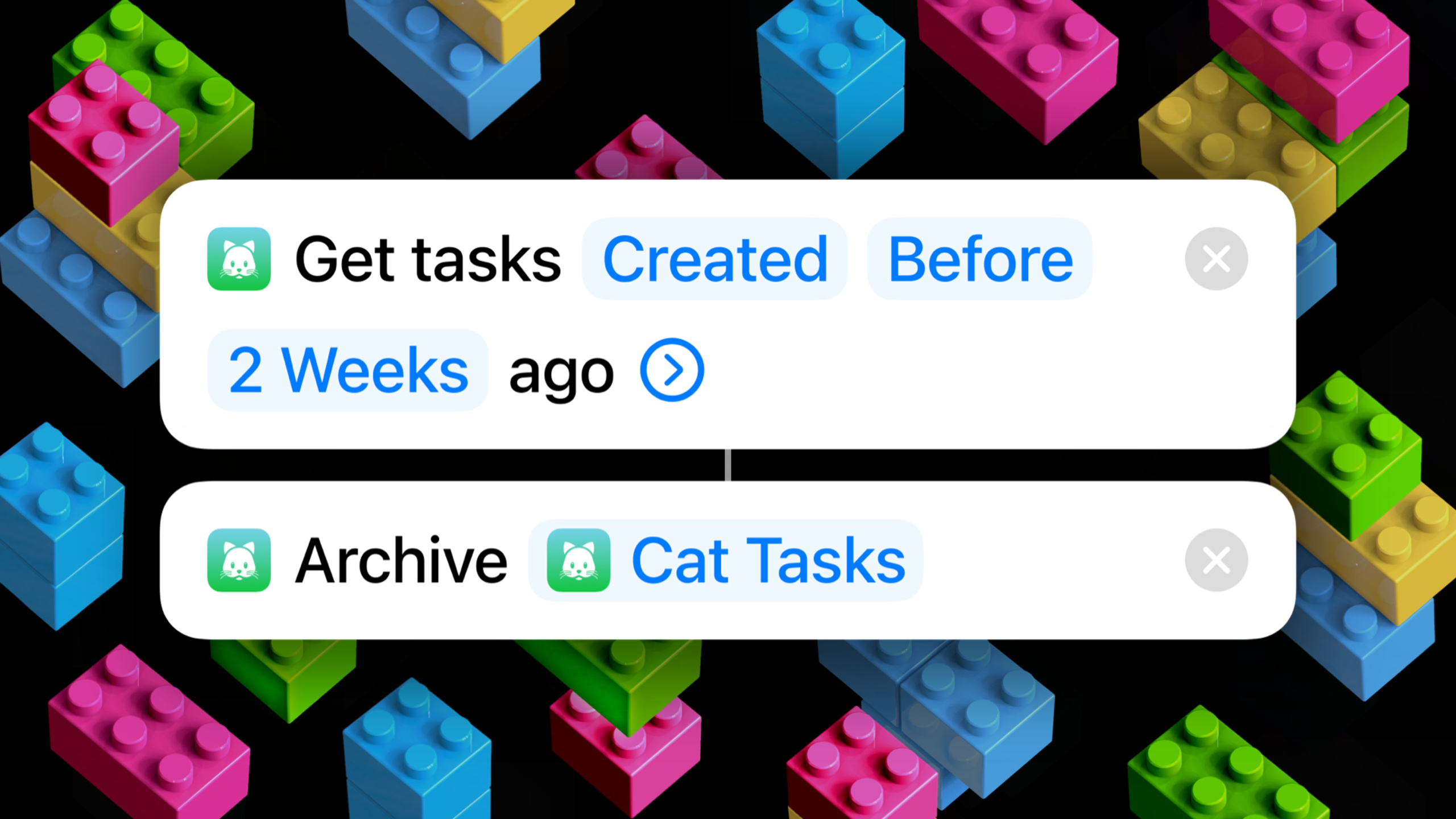
The To Do application examples in the speech are crucial. A “clean up old tasks” action does the job, but it’s vague and difficult to reuse. After splitting into “Get tasks created a week ago” and “Archive tasks”, users can do more things with the same set of actions.
The output of “Get Task” can also be connected to “Show Results” or “Save File”. If the action outputs reminders, attachments, parent tasks, due dates, notes, and lists, the shortcut author can continue to group around these fields.
Detailed Content
1. Useful Actions: Complete real tasks within the app
(04:01) Apple’s definition of “useful” is very specific: the action performs the task that the user would originally do in the application, and completes it as completely as possible without actively opening the application.
Reminders’ “Add Reminder” is suitable as an action because it can be done with parameters. On the contrary, “Custom Watch Face” contains a large number of visual previews and controls, and the interaction is very immersive and not suitable for turning into shortcut actions. Switching between already configured dials is more suitable as an action.
action: Add New Reminder
parameters:
  title:
    required: true
    prompt: "What do you want to be reminded about?"
  list:
    required: false
  dueDate:
    required: false
runBehavior:
  opensApp: false
  asksFollowUpQuestionWhenMissingRequiredValue: true
Key points:
actionRepresents the tasks to be exposed to Shortcuts, from common functions in the application. -parametersCorresponds to the configurable fields in the Shortcuts action card. -title.required: trueIndicates that the title must be known to add a reminder. -promptis a question posed to the user when there is insufficient information at runtime. -opensApp: falseCorresponding to the advice in the speech: don’t open the app if you can finish it directly. -asksFollowUpQuestionWhenMissingRequiredValueCorresponds to the processing method of “asking the user when the title is missing”.
2. Modular action: one action only does one thing
(08:21) The speech uses two To Do applications to compare modular design. Dog Do’s does a “Clean up old tasks” move. Shortcats is split into “Get Tasks” and “Archive”.
After taking it apart, the action itself is clearer and there are more ways to combine it. Siri can also show a preview of the task to be archived and ask for confirmation before executing it.
shortcut: Clean up old tasks
actions:
  - action: Get Tasks
    parameters:
      createdBefore: "one week ago"
    output: Cat Tasks
    outputProperties:
      - Reminder
      - Attachment
      - Parent task
      - Deadline
      - Notes
      - List
  - action: Archive Task
    parameters:
      tasks: Cat Tasks
Key points:
Get TasksIt is only responsible for search tasks, not archiving. -createdBeforeIt is an editable parameter and the user can change one week to two weeks. -output: Cat TasksIndicates that the results of the first action can be passed to subsequent actions. -outputPropertiesCorresponding to the output attributes mentioned in the speech, the shortcut author can extract fields such as notes, attachments, and deadlines. -Archive Tasktake overCat Tasks, only responsible for archiving.
3. Multi-modal action: the same parameter must be adapted to click, voice and editor
(13:15) Shortcuts actions will appear in three scenarios: the user clicks to run, runs through Siri voice, and is configured in the Shortcut Editor.
The same due date parameter can pop up a calendar picker on the iPhone, but can only be asked by Siri on the HomePod. Apple’s suggestion is to write prompt as a question, such as “When is the deadline?” If you just write “Deadline:”, it will be fine in the UI, but it will be unnatural when read out.
parameter: deadline
type: Date
prompt: "When is the deadline?"
configurationUI:
  input: text
  recognizedValuePreview: true
resolutionUI:
  compactPicker: calendar
siriResolution:
  spokenPrompt: "When is the deadline?"
Key points:
parameterRepresents an input field in an action. -type: DateUsing system parameter types, the system can handle dates on different devices. -promptWritten as a question, it can be reused by clicking to run and Siri voice running. -configurationUICorresponds to the interface users see when setting actions in the editor. -recognizedValuePreviewCorresponds to the recognition prompt that appears after entering date text in the speech. -siriResolution.spokenPromptIndicates that the same question will be read out by Siri.
4. Dynamic Enumerations: Provide visual selection for custom parameters
(15:39) System parameter types do not necessarily cover all entities in the application. For the Set Playback Destination action to display AirPods or Bluetooth speakers, the system does not have a common “playback device” parameter, so the action defines custom parameters and accompanying UI.
Apple calls this type of UI Dynamic Enumerations. It appears two times: when configuring the action to select the value, and when running the action to parse the value.
parameter: catTask
type: CustomEntity
configuration:
  dynamicEnumeration: TaskListForEditor
  purpose: "pick a task while building the shortcut"
resolution:
  dynamicEnumeration: TaskListForRuntime
  purpose: "pick a task when the shortcut runs"
Key points:
catTaskIt is the application’s own entity, and the system’s built-in types cannot be accurately expressed. -type: CustomEntityIndicates that this is a custom parameter type. -configuration.dynamicEnumerationCorresponds to the task list displayed when editing shortcut commands. -resolution.dynamicEnumerationCorresponds to the list displayed when Siri asks “Which task to archive?”- Both lists are populated with the same parameter, so the data source should be consistent.
5. Parameter summary: Make the action read like a sentence in the editor
(18:44) iOS 15 redesigns the appearance of actions in the Shortcuts editor, focusing on the parameter summary. The app name is removed, the app icon is placed inside the activity, and the action itself relies on a summary to clearly describe the task.
The rules given by Apple are very detailed: the summary starts with a verb and is written in one sentence without periods; only the most important parameters are put; optional parameters are put in the Options UI. The action title should use the same verbs as the abstract, and try to share as many words as possible.
actionTitle: "Start Breathing"
parameterSummary: "Start breathing for ${duration}"
requiredParameters:
  duration:
    defaultValue: "15 minutes"
optionalParameters:
  music:
    location: Options UI
prompts:
  duration: "How long do you want to breathe?"
Key points:
actionTitleUsed in action lists to help users find actions quickly. -parameterSummaryWhen used in action cards, they must start with a verb. -${duration}It is the core parameter in the summary. Users can see the breathing duration at a glance. -defaultValueCorresponds to the default value of 15 minutes in the lecture, which can reduce runtime questions. -music.location: Options UIIndicates that playing music is optional and should not occupy the summary. -prompts.durationEnsure users still have questions to ask when using Ask Each Time.
6. Snippets: Show outcome previews before high-risk moves
(16:33) Snippet (snippet interface) is a small interface displayed when the action is running. Starbucks’ coffee ordering action displays an order preview before placing the order.
Apple recommends that for permanent actions such as deletion and order placement, different snippets be displayed before and after completion. The pre-completion interface helps the user understand what is going to happen.
action: Order Coffee
snippets:
  beforeCompletion:
    title: "Review Order"
    shows:
      - drink
      - size
      - pickupStore
  afterCompletion:
    title: "Order Placed"
    shows:
      - orderStatus
      - pickupTime
requiresConfirmation: true
Key points:
beforeCompletionThe preview interface before the corresponding action is completed. -drink、size、pickupStoreLet users acknowledge the consequences of their actions. -afterCompletionStatus feedback after the corresponding action is completed. -requiresConfirmationCorresponds to processes such as archiving, deletion, and ordering that require user confirmation.
7. Share and Add to Siri: Give users a phrase they can speak directly
(20:37) iOS 15 and macOS Monterey improve the way Shortcuts are shared. Developers can place multi-step shortcuts containing their own actions on websites, social media, or application help pages.
“Add to Siri” has also changed. If the developer provides a suggested invocation phrase, the shortcut is added immediately after the user clicks it and sees what to say to run it. If there is no suggested phrase, the system will ask the user to name it themselves, and the adding process will become longer.
sharedShortcut:
  title: "Order My Usual Coffee"
  runDestinations:
    - iPhone
    - Mac
    - HomePod
  suggestedInvocationPhrase: "Order my usual coffee"
  distribution:
    - website
    - socialMedia
    - inAppHelp
Key points:
titleis the name of the shared shortcut. -runDestinationsCorresponds to the runnable location displayed in the download UI. -suggestedInvocationPhraseis a phrase spoken by a user to Siri. -distributionCorresponds to the three publishing portals suggested in the speech: website, social media, and application help.
Core Takeaways
1. Give the task management app the “Today Cleanup” shortcut command
- What to do: Provides two actions: “Get expired tasks” and “Archive tasks”, allowing users to clear tasks from a week ago with one click.
- Why it’s worth doing: The presentation emphasized that modular actions can be combined or used individually. The output of the get task can also be displayed or saved to a file.
- How to start: First define the Get action, output the task list and attributes such as Notes, Deadline, Attachment, etc.; then define the Archive action, receive the task list and display the confirmation snippet before execution.
2. Perform the “Record Once” action on the Habit Tracking App
- What to do: The user can complete a habit check-in by saying “record drinking water” or clicking on the widget.
- Why it’s worth doing: Checking in is a high-frequency, repeatable, low-immersion task that meets the criteria of useful actions in speeches.
- How to start: Make the habit name a parameter; when the habit name is missing, use a question prompt to ask; after running, return the result of this recording.
3. Perform the “Play the latest episode” action on the podcast app
- What to do: Provides three actions: “Get the show”, “Play a single episode” and “Save to listen to later”.
- Why it’s worth doing: After breaking it into small actions, users can combine podcast actions with calendar, commuting, and focus modes.
- How to start: Let “Get Program” output the program name, latest episode, duration and remarks; the playback target uses dynamic enumeration to display the program list.
4. Use the “Repurchase Frequently Ordered Food” action on the food ordering app
- What: Users place an order for coffee or lunch via Siri and see a preview of the order before execution.
- Why it’s worth doing: The speech mentioned that placing an order is a permanent action, and it is suitable to show the snippet to explain the consequences before completion.
- How to start: Make the food, specifications, and stores into parameters; write question prompts for missing parameters; display the beforeCompletion snippet and ask for confirmation before placing an order.
5. Perform the “Save attachments to iCloud” action for the file management app
- What to do: Extract the attachment from the application entity and save it to the system “Save File” action.
- Why it’s worth doing: The speech emphasized that output attributes should be disassembled and labeled, and shortcut authors can use built-in actions to create new processes outside the application.
- How to start: Output the Attachment property in the Get action; make sure the variable editor can see the property; use the shared shortcut to demonstrate how to connect Save File.
Related Sessions
- Donate intents and expand your app’s presence — Learn how to donate intents to recommend app features in Siri, Focus, Shortcuts, and Smart Stack.
- Meet Shortcuts for macOS — Introducing Shortcuts on macOS and how Catalyst and AppKit apps expose actions.
- Add intelligence to your widgets — Explains Widget Suggestions and Smart Rotate, directly related to the Suggestions scenario.
- Send communication and Time Sensitive notifications — Demonstrates how SiriKit intents can be used in communication and notification scenarios.
Comments
GitHub Issues · utterances