
Highlight
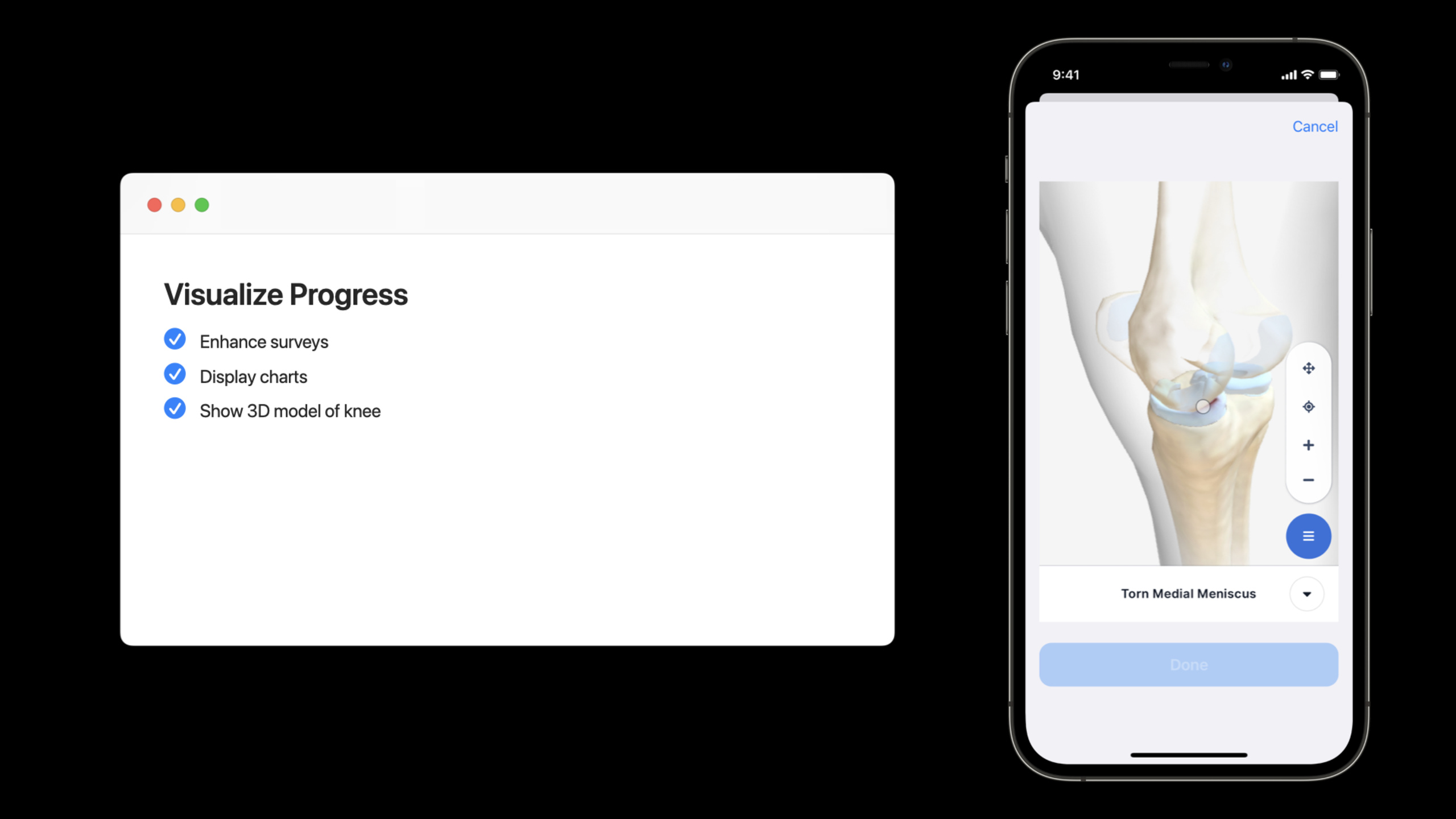
Apple demonstrated how ResearchKit can be combined with CareKit: developers can customize task cards, limit survey editing, graph survey answers, and use ResearchKit to present 3D educational content.
Core Content
Since the last episode, Recover, a recovery research app, has enabled participants to fill out daily surveys and range-of-motion tests. The problem arises in real use.
When participants look back at records from previous days, they will only see “Complete.” They can’t see how many pain points they filled in that day, or how many hours they slept. Past answers can also be deleted, and surveys for future dates can be filled in in advance. This is not friendly to research data.
Doctors also want to see trends. A single answer can only describe one day’s status, but cannot indicate whether recovery has progressed. Jamie wants two graphs in the Insights tab: one comparing sleep and pain, and one showing range of motion over time.
Apple’s approach is to connect ResearchKit (a research survey framework) and CareKit (a care planning framework) together. ResearchKit is responsible for questionnaires, active tasks and 3D educational content. CareKit takes care of schedules, task cards, data storage and charts.
The focus of this session is to turn the collected data into readable feedback. After participants complete the survey, the card directly displays the answers; after entering Insights, the chart automatically reads historical results from the CareKit Store; after clicking on the education card, ResearchKit displays explanatory text and a 3D knee model.
The task card changes from “Complete Status” to “Result Summary”
Previous cards only told participants whether the task was completed. Completion information is useful to the researcher and of limited help to the participant. What participants really want to know is: What did I fill out that day.
CareKit allows developers to customize task cards through View Synchronizer. It updates the UI when the Store data changes. inherited hereOCKSurveyTaskViewSynchronizer,existupdateViewRead survey outcome from , and then writeinstructionsLabel。
Surveys can only be edited on the appropriate date
Medical research data requires time boundaries. Past rehabilitation tests should not be redone, nor should future questionnaires be filled out in advance.
There are two levels of restrictions in the code. When deleting the historical outcome, passOCKSurveyTaskViewControllerDelegatereturnfalse. When displaying tasks with future dates, simply disable card interaction and reduce transparency.
Insights tab displays trends
A single pain score is just a point. Once the continuous data is put into a chart, patients and doctors can see changes in pain, sleep and range of motion.
CareKitOCKCartesianChartViewControllerYou can directly consume the task outcome in the Store. Developers only need to configure the data series, tell the chart from which task to get data, and how to calculate the Y value for each day.
ResearchKit can also display educational content
Doctors want patients to understand meniscal injuries. This content has no schedule, does not need to save results, and is not a daily task.
Therefore it does not enter the CareKit schedule. App puts one in InsightsOCKFeaturedContentView, created after the user clicksORKTaskViewController, runs a ResearchKit task that contains a description step and a 3D model step.
Detailed Content
Customize survey card to display submitted answers
(02:27) CareKit’s task cards are driven by both data and view synchronizers.OCKSurveyTaskViewSynchronizerProvides default styles, subclasses canupdateViewAdd your own UI logic.
final class SurveyViewSynchronizer: OCKSurveyTaskViewSynchronizer {

    override func updateView(
        _ view: OCKInstructionsTaskView,
        context: OCKSynchronizationContext<OCKTaskEvents>) {

        super.updateView(view, context: context)

        if let event = context.viewModel.first?.first, event.outcome != nil {
            view.instructionsLabel.isHidden = false

            let pain = event.answer(kind: Surveys.checkInPainItemIdentifier)
            let sleep = event.answer(kind: Surveys.checkInSleepItemIdentifier)

            view.instructionsLabel.text = """
                Pain: \(Int(pain))
                Sleep: \(Int(sleep)) hours
                """
        } else {
            view.instructionsLabel.isHidden = true
        }
    }
}
Key points:
SurveyViewSynchronizerinheritOCKSurveyTaskViewSynchronizer, reuse CareKit’s default investigation card behavior. -updateViewCalled when the Store data changes, suitable for displaying the outcome on the UI. -super.updateView(view, context: context)Keep the system default update logic first. -context.viewModel.first?.firstGet the event corresponding to the current card. -event.outcome != nilIndicates that this event has been completed. -event.answer(kind:)by outcome valuekindRead Pain and Sleep Answers. -instructionsLabel.textWrite the answer back on the card so participants can see the specific value when they look back at the historical date.- Hide when there is no outcome
instructionsLabel, to avoid showing a blank summary.
(03:12) It can be used herekindCheck the answers because the previous part saves the survey results for eachOCKOutcomeValuesetkind。
static func extractAnswersFromCheckInSurvey(
    _ result: ORKTaskResult) -> [OCKOutcomeValue]? {

    guard
        let response = result.results?
            .compactMap({ $0 as? ORKStepResult })
            .first(where: { $0.identifier == checkInFormIdentifier }),

        let scaleResults = response
            .results?.compactMap({ $0 as? ORKScaleQuestionResult }),

        let painAnswer = scaleResults
            .first(where: { $0.identifier == checkInPainItemIdentifier })?
            .scaleAnswer,

        let sleepAnswer = scaleResults
            .first(where: { $0.identifier == checkInSleepItemIdentifier })?
            .scaleAnswer
    else {
        assertionFailure("Failed to extract answers from check in survey!")
        return nil
    }

    var painValue = OCKOutcomeValue(Double(truncating: painAnswer))
    painValue.kind = checkInPainItemIdentifier

    var sleepValue = OCKOutcomeValue(Double(truncating: sleepAnswer))
    sleepValue.kind = checkInSleepItemIdentifier

    return [painValue, sleepValue]
}
Key points:
ORKTaskResultIs the result object after the ResearchKit survey is completed. -ORKStepResultFind the check-in form step. -ORKScaleQuestionResultRead the answers to the scale questions. -painAnswerandsleepAnswerFrom pain questions and sleep questions respectively. -OCKOutcomeValue(Double(truncating:))Convert ResearchKit values to CareKit outcome values. -kindThe field identifier is saved and used in subsequent cards and charts to distinguish pain from sleep.- The returned array will be
OCKSurveyTaskViewControllerWrite to CareKit Store.
(03:37) For the custom synchronizer to take effect, it needs to be passed in when creating the survey cardviewSynchronizer, and setsurveyDelegate。
let survey = OCKSurveyTaskViewController(
    task: task,
    eventQuery: OCKEventQuery(for: date),
    storeManager: storeManager,
    survey: Surveys.checkInSurvey(),
    viewSynchronizer: SurveyViewSynchronizer(),
    extractOutcome: Surveys.extractAnswersFromCheckInSurvey
)
survey.surveyDelegate = self
Key points:
taskis the check-in task in CareKit Store. -OCKEventQuery(for: date)Events limited to the current date. -storeManagerKeep task cards and Store in sync. -surveyResearchKit questionnaires are available. -viewSynchronizerReplace default view synchronization logic. -extractOutcomeDefine how ResearchKit results are converted into CareKit outcomes. -surveyDelegateUsed for subsequent control of deletion permissions and completion callbacks.
It is forbidden to delete historical results and fill in future tasks in advance.
(03:42) CareKit will ask the delegate before deleting the outcome. This method returns a Boolean value that determines whether deletion of the results of an event is allowed.
func surveyTask(
    viewController: OCKSurveyTaskViewController,
    shouldAllowDeletingOutcomeForEvent event: OCKAnyEvent) -> Bool {

    event.scheduleEvent.start >= Calendar.current.startOfDay(for: Date())
}
Key points:
- method from
OCKSurveyTaskViewControllerDelegate。 event.scheduleEvent.startis the start time of the task event. -Calendar.current.startOfDay(for: Date())Got zero points today.- The expression returns when the event start time is earlier than today
false, CareKit does not allow deletion. - Return of events today and later
true, the current date can still be redone or deleted.
(04:28) Tasks with future dates are processed when the list is generated. The code first determines whether the list date is later than today, and then uniformly modifies the card interaction status.
let isFuture = Calendar.current.compare(
    date,
    to: Date(),
    toGranularity: .day) == .orderedDescending

self.fetchTasks(on: date) { tasks in
    tasks.compactMap {

        let card = self.taskViewController(for: $0, on: date)
        card?.view.isUserInteractionEnabled = !isFuture
        card?.view.alpha = isFuture ? 0.4 : 1.0

        return card

    }.forEach {
        listViewController.appendViewController($0, animated: false)
    }
}
Key points:
Calendar.current.compareCompare by daydateand the current time, ignoring hours and minutes. -isFuturefortrueIndicates that the user is viewing a future date. -fetchTasks(on:)Retrieve tasks with events for the day from the CareKit Store. -taskViewController(for:on:)Generate corresponding cards for each task. -isUserInteractionEnabled = !isFuturePrevent future cards from being clicked or filled out. -alpha = 0.4Give the user visual feedback: the task can be previewed but not operated. -appendViewControllerPlace processed cards into your daily list.
Charting Pain and Sleep with CareKit
(05:42) The first picture in Insights is two sets of bar charts. It takes two categories of answers from the same check-in task: pain scores and sleep hours.
let painSeries = OCKDataSeriesConfiguration(
    taskID: TaskIDs.checkIn,
    legendTitle: "Pain (1-10)",
    gradientStartColor: #colorLiteral(red: 1, green: 0.462745098, blue: 0.368627451, alpha: 1),
    gradientEndColor: #colorLiteral(red: 1, green: 0.462745098, blue: 0.368627451, alpha: 1),
    markerSize: 10,
    eventAggregator: .custom({ events in
        events
            .first?
            .answer(kind: Surveys.checkInPainItemIdentifier)
        ?? 0
    })
)

let sleepSeries = OCKDataSeriesConfiguration(
    taskID: TaskIDs.checkIn,
    legendTitle: "Sleep (hours)",
    gradientStartColor: UIColor.systemBlue,
    gradientEndColor: UIColor.systemBlue,
    markerSize: 10,
    eventAggregator: .custom({ events in
        events
            .first?
            .answer(kind: Surveys.checkInSleepItemIdentifier)
        ?? 0
    })
)

let barChart = OCKCartesianChartViewController(
    plotType: .bar,
    selectedDate: Date(),
    configurations: [painSeries, sleepSeries],
    storeManager: storeManager
)

appendViewController(barChart, animated: false)
Key points:
OCKDataSeriesConfigurationDescribes a set of data in a chart. -taskID: TaskIDs.checkInSpecifying data sources is a daily check-in task. -legendTitleShow legend text. -gradientStartColorandgradientEndColorControls the color of the columns. -markerSize: 10Controls the width of the column. -eventAggregator: .customDefine how multiple events within a day turn into one Y value.- There is only one check-in event per day here, so read
events.first. - Pain series reading
checkInPainItemIdentifier, sleep series readingcheckInSleepItemIdentifier。 OCKCartesianChartViewController(plotType: .bar)Create a histogram. -storeManagerLet the chart automatically refresh when Store data changes.
Use scatter plot to display range of motion recovery
(07:14) The second picture shows the range of motion test results. It only requires a data series and the chart type is changed to a scatter plot.
let rangeSeries = OCKDataSeriesConfiguration(
    taskID: TaskIDs.rangeOfMotionCheck,
    legendTitle: "Range of Motion (degrees)",
    gradientStartColor: view.tintColor,
    gradientEndColor: view.tintColor,
    markerSize: 3,
    eventAggregator: .custom({ events in
        events
            .first?
            .answer(kind: #keyPath(ORKRangeOfMotionResult.range))
        ?? 0
    })
)

let scatterChart = OCKCartesianChartViewController(
    plotType: .scatter,
    selectedDate: Date(),
    configurations: [rangeSeries],
    storeManager: storeManager
)

appendViewController(scatterChart, animated: false)
Key points:
taskID: TaskIDs.rangeOfMotionCheckPoints to ResearchKit’s knee range of motion task. -legendTitleThe units indicated are degrees (angles). -markerSize: 3Make the scatter smaller. -eventAggregatorRead the first range-of-motion event of the day. -#keyPath(ORKRangeOfMotionResult.range)Used when saving outcomekindAlignment. -plotType: .scatterLet the data be displayed as scatter points. -configurations: [rangeSeries]Indicates that this picture only has one set of data.
(08:04) The diagram is connected to the CareKit Store. After deleting the two outcomes on Tuesday in the demonstration, return to Insights and the data points on Tuesday will automatically disappear.
static func extractRangeOfMotionOutcome(
    _ result: ORKTaskResult) -> [OCKOutcomeValue]? {

    guard let motionResult = result.results?
        .compactMap({ $0 as? ORKStepResult })
        .compactMap({ $0.results })
        .flatMap({ $0 })
        .compactMap({ $0 as? ORKRangeOfMotionResult })
        .first else {

        assertionFailure("Failed to parse range of motion result")
        return nil
    }

    var range = OCKOutcomeValue(motionResult.range)
    range.kind = #keyPath(ORKRangeOfMotionResult.range)

    return [range]
}
Key points:
ORKRangeOfMotionResultIs the activity scope result produced by ResearchKit active tasks. -motionResult.rangeis the angle value obtained from the test. -OCKOutcomeValue(motionResult.range)Write the result as a value that CareKit can store. -range.kinduse#keyPath(ORKRangeOfMotionResult.range), the chart is read according to the same key.- After returning the array, CareKit Store is responsible for persistence.
Open 3D educational content with Featured Content
(08:23) Educational content has no fixed time and no results to save. It is suitable to be placed in Insights, usingOCKFeaturedContentViewas an entrance.
let kneeModelView = OCKFeaturedContentView(imageOverlayStyle: .dark)
kneeModelView.delegate = self
kneeModelView.label.text = "About the meniscus"
kneeModelView.label.textColor = .systemBackground
kneeModelView.imageView.image = UIImage(named: "knee")
appendView(kneeModelView, animated: true)
Key points:
OCKFeaturedContentViewIs CareKit’s content card view. -imageOverlayStyle: .darkAdd a dark mask to the image to make it easier to display text. -delegate = selfLet the controller receive click events. -label.textSet card title. -imageView.imageSet cover image. -appendViewPut the card into the Insights list.
(09:12) After the user clicks the card, the App creates a ResearchKit task and usesORKTaskViewControllerexhibit.
func didTapView(_ view: OCKFeaturedContentView) {

    let humanModelTask = Surveys.kneeModel()

    let taskViewController = ORKTaskViewController(
        task: humanModelTask,
        taskRun: nil
    )

    taskViewController.delegate = self

    present(taskViewController, animated: true, completion: nil)
}

func taskViewController(
    _ taskViewController: ORKTaskViewController,
    didFinishWith reason: ORKTaskViewControllerFinishReason,
    error: Error?) {

    taskViewController.dismiss(animated: true, completion: nil)
}
Key points:
didTapViewfromOCKFeaturedContentViewDelegate。Surveys.kneeModel()Return a ResearchKit task. -ORKTaskViewControllerResponsible for running this task. -taskRun: nilIndicates that there is no need to specify an independent run ID. -delegate = selfUsed to receive completion callbacks. -presentOpen educational content modally. -didFinishWithIn dismiss, the user returns to Insights after viewing the model.
Create ResearchKit 3D model task
(09:53) 3D educational content consists of two steps: an explanation step that explains the context, and then a 3D model step.
static func kneeModel() -> ORKTask {

    let instructionStep = ORKInstructionStep(
        identifier: "insights.instructionStep"
    )
    instructionStep.title = "Your Injury Visualized"
    instructionStep.detailText = "A 3D model will be presented to give you better insights on your specific injury."
    instructionStep.iconImage = UIImage(systemName: "bandage")

    let modelManager = ORKUSDZModelManager(usdzFileName: "toy_robot_vintage")

    let kneeModelStep = ORK3DModelStep(
        identifier: "insights.kneeModel",
        modelManager: modelManager
    )

    let kneeModelTask = ORKOrderedTask(
        identifier: "insights",
        steps: [instructionStep, kneeModelStep]
    )

    return kneeModelTask
}
Key points:
ORKInstructionStepDisplay title, description, and icon. -identifierGive the step a stable ID. -ORKUSDZModelManagerLoad local USDZ model.- Use sample code first
toy_robot_vintageVerify that the 3D model process is available. -ORK3DModelStepIt is the 3D model display step of ResearchKit. -ORKOrderedTaskOrganize instruction steps and model steps sequentially. - It was mentioned in the second half of the session that in the final demonstration, the toy robot was replaced by BioDigital’s model manager, which was used to display the knee and meniscus models.
Core Takeaways
-
What to do: Add a “summary of that day’s answers” to the daily questionnaire card in the Rehabilitation App. Why it’s worth doing: When participants look back at historical dates, they can see specific answers such as pain, sleep, etc., reducing the problem of “I only know it was completed, but I don’t know what to fill in”. How to get started: Inheritance
OCKSurveyTaskViewSynchronizer,existupdateViewRead inevent.answer(kind:), write the result intoinstructionsLabel。 -
What to do: Disable users from modifying past health test results and disable future tasks. Why it’s worth doing: Rehabilitation, clinical research, and symptom tracking all rely on data recorded by date. Random modification of historical and future data will affect trend judgment. How to get started: Implementation
surveyTask(_:shouldAllowDeletingOutcomeForEvent:),useCalendar.current.startOfDay(for:)Determine historical events; set when generating future date cardsisUserInteractionEnabled = false。 -
What to do: Make a comparison chart of symptoms and lifestyle habits on the Insights page. Why it’s worth doing: Putting pain and sleep in the same histogram makes it easier for participants to see whether pain increases after sleep deprivation. How to start: Create two for the same task
OCKDataSeriesConfiguration, in differenteventAggregatorRead different outcomes inkind, and then pass it toOCKCartesianChartViewController(plotType: .bar)。 -
What to do: Make the results of active tasks into a scatter plot of recovery progress. Why it’s worth doing: Range of motion This type of test has a natural time trend, and the scatter plot allows doctors and patients to see the recovery trajectory. How to start: From
ORKRangeOfMotionResult.rangecreateOCKOutcomeValue,set upkind = #keyPath(ORKRangeOfMotionResult.range), then useplotType: .scatterdraw. -
What to do: Add a 3D anatomy education portal to the patient. Why it’s worth it: Physician-provided text descriptions paired with 3D models help patients understand the location of the injury and recovery goals. How to get started: Put in Insights in CareKit
OCKFeaturedContentView, after clicking presentORKTaskViewController, task containsORKInstructionStepandORK3DModelStep。
Related Sessions
- Build a research and care app, part 1: Setup onboarding — Set up onboarding, informed consent, and permission requests using ResearchKit and CareKit.
- Build a research and care app, part 2: Schedule tasks — Add surveys and proactive tasks to the CareKit schedule and save participant results.
- Measure health with motion — Expand your health monitoring data sources with metrics like gait, six-minute walk, and more from Core Motion and HealthKit.
Comments
GitHub Issues · utterances