
Highlight
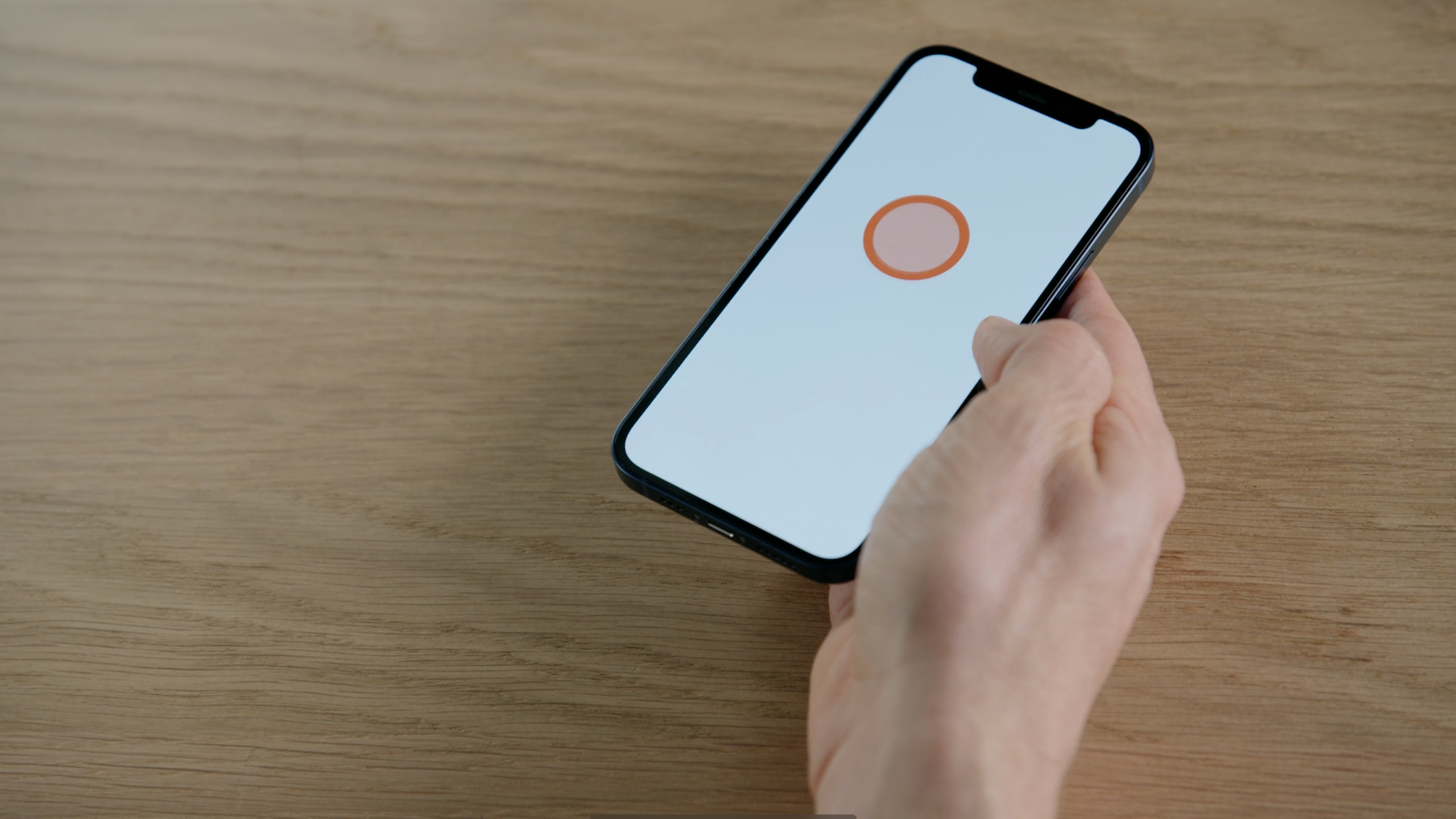
Apple used the HapticRicochet example to demonstrate how to bind Core Haptics, audio, and animation to the same interaction moment, so that the collision, shield, and rolling texture feedback of iPhone applications have clear sources, consistent rhythm, and only appear during key actions.
Core Content
When making a small game, screen feedback is the easiest to implement. When the ball hits the boundary, the speed can be changed; when the user clicks on the ball, animation can be played; the background texture can be changed to another picture.
The problem is the feel and the sound.
If collisions were audible but not tactile, the ball would act like a layer stuck to the screen. If the touch occurs too frequently, the user will find it noisy. If the sound and touch rhythms are different, the interaction will become loose.
This session uses HapticRicochet to talk about this issue. It comes from the HapticBounce sample. The ball rolls in the direction of the iPhone, producing audio and tactile sensations when it hits a wall. After the user points the ball, the ball becomes larger; if he points it again, the ball gains a shield. The shield will be lost on collision, and eventually the ball will implode.
Apple is focusing on two moves.
The first action is to add a shield. This moment has 500 milliseconds of visual animation, and also requires sound and touch to convey the state change of “getting protected.”
The second action is to enable scrolling texture. After the user clicks on the background, a dot texture appears on the background. As the ball rolls across the texture, the feel should be continuous and change with ball speed.
Core Haptics (Core Haptics Framework) provides low-level capabilities. It splits feedback into four objects: engine, player, pattern, and event. Developers create patterns from AHAP (Apple Haptic Audio Pattern) files, then create players, and finally play when interactions occur.
This process solves the problem of collaboration. Designers can adjust haptics and audio in AHAP. Engineers connect patterns to real interactions. Use the same document on both sides to discuss feedback and reduce abstract adjectives like “harder” or “thicker.”
Detailed Content
Four objects of Core Haptics
(04:41)
Core Haptics’ API works around four objects: engine, player, pattern, and event.
engine connects to the physical actuator of the iPhone. player controls play, stop and pause. A pattern is a collection of events arranged in time. event is the actual feedback unit, common types include transient and continuous.
session mentioned that the practical part will focus on three things: loading mode, modification mode, and playback mode.
import CoreHaptics

final class HapticController {
    private let engine: CHHapticEngine
    private var player: CHHapticPatternPlayer?

    init() throws {
        engine = try CHHapticEngine()
        try engine.start()
    }

    func loadPattern(named name: String) throws {
        guard let url = Bundle.main.url(forResource: name, withExtension: "ahap") else {
            return
        }

        let pattern = try CHHapticPattern(contentsOf: url)
        player = try engine.makePlayer(with: pattern)
    }

    func play() throws {
        try player?.start(atTime: CHHapticTimeImmediate)
    }
}
Key points:
import CoreHapticsIntroducing the tactile framework. -CHHapticEngineIt is the entrance to playback haptics, corresponding to the engine in the session. -try engine.start()Start the engine before playing the pattern. -Bundle.main.url(forResource:withExtension:)Read from application package.ahapdocument. -CHHapticPattern(contentsOf:)Create patterns from AHAP files. -engine.makePlayer(with:)Create player from pattern. -start(atTime: CHHapticTimeImmediate)Play the current mode immediately.
Shield feedback: load mode first, then play during animation
(08:05)
The shield action is divided into two steps.
The first step is to create the schema during the initialization phase. The session code is fromShieldTransientThis AHAP file creates the pattern and then usesengine.makePlayer(with:)createshieldPlayer。
The second step plays feedback when the shield animation starts.shield()function callstartPlayer(shieldPlayer), then putshieldAnimationAdd tosphereView.layersuperior.
import UIKit
import CoreHaptics

final class ShieldViewController: UIViewController {
    private var engine: CHHapticEngine!
    private var shieldPlayer: CHHapticPatternPlayer?
    private let sphereView = UIView()
    private let shieldAnimation = CABasicAnimation(keyPath: "borderWidth")
    private var isAnimating = false

    override func viewDidLoad() {
        super.viewDidLoad()
        engine = try? CHHapticEngine()
        try? engine.start()
        initializeShieldHaptics()
    }

    func initializeShieldHaptics() {
        guard let pattern = createPatternFromAHAP("ShieldTransient") else {
            return
        }

        shieldPlayer = try? engine.makePlayer(with: pattern)
    }

    func shield() {
        startPlayer(shieldPlayer)

        isAnimating = true
        sphereView.layer.add(shieldAnimation, forKey: "Width")
    }

    private func createPatternFromAHAP(_ name: String) -> CHHapticPattern? {
        guard let url = Bundle.main.url(forResource: name, withExtension: "ahap") else {
            return nil
        }

        return try? CHHapticPattern(contentsOf: url)
    }

    private func startPlayer(_ player: CHHapticPatternPlayer?) {
        try? player?.start(atTime: CHHapticTimeImmediate)
    }
}
Key points:
engine = try? CHHapticEngine()Create a haptic engine. -try? engine.start()Start the engine. -initializeShieldHaptics()Prepare the shield touch in advance to avoid creating it until interaction occurs. -createPatternFromAHAP("ShieldTransient")Corresponds to the sessionShieldTransientresource. -engine.makePlayer(with: pattern)generateshieldPlayer。shield()is where the shield deformation actually occurs. -startPlayer(shieldPlayer)Play with haptics and audio first. -sphereView.layer.add(shieldAnimation, forKey: "Width")Play the shield visual animation.
Modify AHAP: connect your favorite sounds to the appropriate touch
(10:11)
Apple showed off two shield resources.
ShieldTransientThe sound has a “getting protected” feeling, but the touch consists of three transient events. The sound is continuous and the rhythm of the two does not match.
ShieldContinuousThe touch is continuous advancement, which is more suitable for “shield generation”. But the audio it comes with will be attenuated and the effect is not suitable.
The final approach is straightforward: openShieldContinuous.ahap, find the audio event, and change the file name fromShieldB.wavChange toShieldA.wav. The haptics remain in continuous mode, and the sound is replaced by the sound in the first resource.
{
  "Event": {
    "Time": 0,
    "EventType": "AudioCustom",
    "EventWaveformPath": "ShieldA.wav",
    "EventParameters": [
      {
        "ParameterID": "AudioVolume",
        "ParameterValue": 1.0
      }
    ]
  }
}
Key points:
EventTypeuseAudioCustom, indicating that this event plays a custom audio file. -EventWaveformPathpoint to the.wavdocument.- Modifications in session are
ShieldB.wavReplace withShieldA.wav。 AudioVolumeuseParameterValueAdjust the volume.- This change occurs in the AHAP file and does not require changes to the Swift playback logic.
(11:07)
After the resource modification is completed, the Swift code only needs to change the file name. The initialization function starts fromShieldTransientChange toShieldContinuous。
func initializeShieldHaptics() {
    guard let pattern = createPatternFromAHAP("ShieldContinuous") else {
        return
    }

    shieldPlayer = try? engine.makePlayer(with: pattern)
}
Key points:
- The function name does not change, and the call point does not need to change.
-
ShieldContinuousis a modified AHAP resource. -engine.makePlayer(with:)The player is still created from pattern. - When the shield animation is triggered,
shield()Continue to call the sameshieldPlayer。
Scrolling Texture: Stop after two seconds after solving with Advanced Player
(12:15)
The first implementation of scrolling textures had a problem. After the background texture is turned on, the ball feels tactile when rolling, but the tactile sensation disappears after a few seconds.
The reason is specific: the texture AHAP file only has 2 seconds of tactile content.
Apple’s fix is to replace the texture player withCHHapticAdvancedPatternPlayer. The advanced player provides pause, resume, callback and other capabilities. HapticRicochet only uses its looping capabilities.
import CoreHaptics

final class TextureHaptics {
    private let engine: CHHapticEngine
    private var texturePlayer: CHHapticAdvancedPatternPlayer?

    init(engine: CHHapticEngine) {
        self.engine = engine
    }

    func initializeTextureHaptics() {
        guard let url = Bundle.main.url(forResource: "Texture", withExtension: "ahap"),
              let pattern = try? CHHapticPattern(contentsOf: url) else {
            return
        }

        texturePlayer = try? engine.makeAdvancedPlayer(with: pattern)
        texturePlayer?.loopEnabled = true
    }

    func startTexture() {
        try? texturePlayer?.start(atTime: CHHapticTimeImmediate)
    }
}
Key points:
texturePlayerThe type isCHHapticAdvancedPatternPlayer。CHHapticPattern(contentsOf:)The pattern is still created from the same texture AHAP file. -engine.makeAdvancedPlayer(with:)Create advanced players. -texturePlayer?.loopEnabled = trueStart the loop. -start(atTime:)The playback entrance remains consistent.
Rolling texture: touch intensity updates with ball speed
(12:26)
mentioned in session,updateTexturePlayerWill be called every frame when the texture is activated. It updates the touch intensity based on the speed of the ball.
The design principle here is causality. Users see the ball rolling on a textured background and feel the texture in their hands. The faster the ball, the more noticeable the feedback. The source of feedback becomes clear.
import CoreHaptics

func updateTexturePlayer(ballSpeed: Float, texturePlayer: CHHapticAdvancedPatternPlayer?) {
    let normalizedSpeed = max(0, min(ballSpeed, 1))
    let intensity = CHHapticDynamicParameter(
        parameterID: .hapticIntensityControl,
        value: normalizedSpeed,
        relativeTime: 0
    )

    try? texturePlayer?.sendParameters([intensity], atTime: CHHapticTimeImmediate)
}
Key points:
ballSpeedIndicates the current ball speed, and session indicates that the touch will be updated based on the ball speed. -max(0, min(ballSpeed, 1))Limit the input to 0 to 1. -CHHapticDynamicParameterUsed to adjust parameters during playback. -.hapticIntensityControlAdjust touch intensity. -relativeTime: 0Indicates that the parameters take effect immediately. -sendParameters(_:atTime:)Send the new intensity to the currently playing advanced player.
The visual texture should also match the tactile density
(14:04)
After fixing the loop, there’s one design issue left.
The haptic pattern is dense, close to 100 entries in 2 seconds. The visual background is very thick, with only a few dots on the screen. The feel and image density are inconsistent.
Apple’s solution is to replace the background image resource with a thinner version. The touch mode remains unchanged, the visual texture becomes denser, and when the ball rolls across the background, the feel is closer to the picture.
import UIKit

final class TextureBackgroundView: UIView {
    private let backgroundImageView = UIImageView()

    func useFineTexture() {
        backgroundImageView.image = UIImage(named: "BackgroundTextureFine")
    }
}
Key points:
backgroundImageViewResponsible for displaying the textured background. -UIImage(named:)Read images from resources. -BackgroundTextureFineCorresponds to the Fine version resources mentioned in the session.- This change addresses sensory consistency: the density of visual dots should be close to the density of touch events.
Core Takeaways
1. Make an “object collision” feedback layer
- What to do: Add the sounds and touches of collision, falling, and adsorption to movable objects such as balls, cards, and chess pieces.
- Why it’s worth doing: The session hitting the ball against the wall illustrates causality. Feedback lets the user know which action triggered it.
- How to start: Prepare an AHAP file for each collision, using
CHHapticPattern(contentsOf:)Read and reuseengine.makePlayer(with:)Create a player and play it in the collision detection callback.
2. Make a “status upgrade” animation feedback
- What: Play animations, audio, and haptics simultaneously as the user upgrades, unlocks, and equips a shield.
- Why it’s worth doing: The shield example proves that state changes are suitable for continuous touch expression, allowing users to feel that the object has entered a new state.
- How to start: First make a visual animation of about 500 milliseconds, and then use AHAP to try out a continuous touch of the same duration; if the audio is not suitable, replace it directly in AHAP
AudioCustomfile name.
3. Make a “Material Texture” switch
- What: Allows users to switch background materials such as paper, metal, grid, rough ground, etc., and feel different textures when dragging objects.
- Why it’s worth doing: The scrolling texture example ties together visual context and continuous tactile sensation, so users understand that the tactile sensation comes from the texture on the screen.
- How to start: Prepare a 2 second AHAP for each material, use
CHHapticAdvancedPatternPlayerPlay and setloopEnabled = true。
4. Create a “speed-driven” tactile system
- What: Let the tactile intensity of scrolling, sliding, and dragging change with the speed.
- Why it’s worth doing: HapticRicochet updates the texture touch every frame according to the ball speed to avoid the false feeling caused by fixed intensity.
- How to start: Calculate the object’s speed, normalize the speed to 0 to 1, and then use
CHHapticDynamicParameterand.hapticIntensityControlUpdate the advanced player being played.
5. Make an AHAP debugging workflow
- What to do: Manage tactile resources as design assets and iterate with images and audio.
- Why it’s worth it: session showcases macOS 12’s Quick Look Visualizer. selected
.ahapPress space on the file to view the touch mode. - How to start: Put
.ahap、.wav、.pngPut it in the resource directory. Use Quick Look to check transient and continuous events during the design phase, and the engineering phase is only responsible for loading and playback.
Related Sessions
- Discover geometry-aware audio with the Physical Audio Spatialization Engine (PHASE) — Use PHASE to create interactive audio synchronized with geometric scenes.
- Immerse your app in Spatial Audio — Add Spatial Audio for media playback and handle different device capabilities.
- Dive into RealityKit 2 — Talk about animation, character control, and audio-related enhancements in RealityKit 2.
- What’s new in AVFoundation — Learn about updates to Apple’s media framework for loading, compositing, and subtitles.
Comments
GitHub Issues · utterances