
Highlight
iOS 15 allows UIKit controls to input real-life text directly into the text field through the camera, and use
textContentType、keyboardTypeandUIKeyInputControl what is recognized, where the entry is, and who receives it.
Core Content
Travel apps often ask users to fill out information on paper. The hotel phone number is on the confirmation sheet, the address is in the room booklet, and the activity times are on the flyer. Previously, users could only hold the paper closer and type character by character into the form. The phone number and address are very long. If you enter a wrong digit, you have to go back and check.
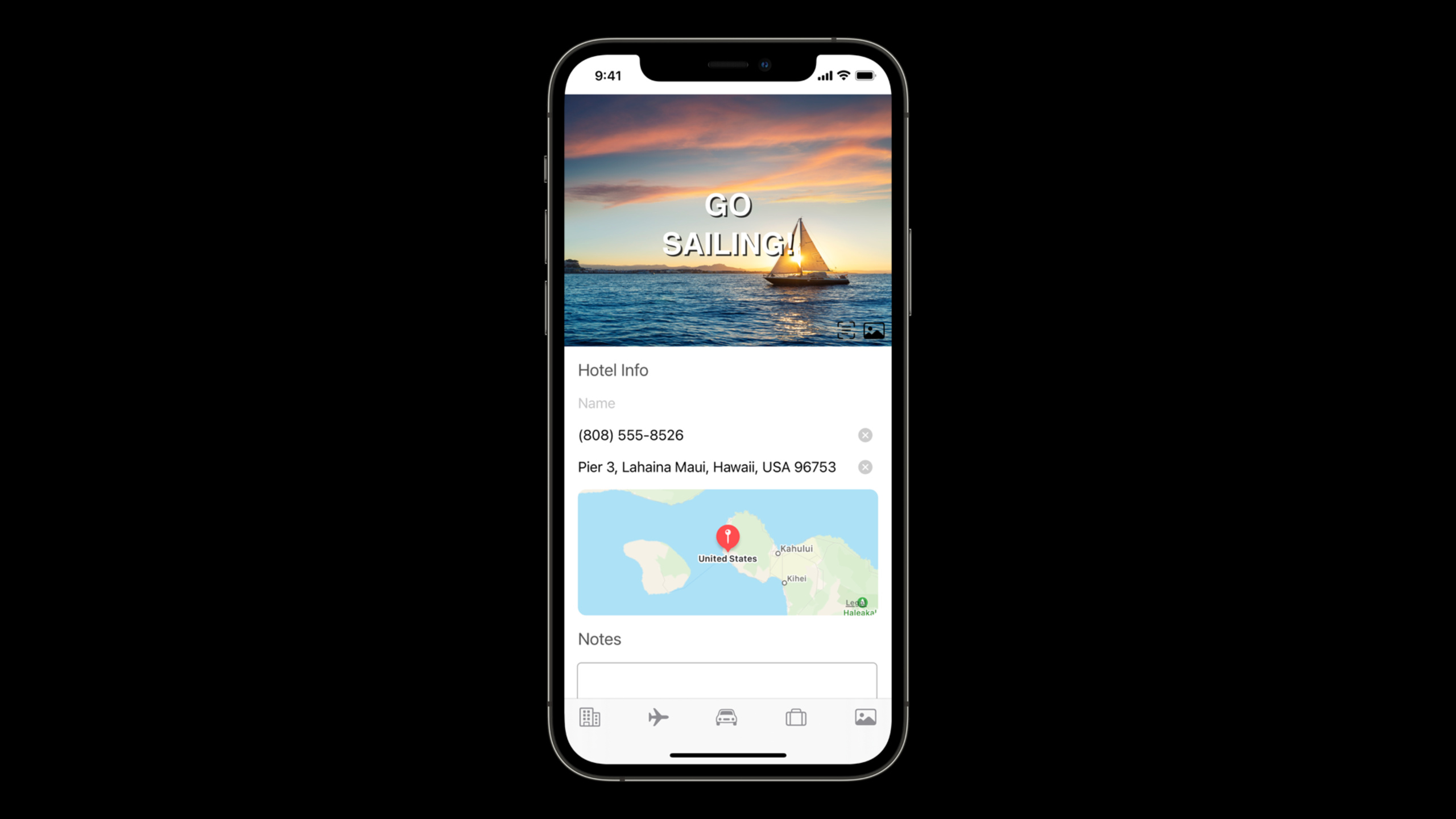
iOS 15 integrates Live Text with keyboard input. The user opens Text from Camera in the text field, the system starts the camera, recognizes the text in the screen, and inserts it into the current input position after the user selects it. Use the travel diary app in the demo to fill in the hotel phone number and address.
There was one more problem with the first demo. The camera sees an entire block of document text, but the user still has to drag to select the phone number. The recognition has been successful, but the App has not yet told the system what content it wants.
The solution given by Apple is straightforward: use the existing text input properties.textContentTypeandkeyboardTypeOriginally used for AutoFill and keyboard layout. iOS 15’s camera input also reads these properties. If the field is declared as a phone number, the system will filter the phone number; if the field is declared as a complete address, the system will filter the address.
The second problem is that the entrance is too hidden. The edit menu requires a second click to appear, the candidate bar sometimes displays predictive text, and users may not necessarily know that the camera can be used here. New in iOS 15UIAction.captureTextFromCamera, developers can put camera input into toolbars, menus, or their own buttons.
Finally, the receiving object is not limited toUITextFieldandUITextView. As long as responder implementsUIKeyInput, the text recognized by the camera can passinsertText(_:)Send it in. In the demo, aUIImageViewThe subclass receives the camera text and displays it as a picture title.
Detailed Content
Filter camera recognition results by content type
(02:18) Filter dependency of camera inputTextContentTypeandKeyboardType. These properties exist on text fields and text views. Apps that have set these properties for AutoFill will automatically benefit from camera input filtering in iOS 15.
(03:33) The demonstration code is as follows.
phone.keyboardType = .phonePad
phone.autocorrectionType = .no

address.textContentType = .fullStreetAddress
Key points:
phone.keyboardType = .phonePadSet the phone field’s keyboard to the phone keypad. -phone.autocorrectionType = .noTurn off automatic correction; when there are no automatic correction or prediction candidates, iOS will provide a button to quickly open the camera in the candidate bar. -address.textContentType = .fullStreetAddressClaim address fields require a full street address.- After the camera input reads these attributes, it will ignore unmatched text, reducing the user’s manual selection.
(02:53) There are seven filterable types listed in this speech. The first four are existing types: telephone number, full street address, URL, and email. iOS 15 adds flight number, shipment tracking number, dates / times / durations.
phone.textContentType = .telephoneNumber
address.textContentType = .fullStreetAddress
website.textContentType = .URL
email.textContentType = .emailAddress
flight.textContentType = .flightNumber
tracking.textContentType = .shipmentTrackingNumber
eventTime.textContentType = .dateTime
Key points:
.telephoneNumberLet the camera capture phone numbers first. -.fullStreetAddressLet the camera grab the full address first. -.URLand.emailAddressSuitable for extracting URLs and emails from business cards, posters, and receipts. -.flightNumberFor travel scenarios, suitable for boarding passes, email printouts and itineraries. -.shipmentTrackingNumberFor logistics scenarios, suitable for express delivery orders and package labels. -.dateTimeOriented towards event time, appointment time and duration.
Put Text from Camera into your own entry
(04:21) The Text from Camera entry in the system edit menu is not necessarily easy to find. The Notes field in the speech requires a second click to display the edit menu, and the candidate column may also be occupied by predictive text. Apple recommends adding a dedicated launcher when you want to proactively promote camera input.
(05:07) iOS 15 providesUIAction.captureTextFromCamera(responder:identifier:)。
let textFromCamera = UIAction.captureTextFromCamera(responder: self.notes, identifier: nil)Key points:
UIAction.captureTextFromCameraCreate a system action. -responder: self.notesSpecifies that the recognized text is inserted intonotesthis responder. -identifier: nilIndicates that no custom identification is provided.- This action comes with a title and image; when placed in a button or menu, the system will provide a consistent display style.
- The title is localized by the system, and developers do not need to write multi-language copy themselves.
(05:41) It can be placed in the same menu as other camera-related actions.
let textFromCamera = UIAction.captureTextFromCamera(responder: self.notes, identifier: nil)

let choosePhotoOrVideo = UIAction(title: "Choose Photo or Video") { _ in
    presentPhotoPicker()
}

let takePhotoOrVideo = UIAction(title: "Take Photo or Video") { _ in
    presentCamera()
}

let scanDocuments = UIAction(title: "Scan Documents") { _ in
    presentDocumentScanner()
}

let cameraMenu = UIMenu(children: [
    choosePhotoOrVideo,
    takePhotoOrVideo,
    scanDocuments,
    textFromCamera
])

let menuToolbarItem = UIBarButtonItem(
    title: nil,
    image: UIImage(systemName: "camera.badge.ellipsis"),
    primaryAction: nil,
    menu: cameraMenu
)
Key points:
textFromCameraIs the system camera text input action. -choosePhotoOrVideo、takePhotoOrVideo、scanDocumentsRepresents an existing camera or media action in the app. -UIMenu(children:)Combine these actions into a menu. -textFromCameraBy placing it in the same set of menus, users can understand it as part of the camera’s capabilities. -UIBarButtonItem(..., menu:)Attach menus to toolbar buttons.
Check availability before showing portal
(06:29) Lecture reminder, before adding the camera input entrance, check firstcanPerformAction(_:withSender:)。UIActionWill be called internallyUIResponderoncaptureTextFromCamera, which is similar to standard editing actions such as cut, copy, and paste, and will be affected by context.
let selector = #selector(UIResponder.captureTextFromCamera(_:))

if notes.canPerformAction(selector, withSender: nil) {
    let textFromCamera = UIAction.captureTextFromCamera(responder: notes, identifier: nil)
    cameraMenuItems.append(textFromCamera)
}
Key points:
#selector(UIResponder.captureTextFromCamera(_:))Represents the responder action corresponding to camera text input. -notes.canPerformAction(selector, withSender: nil)Let the system determine whether the current context supports this action.- return
trueCreate and display the portal later to avoid giving users an unavailable button. - Prerequisites for speech listings include: device hardware support, responders able to handle text insertion, text fields or text views editable, and at least one supported language in the user’s preferred language list.
Let a custom view receive camera input
(08:26) The text control usesUIKeyInput. Text recognized by the camera passesinsertText(_:)Passed to responder.UITextInputExtended fromUIKeyInput, can still passsetMarkedTextProvides a preview of the text to be inserted. Preview is an optional capability; when you only want to receive the final text, implementUIKeyInputThat’s enough.
(09:59) The picture title view in the demo is implemented like this.
class HeadlineImageView: UIImageView, UIKeyInput {
    var headlineLabel: UILabel = UILabel()
    var hasText: Bool = false

    override init(image: UIImage?) {
        super.init(image: image)
        initializeLabel()
    }

    func insertText(_ text: String) {
        headlineLabel.text = text
    }

    func deleteBackward() { }
}
Key points:
HeadlineImageViewinheritUIImageView, the original ability is biased towards picture display. -UIKeyInputMake it available as a recipient of text input. -headlineLabelUsed to display the title text recognized by the camera. -hasTextyesUIKeyInputRequired attributes; the example in the lecture only requires camera input, so it can be fixed asfalse。insertText(_:)Receive the string passed in by the camera and writeheadlineLabel.text。deleteBackward()yesUIKeyInputThe required method; this example does not require deletion logic, so the method body is empty.
(09:21) If the custom responder also wants to participate in filtering, you can useUITextInputTraits, since it provideskeyboardTypeandtextContentTypeThis type of optional attribute.
final class TrackingNumberView: UIView, UIKeyInput, UITextInputTraits {
    var label = UILabel()
    var hasText: Bool { label.text?.isEmpty == false }
    var textContentType: UITextContentType! = .shipmentTrackingNumber
    var keyboardType: UIKeyboardType = .asciiCapable

    func insertText(_ text: String) {
        label.text = text
    }

    func deleteBackward() {
        label.text = nil
    }
}
Key points:
UIKeyInputResponsible for receiving inserted text. -UITextInputTraitsResponsible for exposing input features. -textContentType = .shipmentTrackingNumberTell the camera to look for the tracking number first. -keyboardType = .asciiCapableGive this input object a keyboard type hint. -hasTextReturns status based on the current tag content. -deleteBackward()Clear the label content and complete the basic deletion behavior.
Core Takeaways
-
What to do: Add paper information scanning to hotel, B&B, and conference sign-in forms. Why it’s worth doing: This presentation demonstrates phone and address filtering, which covers check-in sheets, confirmation letters, and front desk information. How to start: Set the phone field
.telephoneNumberand.phonePad, set the address field.fullStreetAddress, againUIAction.captureTextFromCameraPlace it on the form toolbar. -
What to do: Make a component to quickly enter express delivery number. Why it’s worth doing: New in iOS 15
.shipmentTrackingNumber, the camera can filter out the tracking number from the package label. How to start: Put the input controltextContentTypeset to.shipmentTrackingNumber, put a camera button next to the control, and the button triggerscaptureTextFromCamera。 -
What to do: Add flight number scanning to the travel app. Why it’s worth doing: The speech clearly mentions
.flightNumberPerfect for travel apps, users can enter flights from their boarding pass or itinerary. How to get started: Setting up the flight fields.flightNumber, set for the date field.dateTime, letting the camera filter flight numbers and departure times separately. -
What to do: Add a realistic text caption to your photo cover. Why it’s worth doing: In the demo
HeadlineImageViewExplain that the picture view can also passUIKeyInputReceive camera text. How to get started: CreateUIImageViewsubclass, addUILabel,accomplishinsertText(_:), then useUIAction.captureTextFromCamera(responder: imageView, identifier: nil)Start input. -
What to do: Add time recognition to the event poster collection app. Why it’s worth doing: iOS 15’s camera filter supports dates, times, and durations, which is suitable for recording event times from posters and flyers. How to start: Put the time field
textContentTypeset to.dateTime, and then hand the string to your own date parsing logic after the recognition is completed.
Related Sessions
- Your guide to keyboard layout — Learn
UIKeyboardLayoutGuide, put the custom camera input portal and keyboard toolbar in the correct location. - Extract document data using Vision — If you need to handle document recognition, barcodes, and real-time camera analysis yourself, you can continue to look at Vision’s document extraction capabilities.
- Support Full Keyboard Access in your iOS app — Camera input is still an input experience, and full keyboard access can help the app cover more interaction methods.
- What’s new in camera capture — If you want more control over camera capture, video effects and performance, you can check out the iOS 15 camera capture update.
Comments
GitHub Issues · utterances