
Highlight
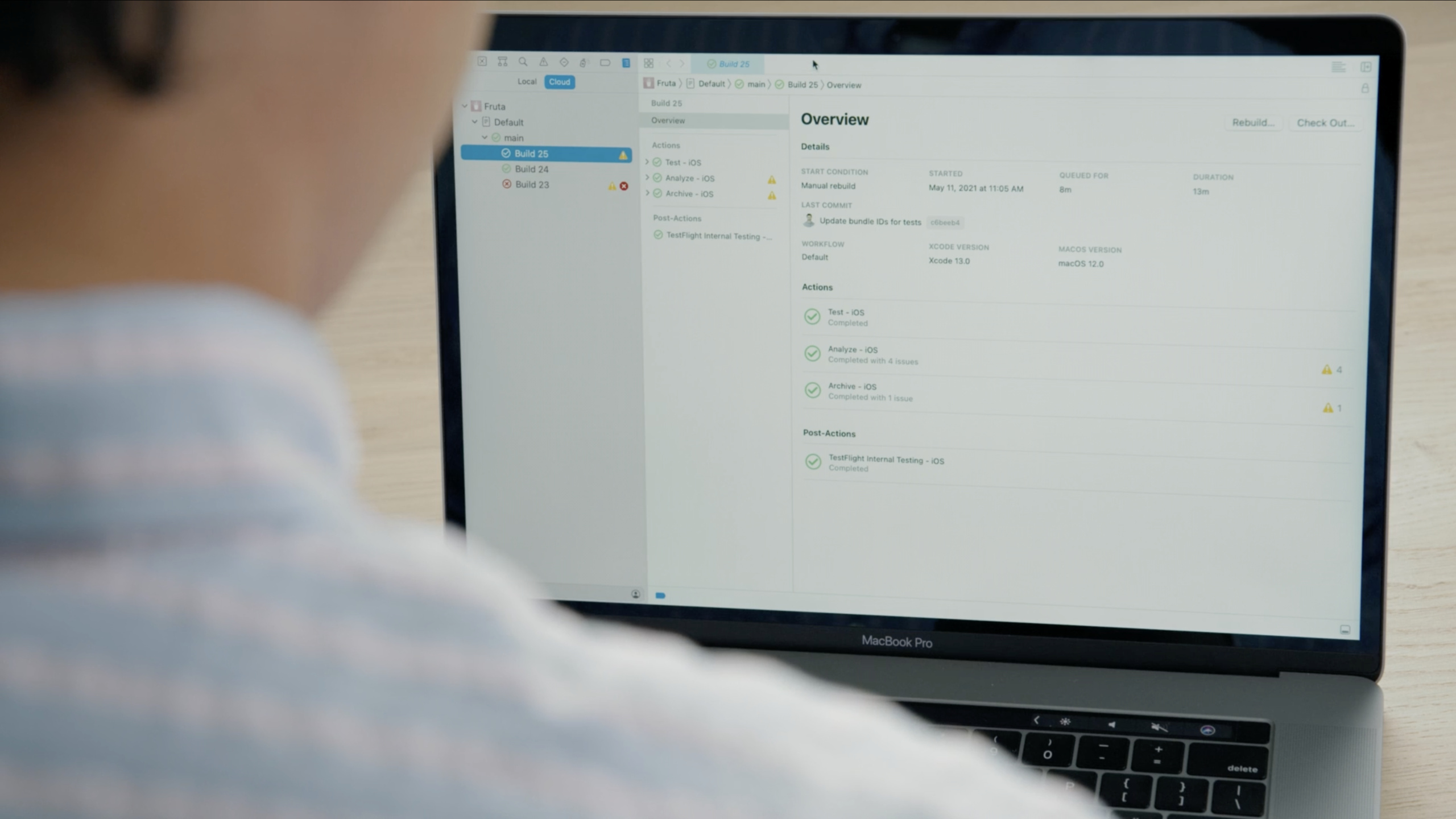
Xcode Cloud workflows string together launch conditions, build environments, build actions, and subsequent distribution, allowing teams to automate builds, analysis, testing, archiving, and TestFlight distribution in Xcode and App Store Connect.
Core Content
When a team develops an app, they are most afraid of discovering problems only after the changes are merged. Some people forget to run tests, some people only verify on their own machines, and some people change the Pull Request without rechecking it. In the end, the master branch takes all the risk.
The Fruta team already has a default workflow for building the main branch. But they also use Pull Requests. Before merging, the team needs to know whether this change and main can be compiled, tested, and archived, and the build results need to be sent to team members.
Xcode Cloud’s workflow solves this problem. It splits a CI/CD process into several configurable parts: when to run, which macOS and Xcode environment to run in, what actions to perform, who to notify after the end, and whether to distribute to TestFlight.
Pull Request verification before merging
In the past, the verification of Pull Request often relied on the developer’s initiative. Some people run tests locally, while others only look at code diffs. Even if everyone checks carefully, the local environment may be different.
Xcode Cloud can set the startup condition toEvery Change to a Pull Request. The source branch can be any branch, and the target branch is set to main. Every time someone creates or updates a Pull Request, the workflow automatically runs and builds the merged source and target branches.
This setting directly moves the risk forward. The team can see the real impact before merging, and doesn’t have to wait for the main branch to break before going back to figure it out.
The build environment is fixed by the workflow
Another issue with local builds is environmental differences. One person is using the new version of Xcode, and the other person is still on the old version. Some issues only appear with clean builds, incremental builds may mask it.
The Environment area of Xcode Cloud allows you to select macOS and Xcode versions, as well as Latest Release or Beta. Workflows can also choose between incremental builds or clean builds. Pull Request scenarios can use incremental builds in exchange for speed; release scenarios can use Clean builds to ensure that the product is regenerated.
In this way, the team does not need to ask “what is your local environment?” The workflow itself is an environmental statement.
Separation of actions and subsequent operations
The core tasks of a workflow are defined by Actions. This session focuses on Archive, Test, Analyze and Build. They cover common build operations native to Xcode.
After the workflow completes these actions, Post-actions are performed. Xcode Cloud supports sending notifications and deploying archived products to TestFlight internal or external test groups.
This split makes the process clearer: the code is verified first, then the team is notified, and then the installable version is given to the testers.
Detailed Content
1. Use Start Condition to trigger the Pull Request workflow
(03:37) Start Condition defines when the workflow runs. Pull Request Workflow Selection in LecturesEvery Change to a Pull Request, source branch selectionAny Branch, target branch selectionMain。
workflow:
  name: Pull Requests
  startCondition:
    type: Every Change to a Pull Request
    sourceBranch: Any Branch
    targetBranch: Main
    autoCancelPreviousBuilds: true
Key points:
name: Workflow name. Named in the speechPull Requests。type: Trigger type.Every Change to a Pull RequestRuns when a Pull Request is created or updated. -sourceBranch: source branch.Any BranchAllow team members to initiate Pull Requests from any branch. -targetBranch:Target branch. This is set toMain, corresponding to the merge target. -autoCancelPreviousBuilds: The speech mentioned that previously running builds can be canceled, which is suitable for scenarios where multiple submissions are pushed continuously.
(04:30) When a Pull Request is built, Xcode Cloud builds and tests the merged result of the source branch and the target branch. What the team sees is the true state after the merger.
Pull Request build input:
  source: feature branch
  target: main branch
  build: merged source + target
Key points:
source: The feature branch that the developer is submitting. -target: The main branch that the team is going to merge into. -build: Xcode Cloud checks the merge results to reduce failures after merging.
2. Configure Xcode, macOS, Clean build and environment variables
(05:24) Environment defines how the workflow runs. Xcode Cloud runs on Apple’s cloud infrastructure and is available in macOS and Xcode versions.
environment:
  xcode: Latest Release
  macOS: selected in workflow editor
  clean: false
Key points:
xcode: You can specify a specific version, or you can chooseLatest Releaseor Beta. -macOS: Select the macOS version to build with in the workflow editor. -clean: The Pull Request workflow can turn off Clean and use incremental builds to shorten time.
(06:18) Clean builds compile from scratch. The talk explains that Clean is required for builds deployed to TestFlight external testers or submitted to the App Store.
releaseEnvironment:
  clean: true
  reason:
    - External Beta Testing with TestFlight
    - App Store submission
Key points:
clean: true: Generate the build product from scratch without using existing derived data. -External Beta Testing with TestFlight: External TestFlight tests require a clean build. -App Store submission: Submitting to the App Store publishing process also requires a clean build.
(07:28) Environment can also configure environment variables and mark sensitive variables as secret.
environmentVariables:
  - name: API_CONFIGURATION
    value: staging
    secret: false
  - name: SERVICE_TOKEN
    value: stored in Xcode Cloud
    secret: true
Key points:
API_CONFIGURATION: Common environment variables, suitable for controlling build configuration. -SERVICE_TOKEN: Sensitive information, suitable for values such as API tokens that should not be submitted to the warehouse. -secret: true: The talk mentions that the secret tag provides additional protection.
3. Use Actions to perform archiving, testing and static analysis
(08:12) Actions define what the workflow should do each time it runs. Xcode Cloud supports the key actions of native Xcode: Build, Analyze, Test, Archive.
actions:
  - type: Archive
    platform: iOS
    scheme: Fruta iOS
  - type: Test
    requiredToPass: true
    testSource: Use Scheme Settings
    simulators: Recommended
  - type: Analyze
    requiredToPass: false
Key points:
Archive: Create an archived product in preparation for TestFlight or App Store distribution. -platform: The examples in the lecture select the iOS platform. -scheme: The examples in the talk use Fruta’s iOS scheme. -Test: Run tests in a stable cloud environment and release the local machine. -requiredToPass:Test or static analysis can be set to whether or not it affects the overall build results. -Use Scheme Settings: Tests can inherit the settings in the Xcode scheme. -Recommended: Xcode Cloud provides a collection of recommended simulators covering different screen sizes.
(09:55) Test action can select a specific test plan, or you can choose to recommend an emulator or specify an emulator. When specifying an emulator, you can also select an older system version.
testAction:
  source: Use Scheme Settings
  alternative: Select a test plan
  destinations:
    option: Recommended
    coverage: different screen sizes
Key points:
source: Use scheme setting, suitable for reusing local test configuration. -alternative: Select test plan, suitable for running only a certain set of tests. -destinations: Define test equipment. -coverage: A collection of recommended emulators covering different screen sizes.
(11:06) The Analyze action will run static analysis. The talk suggested using it to find bug categories that the compiler can identify and prevent problems from accumulating in the team.
analyzeAction:
  type: Analyze
  requiredToPass: false
  purpose: monitor static analysis results
Key points:
type: Analyze:Run static analysis. -requiredToPass: false: The Pull Request example in the speech only monitors the results and does not allow static analysis failures to affect the overall build status. -purpose: Used to continuously observe static analysis problems to avoid long-term accumulation.
4. Use Post-actions to notify the team and deploy to TestFlight
(12:35) Post-actions run after Build, Analyze, Test, and Archive are completed. Xcode Cloud supports notifications and TestFlight deployment.
postActions:
  - type: Notify
    buildSuccess: All
    buildFailure: All
    slackChannels:
      - ci-builds
    emails: []
Key points:
Notify:Send build notification. -buildSuccess: All:Notified of all successful builds. -buildFailure: All:Notified of all failed builds. -slackChannels:Select Slack during the speechci-buildschannel. -emails: Users who can join the group mailbox or need to receive notifications of builds made by people other than themselves.
(14:42) TestFlight deployment is divided into internal testing and external testing. Internal testing can quickly send builds generated by Pull Requests to development team members.
archiveAction:
  deployment: TestFlight Internal Testing Only

postActions:
  - type: TestFlight Internal Testing
    artifact: Archive iOS
    groups:
      - QA team
Key points:
deployment: Archive action needs to be set toTestFlight Internal Testing Only。TestFlight Internal Testing: Add internal test follow-up actions. -artifact: Select archived products. in speechArchive iOSAlready preselected. -groups: Select an existing internal TestFlight group in App Store Connect.
(17:25) External TestFlight tests have more stringent conditions: select a single branch for the startup condition, select Clean for the environment, and set the Archive deployment to TestFlight and App Store.
externalTestingWorkflow:
  startCondition:
    branch: release
  environment:
    clean: true
  archiveAction:
    deployment: TestFlight and App Store
  postAction:
    type: TestFlight External Testing
    targets:
      - external groups
      - individual testers
Key points:
branch: release: It is recommended to use a single branch for external testing to ensure consistent build sources. -clean: true: Rebuild to prevent derived data from affecting the product. -TestFlight and App Store: Archive action must be ready for TestFlight and App Store distribution. -external groups: Can be deployed to external test groups. -individual testers: External testing also supports deployment to individual testers.
5. Three recommended workflow strategies
(18:47) At the end of the speech, three types of workflows were given: Pull Request, Release, and Overnight Testing. They serve respectively for pre-merge verification, release candidate verification and nightly in-depth testing.
workflows:
  - name: Pull Requests
    trigger: Every Change to a Pull Request
    actions:
      - Archive
      - Test
      - Analyze
    postActions:
      - Notify
      - TestFlight Internal Testing

  - name: Release
    trigger: Every Change to a Branch on Release
    environment:
      clean: true
      xcode: pinned version
      macOS: pinned version
    actions:
      - comprehensive tests
      - Archive with TestFlight and App Store
    postActions:
      - TestFlight External Testing

  - name: Overnight Testing
    trigger: On a Schedule for a Branch
    schedule: Monday through Friday at 1:00 a.m.
    actions:
      - required test plans on multiple simulators
      - required Analyze
    postActions:
      - Notify failures to QA
Key points:
Pull Requests: Automatically verify before merging and handing the build over to the QA team for testing. -Release: The release branch is built using Clean, fixes the Xcode and macOS versions, and then sends it to external TestFlight testers. -Overnight Testing: Run more tests and static analysis regularly in the early morning of working days, and only notify QA when they fail.
Core Takeaways
1. Automatically generate internal test packages for each Pull Request
- What to do: After each Pull Request update, automatically archive the app and send it to the internal QA TestFlight group.
- Why it’s worth doing: The talk shows how the Pull Request workflow can build merged results and also deploy to internal TestFlight groups.
- How to start: Select startup conditions
Every Change to a Pull Request, set the target branch to main, add Archive action, and set the deployment option toTestFlight Internal Testing Only, then addTestFlight Internal Testingpost-action。
2. Fix the tool chain for the release branch
- What to do: Create a separate workflow for the release branch, pin Xcode and macOS versions, and enable Clean builds.
- Why it’s worth doing: The Release Workflow in the speech uses a fixed tool chain to converge the release environment, and uses Clean build to eliminate cache effects.
- How to start: Select the release branch for startup conditions, select the specific Xcode and macOS versions in Environment, check Clean, and select Archive action
TestFlight and App Store。
3. Move long tests to run at night
- What to do: Create an Overnight Testing workflow to run multiple test plans and simulator combinations in the early hours of the weekday morning.
- Why it’s worth doing: The talk points out that scheduled workflows are suitable for long-term testing, where the team can continue development during the day and let Xcode Cloud check it out at night.
- How to start: Start Condition selection
On a Schedule for a Branch, the frequency is set to Monday through Friday at 1:00 a.m., Test action selects the test plan and simulator that need to pass, and notifies the QA Slack channel when it fails.
4. Make static analysis a continuous signal
- What to do: Add the Analyze action to the Pull Request or nightly workflow to continuously observe the static analysis results.
- Why it’s worth doing: The speech mentioned that static analysis is often skipped by the local iteration process, and problems will accumulate in the team.
- How to start: Add Analyze action. In the early stage, you can
Required to PassTurn it off and only monitor the results; after the problem converges, change it to must pass.
5. Use notification strategies to reduce noise
- What to do: Set different notification rules by workflow type. All pull requests are notified, and night tests are only notified of failures.
- Why it’s worth doing: The talk shows how notifications can be configured separately for success and failure events and sent to Slack or email.
- How to start: Set Build Success and Build Failure to All for the Pull Request workflow; set Build Success to Don’t Notify, Build Failure to All for night testing, and select the QA Slack channel as the target.
Related Sessions
- Meet Xcode Cloud — Introducing the basic concepts of Xcode Cloud, your first workflow, and build reports.
- Customize your advanced Xcode Cloud workflows — Continue to talk about environment variables, custom scripts, multi-warehouse dependencies and Webhooks.
- Distribute apps in Xcode with cloud signing — Explains the Xcode distribution process and cloud signing, complementing Archive to distribution details.
- Review code and collaborate in Xcode — Talks about Xcode’s Pull Request and code review capabilities, suitable for viewing together with the Pull Request workflow.
Comments
GitHub Issues · utterances