
Highlight
Apple lets Quick Note reuse NSUserActivity to identify application content. After developers set stable identifiers and handle activity recovery, users can link the current content into notes, and then return to the same content in the application from notes.
Core Content
The user sees a page of information and wants to make a temporary note. A common process in the past was to switch to Notes, copy the title, copy the link, and then switch back to the original application. Content such as locations, articles, and documents also rely on users to describe the context.
(01:15) Quick Note Put this action at the system level. Users can slide out the quick memo floating window from the lower right corner of the screen and add the current website or application content in the add link menu at the top of the floating window. Floating windows can be moved, scaled, or retracted to the edge of the screen.
(02:36) These links will establish a relationship with the content itself. When users return to the same website or app content, Quick Note Suggestions appear in the corner. Click once and the system will open the previous note.
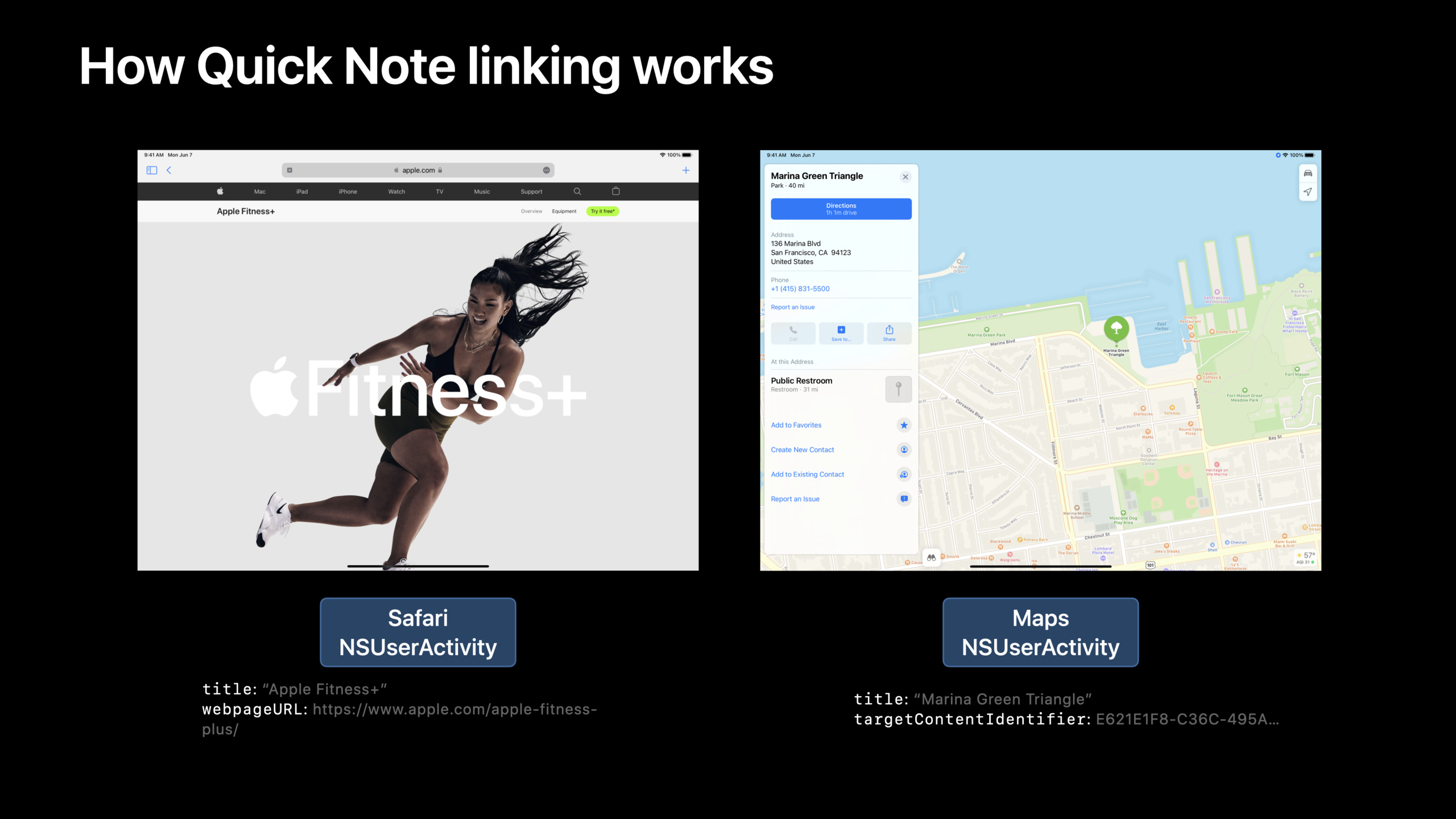
(03:26) Apple has not designed a new link protocol for Quick Note. It uses the existing NSUserActivity (user activity) system. The application registers the content currently displayed on the screen as an activity, and the system sends it to Handoff, Spotlight, Reminders, and Quick Note.
(04:06) Quick Note requires an identifier that can match content over time. This identifier must be unique, available across devices, and stable over the long term. When a user opens the same article six months later, the system still needs to be able to match notes with the article.
Detailed Content
1. Declare and create NSUserActivity
(05:31) There are three steps to access Quick Note: declare supported activity types in Info.plist, create and register an activity describing the current screen contentNSUserActivity, handle external incoming activity resume requests. First step to useNSUserActivityTypeskey, which the system uses to determine whether an application can handle an activity.
import UIKit

struct Document {
    let title: String
    let stableIdentifier: String
}

func attachQuickNoteActivity(to viewController: UIViewController, document: Document) {
    let activity = NSUserActivity(activityType: "com.myapp.MyActivityType")
    activity.title = document.title
    activity.targetContentIdentifier = document.stableIdentifier
    activity.userInfo = ["documentIdentifier": document.stableIdentifier]
    viewController.userActivity = activity
}
Key points:
import UIKitsupplyUIViewControllerand on responderuserActivityproperty. -DocumentusetitleandstableIdentifierIndicates the current screen content. -attachQuickNoteActivityBind the activity to the current view controller. -NSUserActivity(activityType:)Use the app inNSUserActivityTypesThe type string declared in . -activity.titleIt is the text that users see in the add link menu of Quick Note. It is suitable for directly using the title of the document or item. -activity.targetContentIdentifierIs a persistent identifier that Quick Note uses to match content. -activity.userInfoSave the application state needed when restoring the interface. -viewController.userActivity = activityLet UIKit manage the current activity without manually maintaining the current activity.
2. Select a stable identifier
(04:06) Quick Note supports three attributes that can be used as link identifiers:targetContentIdentifier、persistentIdentifier、webpageURL. Either one allows Quick Note to generate links. Which attribute to choose depends on what other system capabilities the application wants to support.
import Foundation

func configureIdentifiers(for activity: NSUserActivity, photoID: UUID, fallbackURL: URL) {
    let stableValue = "photo-\(photoID.uuidString)"

    activity.targetContentIdentifier = stableValue
    activity.persistentIdentifier = stableValue
    activity.webpageURL = fallbackURL
}
Key points:
configureIdentifiersCentralize the configuration of identifiers for the same content to reduce differences between different system functions. -photoIDIndicates the UUID of the photo saved by the application, which meets the requirement of long-term stability. -stableValueTemporary information such as local file paths, session IDs, and scaling are not used. -targetContentIdentifierCan be used for state recovery, helpful for iPad multitasking experience. -persistentIdentifierCan be used to identify app content in the system’s Spotlight index. -webpageURLIt can be used as a fallback link; when the device does not have the app installed, it can open the corresponding website.
3. Handling Quick Note links in iOS
(07:15) When the user clicks the Quick Note link, the system starts the application and calls the scene delegate.willContinueUserActivityWithTypeSuitable for displaying loading feedback;continue userActivityUsed to build view controllers and restore state;didFailToContinueUserActivityWithTypeUsed for Handoff failure scenarios. Quick Note will not call this failure method, but it can be implemented when fully connected to NSUserActivity.
import UIKit

class SceneDelegate: UIResponder, UIWindowSceneDelegate {
    var window: UIWindow?

    func scene(_ scene: UIScene, willContinueUserActivityWithType userActivityType: String) {
        // show user feedback while waiting for the NSUserActivity to arrive
    }

    func scene(_ scene: UIScene, continue userActivity: NSUserActivity) {
        // set up view controllers and views to continue the activity
    }

    func scene(_ scene: UIScene, didFailToContinueUserActivityWithType userActivityType: String, error: Error) {
        // show error about failing to continue an activity
    }
}
Key points:
SceneDelegateaccomplishUIWindowSceneDelegate, receiving scene-level activity resume events. -windowIt is the window entrance that can be used when restoring the interface. -willContinueUserActivityWithTypeTriggered before the activity entity arrives to display a loading prompt. -continue userActivityIt is the main recovery entrance after opening the Quick Note link. -didFailToContinueUserActivityWithTypeHandle recovery failure feedback, mainly serving Handoff.
4. Process the same set of activities in macOS
(08:04)NSUserActivityIt is a cross-platform API. The macOS application implements the corresponding method in the app delegate, and the process is the same as iOS: receiving a notification of imminent restoration, restoring the document or view after getting the activity, and giving a prompt when it fails.
import AppKit

class AppDelegate: NSObject, NSApplicationDelegate {
    func application(_ application: NSApplication, willContinueUserActivityWithType userActivityType: String) -> Bool {
        // show user feedback while waiting for the NSUserActivity to arrive
        return true
    }

    func application(_ application: NSApplication, continue userActivity: NSUserActivity, restorationHandler: @escaping ([NSUserActivityRestoring]) -> Void) -> Bool {
        // set up view controllers or documents to continue the activity
        return true
    }

    func application(_ application: NSApplication, didFailToContinueUserActivityWithType userActivityType: String, error: Error) {
        // show error about failing to continue an activity, if appropriate
    }
}
Key points:
import AppKitProvides macOS application lifecycle types. -AppDelegateaccomplishNSApplicationDelegate, receives application-level activity resume events. -willContinueUserActivityWithTypereturntrue, indicating that the application is willing to continue the activity. -continue userActivityAfter receiving the complete activity, you can open the document or switch to the target view. -restorationHandlerIt is part of the system recovery process and can return objects participating in the recovery. -didFailToContinueUserActivityWithTypeResponsible for error handling when recovery fails.
5. Use needsSave to avoid frequently writing userInfo
(12:18) Some recovery status changes quickly. The map’s center point and zoom scale continuously change with gestures. Rewrite every gestureuserInfoAdditional overhead will be incurred. Apple recommended settingsneedsSave = true, wait until the system wants to send the activity to Quick Note or Handoff, and thenuserActivityWillSaveWrite the latest status in the callback.
import UIKit

class MapViewController: UIViewController {
    @IBOutlet var scrollView: UIScrollView!
    var visibleFrame: CGRect = .zero

    func markActivityForSaving(activity: NSUserActivity) {
        activity.needsSave = true
    }

    override func userActivityWillSave(_ userActivity: NSUserActivity) {
        userActivity.userInfo = [
            "center": NSStringFromCGPoint(CGPoint(x: visibleFrame.midX, y: visibleFrame.midY)),
            "zoomScale": scrollView.zoomScale
        ]
    }
}
Key points:
MapViewControllerRepresents an interface that needs to save the visible area and zoom ratio. -scrollViewProvides the current zoom level. -visibleFrameProvides the currently visible area. -markActivityForSavingJust putneedsSavemarked astrue, to avoid rewriting the state dictionary in each gesture. -userActivityWillSaveCalled before the system needs to save the activity. -userInfowritecenterandzoomScale, you can return to the same field of view when recovering. -NSStringFromCGPointConvert the center point to insertableuserInfostring.
6. Compatible with old links and missing content
(13:08) Quick Note links may come from older or newer versions of the app. User-saved content may also have been deleted or moved. When restoring an activity, you must be able to handle missing fields, unknown fields, and non-existent content.
import Foundation

enum ActivityRestoreResult {
    case open(identifier: String)
    case showDeletedMessage
    case ignoreNewerVersion
}

func restoreResult(from userActivity: NSUserActivity, currentSupportedVersion: Int) -> ActivityRestoreResult? {
    let info = userActivity.userInfo ?? [:]
    let activityVersion = info["activityVersion"] as? Int ?? 1

    guard activityVersion <= currentSupportedVersion else {
        return .ignoreNewerVersion
    }

    guard let identifier = info["documentIdentifier"] as? String else {
        return nil
    }

    guard documentStillExists(identifier) else {
        return .showDeletedMessage
    }

    return .open(identifier: identifier)
}

func documentStillExists(_ identifier: String) -> Bool {
    true
}
Key points:
ActivityRestoreResultSplit the recovery results into open content, display deletion prompts, and ignore new version links. -restoreResultfromuserInfoRead the fields required for recovery. -activityVersionThe default value is1, to facilitate compatibility with earlier links without version fields. -guard activityVersion <= currentSupportedVersionAllow older applications to fail gracefully when encountering new format links. -documentIdentifierIt is the key field to open the content and will be returned if it is missing.nil。documentStillExistsRepresents the application’s own content existence check.- Return when content has been deleted
.showDeletedMessage, you can change the redirection logic here when the content is moved.
Core Takeaways
-
What to do: Add “note bounce” capability to the reading application. Why it’s worth doing: Quick Note can bind the current article to user notes, and users will see note suggestions when re-reading the article. How to start: Create for article details page
NSUserActivity, set with the article UUIDtargetContentIdentifier, in the scene delegate’scontinue userActivityOpen the article in . -
What to do: Save place notes to a map or travel app. Why it’s worth doing: When planning a route, users can add location links to Quick Note, and then return to the location page to continue viewing. How to get started: Set up with a location’s global ID
persistentIdentifier, put the map center point and zoom ratio intouserInfo,useneedsSaveDelay updating view state. -
What: Give the Docs editor support for cross-device note linking. Why it’s worth doing:
NSUserActivityServing Quick Note and Handoff at the same time, users can return to the same document on Mac after recording document notes on iPad. How to start: InNSUserActivityTypesRegister the document view activity type and write the document IDtargetContentIdentifier, macOS side implementationapplication(_:continue:restorationHandler:)。 -
What to do: Add a Quick Note return entry to the product details page. Why it’s worth doing: Users will save multiple links in notes when comparing products. Stable identifiers can allow old notes to continue to open the correct product. How to start: Use the product background ID as a stable value and set
activity.titleIt is the title of the product. When the content is removed from the shelves, a clear prompt will be displayed during the recovery process. -
What: Provide web fallback for applications with website support. Why it’s worth doing:
webpageURLIt allows devices that do not have the app installed to open web pages, and the links still go somewhere. How to start: In settingstargetContentIdentifierorpersistentIdentifierset at the same timewebpageURL, ensuring that the URL does not contain a session ID or temporary filtering status.
Related Sessions
- Meet Shortcuts for macOS — Learn how application operations enter the system automation process of macOS.
- Donate intents and expand your app’s presence — Learn to donate application capabilities to the system so that the system can be displayed in appropriate scenarios.
- Showcase app data in Spotlight — Continue to learn
persistentIdentifierLinked Spotlight data display and search. - Take your iPad apps to the next level — Works with Quick Note to improve the multitasking and content recovery experience on iPad.
Comments
GitHub Issues · utterances