
Highlight
iPadOS 15 and Mac Catalyst introduce keyboard focus navigation to UIKit. Developers can make lists, collection views, and custom views respond to Tab, arrow keys, and Return, and use focus groups to control tab cycle order.
Core Content
Many iPad users plug in a hardware keyboard. In the past, apps wanted users to use the keyboard to move around the interface. A common approach was to monitor Tab, arrow keys, and return by themselves, and then hand-write a set of navigation logic.
This plan can get complicated quickly. The relationships between the photo grid, sidebar, search box, and list columns must be maintained by yourself. Mac Catalyst also considers space bar selection, menu shortcuts, and system behavior conflicts.
iPadOS 15 leaves this to UIKit’s focus system. Tab moves between important areas of the app, the arrow keys move within the current area, Return selects items on iPadOS, and Spacebar selects items on Mac Catalyst.
Text boxes, text views, and sidebars automatically have this behavior enabled when compiled to the iOS 15 SDK. Collection views, table views, and custom views require explicit access by developers.
The point of this session is clear: don’t make every control selectable with keyboard focus. Keyboard navigation serves key content areas such as text input, lists, and collection views. Controls such as buttons, segmented controls, and switches are already covered by Full Keyboard Access.
Start with “Can you focus?”
The focus system first answers a question: Can this element become the focus?
UIKit usedUIFocusItem(Focus item) represents the focusable object, usingUIFocusEnvironment(Focus environment) represents a hierarchical relationship.UIViewConforms to both protocols because the view itself can be focused and can also contain subviews.UIViewControllerOnly conforms to the focus environment, as it has no visible appearance of its own.
The first step a developer needs to do is to tell UIKit what content is worthy of keyboard navigation.
The focus appearance should fit the content
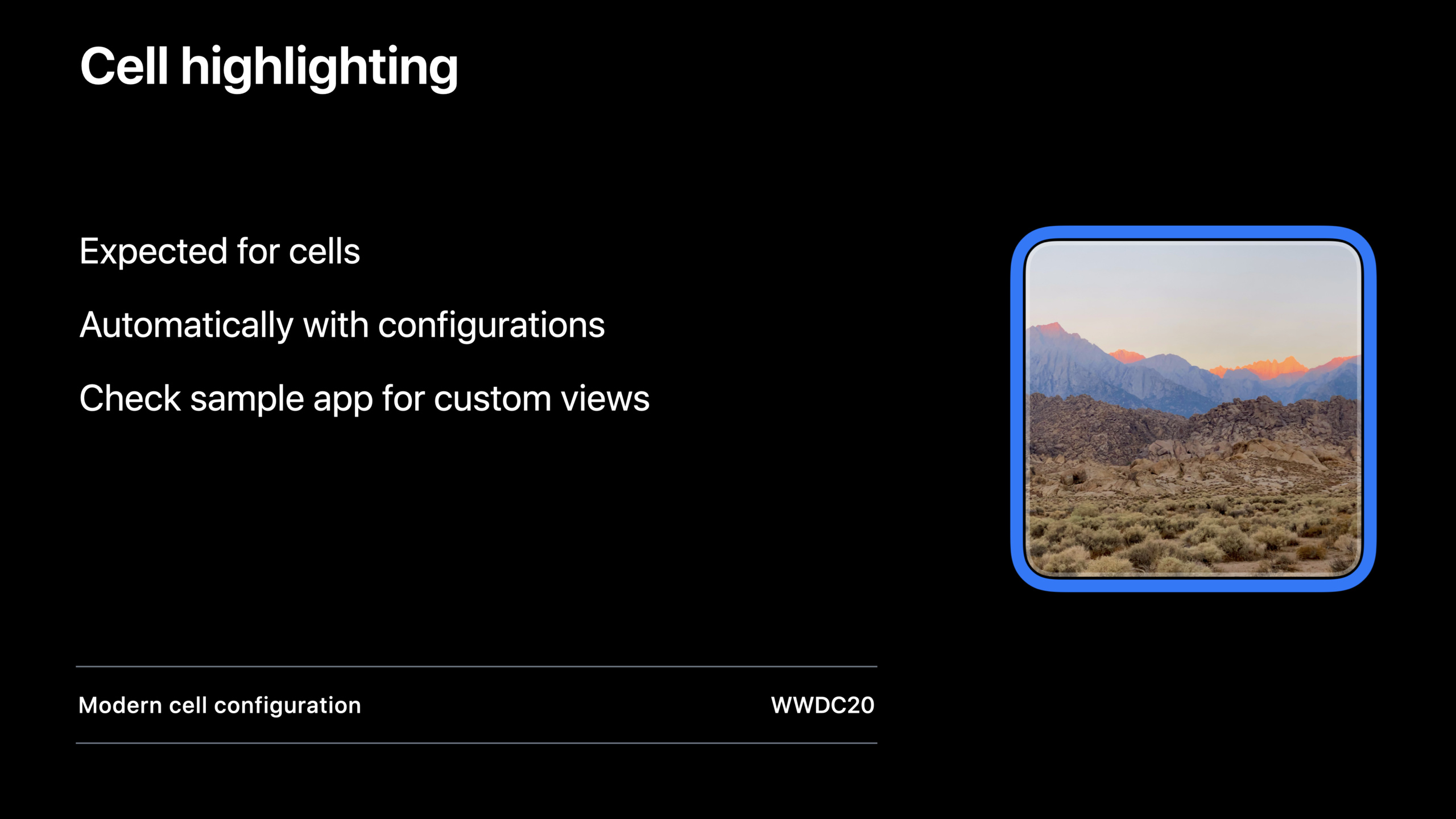
Keyboard focus must be visible. The Halo Effect is provided and used by Mac Catalyst by default. On iPadOS, you canUIFocusHaloEffectExplicitly set.
For fully opaque images, halos are suitable. For normal cells, the focus state is more like selected highlighting. The background configuration and content configuration introduced in iOS 14 can automatically get this cell highlight appearance.
If the system style is not suitable, developers can turn it offfocusEffect, change the color, border or content state by yourself in the focus update callback.
Tab loop requires structure information
Arrow keys only move within the current area. Tab is responsible for moving between areas.
UIKit calls these areas focus groups. A search box, a sidebar list, and a right content list can be three focus groups respectively. Tab moves between the primary items of each focus group.
The system infers the focus group from the view hierarchy. Custom container views may need to be declared manuallyfocusGroupIdentifier, so that the tab order matches the layout the user sees.
Keyboard events will enter the response chain
The focus system and responder chain are synchronized in iPadOS 15. When the focus moves to a cell, UIKit will try to move the first responder to this cell, or to the first object in the response chain that can become the first responder.
This brings about a change: if the cell implements a keyboard command and it is in focus, the command will be sent to this cell first. Developers need to be careful when callingbecomeFirstResponder, as it drives focus changes in reverse.
Detailed Content
Make a custom view the focus item (03:01)
canBecomeFocusedIt is the entrance for the focus system to determine whether an item is focusable. it isUIFocusItemread-only attribute. Custom views can override this and returntrue。
override var canBecomeFocused: Bool { true }Key points:
overrideIndicates overriding the properties provided by the parent class. -canBecomeFocusedIt is the judgment entrance of the focus system. -Bool { true }Make this view always the focus.
UIKit’s focus system is based on two protocols:
UIFocusItem
UIFocusEnvironment
Key points:
UIFocusItemIndicates items that can be focused. -UIFocusEnvironmentRepresents the hierarchical environment containing the focus item. -UIViewComply with both protocols. -UIViewControlleronly matchesUIFocusEnvironment。
If the content is drawn using technologies such as Metal, you can also implement these two protocols on your own objects to connect non-UIKit content to the focus system.
Let collection views and table views participate in keyboard navigation (04:00)
Lists and grids are the most common keyboard navigation objects. UIKit forUITableViewandUICollectionViewProvides convenience API. set upallowsFocusFinally, there is no need to subclass each cell.
class MyViewController: UICollectionViewController {
    override func viewDidLoad() {
        super.viewDidLoad()
        self.collectionView.allowsFocus = true
    }
}
Key points:
MyViewControllerInherited fromUICollectionViewController。viewDidLoad()It is the configuration entry after the collection view controller completes loading. -super.viewDidLoad()Keep the initialization process of the parent class. -self.collectionView.allowsFocus = trueLet the cell in the collection view get focus.
in the sidebarallowsFocusThe default istrue. Normal lists and grids need to be opened on demand.
If only some cells should participate in keyboard navigation, this can be implemented in the delegatecanFocusItemAt。
class MyCollectionViewDelegate: NSObject, UICollectionViewDelegate {
    func collectionView(_ collectionView: UICollectionView,
                canFocusItemAt indexPath: IndexPath) -> Bool {
        return true
    }
}
Key points:
MyCollectionViewDelegateaccomplishUICollectionViewDelegate。collectionView(_:canFocusItemAt:)For a singleindexPathReturns the focus permission. -return trueThe cell representing this position can be focused. -Here you can return according to business rulesfalse, such as skipping placeholders or inoperable items.
These methods only affect and do not overridecanBecomeFocusedof cells. If the cell overwrites itselfcanBecomeFocused, its judgment takes precedence.
Can be called in LLDB when debuggingUIFocusDebugger.checkFocusability(for:)。
po UIFocusDebugger.checkFocusability(for: item)Key points:
poIs the LLDB command to print objects. -UIFocusDebugger.checkFocusability(for:)Will explain why an item cannot be selected by the focus system. -itemPass in the view or focus item you are debugging.
Control focus appearance using Halo Effect (05:48)
Mac Catalyst defaults to a Halo Effect similar to the macOS focus ring. Views can be given on iPadOSfocusEffectSpecifyUIFocusHaloEffect。
let focusEffect = UIFocusHaloEffect(
    roundedRect: self.bounds,
    cornerRadius: self.layer.cornerRadius,
    curve: .continuous
)
self.focusEffect = focusEffect
Key points:
UIFocusHaloEffectCreates a halo focus effect. -roundedRect: self.boundsCauses a halo to be drawn around the current view bounds. -cornerRadius: self.layer.cornerRadiusMake the halo rounded corners match the view rounded corners. -curve: .continuousUse continuous fillet curves. -self.focusEffect = focusEffectApplies the effect to the currently focused item.
Some view hierarchies are more complex. For example, if there is a badge above the picture, the halo should be above the picture and below the badge. Can be setreferenceViewandcontainerView。
let focusEffect = UIFocusHaloEffect(
    roundedRect: self.bounds,
    cornerRadius: self.layer.cornerRadius,
    curve: .continuous
)

// make sure the effect is added right above the image view
focusEffect.referenceView = self.imageView

// make sure the effect is added to our scroll view
focusEffect.containerView = self.scrollView

self.focusEffect = focusEffect
Key points:
referenceViewDetermines the relative position of the halo in the view hierarchy. -self.imageViewLet the halo be drawn above the image view. -containerViewDetermines which parent view the halo is added to. -self.scrollViewThis prevents the direct parent view from clipping the halo content.- Both properties are optional and are only set if the system inference results are not as expected.
Custom focus appearance (07:43)
System focus styles cannot cover all designs. To completely customize the look, first putfocusEffectset tonil, againdidUpdateFocus(in:with:)Handle the state of entering and leaving focus.
init(frame: CGRect) {
   super.init(frame: frame)
   self.focusEffect = nil
}

func didUpdateFocus(in context: UIFocusUpdateContext, withAnimationCoordinator coordinator: UIFocusAnimationCoordinator) {
    if context.nextFocusedItem == self {
        // This view is focused. Customize its appearance.
    }
    else if context.previouslyFocusedItem == self {
        // This view was focused.
    }
}
Key points:
init(frame:)It is the initialization entrance of the custom view. -super.init(frame: frame)Call parent class initialization. -self.focusEffect = nilTurn off system focus style. -didUpdateFocus(in:withAnimationCoordinator:)Called when focus changes. -context.nextFocusedItem == selfIndicates that the current view is getting focus. -context.previouslyFocusedItem == selfIndicates that the current view has just lost focus.
This callback will be sent to the ancestor environment of the previous focus item and the next focus item. The parent view and view controller also receive it. Check when handlingnextFocusedItemorpreviouslyFocusedItemIs it relevant to the current environment?
Let sidebar selections follow focus (09:08)
The sidebar has a special experience: whichever item the focus moves to, the selected state also moves accordingly. UIKit calls itselectionFollowsFocus。
var selectionFollowsFocus: BoolKey points:
selectionFollowsFocusControls whether the selection changes simultaneously when focus is moved.- Suitable for context-changing lists such as sidebars.
- Not suitable for cells that pop up windows, push new pages, or trigger destructive actions.
If most cells want to follow focus, with only a few exceptions, you can use the delegate method to control them one by one.
func collectionView(_ collectionView: UICollectionView, selectionFollowsFocusForItemAt indexPath: IndexPath) -> Bool {
    return self.action(for: indexPath).type != .showAlert
}
Key points:
selectionFollowsFocusForItemAtReturns the selection strategy for a single cell. -self.action(for: indexPath)Take out the action corresponding to this position. -.type != .showAlertAvoid popping up the dialog box directly when the focus moves.- collection view itself
selectionFollowsFocusStill express the overall intention.
The “New Album” in Photos is an example of this. Selecting it will pop up an alert for entering the album name, so it is not suitable for focus movement to directly trigger selection.
Define tab loops with focus groups (12:12)
iPadOS and Mac Catalyst have two sets of keyboard movements. Arrow keys move within an area. Tab moves between areas. These areas are focus groups.
Set the same for a view or view controllerfocusGroupIdentifier, they belong to the same focus group.
self.focusGroupIdentifier = "com.myapp.groups.sidebar"Key points:
focusGroupIdentifierIdentifies the focus group as a string.- Environments with the same identifier are grouped together.
- If the child environment does not have its own group, it will inherit the group of the parent environment.
- Custom container views can be used to express visual structure.
Each focus group has a primary item. When Tab moves to a group, the focus system selects the main item. Developers can influence choices via priority.
extension UIFocusGroupPriority {
    public static let ignored: UIFocusGroupPriority // 0
    public static let previouslyFocused: UIFocusGroupPriority // 1000
    public static let prioritized: UIFocusGroupPriority // 2000
    public static let currentlyFocused: UIFocusGroupPriority // NSIntegerMax
}
Key points:
.ignoredis the lowest priority. -.previouslyFocusedIndicates the last item in this group that received focus. -.prioritizedIndicates items that the system considers more important, such as a selected cell. -.currentlyFocusedIt is the current focus item and has the highest priority.- Developers cannot lower the priority of a project below the priority provided by the system, but can only increase the priority of another project.
You can set a call-to-action cell higher than.previouslyFocusedpriority so that it becomes the main item of the focus group.
// Customizing an item’s focus group priority

func collectionView(_ collectionView: UICollectionView, cellForItemAt indexPath: IndexPath) -> UICollectionViewCell {
    let cell = ...
    if self.isCallToActionCell(at: indexPath) {
        // This cell is not as important as a selected cell but should
        // be chosen over the last focused cell in this group.
        cell.focusGroupPriority = .previouslyFocused + 10
    }
    return cell
}
Key points:
cellForItemAtResponsible for returning the cell at the specified position. -isCallToActionCell(at:)Determine whether this location is an item that needs to be highlighted. -cell.focusGroupPriorityAdjust the cell’s priority in the focus group. -.previouslyFocused + 10Make it higher than the last focused item.- If the system priority of the selected cell is higher, it will still take priority as the main project.
When debugging focus group structures, you can useUIFocusDebugger.checkFocusGroupTree(for:)。
po UIFocusDebugger.checkFocusGroupTree(for: environment)Key points:
environmentIs a focus environment, such as a view, view controller, or focus system.- The debugger prints the focus group structure starting from this environment.
- This is suitable for checking why the tab loop is not moving according to the visual structure.
Xcode can also turn on the focus loop debugging overlay. Add to the running parameters-UIFocusLoopDebuggerEnabled YESAfter that, hold down Option to see the tab cycle order, and hold down Option + Control to see the focus group.
Handling response chain and keyboard command conflicts (19:16)
iPadOS 15’s focus system takes up some keyboard commands, such as the Tab and arrow keys. If an app previously built custom keyboard navigation with these keys, system-focused navigation will take over after compiling to the iOS 15 SDK.
If a certain keyboard command really needs to take precedence over system behavior, you can setwantsPriorityOverSystemBehavior。
keyCommand.wantsPriorityOverSystemBehavior = trueKey points:
keyCommandis a keyboard command defined in the App. -wantsPriorityOverSystemBehaviorRequests that this command take precedence over system behavior.- should only be set to if you are sure it won’t break keyboard navigation
true。
When manually handling key events, the press life cycle must be fully implemented and unprocessed keys must be called consistently.super。
override func pressesBegan(_ presses: Set<UIPress>, with event: UIPressesEvent?) {
    if (/* check presses of interest */) {
        // handle the press
    }
    else {
        super.pressesBegan(presses, with: event)
    }
}
Key points:
pressesBeganCalled when the key is pressed. -pressesContains the keystroke collection in this event. -eventis correspondingUIPressesEvent.- Conditional branches only handle the keystrokes that the app really cares about.
-
super.pressesBegan(presses, with: event)Hand other keys back to the system and response chain.
The response chain and focus system will synchronize with each other. callbecomeFirstResponderWill drive focus updates. session It is recommended to check for this type of call when updating to iPadOS 15, especially not to call it randomly in the focus update callback.
Core Takeaways
-
What to do: Add full keyboard navigation to a photo, document or asset grid. Why it’s worth doing:
allowsFocusThe collection view cell can be accessed by the arrow keys, and Return can directly open the current project. How to start: InUICollectionViewController.viewDidLoad()set upcollectionView.allowsFocus = true, then usecanFocusItemAtSkip the placeholder cell. -
What to do: Add keyboard focus to a custom drawn canvas element. Why it’s worth doing: Focus system allows non-UIKit content to pass through
UIFocusItemandUIFocusEnvironmentaccess. How to get started: Implement the focus protocol on the model or wrapper view representing the canvas object, overridecanBecomeFocused,existdidUpdateFocusUpdate the selected border. -
What to do: Make the sidebar support “switching content when focus moves”. Why it’s worth doing:
selectionFollowsFocusSuitable for list-driven context switching, users can browse different categories using only the arrow keys. How to start: Set up the sidebar collection viewselectionFollowsFocus, then useselectionFollowsFocusForItemAtExclude items that will pop up alerts. -
What to do: Adjust tab order for multi-column productivity apps. Why it’s worth doing:
focusGroupIdentifierIt can express visual division and prevent Tab from skipping sidebar content in simple reading order. How to get started: Set a focus group identifier for the sidebar container, usingUIFocusDebugger.checkFocusGroupTree(for:)Check the generated group structure. -
What to do: Clean up shortcut keys that conflict with system focus navigation. Why it’s worth it: iPadOS 15 will make the Tab and arrow keys serve unified keyboard navigation, and old custom commands may become invalid. How to get started: Check
UIKeyCommandFor commands that use Tab and arrow keys, change the keys if they can be migrated; set them if they really need to be retained.wantsPriorityOverSystemBehaviorand verify that focus movement is not broken.
Related Sessions
- Take your iPad apps to the next level — Introducing iPadOS 15’s multi-window, keyboard shortcut interface, and pointer enhancements.
- Direct and reflect focus in SwiftUI — Explain the use in SwiftUI
@FocusStateandfocused()Management focus. - What’s new in SwiftUI — A summary of SwiftUI’s new APIs in 2021, including focus, keyboard interaction, and search.
- Qualities of a great Mac Catalyst app — Explains the interface, menu, and keyboard experience when bringing iPad Apps to Mac.
Comments
GitHub Issues · utterances