
Highlight
Apple defines Hang as an unresponsive period when the application’s main thread cannot handle user events in a timely manner, and provides Instruments, MetricKit, Xcode Organizer, and Dispatch practices to locate and eliminate such hangups.
Core Content
A user clicks on a recipe for a cup of Mango Tango and the screen becomes unresponsive. The page enters after a few seconds. Users will say that the App is stuck, slow, and unable to click.
Apple calls this experience Hang in this session. Its essence is very specific: the main thread is processing the previous thing, and new touch events can only be queued to wait.
The Main Run Loop of the main thread receives an event each time, performs event processing, and then updates the UI. If event processing takes too long, UI updates will be delayed. As users continue to click, events will continue to accumulate.
Developers used to rely on local reproduction to find this kind of problem. This approach cannot cover real user devices, networks, storage pressures, and old hardware. The path given by Apple is: use Instruments to record the call stack during development, use MetricKit to collect real hangs after going online, and then use Xcode Organizer to observe the hang rate between versions.
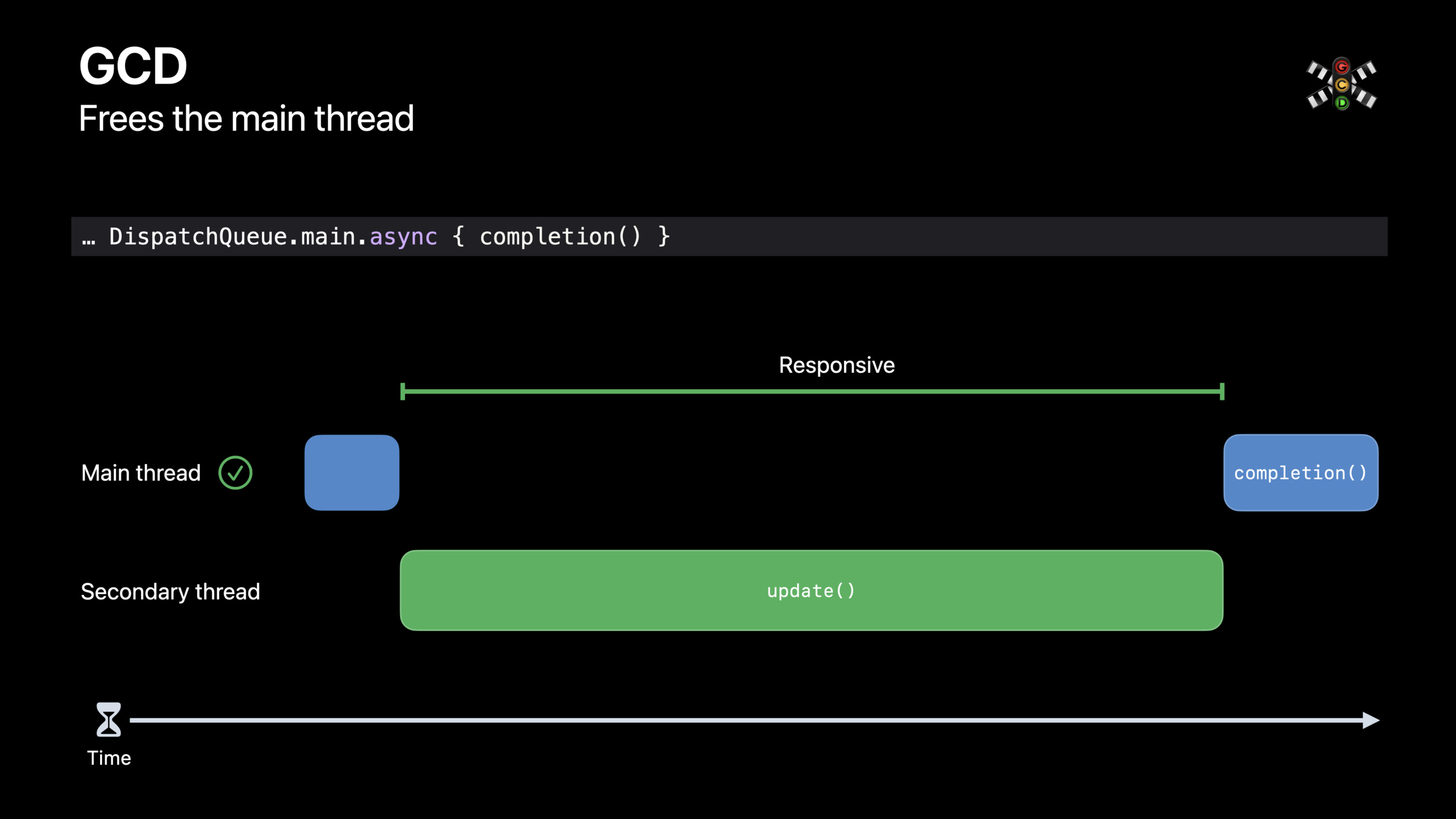
The solution direction is also clear. The main thread only does the critical work required to update the UI. Image decoding, contact query, network requests, file I/O, cache refresh and maintenance tasks must be reduced, postponed or moved to the background queue.
Detailed Content
Hang occurs in an event processing of the main run loop
(01:45) The main run loop is responsible for handling user events on the main thread. In a loop, the application receives events, executes processing logic, and updates the UI as needed. The processing logic is long and there is a delay between user input and UI updates.
import UIKit

final class RecipeViewController: UIViewController {
    private let statusLabel = UILabel()

    override func viewDidLoad() {
        super.viewDidLoad()
        view.addSubview(statusLabel)
    }

    @objc func didTapRecipe() {
        statusLabel.text = "Loading"
        renderVisibleRecipeContent()
        statusLabel.text = "Ready"
    }

    private func renderVisibleRecipeContent() {
        // Only do the work needed for the first visible screen.
    }
}
Key points:
RecipeViewControllerIt is a normal UIKit view controller, and all UI objects are created and modified on the main thread. -didTapRecipe()Represents a handler function for a user click event. -statusLabel.text = "Loading"andstatusLabel.text = "Ready"They are all UI updates and must stay on the main thread. -renderVisibleRecipeContent()Only content needed above the fold should be generated. The Desserted example in the session only displays four pictures of ingredients, and there is no need for the main thread to load all the pictures at once.
The main thread is busy: loading resources that the user cannot see in advance
(04:02) Desserted’s recipe page only shows four pictures of ingredients. If the main thread reads, prepares and synthesizes all the ingredient images at once, most of the work will not change the current screen, but will extend the Run Loop.
import UIKit

final class ImageTileStore {
    private let cache = NSCache<NSString, UIImage>()
    private let renderQueue = DispatchQueue(label: "com.example.recipe.render", qos: .userInitiated)

    func image(for identifier: String, makeImage: @escaping () -> UIImage, completion: @escaping (UIImage) -> Void) {
        let key = identifier as NSString

        if let image = cache.object(forKey: key) {
            completion(image)
            return
        }

        renderQueue.async { [cache] in
            let image = makeImage()
            cache.setObject(image, forKey: key)

            DispatchQueue.main.async {
                completion(image)
            }
        }
    }
}
Key points:
NSCache<NSString, UIImage>()Save the generated image tiles to avoid repeated generation. -renderQueueIt is a background Dispatch queue used to perform image preparation work. -cache.object(forKey:)Return directly when the cache is hit, and the main thread only does one memory read. -renderQueue.asynctime-consumingmakeImage()Moved off the main thread. -DispatchQueue.main.asyncReturn to the main thread for executioncompletion, to facilitate the caller to safely update the UI.
Main thread blocking: Synchronous APIs, I/O and locks all queue events
(06:53) The synchronous API will block the current thread from the beginning of the call to the return. Network requests, file I/O, data storage reads, and synchronization primitives can all jam the main thread. Session is particularly reminded that using semaphore to wrap asynchronous APIs into synchronous calls should avoid appearing on the main thread.
import Foundation

let recipeQueue = DispatchQueue(label: "com.example.recipe.worker", qos: .userInitiated)

func loadRecipeSummary(completion: @escaping (String) -> Void) {
    recipeQueue.async {
        let summary = "Mango Tango takes 5 minutes."

        DispatchQueue.main.async {
            completion(summary)
        }
    }
}
Key points:
recipeQueue.asyncLet the preparation of the recipe summary be performed in a background queue. -qos: .userInitiatedIndicates that this work is related to the user’s current operation. -summaryGenerated in the background, the main thread does not wait for synchronization to return. -DispatchQueue.main.asyncHand UI updates back to the main thread.- This mode corresponds to the suggestions in the session: use the asynchronous API when you can use it; when there is no asynchronous API, use Grand Central Dispatch (GCD, central dispatch) to move your own code.
Use Core Animation to process rounded corners to avoid CPU bitmap redrawing
(05:55) Desserted When adding rounded corners to an image, the original solution was to create a bitmap graphics context, convert the image to bitmap, apply UIBezierPath, and then convert it back to the image. This process eats CPU and memory. It is recommended to use the layer capabilities of Core Animation to hand over the session to the GPU for processing.
import UIKit

func applyRoundedCorners(to imageView: UIImageView) {
    imageView.layer.cornerRadius = 12
    imageView.layer.masksToBounds = true
}
Key points:
imageView.layerAccess the Core Animation layer behind a UIKit view. -cornerRadius = 12Set the corner radius. -masksToBounds = trueLet the image content be clipped to the rounded corners.- The code does not create a bitmap graphics context to avoid CPU-intensive image conversion on the main thread.
Use Instruments during development to see what the main thread is doing.
(11:23) When diagnosing a Hang, the first thing to do is to know what the application was doing during the hang. Time Profiler shows changes in the call stack over time; System Trace supplements system calls, virtual memory page faults, I/O, intra-process and inter-process interactions.
Instruments
  Template: Time Profiler + System Trace
  Target: Desserted
  Steps:
    1. Record
    2. Reproduce the tap that hangs
    3. Select the hang interval
    4. Inspect the main-thread call tree
Key points:
Time Profiler + System TraceCorresponds to two Instruments tools used simultaneously in the session. -Reproduce the tap that hangsRecord the lag caused by user clicks into trace. -Select the hang intervalFocus on the time period when the Hang occurs. -Inspect the main-thread call treeFound in the corresponding sessionloadAllMessagesA step that takes 4.6 seconds.
Use MetricKit to collect Hangs from real users after going online
(13:02) After the application is released, the native trace is not enough. MetricKit can collect Hang call trees as they occur in the field. It aggregates the call stacks sampled during Hang into call trees, helping developers sort and fix them according to the frequency encountered by real users.
import MetricKit

final class AppMetricsSubscriber: NSObject, MXMetricManagerSubscriber {
    func start() {
        MXMetricManager.shared.add(self)
    }

    func didReceive(_ payloads: [MXDiagnosticPayload]) {
        for payload in payloads {
            print(payload)
        }
    }
}
Key points:
MXMetricManagerSubscriberis MetricKit’s Subscriber Agreement. -MXMetricManager.shared.add(self)Register a subscriber to allow your app to receive MetricKit payloads. -didReceive(_ payloads: [MXDiagnosticPayload])Receive diagnostic payload, Hang diagnosis belongs to this type of field problem data. -print(payload)This is a minimal example; real applications should save or upload diagnostic content to their own analysis systems.
Replace expensive queries on every click with Notification and caching
(16:31) Desserted’s social icons need to know if a contact is a friend. Querying all contacts every time you enter the page will cause the main thread to wait for the framework to perform expensive operations. It is recommended that session observe change notifications and update the cache asynchronously when notifications arrive.
import Foundation

extension Notification.Name {
    static let friendsDidChange = Notification.Name("friendsDidChange")
}

final class FriendStatusStore {
    private let updateQueue = DispatchQueue(label: "com.example.friends.update", qos: .utility)
    private var cachedFriendIDs = Set<String>()

    func startObserving() {
        NotificationCenter.default.addObserver(
            forName: .friendsDidChange,
            object: nil,
            queue: nil
        ) { [weak self] _ in
            self?.refreshCache()
        }
    }

    private func refreshCache() {
        updateQueue.async { [weak self] in
            let latestIDs = Set(["contact-1", "contact-2"])
            self?.cachedFriendIDs = latestIDs
        }
    }
}
Key points:
Notification.NameDefine observable state change names. -NotificationCenter.default.addObserverRegister an observer so that the object receives callbacks when its state changes. -refreshCache()Avoid doing heavy work directly in callbacks and instead dispatch updates toupdateQueue。cachedFriendIDsSave the query results, and the cache status can be read when the page is entered.- This structure corresponds to the suggestion in session: when the value does not change frequently, do not re-do expensive queries every time the user operates.
Warm up computation with GCD, but be careful about task order
(20:28) GCD can also warm up calculations. The application dispatches tasks toprefetchQueue, the main thread continues to respond to the user. When the results are actually needed, wait for the warm-up queue to complete. session also reminds that asynchrony will change the order of code execution, and you must confirm which tasks have sequential dependencies.
import Foundation

let prefetchQueue = DispatchQueue(label: "com.example.recipe.prefetch", qos: .utility)

func prefetchIngredients() {
    prefetchQueue.async {
        _ = ["mango", "yogurt", "ice"]
    }
}

func usePrefetchedIngredients(completion: @escaping ([String]) -> Void) {
    prefetchQueue.async {
        let ingredients = ["mango", "yogurt", "ice"]

        DispatchQueue.main.async {
            completion(ingredients)
        }
    }
}
Key points:
prefetchQueueIt is a serial queue, suitable for maintaining the execution order of warm-up tasks. -prefetchIngredients()Start background work in advance without blocking the main thread. -usePrefetchedIngredientsRead the results in the same queue to avoid being out of order with the preheating task. -DispatchQueue.main.asyncOnly switch final UI updates back to the main thread.
Core Takeaways
-
What to do: Add first-screen priority rendering and background warm-up to the picture list. Why it’s worth doing: The session recipe example shows that processing invisible images in advance will create Hang. How to start: Use
NSCacheTo save the generated image, useDispatchQueue.asyncPrepare the next screen of pictures in the background, only whenDispatchQueue.main.asyncMedium settingsUIImageView.image。 -
What to do: Create a cache for low-frequency changing data such as contacts, permissions, and subscription status. Why it’s worth doing: Querying system resources every time you click will expose the main thread to uncontrollable delays. How to start: Use
NotificationCenter.default.addObserverMonitor status changes, refresh the cache in the background queue, and read the cache when the page is entered. -
What to do: Add Hang diagnostic channel to existing App. Why it’s worth doing: MetricKit can aggregate the Hangs encountered by real users into a call tree, helping you fix the lags with the greatest impact first. How to get started: Implementation
MXMetricManagerSubscriber,passMXMetricManager.shared.addRegister as a subscriber and receive theMXDiagnosticPayloadWrite to the logging system. -
What to do: Move the synchronization network, file reading and data parsing out of the main thread. Why it’s worth doing: Session points out that the synchronous API will block from call to return, and network and I/O delays are also affected by the device environment. How to start: First look for an asynchronous API with completion handler; use your own code
DispatchQueue.asyncExecute, and finally return to the main thread to update the UI. -
What to do: Create a performance regression check for entry pages. Why it’s worth doing: Xcode Organizer can display Hang rate by version, which is suitable for discovering performance degradation introduced by new versions. How to start: Record Instruments trace for key pages and record the main thread time-consuming baseline; observe the new version Hang rate in Organizer after release.
Related Sessions
- Ultimate application performance survival guide — Establish metrics, tools, and workflows for application performance optimization.
- Diagnose Power and Performance regressions in your app — Locate power and performance regressions with Xcode Organizer.
- Detect and diagnose memory issues — Use Xcode tools to diagnose memory pressure and reduce performance issues caused by memory.
- Analyze HTTP traffic in Instruments — Use Instruments to analyze network requests and troubleshoot waits caused by network delays.
- Swift concurrency: Behind the scenes — Understand how concurrency runtimes can help reduce thread management issues.
Comments
GitHub Issues · utterances