
Highlight
Apple adds file-level progress API to ClassKit, and file-based educational applications can be obtained using file URLs
CLSActivity, reporting study duration, progress, and file-related metrics to Schoolwork.
Core Content
The core object of many educational applications is files.
Students open a composition, edit a presentation, and watch an audio file. What teachers care about is the learning process on this document: how long it took the students, where they finished, and how much content they ultimately produced.
In the past, to access ClassKit, applications usually had to be published first.CLSContext. It is suitable for applications with a fixed content structure, such as courses, chapters, and exercises. The problem with file-based applications is here: the content comes from user or teacher files, and the application cannot build a content tree for each file in advance.
Apple added a file-level API to ClassKit at WWDC 2021. After the application gets the file URL, it callsCLSDataStore.shared.fetchActivity(for:)Get the correspondingCLSActivity. Called when a student starts editingstart(), write the indicator at the end and callstop()。
This design puts the access point back into the file life cycle. Your app still opens and closes the file the same way, just adding a few more lines of ClassKit code to the existing flow. Teachers assign files in Schoolwork and students open the same file, and Schoolwork can see the duration, progress and main indicators reported by the application.
Prerequisite: The application must support Open in Place
File-level progress depends on the same file.
Apple explicitly requires apps to use Open in Place. In this way, the file assigned by the teacher will be opened as the original file on the student device, and the application will process the shared file itself. ClassKit can use file URLs to associate Schoolwork assignments with activities in the app.
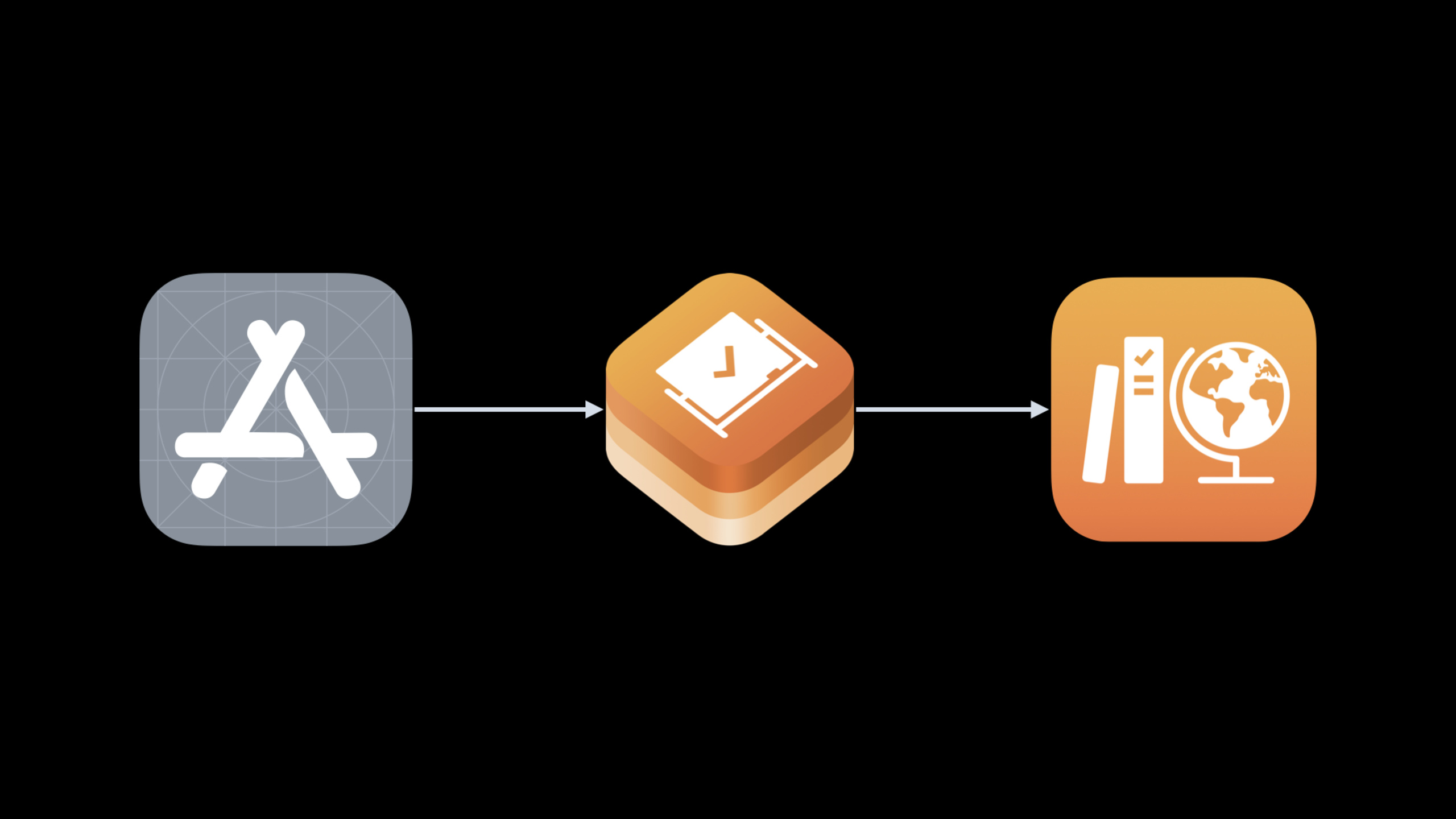
Data flow: Application, ClassKit, Schoolwork
Schoolwork is where teachers create and view assignments. The application is responsible for passing learning data to ClassKit. ClassKit then presents this data to students and teachers.
An example of this session is a text editor. The app starts timing when a student opens a text file assigned by the teacher. Before the student clicks Done, the app records the total word count, progress, and stops timing. Back in Schoolwork, students can see their duration and word count. In the teacher view, you can see the average duration of the class, average word count, and details about each student.
Detailed Content
Get learning activities with file URL
(03:22) The file-level API is calledfetchActivity(for:),lie inCLSDataStore. When calling, pass in the file URL and returnCLSActivity. This activity object carries the progress data for this document.
func openFile() async throws {
     // Your existing code for opening a file goes here.
     let activity = try await CLSDataStore.shared.fetchActivity(for: fileURL)
     activity.start()
     try await CLSDataStore.shared.save()
}
Key points:
openFile()Placed within the application’s existing file opening process, the session example is called when a student starts editing a file. -fileURLIs the URL of the currently open file, which ClassKit uses to find the activity corresponding to this file. -CLSDataStore.shared.fetchActivity(for: fileURL)getCLSActivity。activity.start()Start recording how long students work on this document. -CLSDataStore.shared.save()Submit this modification; the session clearly states that it will not be called.save()The data just written will not be persisted.
Write main metrics and progress when closing file
(08:07) When the student finished editing and was about to close the file, the app fetched the same file againCLSActivity, write the main indicators, progress, and stop timing.
func closeFile() async throws {
     let activity = try await CLSDataStore.shared.fetchActivity(for: fileURL)
     let wordCount = activity.primaryActivityItem as? CLSQuantityItem ??
         CLSQuantityItem(identifier: "total_word_count", title: "Word Count")
     wordCount.quantity = currentDocumentWordCount()
     activity.primaryActivityItem = wordCount
     activity.progress = progress()
     activity.stop()
     try await CLSDataStore.shared.save()
}
Key points:
fetchActivity(for: fileURL)Let the closing process get the active object of the same file. -activity.primaryActivityItem as? CLSQuantityItemTry to reuse existing key indicators. -CLSQuantityItem(identifier:title:)Creates a quantitative metric when there is no existing metric; the example uses it to record the total word count. -wordCount.quantity = currentDocumentWordCount()Write the current document word count into the indicator. -activity.primaryActivityItem = wordCountSet word count as the indicator displayed on the main interface of Schoolwork. -activity.progress = progress()Writes the completion progress between 0 and 1. -activity.stop()Stop duration recording. -save()Save word count, progress, and stop timing changes.
Select the appropriate progress data type
(04:01)CLSActivityA variety of progress data can be saved. The file-based API reuses ClassKit’s existing data model.
let activity = try await CLSDataStore.shared.fetchActivity(for: fileURL)

activity.start()
activity.progress = 0.5

let wordCount = CLSQuantityItem(identifier: "total_word_count", title: "Word Count")
wordCount.quantity = currentDocumentWordCount()
activity.primaryActivityItem = wordCount

activity.stop()
try await CLSDataStore.shared.save()
Key points:
activity.start()andactivity.stop()Used to report duration. Apple recommends that all file types report time. -activity.progress = 0.5Indicates student is 50% complete. As an example, use the audio or video halfway through the session. -CLSQuantityItemRepresents common numerical values, such as the number of pages, number of slides, and total word count of the document. -primaryActivityItemIt is the main indicator and will appear in the main UI location of Schoolwork. -save()Submit this activity data to ClassKit.
(05:53)primaryActivityItemandadditionalActivityItemsSave allCLSActivityItemsubcategory. session lists three available types.
let correct = CLSBinaryItem(identifier: "question_correct", title: "Correct")
let wordCount = CLSQuantityItem(identifier: "total_word_count", title: "Word Count")
let quizScore = CLSScoreItem(identifier: "quiz_score", title: "Quiz Score")
Key points:
CLSBinaryItemRepresents a binary outcome. An example of a session is a quiz question that was answered correctly or incorrectly. -CLSQuantityItemRepresents an ordinary numerical value. Examples of sessions include number of pages, number of slides, and total word count. -CLSScoreItemIndicates score and total score. An example of a session would be getting an 8/10 on the quiz.- An activity can add one of these indicators or combine multiple indicators.
Supplement file metadata with additional metrics
(05:24)additionalActivityItemsSuitable for placing supplementary indicators. The Schoolwork teacher view behind the session shows an additional metric: Readability Grade Level.
let readability = CLSQuantityItem(identifier: "readability_grade_level", title: "Readability Grade Level")
readability.quantity = readabilityGradeLevel()
activity.addAdditionalActivityItem(readability)
try await CLSDataStore.shared.save()
Key points:
CLSQuantityItemCan represent numerical values such as readability grade level. -readability.quantitySaves the metric value calculated by the application itself. -activity.addAdditionalActivityItem(readability)Add this indicator to the list of additional indicators. -save()Save the additional metric and make it visible to teachers in the Schoolwork details.
Test in developer mode
(09:05) The testing process is divided into two steps: first let the application use the ClassKit development environment, and then switch the Schoolwork role in the iPad’s developer settings.
func openFile() async throws {
     // Your existing code for opening a file goes here.
     let activity = try await CLSDataStore.shared.fetchActivity(for: fileURL)
     activity.start()
     try await CLSDataStore.shared.save()
}

func closeFile() async throws {
     let activity = try await CLSDataStore.shared.fetchActivity(for: fileURL)
     let wordCount = activity.primaryActivityItem as? CLSQuantityItem ??
         CLSQuantityItem(identifier: "total_word_count", title: "Word Count")
     wordCount.quantity = currentDocumentWordCount()
     activity.primaryActivityItem = wordCount
     activity.progress = progress()
     activity.stop()
     try await CLSDataStore.shared.save()
}
Key points:
- Change the ClassKit environment entitlement from production to development in Xcode, and the next run will enter developer mode.
- Go to Developer > ClassKit API in iPad settings, select Teacher, open Schoolwork to create assignments and add files supported by the app.
- Go back to Developer > ClassKit API, switch to Student, open the file in the Schoolwork assignment, and trigger the application
openFile()。 openFile()callsave()Afterwards, the Student Progress banner appears in the example, indicating that the timing submission is successful.- Triggered by student clicking Done
closeFile()After that, Schoolwork displays the duration and main metrics; the session example sees 41 minutes and 558 words. - After testing, change entitlement back to production.
Core Takeaways
1. Classwork mode of writing application
- What to do: The teacher assigns a composition template, students edit it in the app, and Schoolwork displays the writing time, word count and completion progress.
- Why it’s worth it: File-level API lets apps report data directly around files assigned by teachers,
CLSQuantityItemCan carry word count. - How to start: Called when opening the document
fetchActivity(for:)andstart();Written when student clicks DoneCLSQuantityItem(identifier: "total_word_count", title: "Word Count"),set upprimaryActivityItem, then callstop()andsave()。
2. Playback progress of audio listening exercises
- What to do: Students open the audio file assigned by the teacher, and the application synchronizes the playback completion level to Schoolwork.
- Why it’s worth doing: The session explicitly plays the audio or video to 50% as
progress = 0.5Example. - How to start: Obtain with file URL
CLSActivity, when playback startsstart(), set according to the playback position when pausing or endingactivity.progress, and finally save.
3. Presentation production assignment
- What to do: Students edit presentation files, and teachers view the number of slides students completed and the time they spent.
- Why it’s worth doing:
CLSQuantityItemSuitable for reporting number of slides, Schoolwork can display it as the main indicator. - How to start: Count the number of current slides when closing the file, write
CLSQuantityItem(identifier:title:), assigned toactivity.primaryActivityItem。
4. Score return of test file
- What to do: The teacher assigns a quiz file, and after the student completes it, the application returns the score and correct status of each question.
- Why it’s worth doing:
CLSScoreItemSuitable for fractions like 8/10,CLSBinaryItemSuitable for indicating whether the question is correct or incorrect. - How to start: Get activities when you complete the quiz, create
CLSScoreItemAs the main indicator; make the status of each question intoCLSBinaryItem,useaddAdditionalActivityItemAdd to.
5. Readability feedback on reading materials
- What: After students edit or read a file, the app shows teachers supplementary metrics such as readability grade level.
- Why it’s worth it: The Schoolwork teacher view of the session shows Readability Grade Level as an additional metric.
- How to start: Calculate readability values inside the app, create
CLSQuantityItem,useaddAdditionalActivityItemAdd toCLSActivity。
Related Sessions
- What’s new in managing Apple devices — Introducing updates to Apple device management in organizational environments, suitable for education and enterprise deployment scenarios.
- Meet declarative device management — Explain how declarative device management reduces server polling and allows devices to proactively report status.
- Discover account-driven User Enrollment — Introduces the common device registration process for schools and enterprises.
- Improve MDM assignment of Apps and Books — Explains how organizations distribute applications and books through APIs, related to education deployment scenarios.
Comments
GitHub Issues · utterances