
Highlight
Apple has improved cell prefetching, diffable data source update and UIImage preparation decoding API for UITableView and UICollectionView in iOS 15. Developers can reduce scrolling frame drops, asynchronous content misalignment and large image decoding freezes.
Core Content
The home page of many applications is a list. Travel apps display photos of destinations, social apps display posts, and e-commerce apps display product cards. Each cell looks simple: a picture and two lines of text. As soon as the user swipes, the problem is exposed.
The old approach puts too much work into the frame when the cell is about to be displayed. The collection view needs to retrieve cells, configure content, calculate layout, and then submit the results to the rendering system. If this submission exceeds the time window given by the current screen refresh rate, the user will see a pause.
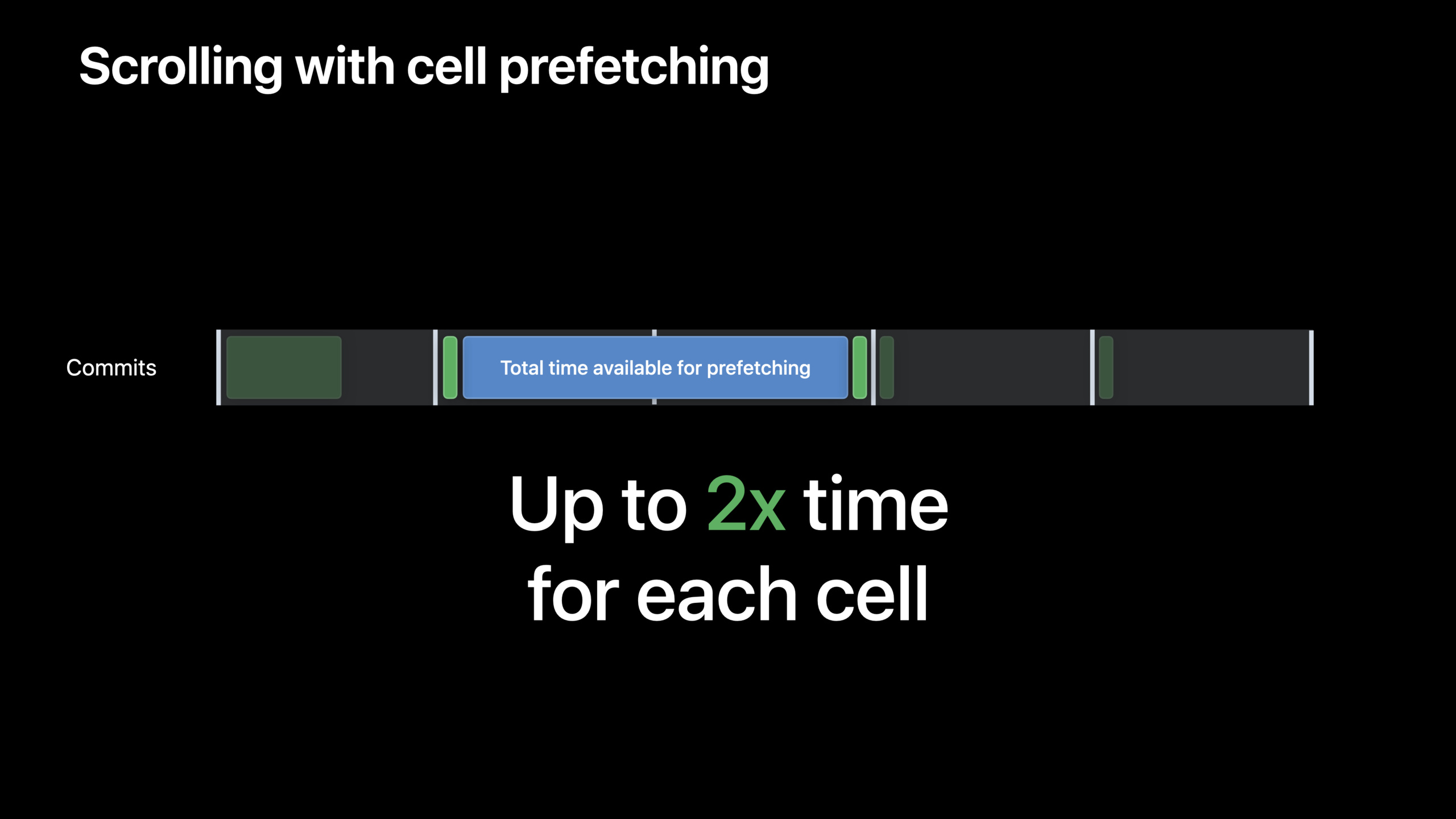
iOS 15 first changed system-level prefetching. UITableView and UICollectionView will use the idle time during scrolling to prepare the next cell in advance. When it does hit the screen, the system just needs to show the results it’s already prepared for.
This optimization does not require you to change your business code. As long as you build with the iOS 15 SDK, the system can enable the new cell prefetching mechanism. It covers UICollectionView’s lists, other compositional layouts, and also UITableView.
System prefetching can only buy you time. If the cell configuration is very slow, or the image is decoded on the main thread, frames will still be dropped. Therefore, Apple provides three supporting rules: the data source saves a stable ID, and the asynchronous content usesreconfigureItemsUpdate, use pictures firstprepareForDisplayorprepareThumbnailGet ready.
Stable ID allows diffable data source to do less work
Diffable data source stores model identifiers. It should not save the entire model object. In this way, when the number of likes, title, and picture status change, the identity of the item remains stable.
The benefits of stable IDs are straightforward. When the snapshot changes, the system can only process the truly changed items. iOS 15 also improves the behavior of animation-less apply: previously it would be possible toreloadData, the diff is now applied to avoid discarding and rebuilding all cells on the screen.
cell registration must be created once
Cell registration (cell registration) centralizes the configuration logic of certain types of cells. It will receive the item ID from the diffable data source, and then retrieve the model and image from your store.
There is an easy pitfall here: the registration needs to be created outside the cell provider. If a new registration is created every time the provider is called, the collection view cannot reuse the original cell.
Asynchronous pictures cannot directly capture cells
When the remote image loading is completed, the original cell may have been reused for another post. Write directly in the callbackcell.imageView.image = ..., will put the image in the wrong location.
iOS 15reconfigureItemsSolve this problem. After the image is downloaded, only the data source is told which ID needs to be reconfigured. The system will re-run the registration handler and reuse the existing cell.
Large images must be prepared in advance as displayable bitmaps
Image files are usually JPEG, PNG, or HEIC.UIImageViewWhen submitting a new image to the screen, the compressed format needs to be decoded into pixel data. This process may occur in the main thread, and the submission deadline will be missed over time.
The UIImage preparation API in iOS 15 allows you to do this ahead of time.prepareForDisplayGenerate readyUIImage。prepareThumbnailIt also shrinks the image to the target size, saving CPU and memory.
Detailed Content
(01:25) Organize list data with stable IDs
Apple’s sample app usesDestinationPostRepresents a travel destination post. This type obeysIdentifiable, the core fields are stableid。
struct DestinationPost: Identifiable {
    // Each post has a unique identifier
    var id: String

    var title: String
    var numberOfLikes: Int
    var assetID: Asset.ID
}
Key points:
DestinationPost: IdentifiableIndicates that each post is identifiable. -idIs a unique identifier for each post and remains unchanged when other properties change. -titleandnumberOfLikesIt is content that changes and is not suitable to be used as the item identity of diffable data source. -assetIDAssociate the post with the image resource, and then go to the resource store to retrieve the image during cell configuration.
Next, the data source usesDestinationPost.IDas item identifier.
class DestinationGridViewController: UIViewController {
    // Use DestinationPost.ID as the item identifier
    var dataSource: UICollectionViewDiffableDataSource<Section, DestinationPost.ID>

    private func setInitialData() {
        var snapshot = NSDiffableDataSourceSnapshot<Section, DestinationPost.ID>()

        // Only one section in this collection view, identified by Section.main
        snapshot.appendSections([.main])

        // Get identifiers of all destination posts in our model and add to initial snapshot
        let itemIdentifiers = postStore.allPosts.map { $0.id }
        snapshot.appendItems(itemIdentifiers)

        dataSource.apply(snapshot, animatingDifferences: false)
    }
}
Key points:
UICollectionViewDiffableDataSource<Section, DestinationPost.ID>Limit item type to post ID. -NSDiffableDataSourceSnapshot<Section, DestinationPost.ID>()Create a snapshot using the same ID. -snapshot.appendSections([.main])Add unique section. -postStore.allPosts.map { $0.id }Extract stable identifiers from the model array. -snapshot.appendItems(itemIdentifiers)Just put the ID into the snapshot. -dataSource.apply(snapshot, animatingDifferences: false)Apply initial data; starting with iOS 15, apply without animation will apply the differences, reducing extra rebuilding work.
(03:47) Use cell registration to centrally configure cells
The handler of Cell registration will receivecell、indexPathandpostID. Used in examplespostIDFind the post and use it againassetIDCheck out image resources.
let cellRegistration = UICollectionView.CellRegistration<DestinationPostCell,
                                                         DestinationPost.ID> {
    (cell, indexPath, postID) in

    let post = self.postsStore.fetchByID(postID)
    let asset = self.assetsStore.fetchByID(post.assetID)

    cell.titleView.text = post.region
    cell.imageView.image = asset.image
}
Key points:
UICollectionView.CellRegistration<DestinationPostCell, DestinationPost.ID>Declare cell type and item ID type.- handler
postIDFrom diffable data source. -postsStore.fetchByID(postID)Retrieve full post data with ID. -assetsStore.fetchByID(post.assetID)Retrieve the image resource using the resource ID. -cell.titleView.text = post.regionSet title content. -cell.imageView.image = asset.imagesets the currently available image, which may be a placeholder.
When using registration, pass it todequeueConfiguredReusableCell。
let cellRegistration = UICollectionView.CellRegistration<DestinationPostCell,
                                                         DestinationPost.ID> {
    (cell, indexPath, postID) in
    ...
}

let dataSource = UICollectionViewDiffableDataSource<Section.ID,
                                                    DestinationPost.ID>(collectionView: cv){
    (collectionView, indexPath, postID) in

     return collectionView.dequeueConfiguredReusableCell(using: cellRegistration,
                                                           for: indexPath,
                                                          item: postID)
}
Key points:
cellRegistrationCreated outside the data source’s cell provider. -UICollectionViewDiffableDataSourceThe cell provider is responsible for returning the cell. -dequeueConfiguredReusableCellThe reusable cell will be taken out and the registration handler will be run. -item: postIDPass the current item ID to the handler.- If registration is created repeatedly inside the provider, the collection view will maintain a new reuse queue for each registration, and the reuse effect will become worse.
(08:22) Let the system prepare the cell in advance with idle frames
There are no new business APIs in this section. The core change is within UIKit: iOS 15’s UITableView and UICollectionView will use the remaining time to prefetch cells after a short commit.
// Build with the iOS 15 SDK to enable the new cell prefetching behavior
// in UITableView and UICollectionView.
Key points:
- The cell life cycle is divided into preparation and display.
- Preparation includes fetching the cell, running the cell provider, executing the registration handler, querying the layout properties and calculating the size.
- iOS 15 will advance preparation before the cell is on the screen.
- The prepared cell may never be displayed, for example if the user suddenly scrolls backwards.
- The same prepared cell may enter the waiting state after going off the screen, and then be displayed to the same index path again.
- Heavy work should be completed in the preparation stage, don’t wait
willDisplayDo it again.
(14:17) Do not directly update the old cell in the asynchronous callback
In the remote image scenario, the resource store first returns the placeholder image. The wrong way to write is to change it directly in the download callback.cell。
let cellRegistration = UICollectionView.CellRegistration<DestinationPostCell,
                                                         DestinationPost.ID> {
    (cell, indexPath, postID) in

    let post = self.postsStore.fetchByID(postID)
    let asset = self.assetsStore.fetchByID(post.assetID)

    if asset.isPlaceholder {
        self.assetsStore.downloadAsset(post.assetID) { asset in
            cell.imageView.image = asset.image
        }
    }

    cell.titleView.text = post.region
    cell.imageView.image = asset.image
}
Key points:
asset.isPlaceholderIndicates that the current resource is still a placeholder image. -downloadAssetInitiate an asynchronous download.- callback captured
cellobject. - The cell will be reused; by the time the download is complete, the object may already represent another post.
- This code will cause the image to be misaligned.
(15:15) Rerun configuration logic with reconfigureItems
The correct approach is to hand the update request back to the data source. iOS 15reconfigureItemsExisting cells will be reconfigured to avoid re-dequeueing a new cell.
private func setPostNeedsUpdate(id: DestinationPost.ID) {
    var snapshot = dataSource.snapshot()
    snapshot.reconfigureItems([id])
    dataSource.apply(snapshot, animatingDifferences: true)
}
Key points:
dataSource.snapshot()Take out the current snapshot. -snapshot.reconfigureItems([id])Marks the specified item as requiring reconfiguration. -dataSource.applyApply this configuration update. -reconfigureItemsThe existing cell of the item will be reused and the registration handler will be re-run.- It is suitable for scenarios where the content changes but the identity of the item remains unchanged.
After the download is complete, just callsetPostNeedsUpdate。
let cellRegistration = UICollectionView.CellRegistration<DestinationPostCell,
                                                         DestinationPost.ID> {
    (cell, indexPath, postID) in

    let post = self.postsStore.fetchByID(postID)
    let asset = self.assetsStore.fetchByID(post.assetID)

    if asset.isPlaceholder {
        self.assetsStore.downloadAsset(post.assetID) { _ in
            self.setPostNeedsUpdate(id: post.id)
        }
    }

    cell.titleView.text = post.region
    cell.imageView.image = asset.image
}
Key points:
- handler is pressed first every time
postIDGet the current post. - If you get the placeholder image, start downloading the complete resource.
- The download callback no longer holds and modifies old cells.
-
setPostNeedsUpdate(id: post.id)Only notify the data source to reconfigure this post. - When running handler for the second time,
fetchByIDComplete image resources will be returned. - The view update logic is still concentrated in the registration handler.
(15:52) Use data source prefetching to download content in advance
The system will prepare the cell in advance. Your data can also be prepared in advance.UICollectionViewDataSourcePrefetchingSuitable for initiating network requests and reducing placeholder image display time.
var prefetchingIndexPaths: [IndexPath: Cancellable]

func collectionView(_ collectionView: UICollectionView,
                    prefetchItemsAt indexPaths [IndexPath]) {
   // Begin download work
    for indexPath in indexPaths {
        guard let post = fetchPost(at: indexPath) else { continue }
        prefetchingIndexPaths[indexPath] = assetsStore.loadAssetByID(post.assetID)
    }
}

func collectionView(_ collectionView: UICollectionView,
                    cancelPrefetchingForItemsAt indexPaths: [IndexPath]) {
    // Stop fetching
    for indexPath in indexPaths {
        prefetchingIndexPaths[indexPath]?.cancel()
    }
}
Key points:
prefetchingIndexPathsSave the corresponding relationship between index path and download task. -prefetchItemsAtCalled before the cell needs to be displayed. -fetchPost(at:)Find posts based on index path. -assetsStore.loadAssetByID(post.assetID)Start loading resources. -cancelPrefetchingForItemsAtCalled when prefetching is no longer needed. -cancel()Stop corresponding downloads to avoid wasting network and battery.
(18:43) Use prepareForDisplay to prepare large images in advance
Pictures must be decoded into bitmaps before being displayed. iOS 15prepareForDisplayYou can complete this step in advance, and then return to the main thread to update the image view.
// Initialize the full image
let fullImage = UIImage()

// Set a placeholder before preparation
imageView.image = placeholderImage

// Prepare the full image
fullImage.prepareForDisplay { preparedImage in
    DispatchQueue.main.async {
       self.imageView.image = preparedImage
    }
}
Key points:
fullImageIt’s the original big picture. -imageView.image = placeholderImageShow the cheap placeholder first. -prepareForDisplayPrepare images suitable for display in the background.- in the callback
preparedImageIs a prepared UIImage. -DispatchQueue.main.asyncReturn to the main thread to update the UI. - When setting a prepared image, the image view no longer needs to do expensive preparation work.
In the download path, you can put preparation and caching before the completion handler.
func downloadAsset(_ id: Asset.ID,
                   completionHandler: @escaping (Asset) -> Void) -> Cancellable {
    // Check for an already prepared image
    if let preparedAsset = imageCache.fetchByID(id) {
        completionHandler(preparedAsset)
        return AnyCancellable {}
    }
    return fetchAssetFromServer(assetID: id) { asset in
        asset.image.prepareForDisplay { preparedImage in
            // Store the image in the cache.
            self.imageCache.add(asset: asset.withImage(preparedImage!))
            DispatchQueue.main.async {
                completionHandler(asset)
            }
        }
    }
}
Key points:
imageCache.fetchByID(id)First find the picture resources that have been prepared.- Execute directly after finding the cache
completionHandler。 AnyCancellable {}Return a cancelable object, keeping the method signature consistent. -fetchAssetFromServerDownload the original source. -asset.image.prepareForDisplayPrepare the image after downloading. -imageCache.add(asset: asset.withImage(preparedImage!))Put the prepared image into the memory cache. -DispatchQueue.main.asyncMake sure the completion handler is called back on the main thread.
(20:50) Use prepareThumbnail to prepare thumbnails for the target size
The avatar and small pictures do not need to be full-sized images.prepareThumbnail(of:)The image is scaled and prepared to the target size, reducing CPU and memory usage.
// Initialize the full image
let profileImage = UIImage(...)

// Set a placeholder before preparation
posterAvatarView.image = placeholderImage

// Prepare the image
profileImage.prepareThumbnail(of: posterAvatarView.bounds.size) { thumbnailImage in
    DispatchQueue.main.async {
        self.posterAvatarView.image = thumbnailImage
    }
}
Key points:
profileImageis the original picture. -posterAvatarView.image = placeholderImageDisplay the placeholder image first. -posterAvatarView.bounds.sizeProvide target display size. -prepareThumbnail(of:)Prepare thumbnails in target size.- callback gets
thumbnailImage. - The main thread sets the thumbnail to the avatar view.
Core Takeaways
-
What to do: Add a stable ID data layer to the image waterfall. Why it’s worth doing: diffable data source relies on stable identifier; when the content changes, you can only reconfigure the corresponding item. How to start: Make the model comply
Identifiable, snapshot only savesModel.ID, then use the ID in cell registration to check the store. -
What to do: Change the remote image list to a placeholder image +
reconfigureItems. Why it’s worth doing: Download callbacks to directly update cells are prone to misalignment;reconfigureItemsConfiguration logic will be re-run by item ID. How to start: The resource store returns the placeholder asset, which is called after the download is completed.snapshot.reconfigureItems([id])。 -
What to do: Create a memory-level prepared image cache for the large image on the homepage. Why it’s worth doing:
prepareForDisplayThe bitmap preparation required for picture display can be completed in advance, reducing the submission pressure on the main thread. How to start: Called after the download is completedasset.image.prepareForDisplay,Bundleasset.withImage(preparedImage)Put in cache. -
What to do: Use target size thumbnails for avatars, product thumbnails, and photo album grids. Why it’s worth doing:
prepareThumbnail(of:)Images are processed according to view size, saving CPU time and memory. How to start: Use image viewbounds.sizeAs the target size, return to the main thread to set the image after preparation is completed. -
What to do: Access data source prefetching for list network resources. Why it’s worth doing: Prefetching allows image downloading and preparation to start earlier, and the time it takes for users to see the placeholder image will be shortened. How to get started: Implementation
collectionView(_:prefetchItemsAt:)Start the download andcancelPrefetchingForItemsAtCancel useless tasks.
Related Sessions
- What’s new in UIKit — Learn about API, performance, and interface updates for iOS 15 UIKit.
- Take your iPad apps to the next level — Learn window, keyboard, and pointer interaction for iPad apps, suitable for complex list apps.
- Explore structured concurrency in Swift — Use Swift concurrency to transform asynchronous download and cancellation logic in lists.
- Showcase app data in Spotlight — Index local data to Spotlight to supplement the search entry for list content.
Comments
GitHub Issues · utterances