
Highlight
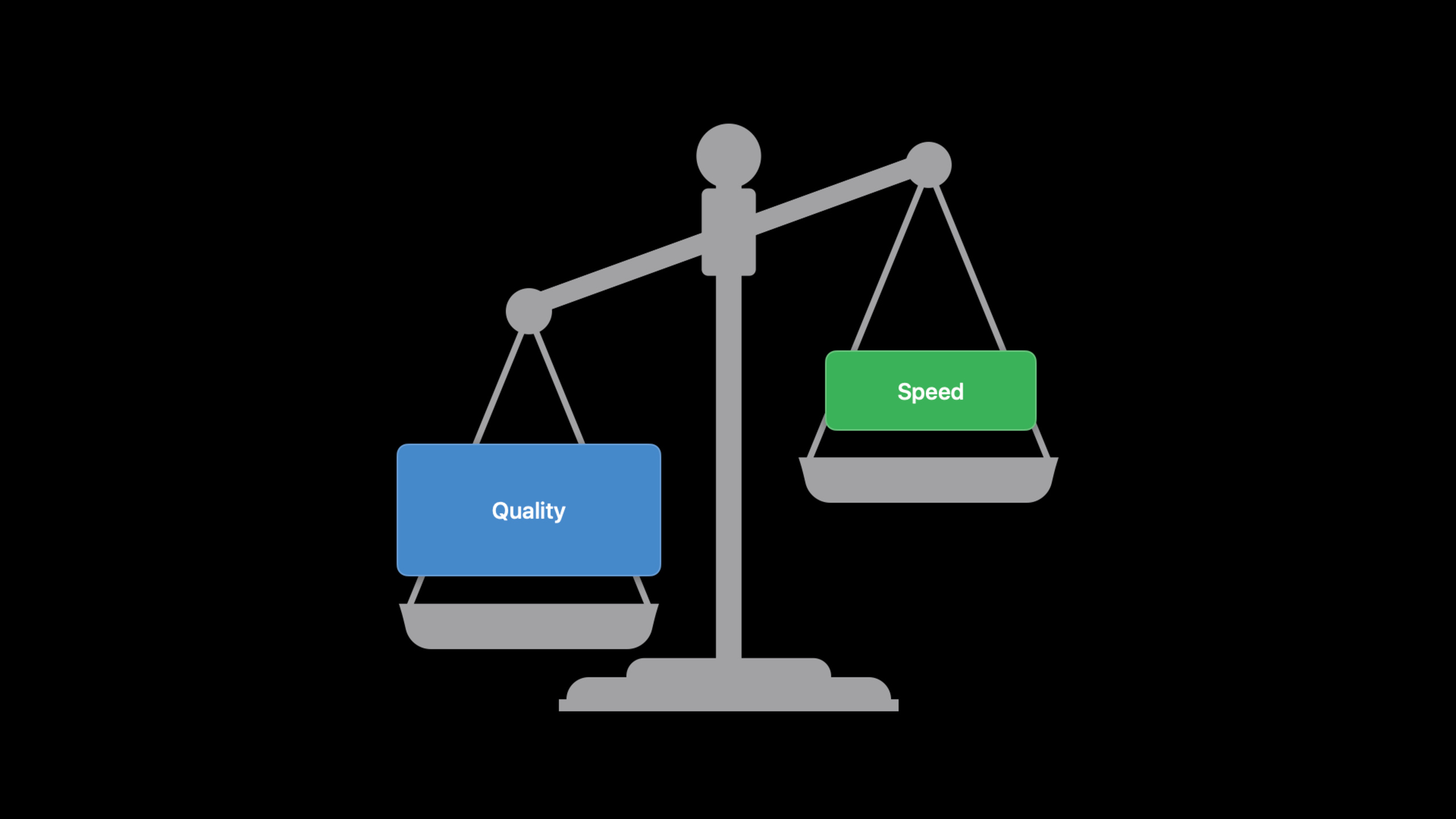
iOS 15 allows common video formats to take higher-quality photos while maintaining recording and preview responsiveness. Developers can use
AVCapturePhotoOutput.QualityPrioritizationandAVCaptureDevice.Format.isHighPhotoQualitySupportedControl the trade-off between image quality and speed.
Core Content
Many camera apps do two things in the same screen: continuously display a video preview and save a photo when the user presses a button.
Such apps often choose video formats. The video format is suitable for recording, live streaming, real-time filters and AR scenes. It has low overhead, the frame rate can reach 60 fps, and developers can get a resolution more suitable for video processing.
The problem lies in the moment of taking the photo. In the past, video formats used lighter photo processing to ensure smooth previews. Photos are delivered quickly, but low light, noise, and dynamic range are not as well represented as in the photo format.
Professional photography apps can switch to photo formats, get the highest resolution, and use photo capabilities such as Live Photo and ProRAW. It is difficult to do this for social networking, live streaming, and AR apps. They need to continue processing video frames without letting the preview drop frames.
Apple has improved photo processing algorithms for common video formats in iOS 15. Developers continue to use the video format and can also.balancedGet significantly better photos without interrupting video recording and previewing. When you need the highest quality, choose.quality, at the cost of possible frame drops or preview interruptions on some devices.
The key to this presentation are two switches. One is quality priority, tellingAVCapturePhotoOutputIn this shooting, speed or image quality were more important. The other is a format capability query that tells developers which video formats support the new high-quality photo capabilities.
Detailed Content
Build the photo capture pipeline
(01:19) The basic structure of AVCapture (audio and video capture) photography has not changed. Application creationAVCaptureSession, using the camera asAVCaptureDevice, then useAVCaptureDeviceInputConnect the camera to the session and finally addAVCapturePhotoOutputReceive photos.
import AVFoundation

final class PhotoCaptureController: NSObject, AVCapturePhotoCaptureDelegate {
    private let session = AVCaptureSession()
    private let photoOutput = AVCapturePhotoOutput()

    func configure() throws {
        session.beginConfiguration()
        session.sessionPreset = .photo

        guard let device = AVCaptureDevice.default(.builtInWideAngleCamera,
                                                   for: .video,
                                                   position: .back) else {
            session.commitConfiguration()
            return
        }

        let input = try AVCaptureDeviceInput(device: device)

        if session.canAddInput(input) {
            session.addInput(input)
        }

        if session.canAddOutput(photoOutput) {
            session.addOutput(photoOutput)
        }

        session.commitConfiguration()
    }

    func capture() {
        let settings = AVCapturePhotoSettings()
        photoOutput.capturePhoto(with: settings, delegate: self)
    }
}
Key points:
AVCaptureSessionIt is the center of the acquisition map, and both input and output are connected to it. -session.sessionPreset = .photoIndicates that this configuration prioritizes photo capture. -AVCaptureDevice.default(..., for: .video, ...)Get the rear wide-angle camera. -AVCaptureDeviceInputSend camera data to the session. -AVCapturePhotoOutputIt is the photo output port. -AVCapturePhotoSettings()Save the settings for a single photo. -capturePhoto(with:delegate:)Initiate shooting and the results will passAVCapturePhotoCaptureDelegateCallback delivery.
Express trade-offs using quality priorities
(03:07) In the past, developers oftenisAutoStillImageStabilizationEnabledset totrueto pursue higher photo quality. This name only describes still image stabilization. Today’s photo quality also comes from multi-image fusion technologies such as Smart HDR and Deep Fusion. iOS 13 introducesAVCapturePhotoOutput.QualityPrioritization, using three levels to express trade-offs:.speed、.balanced、.quality。
import AVFoundation

final class PrioritizedPhotoCapture: NSObject, AVCapturePhotoCaptureDelegate {
    private let photoOutput = AVCapturePhotoOutput()

    func configurePhotoOutput() {
        photoOutput.maxPhotoQualityPrioritization = .quality
    }

    func captureForFastSharing() {
        let settings = AVCapturePhotoSettings()
        settings.photoQualityPrioritization = .balanced
        photoOutput.capturePhoto(with: settings, delegate: self)
    }

    func captureForBurstLikeSpeed() {
        let settings = AVCapturePhotoSettings()
        settings.photoQualityPrioritization = .speed
        photoOutput.capturePhoto(with: settings, delegate: self)
    }
}
Key points:
maxPhotoQualityPrioritizationset thisAVCapturePhotoOutputThe highest quality level allowed.- This value can be set once when configuring the output.
-
settings.photoQualityPrioritization = .balancedIndicates a balance between speed and image quality in a single shot. -settings.photoQualityPrioritization = .speedIndicates that speedy delivery is a priority for this shoot. - A single shot cannot have a higher priority than
photoOutput.maxPhotoQualityPrioritization, otherwise an exception will be thrown. - If not set, the default value is
.balanced。
Determine UI feedback based on processing time
(04:29) Quality priority is just a hint.AVCapturePhotoOutputDevice, scene and lighting selection algorithms will be combined. Developers cannot directly specify the underlying algorithm, but they can read itAVCaptureResolvedPhotoSettings.photoProcessingTimeRange, to determine how long it will take to deliver the photos.
import AVFoundation

func shouldShowProcessingIndicator(
    for resolvedSettings: AVCaptureResolvedPhotoSettings
) -> Bool {
    let processingRange = resolvedSettings.photoProcessingTimeRange
    return processingRange.end.seconds > 0.5
}
Key points:
AVCaptureResolvedPhotoSettingsIt is the camera setting after system analysis. -photoProcessingTimeRangeIndicates the photo processing time range. -processingRange.end.secondsTake the slowest possible time.- Apps can display a wait indicator when a threshold is exceeded.
- This judgment is suitable
.qualityShoot, as high-quality processing may take longer.
Distinguish between photo format and video format
(06:56) The photo format means the app puts still photos first. It has the highest photo resolution, supports photo capabilities such as Live Photo, ProRAW, etc., and the frame rate is limited to 30 fps. The video format indicates that the application is designed around the video experience and is suitable for recording, live streaming, real-time processing and 60 fps.
import AVFoundation

func configureSessionForPhotoFirst(_ session: AVCaptureSession) {
    session.beginConfiguration()
    session.sessionPreset = .photo
    session.commitConfiguration()
}

func selectPhotoFormat(from device: AVCaptureDevice) -> AVCaptureDevice.Format? {
    return device.formats.first { format in
        format.isHighestPhotoQualitySupported
    }
}

func selectVideoFormat(from device: AVCaptureDevice) -> AVCaptureDevice.Format? {
    return device.formats.first { format in
        !format.isHighestPhotoQualitySupported
    }
}
Key points:
.photoThe preset will select the photo-first session configuration. -isHighestPhotoQualitySupported == trueIndicates that the format is a photo format. -isHighestPhotoQualitySupported == falseThe format is a video format.- Photo format suitable for apps looking for the highest photo quality.
- The video format is suitable for apps that require stable preview, recording or custom frame processing.
Choose a video format that supports high-quality photos
(11:37) iOS 15 inAVCaptureDevice.FormatAdded toisHighPhotoQualitySupported. This attribute istrueThe format supports high-quality photo capabilities in video format, and must be in video format.
import AVFoundation

func selectHighPhotoQualityVideoFormat(
    from device: AVCaptureDevice
) -> AVCaptureDevice.Format? {
    return device.formats.first { format in
        format.isHighPhotoQualitySupported
    }
}

func applyHighPhotoQualityVideoFormat(to device: AVCaptureDevice) throws {
    guard let format = selectHighPhotoQualityVideoFormat(from: device) else {
        return
    }

    try device.lockForConfiguration()
    device.activeFormat = format
    device.unlockForConfiguration()
}
Key points:
isHighPhotoQualitySupportedIt is a new format capability query added in iOS 15.- This property indicates whether the video format supports new high-quality photo processing.
-
device.formats.first { ... }Select a matching format from the camera’s available formats. - Revise
activeFormatmust be called beforelockForConfiguration(). - Called after setup is complete
unlockForConfiguration()Release the configuration lock. - Support ranges listed in the presentation include 1280×720 30/60 fps, 1920×1080 30/60 fps, 1920×1440 30 fps, 4K 30 fps, with device support going back to iPhone XS.
Select under video format.balancedor.quality
(10:19) Under the supported video formats,.speedStill delivers lightly processed WYSIWYG (what you see is what you get) photos..balancedIt will bring significant image quality improvement, only increase a small amount of processing time, and will not cause video recording frame drops or preview interruption..qualityWill run a more expensive algorithm, which may cause frame drops or preview interruptions on some devices.
import AVFoundation

final class VideoFormatPhotoCapture: NSObject, AVCapturePhotoCaptureDelegate {
    private let photoOutput = AVCapturePhotoOutput()

    func configureOutputForVideoFormat() {
        photoOutput.maxPhotoQualityPrioritization = .quality
    }

    func captureSnapshotDuringRecording(needsExactVideoMatch: Bool) {
        let settings = AVCapturePhotoSettings()

        if needsExactVideoMatch {
            settings.photoQualityPrioritization = .speed
        } else {
            settings.photoQualityPrioritization = .balanced
        }

        photoOutput.capturePhoto(with: settings, delegate: self)
    }
}
Key points:
maxPhotoQualityPrioritization = .qualityAllows subsequent shots to be selected at the highest level. -needsExactVideoMatchIndicates whether the photo must be exactly the same as the video recorded at the same time. -.speedSuitable for scenes where photos need to be consistent with video images. -.balancedSuitable for photography scenes in most video formats, improving image quality without interrupting recording and previewing.- Want to use
.qualityWhen obtaining higher image quality, you need to accept the risk of frame drops or preview interruption on some devices.
Handling compatibility and limitations
(12:32) If the app has usedAVCapturePhotoOutputand.balanced, will automatically get better video format photos on iOS 15. use.speedThe application can be changed to.balanced. Still using obsoleteAVCaptureStillImageOutputapplications need to be migrated.
import AVFoundation

func preferredPhotoQualityPrioritization(
    prioritizesExactVideoAppearance: Bool,
    acceptsPreviewInterruptions: Bool
) -> AVCapturePhotoOutput.QualityPrioritization {
    if prioritizesExactVideoAppearance {
        return .speed
    }

    if acceptsPreviewInterruptions {
        return .quality
    }

    return .balanced
}
Key points:
- Select when the photo must look the same as the video
.speed. - You can choose when you can accept preview interruption or frame drop.
.quality. - It is recommended to take photos in regular video format from
.balancedstart. - New abilities only apply to
AVCaptureSession, does not apply toAVCaptureMultiCamSession。 AVCaptureStillImageOutputThis new ability is deprecated and is not supported. -.balancedand.qualityMultiple images with different exposures may be merged, and the photo may look different from the video recorded at the same time.
Core Takeaways
-
What to do: Add a “High Quality Screenshot” button to the short video app. Why it’s worth it: Video formats for iOS 15 can be
.balancedImprove photo quality without interrupting recording and previewing. How to start: To continue using the video format, selectisHighPhotoQualitySupportedfortrueofAVCaptureDevice.Format, set when shootingsettings.photoQualityPrioritization = .balanced。 -
What to do: Add an anchor cover snapshot function to the live streaming app. Why it’s worth doing: Live broadcast links require low latency and stable preview, and video formats are more suitable for real-time processing than photo formats. How to start: Use
AVCapturePhotoOutputCapture photos during a live session, used by default.balanced, switched to when the network is weak or the equipment is under heavy pressure..speed。 -
What to do: Add an entrance to the AR App to save photos of the current 3D scene. Why it’s worth it: AR scenes rely on stable camera feeds. The speech pointed out that re-algorithm may affect the core experience,
.balancedAble to achieve controllable results between image quality and smoothness. How to start: In existingAVCaptureSessionAdd inAVCapturePhotoOutput, read before taking picturesphotoProcessingTimeRange, display a lightweight prompt when you need to wait. -
What to do: Make a “Speed/Balance/Quality” shooting preference for the Camera App. Why it’s worth doing:
AVCapturePhotoOutput.QualityPrioritizationIt is an API that trades off quality and speed. How to get started: Map user selections to.speed、.balanced、.quality, and ensuremaxPhotoQualityPrioritizationNo less than a single shot setting. -
What to do: Add a quick burst mode and fine file retention mode to the audit or inspection app. Why it’s worth doing: In the same business, there are both quick records and evidence photos that require higher quality. How to start: Use for quick continuous shooting
.speed, single sheet for record keeping.balancedor.quality,usephotoProcessingTimeRangeDetermines whether to display processing status.
Related Sessions
- What’s new in camera capture — Learn about iOS 15 camera capture, Control Center video effects, and AVCapture’s new capabilities.
- Explore low-latency video encoding with VideoToolbox — Learn low-latency encoding configurations for live broadcast and real-time video scenarios.
- Capture and process ProRAW images — Learn ProRAW capture and processing for professional photography scenarios.
- Explore HDR rendering with EDR — Learn about Apple’s high dynamic range display and EDR rendering pipeline.
Comments
GitHub Issues · utterances